How to Put Camera on Your Home Screen: A Practical Guide
Learn how to bring a camera shortcut or live feed widget to your phone's home screen with clear steps for Android and iOS. This practical guide from Best Camera Tips covers pins, widgets, shortcuts, and privacy best practices.


Goal: Bring camera access to the home screen with a quick, reliable shortcut or widget. This guide shows how to pin the camera app or a live feed widget on Android and iOS, create shortcuts for frequent views, and adjust permissions to keep feeds private. Learn practical actions, common friction points, and best practices from Best Camera Tips.
Why bringing camera to home screen matters
For aspiring photographers and home-security enthusiasts, having instant camera access reduces friction during shoots and monitoring sessions. A quick tap to view a live feed or open a camera app can save precious seconds when you’re waiting for a crucial moment. According to Best Camera Tips, organizing core tools on the home screen helps you stay focused on composition, exposure, and framing rather than hunting through menus. This is especially valuable for people who juggle photography tasks with live surveillance or babysitting duties, where speed and reliability matter. By placing the camera where your eyes land first, you create a consistent workflow that supports both creative decisions and security routines. The choice between pins, widgets, or shortcuts depends on your device and how you prefer to interact with content.
Platform-agnostic benefits
- Quicker access reduces the chance you miss a decisive moment.
- Shortcuts and widgets consolidate actions (open feed, start recording, change view) in one place.
- Privacy settings can be tuned to limit who sees your feed at a glance.
Brand-tip: Best Camera Tips emphasizes testing different layouts to find what fits your routine, then sticking with it for consistency. This approach helps you learn the exact taps and swipes needed for rapid camera access without sacrificing privacy.
Tools & Materials
- Smartphone (Android or iOS)(Ensure OS supports widgets and shortcuts (Android 8+; iOS 14+).)
- Camera app or IP/Smart camera feed(Installed and configured; permissions granted.)
- Stable Wi-Fi or cellular connection(Helpful for live feeds but not strictly required for local shortcuts.)
- Basic knowledge of your launcher or home-screen editor(Some Android setups require extra steps with launchers.)
Steps
Estimated time: 15-25 minutes
- 1
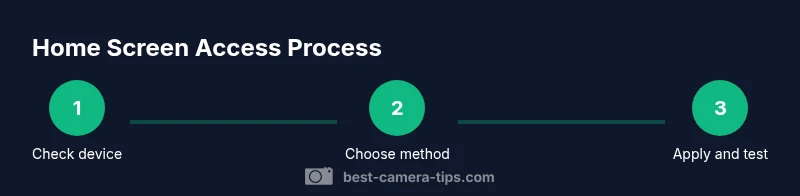
Check device capabilities
Confirm your device supports home-screen widgets or shortcuts. For Android, verify widget availability in the launcher. For iOS, ensure widgets and app shortcuts exist for the camera feed. This step prevents wasted effort on unsupported features.
Tip: If you’re unsure, update the OS to the latest version before proceeding. - 2
Decide your preferred method
Choose between pinning the camera app, adding a live widget, or creating a Shortcut/Automation. Your choice depends on how often you use the feed and whether you want live updates on the home screen.
Tip: Pinning is fastest for apps; widgets offer live updating feeds; shortcuts give automation flexibility. - 3
Pin the camera app on Android
Long-press on the home screen, select Widgets or Apps, and drag the Camera app icon to a spot on the screen. Adjust its size if your launcher supports resizable icons and ensure it launches the app directly.
Tip: If the launcher hides widgets behind a secondary screen, enable the home screen layout or choose a different launcher with widget support. - 4
Add a live camera widget on Android
From the Widgets menu, pick a camera or feed widget and place it on the home screen. Some feeds require granting persistent permissions and keeping the app running in the background for live updates.
Tip: A widget may drain more battery; consider temperature and power-saving settings if needed. - 5
Add a camera shortcut on iOS
Use the Shortcuts app to create a quick action, or add a widget if your camera supports a home-screen widget. Place the shortcut or widget on the home screen for one-tap access to the feed or control.
Tip: Name the shortcut clearly (e.g., ‘Live Front Door Feed’) to avoid confusion with other shortcuts. - 6
Configure feed permissions
Open the camera app or shortcut settings and ensure you’ve granted camera, microphone, and location permissions only where needed. Review privacy options to limit who can view feeds.
Tip: Disable notifications if you don’t want constant alerts; keep essential alerts enabled if monitoring is critical. - 7
Test the setup
Tap the new home-screen item and verify it opens the feed or app as expected. Confirm live updates (if widget) or quick actions (if shortcut) work without errors.
Tip: Test across Wi‑Fi and cellular networks to ensure reliability in different contexts. - 8
Organize the home screen
Move the camera shortcut or widget to an easily reachable area. Consider grouping related tools (camera, lighting, tripod) on the same screen for a photography workflow.
Tip: Avoid clutter—too many widgets can slow device response and reduce usability. - 9
Keep the setup up to date
Regularly check for app updates and widget/shortcut improvements. Update widgets when new features roll out to retain compatibility with feeds.
Tip: Enable auto-updates for apps to minimize maintenance work. - 10
Document your configuration
Create a short note of which home-screen element does what (feed, control, etc.) and where it’s placed. This helps you revert changes quickly.
Tip: Save a screenshot of your home-screen arrangement for future reference.
Common Questions
Can I add a live camera feed to my home screen?
Yes. You can use a camera widget or a shortcut to open the live feed directly from the home screen on most Android and iOS devices, depending on app support. Some feeds may require a companion widget or specific permissions.
Yes, you can add a live feed to your home screen using a widget or shortcut, depending on your device and app support.
Will adding a widget affect battery life?
Widgets that refresh live feeds can consume more battery than static icons. If you notice rapid drain, adjust refresh rates or switch to a pinned app shortcut instead.
Live-feed widgets can use more battery; adjust refresh settings if needed.
What about IP cameras or doorbells?
Most IP cameras with apps that support home-screen widgets or shortcuts can be configured similarly to local cameras. If your device doesn’t support widgets, rely on app shortcuts or bookmarks within the launcher.
IP cameras may support widgets or shortcuts in their apps; if not, use shortcuts or bookmarks.
How do I remove the home-screen shortcut later?
Tap and hold the widget or icon, then choose Remove or Delete. Some launchers require you to drag the item to a Remove area.
To remove, long-press the item and select remove.
Are there security risks with home-screen widgets?
Widgets and shortcuts can expose feeds if shared or if the device is compromised. Use strong device security, limit permissions, and review who can access feeds.
There are security considerations; keep device security strong and limit feed access.
Can third-party apps help me manage this better?
Yes, some launchers and automation apps offer more granular control over camera shortcuts and widgets. Ensure you trust the app and review permissions before installation.
Third-party tools can help, but choose trusted apps and review permissions.
Watch Video
The Essentials
- Pin or widget methods speed access.
- Permissions control privacy and security.
- Test and document to maintain consistency.