How to Bring a Camera Icon on Android
Learn how to add a camera icon to your Android home screen with simple, practical steps. Discover shortcuts, launcher options, and quick-access tips for photographers and home-security enthusiasts.


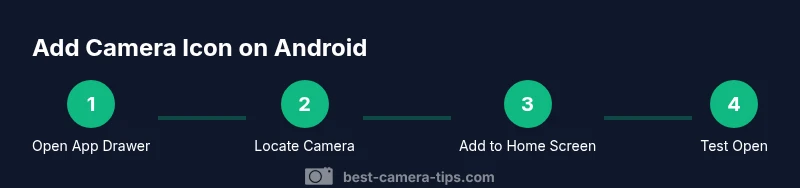
Your goal is to place a direct camera shortcut on your Android home screen. You’ll locate the Camera app, then create a home-screen shortcut or enable a quick-launch gesture if your device supports it. Ensure the camera app is installed and enabled, and your Android version supports shortcuts (7.0+). This is a quick setup that keeps your camera a tap away.
Why adding a camera icon on Android benefits you
Having a dedicated camera icon on your home screen saves time when you want to capture a spontaneous moment or monitor your property with a connected camera app. For photographers, it reduces friction between noticing a scene and pressing the shutter by removing the extra taps to reach the camera. This is particularly useful when you’re in the middle of an action shoot, carrying gear, or teaching beginners who might forget where the app lives. In addition, a quick-access icon is handy for home security setups: you can open your camera app without unlocking the phone or navigating through folders. If you use a launcher that supports app shortcuts, you can even customize the icon’s appearance or place it on a primary dock for one-tap access. Best Camera Tips recommends considering placement that aligns with your natural grip and typical reach; the goal is to minimize cognitive load during fast, real-world shooting situations.
Methods to bring the camera icon to your Android home screen
There are a few reliable paths, and which one you use depends on your launcher and device. The most universal method is to locate the Camera app in the App Drawer and create a shortcut. If your launcher supports it, you can drag the Camera icon directly onto the home screen. Some devices offer a system option in Settings to enable or create a shortcut for the camera. If your launcher is feature-rich, it may provide additional customization for the icon’s size, label, or position on a dock. If you rely on quick-launch gestures, check for options like double-pressing the power button or a corner swipe, which can open the camera app without tapping the screen. Remember to verify that the Camera app is enabled, not hidden, and that your launcher allows home-screen shortcuts.
Preparations before adding icons
Before you start, make sure the Camera app is installed and enabled (not disabled). Have your home screen organized so there’s space on the primary area or dock where you want the icon. If you use a third-party launcher, quick access may differ; read its help section to learn how to add shortcuts. If the Camera app seems missing from the App Drawer, use the search function or check in Settings > Apps to ensure it isn’t hidden or uninstalled. Finally, a quick check for software updates ensures you have the latest launcher features and bug fixes that could affect shortcut creation.
Troubleshooting common issues
If the shortcut won’t appear after following the steps, confirm that the Camera app is not disabled or hidden by the launcher. Some devices segregate system apps into a separate section; in that case, re-enable the app in Settings > Apps. If your launcher doesn’t show an Add to Home Screen option, try dragging the app icon from the App Drawer onto the home screen or switch to a launcher that supports shortcuts. A restart of the launcher or device can clear glitches that prevent shortcut creation. Finally, if you’re using a work profile or managed device, corporate policy may restrict adding shortcuts; contact your admin if needed.
Accessibility and customization tips
For photographers who shoot with one hand or hold bulky gear, placing the camera shortcut near the bottom-right corner can speed access. If you prefer a consistent look, customize the shortcut icon color or label using your launcher’s icon pack support. On devices that support gestures, enabling a quick-launch option (e.g., double-press power button) saves time during fast-paced sessions. Keep in mind that excessive customization can complicate your layout; balance speed with clarity by limiting to one or two essential shortcuts on the primary home screens.
Quick notes on privacy and permissions
Opening the camera from a shortcut may trigger a privacy prompt the first time you use it, depending on device settings. Ensure your camera app has the necessary permissions (Camera, Microphone, Storage) to function correctly. If you use a companion security camera app, consider privacy implications when placing quick-access icons in public or shared spaces.
Tools & Materials
- Android smartphone(Any version from Android 7.0+; ensure you can access the App Drawer)
- Camera app installed and enabled(Do not have the app disabled; verify in Settings > Apps)
- Available home screen space or dock(Optional if your launcher supports rearranging icons)
- Third-party launcher (optional)(Useful if your stock launcher lacks shortcut features)
Steps
Estimated time: 8-12 minutes
- 1
Open App Drawer and locate Camera
Swipe up from the bottom (or use the app drawer icon) to view all apps. If you don’t see Camera, use the search bar and type 'Camera' to locate it quickly. This step establishes the app ready for shortcut creation.
Tip: If you can’t find Camera, check if it’s installed or hidden by a launcher setting. - 2
Create a home screen shortcut
Tap and hold the Camera app icon, then select 'Add to Home screen' or drag the icon to a vacant space on your home screen. Some launchers use a 'Create shortcut' option in the pop-up menu.
Tip: If you don’t see Add to Home screen, try moving the icon to a different pane or use a launcher with shortcut support. - 3
Place the icon where you want it
Drag the shortcut to your preferred position on the home screen or dock. Consider placing it near other photography widgets for quick access.
Tip: Aim for a location that’s easy to reach with your dominant thumb. - 4
Enable a quick-launch gesture (optional)
If your device supports it, enable a gesture (e.g., double-press power button) to open Camera without tapping the screen. This is device-dependent and may require enabling in Settings > Gestures or Accessibility.
Tip: Test the gesture to ensure it doesn’t clash with other shortcuts. - 5
Test the new shortcut
Tap the new camera icon to verify it opens the Camera app directly. If it opens a different app, check defaults in Settings and re-assign the shortcut.
Tip: If needed, clear default actions for the Camera app in App Settings. - 6
Troubleshoot missing shortcut
If the shortcut still doesn’t appear, verify the Camera app isn’t restricted by work profiles or parental controls. Consider trying a different launcher as a workaround.
Tip: Restart the launcher or device to resolve transient UI glitches.
Common Questions
Can I add a camera icon to my Android home screen if the camera app is hidden?
Yes, re-enable the app in Settings > Apps and then create the shortcut. If the launcher hides it, adjust launcher settings or switch launchers.
Yes—re-enable the app in settings, then add the shortcut. If your launcher hides it, adjust settings or try another launcher.
Does this work on all Android versions?
In most cases yes, but steps vary by launcher and device. Look for 'Add to Home screen' or use your launcher’s shortcut options.
Mostly yes, but steps differ by device and launcher.
What if I can’t find the Camera icon in the App Drawer?
Use the App Drawer search to locate Camera. If missing, reinstall or enable the app in Settings.
Search for Camera in apps; reinstall or enable if missing.
Will adding a shortcut drain my battery?
Shortcuts themselves use negligible power; the camera app runs only when opened. Normal camera usage drains battery as usual.
Shortcuts don’t use significant power; the camera consumes battery only when used.
How do I remove a camera shortcut later?
Long-press the icon and drag it to 'Remove' or to an uninstall option if it’s an app shortcut. Some launchers label it differently.
Long-press the icon and choose remove.
Can I set a double-tap power button to open the camera?
Some devices support quick-launch via hardware buttons. Check Settings > Gestures for available options and enable if present.
Some devices let you open the camera with a double-tap; check your settings.
Watch Video
The Essentials
- Add a camera shortcut to your home screen for fast access
- Launcher differences may change exact steps
- Test shortcuts and gestures to ensure reliability
- Reorganize layout to keep one or two essential icons visible