How to Get Rid of Camera on Lock Screen
Learn practical, platform-agnostic steps to remove or hide the camera shortcut on your device's lock screen. This guide covers Android, iOS, and wearables, plus privacy-focused alternatives and tested tips from Best Camera Tips.


By adjusting your device’s lock-screen settings, you can remove or hide the camera shortcut to reduce accidental taps. The exact steps vary by platform, but the goal is to disable or relocate the shortcut and tighten app access. In the sections below, we guide you with safe, practical options for Android, iOS, and common wearables.
Why removing the camera from the lock screen matters
According to Best Camera Tips, the lock-screen camera shortcut is a double-edged feature: convenient yet a privacy risk in public spaces. Quick access from the lock screen can expose you to unintended captures, which is especially problematic in crowded venues or in the presence of curious onlookers. Reducing or removing this shortcut minimizes accidental taps and helps you maintain control over what happens before you unlock the device. By limiting immediate camera access, you reinforce a privacy-first workflow and give yourself more time to confirm what you want to capture. The goal is not to complicate your day, but to reduce the chance of a snap you’ll regret. This approach aligns with Best Camera Tips’ broader guidance on balancing convenience with security in everyday photography.
Platform considerations: Android, iOS, and wearables
Lock-screen shortcuts are implemented differently across ecosystems. Android devices often allow flexible customization of lock-screen shortcuts, including the camera, weather, or flashlight. iOS typically emphasizes quick access to the camera via the lock screen, with fewer visible options to move or remove by default. Wearables—smartwatches and fitness bands—might expose camera or quick-action controls via companion apps or watchOS-like interfaces. Because these settings are device-specific, the exact path to disable or relocate the camera shortcut will vary. Always check your device’s official support documentation for the latest steps, and be prepared to adjust permissions if needed. In all cases, plan for a brief re-test after changes to confirm the lock screen behaves as intended.
General strategies to reduce lock-screen camera access
If your goal is privacy without permanently disabling camera functionality, consider strategies that lower the chance of accidental use. Start by disabling the camera shortcut on the lock screen, then tighten camera permissions for non-essential apps. Some devices offer an option to relocate the shortcut to a less prominent place or to group it with other utilities that you rarely use from the lock screen. You can also enable a stronger unlock method (longer passcodes or biometric requirements) to ensure you have to verify intent before the camera launches. These approaches preserve camera capability for legitimate use while reducing impulsive taps when the device is locked.
Privacy, security, and user-experience trade-offs
Hiding or removing the lock-screen camera shortcut improves privacy, but it can slightly complicate quick on-the-spot photography. If you frequently shoot spontaneously, consider alternatives like relocating the shortcut to a less intrusive edge or enabling a delayed-activation option for the camera. Balancing privacy with usability is key: you want protection against accidental taps without turning your device into a barrier to legitimate, fast capture. Remember that reducing lock-screen access does not eliminate the camera’s presence; it only changes how quickly you can reach it. Plan a brief trial period after changes to ensure your typical workflow remains comfortable.
Common misconceptions and limitations
A common misconception is that removing the lock-screen camera shortcut makes your device completely invulnerable to forced access. In reality, determined users can navigate unlocking processes and access permissions; the change mainly curbs accidental taps and casual browsing. Another limitation is that some devices require firmware or OS updates to unlock new customization options. If you upgrade or reset, settings may revert or require reconfiguration. Finally, some enterprise-managed devices enforce lock-screen defaults; in those cases, you may need IT support or administrator privileges to apply changes.
Practical, non-destructive alternatives you can try
If you’re hesitant to alter core lock-screen behavior, start with non-destructive options. Enable a longer, stronger unlock method to ensure intentional access. Use app permissions to limit camera access for third-party apps, or enable a temporary permission prompt when the camera is invoked from the lock screen. Consider creating a routine: disable the camera shortcut during the workday, re-enable it for travel or impromptu shoots, then reverse after. These alternatives preserve device usability while delivering privacy gains without permanently altering system behavior.
Tools & Materials
- Settings app access(Needed to locate and modify lock-screen shortcuts)
- OS-specific documentation(Helpful reference if paths differ between devices)
- Strong unlock method (passcode/biometrics)(Improves overall security after locking down shortcuts)
- Patience for testing(Test after each change to verify behavior)
Steps
Estimated time: 15-25 minutes
- 1
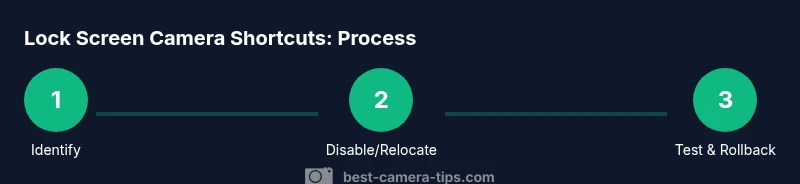
Identify where the lock-screen shortcut lives
Open Settings and locate the Lock screen or Shortcuts section. If you see a Camera option, note its position and whether it can be disabled or moved. Understanding the exact path helps you apply a precise change without guessing.
Tip: If you can't find the shortcut via menus, use the Settings search function to locate 'camera', 'lock screen', or 'shortcuts'. - 2
Disable or relocate the camera shortcut
Toggle off the camera shortcut on the lock screen, or relocate it to a less prominent area if the device supports rearrangement. This reduces accidental taps while preserving the option to access the camera when you unlock.
Tip: Take a quick screenshot of current settings before changing in case you want to revert later. - 3
Review camera permissions and related settings
Inspect camera permissions for apps and revoke access for non-essential ones. Where possible, set permissions to 'ask every time' for sensitive interactions, keeping camera use intentional and auditable.
Tip: Be mindful that revoking permissions may affect video calls or AR apps; re-enable if you rely on them. - 4
Test the lock screen after changes
Lock the device and verify that the camera is not accessible from the lock screen. If it still appears or launches, revisit the previous steps or consult device-specific support.
Tip: Test with a buddy or a trusted colleague to simulate real-world access attempts. - 5
Document changes and plan a rollback
Write down the steps you took and any notes about device behavior. If you rely on quick access for photography, plan a simple rollback path to restore permissions or shortcut behavior quickly.
Tip: Keep this note with your device documentation in case you need to revert after an OS update.
Common Questions
Can I completely remove the camera shortcut on all phones?
In many devices you can disable or hide the lock-screen shortcut; exact capability depends on the OS. Some platforms allow full disable via restrictions, while others only let you relocate or obscure the option. Check your device’s settings and official support resources for platform-specific guidance.
Most devices let you disable or hide the lock-screen camera shortcut, but the exact steps depend on your OS.
What are the main privacy benefits of this change?
The primary benefit is reducing accidental activation and exposure of the camera on public screens. It also minimizes impulse captures and helps maintain a private workflow when the phone is locked.
It reduces accidental taps and protects privacy by limiting lock-screen camera access.
Will disabling this affect normal camera use when the phone is unlocked?
No. Disabling the lock-screen shortcut does not remove the camera app or its use after you unlock the device. You can still open the camera from the home screen or app drawer when the device is unlocked.
Disabling the shortcut only affects lock-screen access, not unlocked camera use.
Are wearables affected by these settings?
Yes, some wearables mirror lock-screen behaviors or can include quick camera access through companion apps. Check your watch or wearable’s settings to see if a camera shortcut can be disabled or moved.
Wearables may have their own lock-screen camera controls; adjust them via the wearable’s settings.
What if I forget how to revert the changes?
Revisit the same path you used to disable the shortcut and reverse the toggle. If you made notes, follow your rollback plan. If in doubt, refer to the device’s official support documentation.
If you forget, re-open settings and reverse the toggles you changed.
Will OS updates restore the camera shortcut to lock screen?
OS updates can reset or modify lock-screen options. After an update, re-check these settings to ensure your privacy preferences remain in place.
Updates can change lock-screen controls, so verify settings after update.
Watch Video
The Essentials
- Disable or hide the lock-screen camera shortcut to reduce accidental taps
- Lock-screen options vary by platform; consult your device docs
- Maintain a secure but usable unlock method
- Test changes after applying them to confirm behavior
- Keep OS and apps up to date for consistent behavior