How to Put Camera on Lock Screen: Quick Access Guide
Learn how to put camera on lock screen for instant access on iOS and Android. This guide covers platform differences, setup steps, privacy considerations, and practical tips for fast, secure capture.


You will enable a one-tap camera shortcut on your lock screen for instant access without unlocking. On iOS, swipe left from the lock screen to access Camera; on Android, enable the lock-screen camera shortcut or gesture in Settings (device/OEM variations apply). This guide helps you balance speed with privacy and security.
Why you might want to put the camera on the lock screen
Accessing the camera from the lock screen provides a split-second advantage when capturing fleeting moments. According to Best Camera Tips, quick access can be a lifesaver for street photography, travel moments, and rapid-event coverage. This section explores benefits and trade-offs, helping you decide when to enable or disable the feature. You’ll learn how lock-screen camera shortcuts work, what to expect on iOS and Android, and how to tailor behavior for reliability in real-life situations. The goal is to balance speed with security so you can grab moments without compromising privacy or exposing sensitive information. Expect practical guidance, platform differences, and safe usage tips that keep you in control while shooting.
Platform differences: iOS vs Android
On iOS, the lock screen camera is designed for swift access via a simple gesture, usually a swipe from the edge of the screen. Android devices vary by OEM, with some phones offering a dedicated lock-screen shortcut, a gesture, or a quick-press combination to launch the camera. These differences impact how you plan fast-capture workflows. When you’re deciding how to use this feature, consider your typical shooting scenarios (street, travel, events) and how often you might need to grab a shot without unlocking the phone. Great results depend on choosing a method you can reliably trigger under pressure, not just a theoretical capability.
Privacy and security considerations
Speed comes with trade-offs. Enabling lock-screen camera access can increase the risk that others glimpse private content or launch the camera in your absence. If privacy is a priority, review who can access your device and what data is exposed when the screen is locked. Best Camera Tips recommends balancing convenience with protective settings, such as screen-lock timing, biometric unlock reliability, and device-wide privacy controls. You should also be aware of app permissions and potential third-party shortcuts that could bypass basic protections.
How to enable lock-screen camera on iOS devices
iOS devices typically allow quick camera access from the lock screen via a dedicated gesture (swipe from the camera edge). To ensure the experience remains smooth, confirm that nothing in Screen Time or Content & Privacy Restrictions blocks Camera accessibility when the device is locked. If you notice any lag or unresponsiveness, check for iOS updates, restart the device, and verify that lock-screen shortcuts are not disabled by policy or enterprise management. With the right settings, you should be able to summon the camera in under a second, even in dim lighting.
How to enable lock-screen camera on Android devices
Android lock-screen camera behavior varies by OEM and software version. Start by checking Settings for terms like Lock screen shortcut, Camera shortcut, or Gesture to launch camera from the lock screen. Some phones require enabling a specific shortcut in the Lock screen settings, while others rely on power button double-press or edge swipes. If your device doesn’t show an option, consult the user manual or the manufacturer’s support site. The key is to enable a consistent gesture or shortcut you can trigger without unlocking.
Testing the shortcut in real-world scenarios
After enabling the camera shortcut, test it in several contexts: bright daylight, low light, and a fast-moving moment. Lock the screen, trigger the shortcut, and evaluate how quickly the camera begins recording or snapping. If there’s noticeable delay, ensure the app is up to date, close unused apps consuming resources, and disable unnecessary accessibility features that could slow things down. Practicing can help you adjust habits—like keeping your finger near the camera edge or pre-loading the app—that improve reliability.
Photography tips for lock-screen capture
When time is short, a few quick techniques improve shot quality: enable HDR if available, lock focus and exposure, avoid heavy cropping by framing closer to your subject, and shoot in RAW (if your device supports it). Stabilize with a steadier grip, use a faster shutter when possible, and shoot in burst mode for uncertain moments. The lock-screen shortcut should feel like a natural extension of your camera practice rather than a separate task.
Battery and performance considerations
Launching the camera from the lock screen can be convenient but may have marginal impacts on battery life if used repeatedly throughout the day. To minimize drain, ensure high-performance settings are aligned with your shooting needs and close background apps when you anticipate long sessions. If you’re concerned about power, consider enabling a quick-access camera only during certain hours or when you’re actively shooting.
Device-specific notes and examples
Because every device handles lock-screen access differently, it’s helpful to document your own preferred path. For iOS users, test the standard swipe method on multiple lock screens, especially after iOS updates. Android users should note their OEM’s exact path for enabling lock-screen camera shortcuts, then practice the gesture so it feels second nature during real moments. Keeping a short reference note on your device can speed up the setup after updates.
Common mistakes to avoid
Do not rely on a single gesture across all apps and devices. If you disable the camera on the lock screen, you’ll lose the speed benefit entirely. Avoid leaving sensitive apps visible on the lock screen as well, since some devices can expose previews. Finally, never ignore privacy implications when sharing or storing captured images—enable encryption and review permissions for any camera-related shortcut or third-party tool.
Real-world scenarios and next steps
Use lock-screen camera access for moments that require fast impulse photography, such as street scenes or candid travel shots. Practice with your usual shooting subjects to develop muscle memory for your device’s shortcut, then refine by adjusting camera settings like exposure and focus. As you gain confidence, combine this feature with post-processing techniques to elevate quick captures into publish-ready images.
Tools & Materials
- Smartphone with up-to-date iOS or Android(Ensure the device is not restricted by enterprise policies.)
- Stable internet connection(Optional for checking updates or support content.)
- Device manual or model-specific settings guide(Helpful for OEM-specific lock-screen shortcuts.)
- Screen protection and grip accessory(Holds the phone steady when shooting quickly from the lock screen.)
Steps
Estimated time: 15-25 minutes
- 1
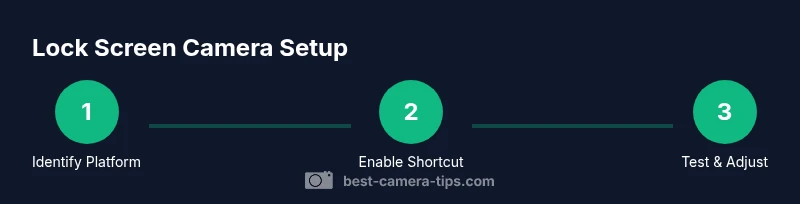
Identify your platform
Determine whether your device runs iOS or Android and locate the general path to lock-screen camera access. This helps you choose the correct settings path and avoids trial-and-error delays during real moments.
Tip: If unsure, start from the default camera app and backtrack to lock-screen options. - 2
Open the appropriate settings menu
Navigate to the system settings that control lock-screen shortcuts or camera access. On iOS this often relates to screen privacy controls; on Android, look for lock-screen shortcuts or gesture settings.
Tip: Keep a quick reference handy for your device model. - 3
Enable the lock-screen camera shortcut
Turn on the specific lock-screen camera feature for your device. If your OEM uses gestures, ensure the gesture is active and reliable.
Tip: Test the gesture immediately after enabling to confirm responsiveness. - 4
Test accessibility while locked
Lock the device and attempt to open the camera using the shortcut. If it fails, review restrictions and retry after a restart.
Tip: Restart after any settings change to ensure changes take effect. - 5
Adjust privacy and security settings
Review who can access lock-screen content and ensure sensitive apps are protected. Consider biometric unlock to preserve speed without compromising safety.
Tip: Avoid enabling lock-screen access for apps that show previews of personal data. - 6
Practice real-world captures
Practice with fast-moving subjects to build muscle memory for triggering the shortcut and composing quickly.
Tip: Enable a slightly higher burst rate if your device supports it for rapid moments.
Common Questions
Can I put a camera on the lock screen for iPhone and Android alike?
Yes, both platforms offer quick camera access from the lock screen, but the steps and availability vary by device and OS version. Check your specific settings path for lock-screen shortcuts.
Yes. Both iOS and Android support quick lock-screen camera access, with platform-specific steps. Check your device settings for the exact path.
Will using the lock-screen camera reduce phone security?
Lock-screen camera access can slightly increase exposure risk if someone can interact with your device while locked. Mitigate this with biometric unlock, privacy controls, and selective app permissions.
The feature can raise privacy concerns if others can access your phone while locked, so use biometric unlock and privacy controls to reduce risk.
What should I do if the camera shortcut won’t open from the lock screen?
Check for OS updates, review any Screen Time or privacy restrictions, and ensure the shortcut is enabled in the correct Settings area. If needed, restart the device after changes.
If the shortcut won’t work, update your OS, verify restrictions, enable the shortcut, and try a restart to apply changes.
Is there a difference between OEM gestures and stock Android gestures?
Yes. OEMs add their own lock-screen shortcuts or gestures, which may differ from stock Android. Always consult your device’s manual for the exact path.
OEM devices may have different gestures. Check your device manual for the precise steps.
Can I customize the shutter sound or other camera prompts when using the lock screen?
Some devices allow control over shutter sounds and prompts, but many keep system camera behavior consistent. Check live camera settings for any customization options.
You can often adjust basic camera prompts in the main camera app, but lock-screen behavior usually follows system defaults.
What if my device is managed by an employer or family plan?
Managed devices may restrict lock-screen camera access. Contact IT or device administrator to understand allowed configurations.
If the device is managed, your access could be restricted; check with the administrator for policy details.
Watch Video
The Essentials
- Enable a reliable lock-screen camera shortcut on your device.
- Test the shortcut in secured conditions before relying on it.
- Balance speed with privacy by adjusting security settings.
- Practice with real subjects to improve response time.