How to Put a Camera App on Your Home Screen
Learn how to place your camera app on the home screen on iOS and Android. This step-by-step guide covers drag-and-drop, widgets, and shortcuts for instant, hassle-free photo access.


You can place a camera app shortcut on your home screen for instant access on both iOS and Android. Start by locating the Camera app, then enter edit mode and drag the icon to a preferred position on your home screen. On iOS use the App Library or search; on Android, long-press the icon and choose Add to Home screen or drag into position. Widgets are an option for even faster launches.
Understanding why you might want a camera app shortcut
A quick shortcut to the camera app reduces friction when you want to capture moments. If you rely on spontaneous photography for work or hobbies, having the app readily accessible helps you respond faster—before the moment passes. According to Best Camera Tips, streamlining access to essential tools improves your actual shot count and preserves spontaneity. The aim here is not to clutter, but to provide a clean route from tap to shot. Throughout this guide, you’ll learn platform-specific methods, best practices for placement, and how to avoid common pitfalls. For home security enthusiasts, a camera shortcut can also speed up quick verification of doorbell cams or surveillance apps.
Platform differences: iOS vs Android
On iOS, the camera app is typically preinstalled and accessible from the home screen or the App Library. iOS users can add it to the home screen by dragging from the App Library or by editing the Home Screen layout. On Android, the process varies by OEM launcher but generally involves long-pressing the camera icon, then selecting “Add to home screen” or dragging it into place. Some OEM skins also offer widgets that launch directly to camera or quick capture modes. The steps are simple, but the user interface may look different depending on your device and OS version.
Pinning a camera app on iOS (iPhone) — how to do it smoothly
iPhone users typically locate the Camera app in the App Library or via Spotlight search. A long press on the icon will reveal options; choose to Add to Home Screen or simply drag it to the edge of a home page. Positioning is a matter of personal preference, but a consistent layout helps you reach the icon with a single glance. If the camera icon is missing, use the search bar to locate it or check that it isn’t hidden in a folder. For those who want even quicker access, consider adding a small Camera widget on the Today View or home screen, which provides direct launching without opening the app first. This approach aligns with practical photography workflows and is supported by platform guidelines for accessibility and ease of use.
Pinning a camera app on Android (varies by OEM)
Android devices offer flexibility, but the exact steps depend on your launcher. The most common method is to long-press the Camera app icon in the App Drawer or on a home screen, select “Add to Home screen” or “Add shortcut,” and then drag the icon to your preferred spot. Some OEM skins provide a dedicated Drag-and-Drop path, while others rely on a widget that can launch the camera in a specific mode (photo or video). If you can’t find the option, check launcher settings for “Home screen layout” or “App shortcuts.” This ensures you maintain fast access in real-world shooting conditions.
Alternatives: using widgets, shortcuts, and quick actions
Widgets offer more than a single tap; you can launch the camera with a chosen mode (photo, video, portrait) and even set it up on the Home Screen or Today View. On iOS, the Camera widget provides quick access from the Today View, and some iOS versions support adding widgets directly to the home screen. Android users can explore home screen widgets and launcher shortcuts that open the camera in a preset mode. The goal is to minimize steps between intention and action, especially during outdoor shoots or quick security checks.
Troubleshooting common issues
If the camera icon isn’t visible in your launcher, you may have hidden or disabled apps, or your launcher may hide icons by default. Use device search or the App Library (iOS) / App Drawer (Android) to locate the app and re-create a shortcut. If the shortcut won’t drop, ensure you’re in edit/move mode and that the home screen page isn’t locked. Some launchers require you to enable an option like “Add to Home screen” in settings or to reset the layout. If a reboot causes the shortcut to disappear, re-add it and save the layout for quick recovery.
Best practices for organizing your home screen for quick camera access
Keep the camera shortcut visible but uncluttered. Place it on the first or second home screen, near other photography tools like a flashlight or a security app if frequently used. Use a consistent icon size and spacing to reduce targeting time with your finger. Consider a small folder named “Camera” if you have multiple related shortcuts. Regularly review your layout to ensure it stays functional for spontaneous shooting and home monitoring needs.
Accessibility considerations and privacy awareness
Ensure accessibility features (like screen readers and larger hit targets) work with the camera shortcut. On shared devices, review permissions to avoid unintended capture and respect others’ privacy. If you enable quick-launch widgets, verify who can access them and disable features that could compromise security. Regularly testing voice commands for launching the camera can improve your hands-free workflow, particularly when wearing gloves or during active outdoor use.
Tools & Materials
- Smartphone (iOS or Android)(Ensure you’re using a recent OS version for best compatibility)
- Camera app (preinstalled or installed)(Make sure the app is enabled and accessible from your launcher)
- Internet connection(Helpful for launcher updates or widget availability checks)
- Optional: extra home screen space(Allows you to place multiple shortcuts or a camera widget)
Steps
Estimated time: 5-15 minutes
- 1
Find the Camera app icon
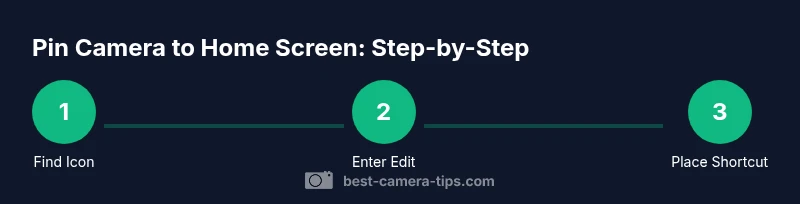
Locate the Camera app on your device, either on the home screen or in the App Drawer (Android) / App Library (iOS). If you rely on search, use the device search to locate the app quickly. This initial step sets up the rest of the shortcut process.
Tip: If you can’t find it, use the search bar and make sure the app isn’t hidden in a folder. - 2
Enter edit mode
Long-press the Camera icon until a contextual menu or jiggle mode appears. Depending on your OS, select options like 'Edit Home Screen', 'Move', or 'Add to Home screen'. Entering edit mode is essential to reposition or create shortcuts.
Tip: On some Android launchers, you may need to unlock the home screen or enable editing in launcher settings first. - 3
Drag the icon to a new place
Drag the icon to your preferred spot on the home screen, preferably within easy reach of your dominant hand. If you want a new page, drag toward the edge to create space. Confirm the placement by releasing.
Tip: Use a single gesture to place the icon precisely and avoid creating misaligned blocks. - 4
Add a camera widget (optional)
For even faster access, add a camera widget (iOS 14+ or supported Android launchers). Widgets can launch directly into camera mode and save a step compared with opening the app first.
Tip: Widgets take space—balance the benefit of quicker access against the need for screen real estate. - 5
Test the shortcut
Open the newly placed Camera shortcut to verify it launches correctly. If it doesn’t, remove and re-add the shortcut or try an alternative positioning.
Tip: Keep a backup plan: memorize the search path or create a secondary shortcut in case you rely on it in a pinch. - 6
Organize and document your layout
Take a quick mental note or screenshot of the layout for future reference. Organizing icons by frequency of use reduces response time when you need to snap a shot quickly.
Tip: Back up your home screen layout if your launcher supports backups; this makes restoration effortless after updates.
Common Questions
Can I add the camera app to the home screen on both iOS and Android?
Yes, both platforms support placing the camera app on the home screen, though steps differ. The process is straightforward—locate the app, enter edit mode, and place it in a convenient spot.
Yes, both platforms support home-screen shortcuts; the steps vary by system.
What if I can't find the Camera app in my app drawer or App Library?
Use the device search to locate the app, check if the app is disabled, or look in the App Library (iOS) / All Apps (Android). Re-enabling the app or re-adding the shortcut usually resolves this.
Use search or app settings to locate or re-enable the camera app.
Will moving or deleting the camera shortcut affect the app?
Moving or deleting a shortcut only changes how you access the app; the camera app remains installed on the device.
Moving or removing the shortcut won't delete the app.
Are widgets available for camera launch on iOS or Android?
Yes. iOS devices support Camera widgets, and many Android launchers offer camera widgets as well for quick access and modes.
Yes—widgets exist on both platforms for quick access.
Can I customize the camera shortcut behavior (launch mode)?
Some launchers let you customize a shortcut’s launch mode or default camera settings; check your launcher’s options to tailor behavior.
Some launchers let you set the launch mode from the shortcut options.
What should I do if the shortcut disappears after reboot?
If a shortcut vanishes after reboot, re-add it and back up your home screen layout if your launcher supports it.
If it disappears after reboot, re-add it.
Watch Video
The Essentials
- Pin the Camera app for instant access
- iOS and Android require platform-specific steps
- Widgets provide faster launching options
- Troubleshooting is common but solvable
- Organize for quick access and privacy awareness