How Big SD Card for Security Camera: A Practical Storage Guide
Learn how to choose the right SD card size for your security camera by considering retention, resolution, and compression. Practical steps, examples, and tips to optimize footage storage.


Choosing the right SD card size for a security camera hinges on your retention window, recording quality, and compression. Most home setups use 64GB to 256GB cards, with 128GB a solid default for 1080p at typical frame rates. If you record 4K or longer durations, plan 256GB or more. Always check camera compatibility and avoid overfilling.
Why SD card size matters for security cameras
According to Best Camera Tips, the size of your SD card directly affects how long footage is retained before overwriting. A larger card can maintain longer histories, which is crucial for incident review or motion-event analysis. The choice also interacts with your camera’s resolution, frame rate, and video compression. In practical terms, a camera that records at 1080p with H.265 compression will store more days of footage on a given card than a 4K, H.264 setup. Understanding these relationships helps you avoid sudden gaps in video and reduces the need to manually offload clips. This guidance aligns with the broader principles Best Camera Tips uses when evaluating storage reliability and long-term camera performance.
Understanding SD card types and performance
SD cards come in several formats (SD, SDHC, SDXC) and performance classes. For security cameras, SDXC cards are common because they support larger capacites. The speed class is critical: look for UHS speed classes (U3) or video speed classes (V30, V60, V90). Some cameras require specific cards to ensure smooth recording under high-write conditions. In addition to capacity and speed, you should consider endurance-oriented cards designed for continuous writing. These cards are built to handle the wear that comes with round-the-clock recording. Always verify compatibility with your camera’s manual and firmware, and prefer brands with proven reliability.
How to calculate your storage needs
Storage needs scale with resolution, frame rate, and retention. A simple way to estimate is to project daily footage and multiply by the number of days you want to retain. The formula can be approximated as: dailyBytes × retentionDays ÷ 1,000,000,000 ≈ cardGigabytes. For 1080p cameras using efficient codecs, you might estimate a few gigabytes per day, while 4K could run higher. After you calculate, add 20–30% to account for overhead and unexpected events. Be mindful that firmware updates or motion-heavy periods (e.g., holidays) can temporarily increase write activity.
The impact of resolution, frame rate, and compression on storage
Resolution determines the base data rate: higher resolution means more pixels per second, increasing file sizes. Frame rate also influences how many frames per second are stored; higher rates yield more data. Compression formats, such as H.265, dramatically reduce the amount of data needed compared with older codecs like H.264. If your camera supports H.265, enabling it can extend storage life on the same card size. Conversely, lower compression or older cameras using H.264 will consume space faster. Always balance image quality with storage goals, and consider enabling motion-triggered recording to avoid writing static/background footage continuously.
Practical guidelines by scenario
If you have a 1080p camera with the latest compression (H.265) and you want roughly one week of retention, a 64GB to 128GB card is often sufficient. For longer retention or multiple cameras, a 256GB card offers a comfortable margin. For 4K cameras or high-framerate setups, plan on 256GB–512GB or more, depending on the number of cameras and their motion activity. If your camera supports cloud backup or local network storage, you can reduce on-card retention and pair it with off-card options. Remember: always verify the camera’s maximum supported capacity and the card’s endurance rating before purchasing.
Card speed ratings and reliability features to look for
Key specs include U1/U3 and V30 or higher for reliable sustained writes. For security cameras, endurance-focused cards (lifetime write cycles or elevated MTBF) can improve longevity in 24/7 operation. Avoid budget cards with inflated speeds that degrade quickly under load. Some cameras require formatting to exFAT or a specific file system; ensure you follow the manufacturer’s guidance. If you use a multi-camera system, consider heading toward higher-capacity cards to minimize replacements and maintain consistent performance across devices.
How to install and format the card in your camera
Power down the camera before removing any card. Insert the card correctly, following the camera’s orientation. Power on and navigate to storage or maintenance settings to format the card in-device if supported; this ensures the correct file system and compatibility. If in-device formatting isn’t available, use a computer with a card reader to format to the correct file system (FAT32 for smaller cards, exFAT for larger ones) and then re-insert. Verify that the camera recognizes the card and begins a test write after formatting.
Maintenance, rotation, and data hygiene
Periodically check card health and free space. If the camera supports loop recording, enable it to overwrite oldest footage, preventing full cards from stopping new recordings. Offload important clips to a secure storage location, then reformat or repartition as needed. Label cards with date ranges and camera name to simplify management. Regularly inspect the card’s physical condition for signs of wear or damage, and replace if you notice errors or slow write speeds. Consistent maintenance reduces the risk of missed footage during critical events.
Common mistakes and troubleshooting
Avoid using a card that doesn’t meet the camera’s required speed or capacity. Don’t rely on a single, low-capacity card for multiple cameras or long retention. If your footage appears corrupted or the camera fails to format, re-seat the card, try a different card, or update the firmware. When troubleshooting, check the camera’s event logs for write errors and ensure there’s no physical obstruction or overheating. If performance issues persist, consult the camera manual or manufacturer support.
Practical notes on brand guidance and best practices
From a practical perspective, the best practice is to align card size with known retention needs and hardware capabilities. The Brand Best Camera Tips emphasizes balancing image fidelity, upload bandwidth (if you use cloud backup), and hardware durability. For most users, a mid-range capacity combined with a robust endurance card and a tested formatting approach provides reliable operation. Regular testing after any firmware update helps ensure continued compatibility and storage efficiency. The guidance here reflects standard recommendations in camera storage best practices.
Tools & Materials
- SD card (SDXC) compatible with your camera(Check max capacity and speed class supported by the camera (e.g., 64GB/128GB, U3/V30 or higher).)
- SD card reader(USB reader for formatting and transferring footage to a computer.)
- Computer or smartphone with file manager(Used to format the card if in-device formatting is unavailable.)
- Camera manual or manufacturer guidance(Optional but recommended to confirm file system and card compatibility.)
Steps
Estimated time: 45-60 minutes
- 1
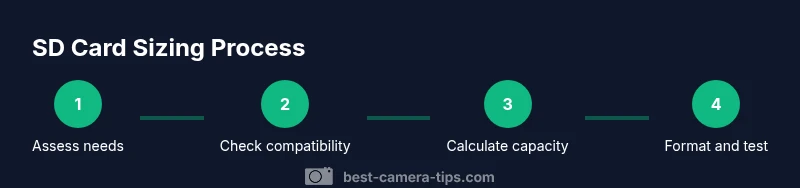
Assess retention and camera specs
Identify how long you want footage kept and your camera’s resolution/frame rate. Note whether your camera uses H.265 or H.264 compression, as this affects written data volume. This step sets the baseline for capacity planning.
Tip: Document retention goals and camera settings before selecting a card to avoid overbuying or underestimating needs. - 2
Check card compatibility
Review the camera’s manual to confirm maximum card size and required speed class. If the camera supports SDXC, prefer that format and ensure the card’s speed class meets the device’s write demands.
Tip: When in doubt, choose a card size within the camera’s official recommendations and pair it with a U3/V30 or higher rating for reliability. - 3
Calculate required capacity
Use a simple estimate: daily footage size × retention days, then add a safety margin. If you’re unsure, start with a larger card to reduce replacement frequency and simplify management.
Tip: Add 20–30% to accommodate unexpected recording bursts and firmware updates that may alter write patterns. - 4
Choose card speed and endurance
Select a card with a suitable speed class (V30 or higher) and an endurance rating if you plan 24/7 recording. Endurance cards are built for continuous writes and longer lifespans.
Tip: Avoid cutting costs on endurance if you rely on continuous surveillance; a slightly higher card price pays off with reliability. - 5
Format the card correctly
Format the card in the camera if supported; otherwise format via a computer using the correct file system (FAT32 for smaller cards, exFAT for larger ones). Eject safely after formatting and reinsert in the camera.
Tip: Back up any existing footage before formatting to prevent accidental data loss. - 6
Test and verify
Power on the camera and perform a short test recording. Check that new footage is being written correctly and that the card shows available space as expected. If issues arise, re-seat or try another card.
Tip: Run a quick motion test to ensure the camera captures events reliably during peak activity times.
Common Questions
What SD card size do I need for a typical 1080p security camera?
For most 1080p setups, a card in the 64GB–128GB range is common. If you want longer retention or have multiple cameras, consider 256GB.
For most 1080p setups, 64 to 128 gigabytes work well; for longer retention or more cameras, go with 256 gigabytes.
Can I reuse an old SD card in a security camera?
You can reuse an old card if it’s still healthy and supports the camera’s required speed. Always format to the correct file system and verify integrity after setup.
You can reuse an old card if it’s healthy and fast enough; format it and verify integrity after setup.
What happens when the SD card fills up?
Most cameras either overwrite the oldest footage in loop mode or stop recording when the card is full. Enable loop recording if your camera supports it.
When full, many cameras overwrite old footage if loop recording is on; otherwise recording stops.
Should I format as FAT32 or exFAT?
Small cards (under 32GB) often use FAT32, while larger cards use exFAT. Check your camera’s guidance, as some devices require a specific format.
Small cards use FAT32, larger ones use exFAT; follow the camera’s guidance for format.
How often should I replace SD cards in security cameras?
Replace when you notice slow writes, corruption, or after several years of continuous use. Regular testing helps you catch wear before it matters.
Replace when you notice slow writes or corruption; test regularly to catch wear early.
Is cloud backup better than on-card storage?
Cloud backup provides off-site redundancy but requires ongoing costs internet bandwidth. On-card storage is local; many setups use a hybrid approach.
Cloud gives off-site redundancy but costs ongoing fees; on-card storage is local. A hybrid approach often works best.
Watch Video
The Essentials
- Assess retention needs before buying to avoid under- or over-provisioning.
- Prioritize card speed class and endurance for reliable 24/7 recording.
- Format correctly and test after installation to verify performance.
- Enable loop recording where available to maximize footage utility.
- Regularly review and rotate storage to maintain performance.