Why Is My iPhone Camera Overexposed? Troubleshooting Guide
Discover practical steps to diagnose and fix overexposed iPhone photos. This guide covers quick fixes, a diagnostic flow, step-by-step repairs, and prevention tips from Best Camera Tips.


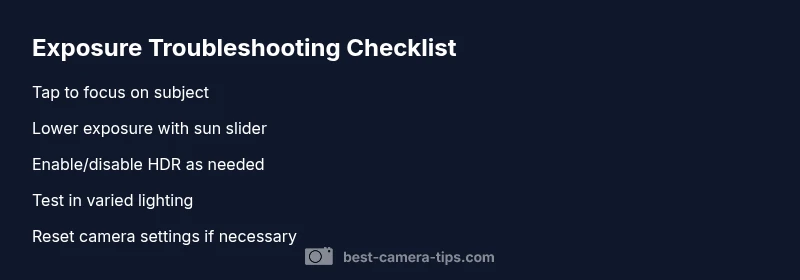
Steps: 1) Check ambient light and enable Auto HDR or Smart HDR. 2) Tap to focus on the subject and adjust exposure by sliding the sun icon. 3) If overexposure persists, reset camera settings and test in different lighting. These steps address the most common causes of overexposed photos on iPhones.
Understanding Overexposure in iPhone Photography
When you wonder why is my iphone camera over exposed in a scene, the most common culprits are lighting conditions and how the iPhone camera handles exposure. iPhone sensors are highly capable, but they interpret brightness to optimize detail in highlights and shadows. When the scene is far brighter than the camera anticipates, highlights clip and midtones wash out. This section explains how exposure works on iPhone devices, the role of Auto HDR/Smart HDR, and why your shots may look blown out even in seemingly ordinary lighting. Understanding these dynamics helps you anticipate trouble spots and plan better framing or timing. It also clarifies how different models handle exposure differently, especially with more recent iPhone generations that introduce more aggressive HDR processing.
Key ideas to keep in mind:
- Exposure is a balance between shutter speed, ISO, and aperture in camera terms, even on smartphones.
- HDR processing blends multiple frames to preserve detail, but it can exaggerate brightness under certain conditions.
- Backlit subjects (such as a person facing a bright window) are a frequent source of overexposure if the exposure is set for the background.
For aspiring photographers and home security enthusiasts, mastering exposure helps you produce clearer evidence photos, outdoor surveillance screenshots, or family portraits without losing critical detail.
According to Best Camera Tips analyses, consistently reviewing histogram previews in photos can reveal overexposure trends before saving or sharing images. This practice guides you toward smarter composition and real-time exposure adjustments.
###Explanation of Exposure and Scene Context
- Exposure depends on how long the sensor collects light. In bright scenes, the camera may overcompensate, washing out highlights and flattening contrast.
- Auto HDR or Smart HDR attempts to preserve details in both bright and dark areas, but can sometimes shift brightness too aggressively for your taste or purpose.
- When a scene contains a strong light source behind the subject, the camera may underexpose the subject to protect the highlights in the background, resulting in an overall washed-out look.
###Key Terms to Know
- Exposure: The amount of light reaching the sensor.
- HDR/Smart HDR: High Dynamic Range processing across multiple exposures.
- Highlights: The brightest parts of the image that can clip if exposed too long or too bright.
- Backlighting: Light coming from behind the subject, often causing a reduction in foreground brightness.
By recognizing these factors, you can better anticipate overexposure and adjust your approach accordingly.
##Most Common Causes of Overexposed Shots on iPhone
The next common section dives into the triggers that lead to overexposed photos on iPhone. If you’ve ever looked at an image and wondered why it looks bleached or blown out, the root causes are often straightforward and fixable with quick actions. This section provides a practical taxonomy you can apply in the field or on location, whether you’re shooting landscape scenes for a project or capturing footage for home security playback.
Primary causes:
- Excessive ambient light or strong backlight that makes the scene appear too bright relative to the subject.
- HDR/Smart HDR features pushing brightness adjustments beyond what you want to preserve textures in shadows.
- Mis-timed exposure adjustments when you expect automatic settings to compensate, causing the camera to lock onto an overly bright frame.
- Over-reliance on automatic modes in rapidly changing lighting conditions where the device can’t keep up.
Scenarios and fixes:
- Outdoor midday portrait: Tap to focus on the subject and reduce exposure using the sun slider, or enable HDR with a controlled composition.
- Window-lit room: Reframe to reduce the window’s dominance, or bracket exposure by taking multiple shots with different exposure levels.
- Night scenes with bright signs: Use Night mode thoughtfully and avoid direct pointing at bright signage that can push highlights out of range.
This knowledge helps you quickly predict when overexposure will occur and plan adjustments before you press the shutter. Best Camera Tips confirms that small, deliberate changes in framing and exposure can dramatically improve results in tricky lighting.
##Effective Quick Fixes You Can Try Now
When you’re facing overexposure, you want fast, reliable fixes. This section shows a practical, field-tested sequence you can follow on any iPhone model. The steps are ordered from easiest to more involved, with a focus on preserving important details in highlights and shadows while keeping your subject properly exposed.
- Tap to focus: Light exposure is tied to where you tap. Tap on your subject, then slide the exposure adjustment bubble (sun icon) down to reduce brightness.
- Enable Smart HDR/Auto HDR: If your device supports it, this helps balance very bright and dark areas, provided you test a few frames to confirm results.
- Try a different angle: Slightly change your shooting angle to reduce direct backlighting. Sometimes a 5–15 degree tilt changes the exposure hit entirely.
- Use Portrait mode or Wide-angle cautiously: These modes adjust exposure differently; test both to identify which yields better detail retention.
- Shoot in RAW where possible: For compatible models, RAW provides greater latitude in post-processing to recover highlights without introducing artifacts.
- Reset camera settings: If progressive shots stay overexposed, resetting camera settings to default can clear stubborn exposure locks.
If these quick fixes don’t resolve the issue, proceed to the diagnostic flow to identify a deeper cause and a tailored solution family. Best Camera Tips recommends checking whether your device’s software is up to date, as updates sometimes refine exposure algorithms for better consistency.
##Using iPhone Camera Settings to Prevent Future Overexposure
Prevention is better than cure when it comes to ever-repeating exposure issues. This section covers adjustments you can make to your iPhone’s camera settings that reduce the likelihood of overexposed shots in the future. These settings apply across most iPhone models, with variations depending on iOS version and hardware capabilities.
- Auto HDR/Smart HDR tweaks: Decide whether you want HDR turned on automatically, off in specific apps, or tested on manual modes where available.
- Exposure compensation: Learn how to use the exposure slider effectively. Lower negative exposure values in bright scenes and cautiously increase exposure only when you’re certain you’re preserving subject visibility.
- Tap-to-focus with stabilization: Always lock focus on your subject before adjusting exposure; combine with stabilization for sharper results.
- Night mode considerations: When shooting in low light, Night mode can help, but be mindful of how it affects exposure balance with bright foregrounds.
- Grid and composition: Use grid lines to frame subjects away from the brightest parts of the frame, reducing inadvertent backlight exposure.
- Post-processing readiness: Enable RAW (where supported) or use editing apps that support non-destructive adjustments to maximize exposure control after capture.
By integrating these practices into your routine, you’ll reduce the frequency of overexposed shots and maintain better overall image quality in variable lighting. Best Camera Tips also notes that consistent habits—like checking histogram previews when possible—greatly improve long-term results in mobile photography.
##What to Do When Replacing or Reconfiguring Settings Fails
If exposure issues persist after trying the practical fixes and adjustments above, you may be dealing with more nuanced hardware or software quirks. This section outlines a methodical approach to escalation, including when to contact support and how to document the issue for faster resolution.
- Confirm model-specific behaviors: Some iPhone models have more aggressive HDR behavior that can be turned down or customized in settings. Verify what’s available on your device.
- Check for app interference: If you use third-party camera apps, they might override system exposure behavior. Test with the built-in Camera app first to isolate the issue.
- Update iOS: Ensure you’re on the latest iOS version, as updates often include camera performance improvements and bug fixes.
- Prepare a test set: Capture a small batch of photos under controlled lighting (indoor daylight, backlit window, shade) to compare how settings affect exposure.
- Seek professional help: If you rely on iPhone photos for critical documentation (e.g., security footage or legal records), consider consulting an expert for advanced calibration or device-specific guidance.
The goal is to avoid a long cycle of trial-and-error fixes. When in doubt, reaching out to support preserves data and ensures you receive model-specific advice tuned to your device. Best Camera Tips emphasizes documenting your steps to help technicians replicate the issue quickly.
##Key Takeaways and Preventive Habits
This concluding section reinforces the core lessons and offers practical habits you can adopt to prevent future overexposure. By internalizing these practices, you can consistently produce well-exposed images regardless of scene complexity.
- Regularly check exposure on bright scenes and adjust quickly to prevent blown highlights.
- Use HDR or its alternatives thoughtfully; avoid overreliance in rapidly changing lighting.
- Tap-to-focus and adjust exposure deliberately; avoid relying on automatic exposure in tricky conditions.
- Build a small test library to compare exposure results across different lighting conditions.
- When in doubt, reset camera settings or test with built-in apps to establish a baseline before exploring third-party options.
Steps
Estimated time: 20-40 minutes
- 1
Open Camera and test in varied lighting
Begin in open shade to see baseline exposure. Tap the area where the subject is, then observe how exposure adjusts as you reframe. This helps you gauge how quickly brightness responds to changes in angle.
Tip: Take two quick shots in the same pose to compare exposure before moving on. - 2
Adjust exposure deliberately
Use the exposure slider (sun icon) after tapping to focus. Drag downward to reduce brightness until details reappear in highlights without crushing shadows.
Tip: Do not rely on automatic settings in unpredictable light. - 3
Evaluate HDR settings
If your iPhone supports HDR/Smart HDR, toggle it on/off to see which yields better detail retention for the current scene.
Tip: Try a scene with and without HDR to compare results. - 4
Test different angles
Slightly alter your shooting angle to reduce backlight impact. Small changes can dramatically improve exposure balance.
Tip: Even a 5–15 degree shift can fix blown highlights. - 5
Consider using Night mode carefully
In low-light or mixed-light scenes, Night mode can help, but ensure it doesn’t overexpose bright foregrounds or signs.
Tip: Balance exposure with shutter speed and stability. - 6
Reset camera settings if needed
If exposure seems permanently off, reset camera settings to default and test again in typical conditions.
Tip: Document steps before resetting in case you need to retry later.
Diagnosis: Photos appear too bright or washed out despite normal scene
Possible Causes
- highExcessive ambient light or backlight
- mediumHDR/Smart HDR misconfiguration
- lowExposure lock not engaged or manual exposure adjustments overridden by app
Fixes
- easySwitch to Auto HDR/Smart HDR if appropriate
- easyTap the subject to focus and drag exposure slider to reduce brightness
- easyReset camera settings to default and retest in varied lighting
Common Questions
Why is my iPhone camera overexposed in bright sunlight?
Overexposure happens when the sensor receives more light than it can handle, causing highlights to clip. The camera’s metering may lock onto the bright background instead of the subject. Tuning exposure and angle helps bring back detail.
In bright sun, your iPhone may blow out highlights because the scene is too bright for automatic exposure. Tap to focus on the subject and adjust exposure, then retake with a better angle.
How do I fix overexposed photos on iPhone?
Start by tapping to focus, then lower exposure using the sun slider. If needed, enable or disable HDR/Smart HDR and reset camera settings as a last resort. Testing in different lighting confirms the best settings for future shots.
Tap to focus, drag the exposure slider down, and try HDR on or off to see which gives you a balanced image.
Does HDR help with overexposure on iPhone?
HDR can help in scenes with bright backgrounds, but it can also over-brighten some parts. Use HDR selectively and compare shots with and without HDR to decide what works best for your scene.
HDR helps balance bright and dark areas, but you should test it in your lighting to see if it improves your shot.
Can Night mode cause overexposure?
Night mode uses longer exposure times in low light. It can cause overexposed foregrounds if you include bright elements in frame. Use Night mode thoughtfully and check exposure after a second or two.
Night mode can sometimes overexpose bright pieces of a dark scene, so review the shot and adjust exposure accordingly.
Should I reset camera settings to fix exposure?
Resetting camera settings can resolve stubborn exposure issues caused by software quirks. Perform a reset and test in a controlled light to confirm stability before reconfiguring preferences.
If exposure stays off after other fixes, resetting the camera settings often clears bugs that affect metering.
Watch Video
The Essentials
- Identify key exposure factors before shooting
- Use exposure controls intentionally, not randomly
- HDR can help, but isn’t a universal fix
- Test across lighting conditions to build reliable habits
- Reset settings when the issue persists after basic fixes