How to Adjust Camera Settings on iPhone: Practical Guide
An expert guide from Best Camera Tips on adjusting exposure, focus, white balance, HDR, and RAW options on iPhone for sharper, more consistent photos.


Learn how to adjust camera settings on iPhone to capture sharper, more accurate photos. This quick guide covers exposure, focus, ISO, shutter, white balance, and practical tips for using HDR, Live Photos, Night mode, and RAW capture. Whether you shoot in daylight or low light, these steps help you dial in the right settings before you press the shutter.
Understanding the
Exposure control and focus mechanics
Exposure determines how bright or dark your image appears, while focus ensures your subject is sharp. On
White balance and color tone considerations
Color temperature affects how warm or cool your image looks. While
HDR, Night mode, and tonal range optimization
High Dynamic Range (HDR) helps when scenes contain both bright highlights and dark shadows. Night mode activates automatically in low-light conditions, extending shutter time to gather more light without excessive motion blur. Use HDR for daytime landscapes with a bright sky and shaded foreground; disable HDR temporarily if you are shooting high-contrast scenes where you want more control over exposure, or when sky detail is critical in post-processing. For low-light scenes, let Night mode do its job and keep the camera steady—tripods or stable surfaces help a lot.
Scenarios: day, shade, and indoor lighting
Different lighting environments demand different baseline settings. On bright days, keep exposure around mid-range to prevent clipping highlights, and avoid extreme shadows by re-framing. In shade, you’ll typically need a touch more exposure to bring out detail in shadows. Indoors, where light is often artificial, you may rely on a higher ISO perception and a longer shutter (when available) to keep the scene from looking flat. Remember to balance white balance by considering the color of indoor lighting (warm tungsten vs. cool fluorescent) and adjust framing accordingly, then review the histogram or shadows in post-processing if needed.
Composition, grids, and focal length decisions
Composition is the backbone of strong photos. Turn on the grid in Settings to apply the rule of thirds and align horizons. Prefer filling the frame with your subject rather than relying on digital zoom, which degrades image quality. If you have multiple lenses, choosing a wider or longer focal length can dramatically alter perspective and depth of field. Practice with different focal lengths to understand how subject distance, framing, and background context influence the final look.
RAW capture and post-processing workflows
RAW formats preserve more data, giving you greater latitude in adjustments like exposure, white balance, and color grading during editing. ProRAW is available on selected
Troubleshooting common issues during adjustment
If you notice banding, color shifts, or unexpected exposure jumps, first reset the camera app and re-check the AE/AF lock. Kalibrate exposure with modest adjustments rather than large jumps—the brain perceives changes more naturally when applied incrementally. Ensure your lens is clean, lighting is stable, and you’re not relying on rapid, repeated bursts of shots in same scene. For persistent issues, consider updating
Building a repeatable workflow for consistent results
Developing a reproducible routine helps you become faster and more reliable in various conditions. Start each shoot by inspecting the light, setting AE/AF, then adjusting exposure, enabling HDR or Night mode as needed, and finally evaluating your shot composition. Create a quick checklist of preferred settings for common scenarios (bright daylight, indoor, and low light). Repeating this process will turn camera adjustments into a natural, muscle-memory workflow.
Tools & Materials
- iPhone with camera app(Any model supports basic adjustments; higher models unlock RAW/ProRAW options.)
- Stable surface or tripod(Reduces motion blur during longer exposure or Night mode shots.)
- Good lighting environment(Natural light is best; supplement with an artificial light source when needed.)
- Optional: third-party camera app(Useful for advanced controls like RAW/ProRAW or manual shutter/ISO.)
- Lens cleaning cloth(Keep the camera lens clean for sharp images.)
Steps
Estimated time: 25-35 minutes
- 1
Open the Camera app and choose a primary lens
Launch the Camera app in Photo mode and select your desired lens. Starting with the correct focal length prevents unnecessary cropping later and helps you compose more effectively. Why: a good baseline minimizes adjustments later in the shot sequence.
Tip: Keep the lens clean and avoid tapping areas with strong glare. - 2
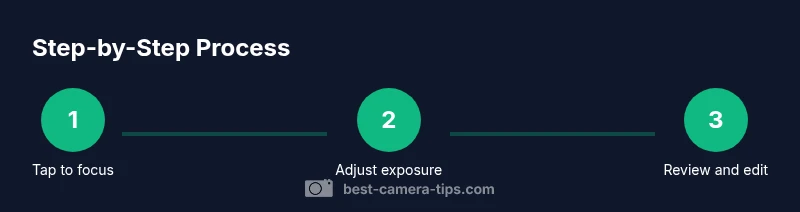
Tap to focus on your subject and AE/AF Lock
Tap the subject to set focus. If your lighting changes or you reframe, hold a moment to lock AE/AF so exposure remains stable while you adjust composition.
Tip: Use AE/AF Lock when shooting scenes with changing light across frames. - 3
Adjust exposure with the sun slider
After focusing, slide the exposure control up or down to brighten or darken the scene. This helps prevent blown highlights in bright areas and preserves shadow detail in darker regions.
Tip: For backlit subjects, slightly reduce exposure to protect highlights. - 4
Enable or review HDR and Night mode as needed
Turn HDR on when scenes have bright skies and dark foregrounds. Night mode activates automatically in very low light on supported devices; ensure your device remains steady for best results.
Tip: If you’re hand-holding in Night mode, use a stable stance or tripod for sharp results. - 5
Consider RAW/ProRAW for post-processing (if available)
If your device supports RAW/ProRAW, enable it to capture maximum data for editing. RAW requires post-processing to unlock the full potential of exposure and color adjustments.
Tip: Expect larger files and plan your storage accordingly. - 6
White balance and color tone considerations
Perceived color temperature can be influenced by lighting; use warm or cool lighting to influence the final look. Some devices offer style presets to apply consistent color tonality across shots.
Tip: If your device supports styles, apply one consistent look for a cohesive set. - 7
Composition and framing with grids
Enable the grid to align horizons and apply the rule of thirds. Reframe to avoid cutting important features and consider background simplicity for stronger portraits or scenes.
Tip: Line up the horizon with grid lines to avoid slanted shots. - 8
Avoid excessive zoom; compose by moving closer
Digital zoom reduces image quality. Instead, move, crop later, or zoom with the lens optically when possible.
Tip: Think about essential details to retain when cropping later. - 9
Capture multiple shots with varying exposure
Take a few frames at different exposure levels or focus points. This gives you options to choose from during review and allows easier post-processing decisions.
Tip: Bracketing can be helpful in challenging lighting. - 10
Review, edit, and compare in Photos
Open your photos, compare exposures, and adjust brightness, contrast, warmth, and sharpness with built-in edits. Post-processing can elevate an already solid capture.
Tip: Always review highlights and shadows to ensure no clipping. - 11
Refine your workflow for consistency
Create a simple checklist for different scenarios (sunny, indoor, low light) and practice it until you can replicate results quickly.
Tip: Consistency comes from a repeatable routine, not random adjustments. - 12
Export and archive your best shots
Save your edits or export in a preferred resolution and format. Keeping a small, well-curated archive helps you learn what works best in various conditions.
Tip: Label or categorize shots to streamline future edits.
Common Questions
Can I adjust ISO and shutter speed on iPhone?
In the standard Camera app, ISO and shutter speed aren’t exposed as direct controls. Some iPhone models and third-party apps offer RAW/ProRAW capture or manual controls, which provide more flexibility for ISO and shutter, but you’ll need compatible software and hardware.
Most users rely on exposure and focus adjustments, with RAW options available on supported devices.
How do I lock focus and exposure quickly?
Tap and hold on the subject until AE/AF Lock appears. This locks exposure and focus so your shot remains consistent if you recompose. You can disable it by tapping again.
Tap and hold to lock focus and exposure, then recompose if needed.
When should I use Night mode?
Night mode activates automatically in very low light. Use it to brighten scenes without increasing noise, and keep your hands steady or use a tripod for the sharpest results.
Night mode helps in dark settings, but steadiness is key for the best results.
Is HDR always beneficial?
HDR helps balance extreme light differences in a scene, preserving details in both highlights and shadows. In fast-moving or high-contrast scenes, test both with and without HDR to see what looks best.
HDR can help in tricky lighting—experiment to see when it’s advantageous.
What is ProRAW and when should I use it?
ProRAW preserves more image data for post-processing, useful for challenging lighting or heavy editing. It creates larger files, so plan your storage and editing workflow accordingly.
ProRAW gives you more flexibility in editing, but it’s best for photos you expect to adjust later.
How can I improve indoor photos without extra gear?
Improve indoor shots by maximizing available light, avoiding flash when possible, and using exposure adjustments to brighten the scene. Shoot near windows and adjust white balance to keep skin tones natural.
Bring in natural or soft artificial light and adjust exposure to balance the scene.
The Essentials
- Lock AE/AF to stabilize exposure when recentering composition
- Use exposure adjustment to prevent blown highlights or crushed shadows
- Prefer shooting RAW when post-processing flexibility is required
- Avoid digital zoom; move closer or crop after shooting
- Develop a repeatable workflow for different lighting scenarios