Why is my camera not working on my iPhone? A practical troubleshooting guide
Urgent, actionable guide to fix why your iPhone camera isn’t working, covering software fixes, permissions, and potential hardware issues with a step-by-step recovery plan.


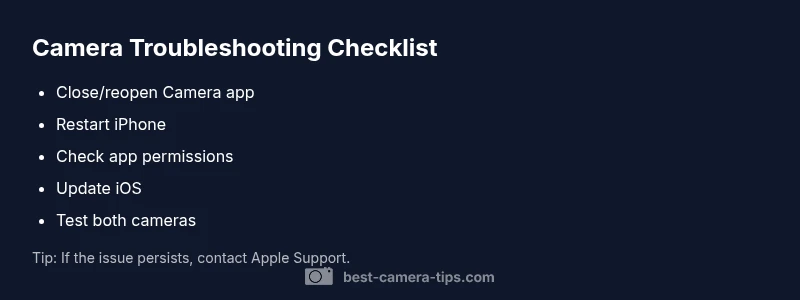
To fix a camera not working on your iPhone, start with quick, easy steps: close the Camera app and reopen, restart your iPhone, update iOS to the latest version, and review camera permissions in Settings. If problems persist, reset all settings or contact Apple Support. Also test front and rear cameras and inspect the lens for dirt or damage.
Why is my camera not working on my
The most common causes of camera failure on
Software remedies: updates, permissions, and resets
Software-related fixes are usually fast and safe to try first. Begin by updating
Hardware and environmental factors
Even though most camera issues are software-driven, hardware problems do occur. Inspect the lens for cracks, condensation, or fingerprints; wipe gently with a microfiber cloth. Remove phone cases, lens attachments, or screen protectors that obscure the lens. If you recently dropped your device or it felt hot during use, the camera module could be misaligned or temporarily unusable. Temperature extremes, water exposure, or a hard impact can lead to image capture problems. If you suspect a hardware fault, run a broader diagnostics test with Apple Support or an authorized technician to confirm whether the camera hardware is functioning.
Advanced recovery steps and data safety
Advanced steps should be approached with caution. Back up your
Preventive habits to avoid future failures
To minimize future camera problems, adopt a routine: keep
Quick test plan and recordkeeping
Finally, set up a quick test plan to verify results. Take sample photos and video in varying light, test both front and rear cameras, and compare results in Photos and third-party apps. Note any error messages, lag, or focus issues and when they occur. Record the device model,
Steps
Estimated time: 30-45 minutes
- 1
Close and relaunch Camera
Double-tap the Home or use the App Switcher to swipe the Camera off the screen, then reopen it. This clears temporary app state that can cause the camera to freeze or show a black feed. If the issue reappears, proceed to the next step.
Tip: Ensure no other app is actively using the camera in the background. - 2
Restart the iPhone
A simple restart can clear cached data and reset the camera stack. Hold the side button and a volume button (or Power, depending on model), slide to power off, wait, then turn back on.
Tip: If you recently updated iOS, a restart is especially effective for applying changes. - 3
Check for iOS updates
Go to Settings > General > Software Update and install any available updates. Apple frequently fixes camera bugs with fresh patches.
Tip: If an update is available but slow to install, connect to a stable Wi‑Fi network and keep the device charged. - 4
Review camera permissions
Visit Settings > Privacy > Camera and verify that apps you rely on have camera access. Revoke or re-enable permissions as needed and test the camera again.
Tip: Some apps may require re-launch after permission changes. - 5
Test both cameras
Open the Camera app and switch between front and rear lenses to determine if one scope is affected. A mismatch can indicate a partial hardware fault or a software routing issue.
Tip: Note if autofocus or stabilization behaves differently between lenses. - 6
Free up storage and remove accessories
Low storage or obstructive accessories can impair camera function. Delete unused apps, offload photos, or remove cases/lenses that interfere with the lens.
Tip: Keep some free space for caching and processing. - 7
Reset all settings
If nothing else works, reset all settings via Settings > General > Transfer or Reset iPhone > Reset > Reset All Settings. This does not erase your photos but resets network, keyboard, and display settings.
Tip: Back up first to be safe; note that you’ll need to reconfigure preferences afterward. - 8
Backup/restore or seek support
If the camera still doesn’t work, back up your data and consider restoring from a backup or performing a full device restore after which you should contact Apple Support if needed.
Tip: Document test results and device details to share with support.
Diagnosis: Camera app crashes, black screen, or no image when using the iPhone camera
Possible Causes
- highSoftware glitches in iOS or camera app
- highCamera permissions blocked by privacy settings
- mediumLens obstruction, dirt, or fingerprint buildup
- lowHardware fault in camera module (rare)
Fixes
- easyUpdate iOS and force-close/reopen the Camera app
- easyReview and adjust Camera permissions in Settings
- easyReset all settings (backup first) to clear caches and misconfigurations
- mediumIf unresolved, contact Apple Support or visit an authorized service provider
Common Questions
Why is my iPhone camera not working after a software update?
Software updates can temporarily disrupt camera permissions or introduce glitches. Try updating again if a newer patch is released; if the issue persists, reset settings or reinstall affected apps. Always back up before major changes.
Software updates can disrupt camera permissions or introduce glitches. Update again if a patch is available, or reset settings. Back up before making changes.
My camera app crashes when I open it; what should I do?
Force close the Camera app, restart the iPhone, and check for available updates. If the problem remains, reinstall the camera-related apps or reset the device settings.
Force close the app, restart, and check for updates. If it continues, reinstall apps or reset settings.
Why is only one camera failing on my iPhone?
A single-camera failure often points to hardware issues in that module or a camera-specific setting. Test both lenses and consider professional diagnostics if the issue persists.
If only one camera fails, it could be hardware-related. Test both lenses and seek professional diagnostics if needed.
Can third-party apps cause camera issues?
Yes. Some apps misuse camera APIs or crash, causing failures. Review camera permissions and uninstall or update problematic apps to restore normal operation.
Yes, some apps can cause camera issues. Review permissions and consider uninstalling problematic apps.
Is water damage a reason for camera failure?
Moisture can affect sensors. If you suspect water exposure, stop using the device and seek professional service to assess damage and calibration needs.
Water damage can affect the camera; stop using the device and consult a professional.
Do resets erase my photos?
Resetting settings does not erase photos, but a full device restore can. Always back up before major resets and follow official guidance.
Resetting settings won’t delete photos, but a full restore might. Back up first.
Watch Video
The Essentials
- Start with software fixes before hardware checks.
- Back up before resets and major changes.
- Test both cameras to isolate the issue quickly.
- If hardware is suspected, seek professional service.