iPhone Camera Not Working: Quick Troubleshooting Guide
Best Camera Tips guides you through practical steps to fix an iPhone camera that won't work, from quick software fixes to when to seek expert help.


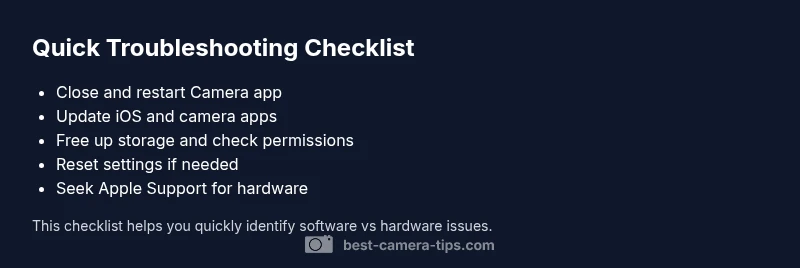
Most likely the issue is a software hiccup or a blocked lens. Start by closing the Camera app and restarting the iPhone, then check for iOS updates and free up storage. If the problem persists, reset all settings or restore from backup. If hardware remains unresponsive, contact Apple Support. This quick check often resolves many freezes and misfires.
Quick Checks You Can Do Right Now
If you notice the camera is not working on iphone, the quickest path to a resolution is to verify simple hardware and app issues first. Start by cleaning the lens with a microfiber cloth to remove fingerprints or smudges that can cause a dark image or blur. Verify nothing is physically blocking the lens, such as a protruding screen protector edge or a case lip. A small obstruction can prevent the lens from forming a clear image or even trigger a black screen when you try to capture. Also inspect the camera housing for cracks or damage from a drop or impact. Next, check that the Camera app is not already running in the background, which can sometimes hold the camera resource and cause freezing. Force quit the Camera app by swiping it away in the app switcher, then reopen and test. If the problem persists across multiple apps or when using the stock Camera app, you may be facing a software or hardware fault. Ensure there is ample storage for new photos, as a full disk can prevent saving images. Finally, confirm the device is not in a restricted mode that disables camera access for certain apps; this can also cause failures. By ruling out these quick checks, you often narrow down the cause efficiently and avoid unnecessary steps.
Software First: Restart, Update, and Settings
When the camera fails, software is usually the culprit. Begin with a soft reset by turning the iPhone off and back on after a 30 second wait. This simple step clears temporary glitches that can affect the camera pipeline. Next, check for an iOS software update by going to Settings > General > Software Update. Apple often ships fixes for camera quirks in minor or major updates. If updating, allow the device to reboot and re-test the camera. Also ensure that the Phone has adequate storage space; delete or offload unused apps, videos, or photos to free space. Then verify that camera permissions are enabled for apps that use the camera; go to Settings > Privacy > Camera and confirm access for each app. For consistency, reset all settings if issues persist without data loss, but remember this resets Wi-Fi networks, wallpaper, and preferences, not personal content. By following these steps, most camera failures rooted in software are resolved quickly and safely.
Storage and Permissions: Free Space and Camera Access
A camera that seems unresponsive may be reacting to storage constraints or missing permissions. Start by checking iPhone storage in Settings > General > iPhone Storage and look for available space. If space is low, offload or delete large apps and media, then attempt a photo capture again. Next, verify camera access for third-party apps via Settings > Privacy > Camera. Some apps request access the first time and may be blocked, causing failed captures or blank screens within the app. Also inspect the Photos app settings to ensure new photos are saved to the camera roll and not to an inaccessible location. If a recent app installation caused a conflict, you may need to revoke specific permissions and regrant them. By ensuring ample space and correct permissions, you reduce the chance of camera malfunctions due to software governance.
Crashes and Freezes: Force Quit and Basic Diagnostics
If the Camera app freezes or crashes, perform a force quit and relaunch. On iPhone X and later, swipe up from the bottom and pause in the middle of the screen to access the app switcher; swipe the Camera app off the screen to close it, then reopen. If the issue persists, test the camera in a new session by starting a fresh camera capture in another app or the default Camera app. Clear all caches by rebooting the device and ensure background app refresh is disabled for the Camera app to avoid resource contention. If a particular app continues to crash when using the camera, it may indicate app-specific permission issues; re-install the app if possible or disable it until a fix is released. In many cases, software-related force quits and clean reboots solve transient freezes quickly.
Hardware and Lens Health: Inspect for Damage or Obstruction
When software fixes fail, inspect the hardware closely. Examine the lens for scratches, cracks, or smudges that a cloth cannot remove; even minor surface damage can degrade image quality or cause a black frame. Check the camera housing for loose components or a misaligned sensor, often caused by a drop. If the device has been exposed to moisture or water, moisture indicators may show a warning color and could cause camera failures. Test both front and rear cameras to see if the issue is isolated to one lens or affects all modules. If only one lens is affected, it may be a sensor issue or a specialized obstruction in the module. Do not attempt hardware repairs yourself beyond cleaning; interfering with internal components can void warranties and worsen failures. If damage is suspected, seek professional assessment.
Restore and Reset: When Software Fixes Fail
If software fixes do not resolve the issue, consider more thorough steps with caution. Back up the iPhone to iCloud or a computer to secure your data before proceeding. You can reset all settings to factory defaults via Settings > General > Transfer or Reset iPhone > Reset > Reset All Settings. This will restore network, display, and system preferences while keeping personal data. If problems persist, perform a full restore from a backup or set up as new and then re-enable your data gradually to locate any conflicting app or setting. In severe cases, restoring the device via a computer using iTunes or Finder can replace the iOS system and fix deeper software corruption. If you cannot resolve the problem after restoring, it is likely a hardware issue and you should contact Apple Support or visit an Apple Store for diagnostics.
Prevention: Best Practices to Keep Your Camera Healthy
To minimize future issues and keep your camera reliable, implement a few practical habits. Regularly update iOS to the latest version and install app updates promptly to ensure compatibility with camera hardware. Maintain sufficient free storage to avoid slowdowns or write errors when capturing images. Keep the lens clean and protected with a soft cloth and a quality case that does not press on the lens. When traveling or in challenging environments, avoid exposing the device to moisture and extreme temperatures, which can impact sensor performance. Finally, monitor the health of your camera by testing both lenses during routine shots and noting any changes in image quality or performance. Following these practices helps keep the camera working smoothly and reduces the likelihood of failures.
When to Seek Professional Help: Hardware Diagnostics and Warranty Considerations
If none of the above steps resolve the issue, it is time to seek professional help. A certified technician can run hardware diagnostics to determine if the camera module or sensor has degraded. If your device is under warranty or covered by AppleCare, scheduling a Genius Bar appointment or an authorized service provider visit is recommended. Bring your backup and any recent repair history. If your iPhone has suffered water damage or a severe impact, professional evaluation is essential, as continued use could cause further damage or data loss. Best Camera Tips recommends pursuing a formal diagnostic when symptoms persist despite software fixes, as continuing to use a malfunctioning camera can worsen the problem and affect other components.
What to Do Next: Quick Recap and Next Steps
After following these steps, you should have a clear sense of whether the issue is software or hardware related. If software fixes worked, keep an eye on performance after subsequent updates. If hardware is the root cause, schedule a service appointment promptly to prevent data loss or further damage. The key is to methodically rule out each potential cause and document when the problem occurs to assist the technician. Remember, proactive maintenance and timely updates can prevent many common camera problems.
Steps
Estimated time: 30-60 minutes
- 1
Back up your data
Begin by backing up your iPhone to iCloud or a computer to safeguard photos and settings before performing deeper fixes.
Tip: A backup ensures you can recover data if a restore is needed. - 2
Close all camera related apps and restart
Double-check that no camera apps are running in the background, then restart the device to clear temporary glitches.
Tip: A clean restart often resolves transient camera issues. - 3
Check for updates
Install any available iOS updates and ensure camera apps are up to date. Reboot after the update and test the camera again.
Tip: Updates often include important camera driver fixes. - 4
Free up storage and verify permissions
Delete or offload large files to free space and review Settings > Privacy > Camera for app permissions.
Tip: Lack of storage can manifest as failure to save photos. - 5
Reset settings if needed
If the issue continues, reset all settings from Settings > General > Transfer or Reset iPhone > Reset > Reset All Settings.
Tip: This preserves data but resets networks and preferences. - 6
Restore or seek professional help
If software steps fail, restore via Finder/ iTunes or contact Apple Support for hardware diagnostics.
Tip: Hardware issues often require official service.
Diagnosis: Camera app opens but shows a black screen or fails to capture images
Possible Causes
- highSoftware glitch or temporary cache issue
- highOutdated iOS or app compatibility issue
- mediumInsufficient storage or write permissions
- lowHardware fault in lens or sensor
- lowMoisture exposure or physical impact
Fixes
- easyClose Camera app, reboot device, and test camera again
- easyUpdate iOS and any camera-related apps, then test
- easyFree up storage and review camera permissions in Settings
- mediumReset all settings if problem persists (no data loss but resets preferences)
- hardIf unresolved, back up data and restore iPhone or seek Apple Support
Common Questions
What should I do first when my iPhone camera stops working?
Start with simple checks: clean the lens, close and reopen the Camera app, restart the iPhone, and ensure there is available storage. If the issue persists, proceed with software updates and permissions checks before considering resets.
First, clean the lens, close Camera, restart the iPhone, and check storage. If it still fails, update iOS and review permissions before more drastic steps.
Why is my iPhone camera screen black only for the camera app?
A black screen often points to software hiccups or a blocked lens. It may also indicate a hardware fault if multiple attempts fail. Start with software resets, updates, and storage checks before consulting support.
A black screen usually means software hiccups or a blocked lens; try resets, updates, and storage checks first.
Can iOS updates fix camera issues?
Yes, many camera issues are resolved by iOS updates that fix bugs or compatibility problems. After updating, restart the device and test the camera again.
Yes, updates often fix camera bugs. After updating, restart and test the camera.
Will resetting all settings erase my data?
Resetting all settings does not erase your personal data, but it resets network, display, and privacy settings. You will need to reconfigure Wi‑Fi, wallpapers, and preferences afterward.
Resetting settings won’t delete your data, but you’ll need to reconfigure settings afterward.
When should I seek professional help for camera issues?
If software fixes fail, contact Apple Support or visit an Apple Store for hardware diagnostics. Hardware defects typically require official service.
If software fixes don’t work, get professional help to diagnose hardware issues.
Watch Video
The Essentials
- Identify if the issue is software or hardware
- Perform quick checks before diving into resets
- Back up before resets or restores
- Seek professional help for hardware concerns