Why is my camera not working on apps? Troubleshooting Guide
Urgent troubleshooting guide to fix camera access issues on apps across devices, with step by step checks, permissions, and prevention tips.


If your camera won’t show up or works only sometimes in apps, the most likely cause is a permissions or hardware access issue. Start by checking app permissions, rebooting the device, and ensuring the camera is not blocked by another app. This fast check typically resolves most basic problems.
Quick Start: Immediate fixes you can do now
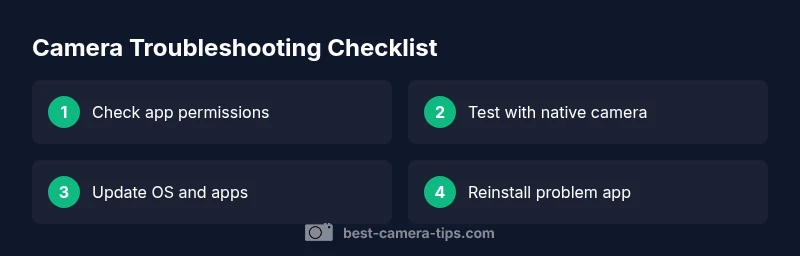
According to Best Camera Tips, the fastest way to fix many app camera issues is a short sequence of checks you can perform without special tools. Start with the simplest steps: verify you haven’t revoked camera access for the app, perform a quick device reboot, and test the camera in another app to see if the issue is isolated. If the camera still won’t appear, move on to the deeper checks described below. This quick-start approach resolves the majority of blocking problems and reduces downtime when you need to capture an important moment.
Be prepared to switch devices or apps if needed; this keeps you flexible and reduces downtime. Keep in mind that some apps cache permissions for your privacy, so you may need to revisit permissions after updates or OS changes. If a particular app consistently fails while others work, the issue is most likely app-specific rather than device-wide.
Check App Permissions and Privacy Settings
Camera access is controlled by app permissions and privacy settings that vary by platform. On Android, go to Settings > Apps > [Your App] > Permissions and ensure Camera is allowed; on iOS, go to Settings > Privacy > Camera and toggle your app’s permission. Also confirm that screen recording or privacy restrictions aren’t blocking new camera requests. After adjusting, reopen the app and retry. If permission prompts still don’t appear, clear the app’s cache or reinstall the app to reset its permission state.
If you’re using a corporate or managed device, your IT policy may restrict camera usage. In that case, contact your administrator to verify policy allowances and request a temporary exception if necessary.
Verify Hardware and App Conflicts
Another common cause is a hardware-level conflict. Check that the physical camera shutter switch, if present, isn’t slid to the off position, and ensure the camera isn’t physically blocked by a case or debris. Close any other apps that might be using the camera in the background, such as video calls or scanning tools, then reopen the app you’re testing. If another app still holds control, you may see a camera-in-use notification; stopping that app frees access. If you’re on a laptop, ensure the built-in webcam isn’t disabled in BIOS/UEFI and that any privacy shutters aren’t closed.
OS and App Version Checks
Software bets you make with your camera are only as good as the underlying code. Ensure your operating system is up to date, and that the camera app itself is current. Manufacturers often release camera API fixes in OS updates, and apps may require recent library versions to access camera hardware. If updates are available, install them and reboot. If the problem persists, try the app on a different device or revert to a stable version of the app if a recent update introduced a bug.
Camera Access via Other Apps: Is the Camera Hardware Okay?
Test the hardware with the device’s native camera app or a trusted third party app. If the native camera works but not the app in question, the issue is app-specific and likely a permissions, settings, or cache problem. If the native camera also fails, this points to hardware or OS-level problems. In some devices, hardware acceleration or camera APIs can be disabled for energy-saving reasons; re-enabling these features can restore access.
Document any error codes or messages you see; they can guide you to a precise culprit, such as a corrupted camera driver or failure to access a hardware component.
Network and Account Considerations
Some camera features in apps rely on network connectivity and account authentication. Check your internet connection, especially for cloud-based features like photo backup, facial recognition, or live streaming. Sign out and back into the app to refresh credentials, and verify that your account status hasn’t been suspended. If your camera is part of a home security ecosystem, ensure the hub or gateway is online and reachable from the app. Network firewalls or VPNs can also interfere with camera access; temporarily disable them to test.
Advanced Fixes: Cache, Drivers, and Reinstalls
When simple steps fail, deeper fixes are often needed. Clear the app cache and data for the problem app, then restart the device. If you’re on a PC or laptop, update or reinstall webcam drivers from the device manager or manufacturer support site. For mobile devices, a clean reinstall of the problem app can reset permissions and internal settings. As a last resort, perform a full device reset, but back up your data first. These steps should be undertaken with care to avoid data loss.
When to Seek Professional Help
If the camera still doesn’t work after all standard troubleshooting steps, it’s time to involve a professional. A technician can run hardware diagnostics, check mechatronics inside the camera module, and verify that camera software components are functioning correctly. For business-critical uses like live streaming or event photography, a formal diagnostic can prevent downtime and protect important projects.
Prevention: Keeping Your Camera Working with Apps
Regular maintenance reduces the chance of future issues. Keep OS and apps updated, review permissions after each major update, and avoid installing conflicting camera apps that duplicate access. Use a single trusted camera app for essential work to minimize permission prompts and cache buildup. Periodically reboot devices to reset background processes and clear temporary caches that can interfere with camera performance.
Steps
Estimated time: 25-40 minutes
- 1
Open app permissions
Navigate to your device settings and locate the problematic app. Verify that Camera permission is enabled and reset any blocked access settings. Reopen the app and test the camera.
Tip: If you see a permission prompt again, grant it to continue. - 2
Reboot and test with native camera
Power off and on your device, then open the native camera app to confirm the hardware works. If the native app fails, the issue is hardware or OS related.
Tip: A clean reboot can resolve background lockups. - 3
Close background camera apps
Close all apps that might be using the camera in the background, then retry in the original app. If you see a camera-in-use message, force-stop the other app.
Tip: Check recent apps panel for rogue processes. - 4
Update OS and app
Install the latest OS update and update the camera app to its latest version. Restart and test again.
Tip: If updates aren’t available, enable automatic updates during downtime. - 5
Clear cache and reinstall
Clear the app cache or reinstall the problem app to reset its data and permissions. This often resolves stale permission states.
Tip: Back up important data before reinstall. - 6
Test with another camera app
Install a different camera app to determine if the issue is app-specific or device-wide. If the second app works, focus on app-specific settings.
Tip: Choose a reputable camera app from a trusted source. - 7
Check hardware indicators
Inspect for physical obstructions like a case, tape, or debris on the lens. Confirm there is no visible damage to the camera housing.
Tip: Gently clean the lens with a microfiber cloth. - 8
Consider professional help
If hardware damage or deep OS issues are suspected, schedule a technician visit or contact device manufacturer support.
Tip: Document your steps to expedite the diagnosis. - 9
Prevent future issues
Maintain updated software, limit the number of camera apps, and periodically reboot devices to prevent caching problems.
Tip: Set a reminder to review app permissions after major updates.
Diagnosis: Camera won’t work in apps or appears intermittently
Possible Causes
- highPermission or privacy setting blocking camera access
- mediumCamera hardware switch disabled or camera physically blocked
- mediumBackground app locking the camera or API conflicts
- highOutdated OS or app version causing incompatibility
- lowHardware failure or degraded camera module
Fixes
- easyReset app permissions and privacy settings for camera access
- easyToggle hardware camera switch or enable camera in system settings
- easyClose competing apps and restart device, then retry camera access
- mediumUpdate OS and app to latest versions; reinstall app if needed
- easyTest with another app or device to isolate hardware vs software
Common Questions
What is the most common reason my camera won’t work in apps?
Permissions or privacy settings blocking access are the most frequent causes. Verify each app has camera permission and confirm system privacy controls aren’t restricting usage.
Permissions or privacy settings are usually the culprit. Check app permissions and privacy controls first.
How do I check app permissions on Android and iOS?
Android users go to Settings > Apps > [App] > Permissions and enable Camera. iOS users go to Settings > Privacy > Camera and toggle the app’s permission. After changing, relaunch the app to test.
Open system settings, adjust camera permissions for the app, then retry.
Why does my camera work in some apps but not others?
This often means the issue is app-specific: the problematic app may have stale cache, conflicting settings, or a recent update introduced a bug. Test with another app to confirm.
If it works in one app but not another, focus on the app’s settings or cache.
Will resetting my device fix camera problems?
A factory reset can fix deep software issues but should be a last resort due to data loss. Try less destructive steps first, such as permissions and updates.
Resetting should be your last option after trying updates and permissions.
Can a third-party app access my camera without permission?
Apps should request permission to access the camera. If you suspect unauthorized access, review installed apps and revoke any unnecessary permissions. Enable privacy protections.
Only grant camera access to trusted apps and review permissions regularly.
Is it safe to grant camera access to apps?
Grant access only to apps you trust. Regularly review permission usage, especially for apps with sensitive features like facial recognition or video recording.
Yes, but be cautious and review permissions often.
Watch Video
The Essentials
- Check permissions first, then reboot.
- Test with native camera to isolate issues.
- Update OS and apps to fix API compatibility.
- Close background camera usage to avoid conflicts.
- Seek professional help if hardware is suspected.