Why Is the Camera Screen Black on iPhone? Quick Fixes
Discover proven steps to diagnose and fix a black camera screen on iPhone fast. From software glitches to hardware checks, get back to capturing moments with confidence.


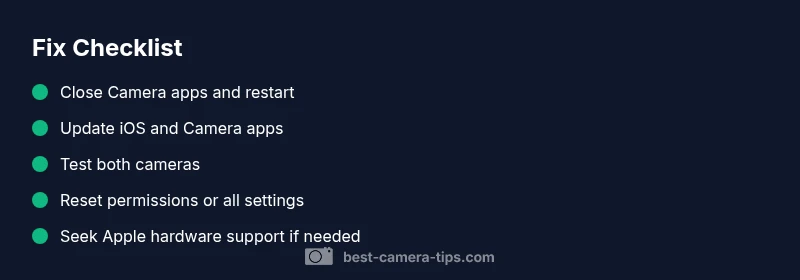
A black screen when launching the iPhone camera is usually caused by a software glitch, a blocked lens, or a camera module issue. Start with a quick restart, then force close the Camera app and check for iOS and app updates. If the problem persists, reset camera permissions and, if needed, reset all settings or contact Apple support.
What causes a black screen on iPhone cameras
A black screen when you open the iPhone camera is a frustrating problem that can stem from several root causes. The most common are software glitches in the Camera app or iOS, dirt or occlusion on the lens, and, less often, hardware issues with the camera module. In some cases, third-party apps that access the camera or storage constraints can trigger a blank display. Brand guidance from Best Camera Tips suggests starting with simple, non-destructive fixes before considering replacement parts. By identifying whether the issue is software-driven or hardware-related, you can apply the right fix quickly and minimize downtime for your photography workflow in 2026.
Quick checks you can do before deeper troubleshooting
Before diving into deeper fixes, try these safe, low-effort checks. Start by cleaning the lens with a microfiber cloth to rule out smudges or moisture that could darken the image. Then fully close the Camera app and relaunch it, or reboot the iPhone if needed. Test both the front and rear cameras to see if the screen stays black on one or both. Ensure there is adequate storage space and that your iOS is up to date. If you recently installed a third-party camera app, disable or uninstall it to see if the problem resolves. If the screen remains black, perform a soft restart (or a forced restart if your model supports it) to clear temporary software glitches.
When to suspect hardware damage vs software issue
If the black screen follows a drop, a hard bump, or exposure to moisture, hardware damage is more likely. In that case, even if the phone otherwise works, the camera module itself may be faulty. Conversely, software issues often appear after a recent update or when multiple apps attempt to access the camera; the display might go black intermittently or only in specific apps. If both cameras fail or the screen remains entirely blank, software corruption or a dead camera sensor are possibilities. The safe path is to test software remedies first and reserve hardware diagnostics for situations where software fixes fail or there is visible damage. Remember to back up your data before any major resets.
How to recover from a black screen: step-by-step approach
Follow this practical sequence to recover functionality without unnecessary downtime. First, close all camera-related apps and reopen the Camera app. If the screen stays black, restart the iPhone. After reboot, check for iOS updates and install any available updates. Then, reset camera settings (Settings > General > Transfer or Reset iPhone > Reset > Reset All Settings) to clear misconfigured permissions or options. If the issue persists, back up your data and restore the device using Finder or iTunes. As a last resort, contact Apple Support or visit an Apple Store for hardware diagnostics.
Steps
Estimated time: 15-25 minutes
- 1
Close all camera apps
Double-press the home button or swipe up (depending on model) to view recent apps, then swipe the Camera off the screen to close it completely. Reopen the Camera to test.
Tip: This clears minor app glitches without affecting data. - 2
Restart the iPhone
Power off fully, wait 10 seconds, and turn it back on. A fresh boot often resolves display glitches or sensor initialization errors.
Tip: If you have a Face ID device, use the side button and volume button method to force restart if needed. - 3
Update iOS and Camera apps
Go to Settings > General > Software Update and install available updates. Also check the Camera app in the App Store for any updates.
Tip: Updates fix known bugs that can cause a black screen. - 4
Reset camera permissions/settings
If the issue persists, reset camera-related settings. Go to Settings > Privacy > Camera, and toggle permissions off and on. Then reset all settings via Settings > General > Transfer or Reset iPhone > Reset > Reset All Settings.
Tip: Resetting settings won't erase your data but may reset preferences. - 5
Test hardware indicators
Try using the camera in another app (e.g., a social app that uses the camera) to see if the issue is app-specific or system-wide.
Tip: If other apps show the preview, the problem is app-related rather than hardware. - 6
Contact Apple if unresolved
If the screen remains black after all software fixes, book a hardware diagnostic at an Apple Store or via Apple Support.
Tip: Hardware faults require professional assessment.
Diagnosis: iPhone camera shows a black screen when opening the Camera app
Possible Causes
- highSoftware glitch or camera app crash
- mediumLens obstruction or dirt covering the camera
- lowHardware damage to the camera module
Fixes
- easyClose the Camera app and reopen; restart the iPhone
- easyCheck for iOS updates and install; reset camera permissions
- mediumIf unresolved, reset all settings or seek Apple hardware diagnostics
Common Questions
Why does my iPhone camera go black only when I try to take a photo?
This often points to a software glitch, a temporary camera app issue, or lens obstruction. Start with a restart, force close the app, and check for updates. If it persists, inspect the lens and reset camera settings.
A black screen when launching the camera usually means software or lens issues. Start with a restart and updates before considering hardware checks.
Can software updates fix a black screen issue?
Yes. Updates often fix known bugs that cause the camera to fail to render. Install the latest iOS update and any available Camera app updates, then retest the camera.
Software updates often fix bugs that cause black screens; install any available updates and test the camera again.
Is hardware damage possible if both cameras fail?
Yes, but it’s less common. If both the front and rear cameras fail, hardware faults or sensor issues are possible. Seek professional diagnostics if software fixes don’t help.
If both cameras fail, hardware could be at fault. Consider professional diagnostics.
Will resetting all settings erase my data?
Resetting all settings will reset preferences but typically won’t erase personal data like photos or messages. It can fix misconfigured camera permissions causing a black screen.
Resetting settings won’t erase your data, but it can reset preferences that affect the camera.
What should I do if the lens is visibly dirty or scratched?
If the lens is dirty, gently clean it with a microfiber cloth. Scratches can affect image quality but usually won’t cause a full black screen; consider professional inspection if damage is present.
Clean a dirty lens gently; scratches may require a professional check.
When should I contact Apple support?
If software fixes fail and there is hardware concern or visible damage, contact Apple Support or visit an Apple Store for a diagnostic.
If software fixes don’t help, reach out to Apple Support for hardware checks.
Watch Video
The Essentials
- Identify whether the issue is software or hardware first.
- Follow a safe, stepwise troubleshooting flow.
- Back up data before resets or restores.
- Seek official support for hardware faults.