Why Your Phone Camera Isn’t Working and How to Fix It
Urgent troubleshooting guide to fix why camera not working on phone. Practical steps cover software hiccups, permissions, storage, and potential hardware signs with actionable checks.


Most likely, the issue is a software hiccup or misconfigured camera permissions. Try a quick 2–3 step restart of the device, clear the camera app cache, and ensure the lens is clean. If problems persist, update the camera app and OS, review permissions, and test both cameras in Safe Mode to isolate hardware vs software.
Why the camera stopped working on your phone
If you're reading this, you likely want to fix the camera fast. The problem is common and often software-related rather than catastrophic hardware failure. The phrase why camera not working on phone captures the scenario many users encounter after a system update, a misconfigured permission, or a fast-running background task. In this section we unpack the most likely causes and set the stage for a practical, urgent troubleshoot flow. By focusing on quick checks and safe fixes, you can restore camera performance without professional help in many cases. According to Best Camera Tips, software glitches and permission missettings are the most frequent culprits. A calm, methodical approach usually clears the issue without needing hardware replacement.
Quick checks you can do now
Before diving into deep diagnostics, perform these fast checks. They take minutes and resolve a large share of reported problems. Restart your device to reset services, close the camera app and reopen it, and wipe the lens gently to remove smudges. Make sure you have sufficient storage for camera operations and that the phone isn’t running an extremely old OS or camera app version. If you use a third-party camera app, try the stock app to see if the issue persists. Finally, update apps and the OS when updates are available, as developers often fix regressions that affect camera performance.
Software issues: permissions, cache, updates
Many camera failures stem from permissions or cached data. Check that the camera app has permission to access the camera, microphone, and storage. On Android, go to Settings > Apps > Camera > Permissions; on iPhone, check Settings > Privacy > Camera and the related photos access. Clear the camera app cache (and data if necessary) and force stop the app. Then verify you have the latest version of the camera app and the OS. If issues persist, reinstall the camera app or reset app preferences. These steps target software faults without touching hardware.
Storage and background processes
Low storage or a flood of background tasks can hinder camera performance. Free up space by deleting or transferring old media, and close apps running in the background that might be hogging CPU or memory. Some devices also slow down system services under heavy load; allow the device to cool and retry camera launch after a short wait. If your device uses cloud backups, ensure the backup app isn’t saturating bandwidth or disk I/O during camera use, which can indirectly impact performance.
Hardware symptoms: lens condition, sensor, or module issues
If the lens is smudged, scratched, or misaligned, you’ll see blurry or distorted images. A dark or completely black image can indicate a blocked sensor or a damaged camera module. Physical damage from drops or exposure to moisture, dust ingress, or over-torque during repairs can degrade performance or halt operation. Visual cues like unusual sounds, lag, or unresponsive shutter can also signal hardware faults. If you suspect hardware damage, avoid forcing the camera and seek professional assessment.
Diagnostic flow: symptom → diagnosis → solution
A systematic diagnostic approach helps isolate causes. Start with symptoms (crackling sound, black screen, blurry photos). Check for software causes (permissions, cache, updates). If software checks pass but the camera still fails, test both cameras, try Safe Mode, and observe behavior. If Safe Mode resolves the issue, a third-party app or a conflicting setting is likely at fault. If not, the problem could be hardware-related and may require service. Following a consistent flow reduces guesswork and speeds up resolution.
Safety, precautions, and when to seek professional help
Always back up data before performing resets or cache clears that affect app data. Avoid opening the device or attempting DIY hardware repairs if you’re not trained, as sensors and delicate connectors can be damaged easily. If the device is under warranty or you notice liquid exposure, contact authorized service centers. For persistent issues after software steps, or if you hear abnormal sounds or perceive heat, seek professional help promptly to prevent further damage.
Prevention: keep your phone camera reliable
Regular maintenance helps prevent future camera problems. Keep software up to date, periodically clear cache for camera-related apps, and monitor third-party apps for permission requests. Use a protective case and screen to minimize impact on the camera area, and avoid exposing the device to moisture or dust. Routine checks after OS updates ensure camera modules remain in sync with the system.
Real-world scenarios and quick wins
In busy schedules, quick wins matter. A device reboot often resolves intermittent failures that occur after background tasks update. If the camera still shows issues after a reboot, resetting camera preferences can fix hidden misconfigurations. If nothing else works, consider performing a factory reset as a last resort—after backing up data. This tiered approach reduces downtime and preserves data when possible.
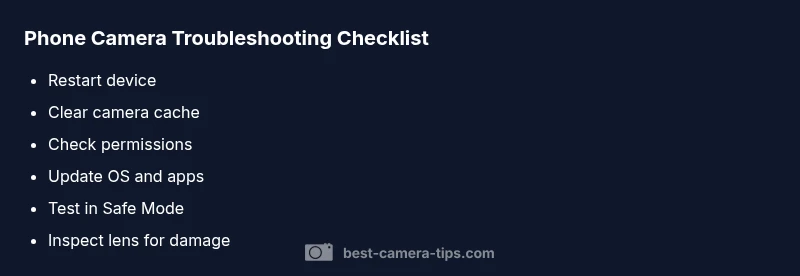
Steps
Estimated time: 25-40 minutes
- 1
Restart the device
Power off completely, wait 10 seconds, and power back on. This resets camera services and clears temporary glitches.
Tip: A full reboot often clears stuck processes. - 2
Clear camera cache and data
Navigate to the app settings for the Camera app and clear cache; if available, clear data as well. Reopen the camera to test.
Tip: Clearing data may reset preferences; you may need to reconfigure settings. - 3
Check permissions
Verify Camera, Microphone, and Storage permissions are granted for the camera app on your device.
Tip: On iOS, ensure Photos access is allowed if saving images. - 4
Update software
Install the latest OS update and the latest version of the camera app. Updates fix known issues and improve compatibility.
Tip: If updates aren’t available, check for beta firmware or app patches. - 5
Test in Safe Mode (Android) / Clean Boot (Windows-like environments)
Boot without third-party apps to see if the camera works. If it does, a third-party app is the culprit.
Tip: Uninstall recently added apps to identify the offender. - 6
Inspect the lens and hardware
Check the lens for smudges or scratches; look for obvious damage on the camera housing. If the device was dropped or exposed to moisture, a professional inspection is advised.
Tip: Avoid squeezing, twisting, or disassembling the camera.
Diagnosis: Camera app crashes, black screen, or blurred images
Possible Causes
- highSoftware glitch or stale cache
- highCamera permissions blocked or misconfigured
- mediumInsufficient storage or heavy background processes
- lowHardware issue with camera module or lens obstruction
Fixes
- easyRestart device to reset services
- easyClear camera app cache/data and verify permissions
- easyUpdate OS and camera app to latest version
- easyTest in Safe Mode to rule out third-party apps
- mediumInspect lens; clean or replace camera module if hardware issue suspected
Common Questions
Why won’t my phone camera open at all?
The camera app can fail to open due to permissions, cache corruption, or software glitches. Start with a restart, clear cache, and ensure permissions are granted. If the issue persists, test in Safe Mode to identify a faulty app or underlying hardware problem.
The camera won’t open mainly due to permissions or software glitches. Try restarting, clearing the cache, and checking permissions; Safe Mode helps identify app conflicts.
The camera works in Safe Mode but not normally. What does this mean?
If the camera works in Safe Mode, a third-party app is likely interfering. Review recently installed apps, disable or uninstall suspects, and re-test. You may also reset camera-related preferences.
If it works in Safe Mode, a third-party app is the likely culprit. Uninstall recent apps and re-test.
Could storage issues cause camera problems?
Yes. Low storage can slow camera operations and cause failures when saving images. Free up space and retry, ensuring there is room for new photos and temporary cache.
Low storage can hinder the camera; free up space and try again.
Should I reset app permissions or the whole device?
Start with resetting camera permissions and then test. If issues remain, a broader reset of app settings or a factory reset may be considered, after backing up data.
Reset the camera permissions first; if needed, consider bigger resets with backups.
Is hardware damage the only reason the camera fails?
Hardware failures are possible but less common. Look for signs like unusual lens behavior, sensor errors, or physical damage. If in doubt, visit a service center.
Hardware issues are possible but less common; check for signs like damage and seek service if suspected.
Will a factory reset fix camera problems?
A factory reset can resolve stubborn software issues by restoring default system settings. Back up data first, then perform the reset if other fixes fail.
Factory reset can fix stubborn software issues—back up first.
Watch Video
The Essentials
- Identify if issue is software- or hardware-related.
- Follow a safe, escalating flow from quick fixes to professional help.
- Keep your OS and camera apps updated to prevent regressions.
- Always back up data before performing resets.
- Prevent future problems with regular maintenance and cautious handling.