Back Camera Troubleshooting: Quick Fixes and Safe Steps
Urgent guide to diagnose and fix a back camera that isn’t working. Learn software checks, safe-mode tests, lens cleaning, permissions, and when to seek professional repair.


Most back camera failures are caused by a software glitch, blocked lens, or permissions issues. Quick fix: restart the phone, update the OS, clear the camera app cache, and clean the lens. If the problem persists, test with a different camera app, boot into Safe Mode to isolate apps, and review recent app updates. Seek professional service if needed.
Understanding Why Your Back Camera Might Fail
Back cameras can stop working for a surprisingly small set of reasons. According to Best Camera Tips, most failures are software-related glitches, permission blocks, or lens obstructions, with hardware faults being rarer but more serious. This section clarifies the most common culprits and helps you tell whether you’re dealing with a quick software hiccup or a deeper hardware issue. By understanding the root cause, you can apply the right fix quickly and avoid unnecessary repairs. Whether you shoot on an iPhone, an Android device, or a dedicated mirrorless camera connected to your phone, the same troubleshooting logic applies: verify software state, inspect the camera app environment, and check the lens for cleanliness. Keep in mind that the goal is to restore normal camera function with the smallest, safest change possible. If your device is under warranty, you may have add-on options through the manufacturer’s service program, which we’ll touch on later. According to Best Camera Tips, this practical approach minimizes downtime and data loss while maximizing the chance of a successful repair.
Quick Checks You Can Do Right Now
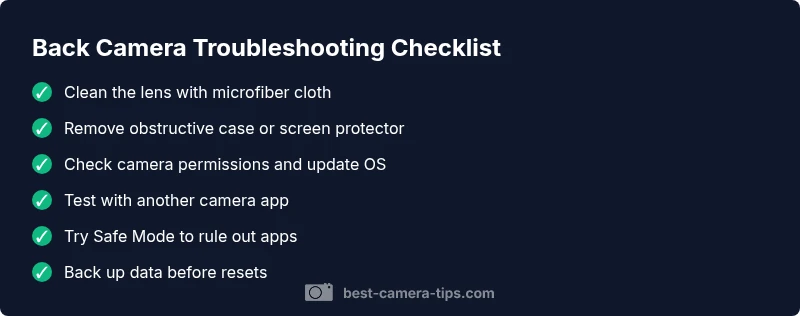
Even without specialized tools, you can run a quick set of checks that solve many back camera problems. Start by inspecting the physical lens: wipe it with a microfiber cloth to remove smudges, fingerprints, or debris that can cause blurry or opaque images. Remove any phone case or screen protector that might be partially covering the lens. Next, verify software state: ensure the camera app has permission to access the camera, microphone, and storage in your device settings. Check for OS updates and camera app updates, then restart the device to clear temporary glitches. When you reopen the camera app, test with a different mode or another camera app to rule out app-specific issues. If the camera works in another app, the problem is likely app-based; if not, the issue is deeper. Finally, try Safe Mode (Android) or a clean boot (Windows or other platforms) to see whether third‑party software is at fault. If Safe Mode fixes it, you’ve narrowed the culprit to an app or service.
Diagnostic Flow: Symptom-Driven Reasoning
A systematic approach helps you diagnose the problem quickly. Symptoms like a black screen, a frozen preview, or a distorted image each point to different likely causes. If the screen remains completely black with no UI, suspect a sensor or connection fault; check for hardware damage and warranty status. If the preview is visible but images are blurry, the lens may be dirty or the autofocus system failing. If the camera app crashes or closes unexpectedly, a software glitch, conflicting app, or corrupted cache is likely. A frozen or laggy feed usually implies heavy background processes or insufficient memory. Use this flow: observe symptom → isolate app vs system → test with alternative apps or modes → apply fixes in order of likelihood. This logic mirrors what experts at Best Camera Tips recommend for clear decision making, so you can escalate appropriately if you cannot resolve it on your own.
Step-By-Step: The Most Common Causes First
- Software glitches: Most back camera failures stem from temporary software hiccups. A simple restart, OS update, or camera app cache clear often resolves it. 2) Permissions and privacy: If the camera permission is disabled, the app cannot access the sensor, resulting in a non-functional camera. Grant permissions and retry. 3) Lens obstruction or dirt: A dirty lens or protective case can block light and ruin images. Clean the lens gently and verify no case is covering it. 4) Third‑party app conflicts: Some apps can hijack the camera, causing crashes. Reboot into Safe Mode to test; uninstall or disable suspicious apps. 5) Hardware failure: If the sensor, ribbon cable, or connector is damaged, software changes won’t fix it. In this case, professional repair or replacement is needed. 6) Data and backups: Always back up photos before attempting resets that might erase data.
Software-Focused Fixes You Can Try
Start with the least invasive software fixes. Update your OS to the latest version, then update or reinstall the camera app. Clear the camera’s cache and, on Android, clear storage data for the camera app (note that this may remove settings or saved preferences). Re-grant camera permissions if they were revoked. If you use face unlock or privacy optimizations, temporarily disable them to see if they impact camera function. Try using the camera in Safe Mode or with a different user profile. If the camera still fails, perform a software reset of settings (not a full factory reset) to restore default configurations while preserving data where possible. If none of these steps work, consider a factory reset as a last resort and make sure you have a full backup first. Finally, if problems persist after a reset, contact the device manufacturer or a certified technician.
Hardware Troubleshooting and When to Replace
Hardware issues occur when the image sensor, connector ribbon, or internal cables become damaged or wear out. Signs include a completely blank image, dead zones, intermittent failures, or a camera module that won’t power on. If liquid exposure or a drop could have damaged the camera, stop using the device and seek professional service immediately. Check your warranty status and coverage; manufacturers often offer screen or camera repairs under warranty or as an out‑of‑warranty service. For laptops or desktop-connected cameras, check the interface cable and USB port integrity. If you suspect water damage, do not apply heat; instead, seek professional repair. In many cases, a non‑replaceable sensor will require a module replacement, which is best handled by authorized service centers to preserve certifications and data security.
Safety, Privacy, and Data Backup Considerations
Before performing any fixes, back up your important photos and videos to the cloud or an external drive. Factory resets can erase data, so ensure you have a current backup. When you’re testing the camera with third‑party apps, review app permissions and privacy settings to prevent unintended data sharing. If you must visit a service center, remove sensitive data and logins to protect your privacy. Be mindful of potential scams when seeking repairs; use official service channels and avoid third parties with unclear credentials. Finally, if your device is still under warranty, request authorized service which preserves your warranty terms and protect your data integrity during repair.
Prevention: How to Keep Your Back Camera Healthy
Develop a simple maintenance routine to prevent future failures. Clean the lens weekly with a microfiber cloth and inspect the camera area for dust or moisture. Use a protective case that doesn’t press on the lens and keep the lens cover closed when not in use to minimize dust ingress. Regularly update both OS and camera apps to ensure compatibility and bug fixes. Avoid using low‑quality third‑party camera apps that request excessive permissions. Finally, monitor app battery impact and background activity so camera apps don’t get killed by memory management. With these habits, you’ll reduce the chances of new camera issues and shorten resolution times when problems do arise.
Steps
Estimated time: 45-60 minutes
- 1
Identify the symptom
Describe what you see when you open the camera and test different modes.
Tip: Document timing and apps involved. - 2
Isolate software vs hardware
Boot into Safe Mode (Android) or use a different user/profile; test with another camera app.
Tip: Safe Mode disables third-party apps. - 3
Apply core fixes
Clear cache, reset permissions, update OS, and restart.
Tip: Back up data before resets. - 4
Test results and escalation
If the issue persists, try factory reset as last software option or contact professional service.
Tip: Gather device serial, warranty, and purchase details.
Diagnosis: Back camera shows a blank screen, crashes, or produces blurry images
Possible Causes
- highSoftware glitch or cached data corruption
- highCamera app permissions blocked or revoked
- highLens dirt, smudges, or case covering the lens
- lowHardware failure (sensor, ribbon cable, connector)
- mediumThird-party app conflicts or privacy optimizations
Fixes
- easyRestart device and update OS
- easyClear camera app cache/data and regrant permissions
- easyTest with another camera app or Safe Mode to isolate
- easyReset camera settings or app preferences
- hardFactory reset as a last resort (back up first)
- hardProfessional repair for suspected hardware failure
Common Questions
What is the first thing I should do when my back camera stops working?
Begin with a soft reset, update OS, and clear camera app cache. Check lens cleanliness and permissions before proceeding to more advanced steps.
Start with a soft reset, update the OS, and clear the camera app cache. Then clean the lens and check permissions.
Why would my back camera be black or blurry even when the app opens?
This typically points to a dirty lens, incorrect focus, or software bugs affecting the camera pipeline. Clean the lens, test autofocus, and try another camera app to isolate the issue.
A dirty lens or software bug is usually the culprit; clean the lens and test autofocus with another app.
Can a software update fix back camera issues?
Yes, updates can repair bugs that affect the camera stack. Install the latest OS and camera app updates, then reboot and test again.
Installing the latest OS and camera app updates often resolves camera bugs.
Should I reset my phone if the camera still doesn’t work?
Factory resets can fix persistent software problems but erase data. Back up first and consider professional help if you’re unsure.
A factory reset can fix stubborn software issues, but back up first and only do it if necessary.
What if water or impact damage caused the camera?
Physical damage often requires professional inspection and possible module replacement. If water exposure is suspected, power down the device and seek service.
If there’s water or impact damage, a professional repair is usually needed.
Will replacing the camera module restore functionality?
Camera module replacement can restore function when the sensor or connector is faulty, but it’s a specialized repair usually done by authorized service centers.
Module replacement can fix hardware faults, usually at an authorized service center.
Watch Video
The Essentials
- Test software first to rule out glitches
- Clean the lens and verify permissions
- Use Safe Mode to isolate app conflicts
- Back up data before resets
- Seek professional repair for suspected hardware failure