If Camera Is Not Working in Android? Your Quick Troubleshooter
Urgent, practical guide to diagnose and fix Android camera failures, covering permissions, apps, safe mode, OS updates, and professional help.


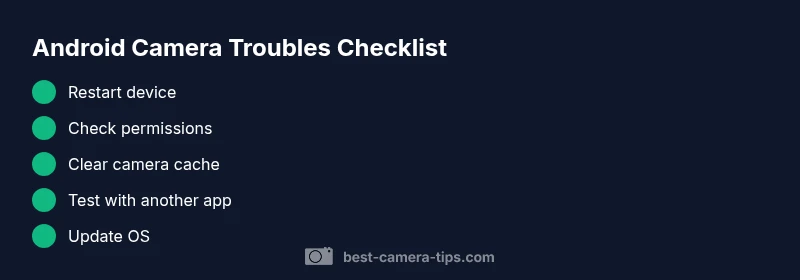
If camera is not working in android, start with the basics: reboot your device, ensure Camera permissions are granted, and clear the camera app cache. Disable recent camera-related apps and test with a different camera app in safe mode. If issues persist, check for OS updates or reset settings as a last resort.
Quick checks to rule out obvious issues
If camera is not working in android, begin with the simplest fixes that require no tools. Reboot your device to clear temporary glitches that can affect the camera process. After the restart, verify that the Camera app has permission to use the camera and microphone by going to Settings > Apps > Camera > Permissions and enabling the required toggles. Even when a single app is blocked, the system camera may close unexpectedly or fail to launch.
Next, clear the cache for the Camera app. On most devices you can do this by going to Settings > Apps > Camera > Storage & cache > Clear cache (and Clear storage if you notice lingering issues). This resets transient data that can become corrupted. If you recently installed a new camera-related app, overlay, or accessibility service, temporarily disable or uninstall it to see if the behavior changes. Then test the stock Camera app again to determine if the problem is app-specific or device-wide.
Another quick check is ensuring your Android OS is up to date. Security patches and driver updates often include fixes for camera hardware and software integrations. If you’re on a public beta or developer preview, consider rolling back to a stable release.
If the problem persists after these steps, you’re ready to move into deeper software and potential hardware checks. Remember that repeated failures may indicate something more serious, and you should plan for a longer diagnostic window if you’re troubleshooting on an older device.
Distinguishing app issues from hardware problems
When if camera is not working in android, the first question is whether the problem is with a single app or with the device’s camera subsystem as a whole. If only one app fails, the issue is most likely app-specific: a corrupted data file, a bad permission state, or a conflicting recent update. Try another camera app to confirm. If the second app works, the fault lies with the original app or its permissions rather than the device.
If multiple apps fail, the issue is more likely system-wide or hardware-related. Consider whether you recently updated the OS, installed a new accessibility service, or added a security app that could block camera access. Inspect device settings for any privacy controls, enterprise restrictions, or battery optimizations that could affect camera operation. Hardware symptoms—such as a black image, missing shutter sound, or abrupt crashes—signal a deeper problem that may require professional attention.
Environmental factors can influence autofocus, exposure, and image quality but usually do not cause launch failures. Note patterns: time of day, after updates, or after installing a new app, and document them to guide deeper diagnostics.
Step-by-step: reset app data and permissions
- Open Settings and navigate to Apps, then select the Camera app. 2) Tap Permissions and ensure Camera is granted, along with Microphone if you use video or AR features. 3) Go back to Storage and choose Clear cache, then Clear storage/data if needed. 4) Reopen the Camera app to test. 5) If the problem persists, repeat for Photos/Gallery or other media apps. 6) Disable any recently installed overlays or third-party camera helpers to test for conflicts. 7) Reboot and test again. 8) Check for a system update in Settings > System > Software update and install if available. 9) If all else fails, consider a factory reset after backing up data, or contact the manufacturer for diagnostics. Tip: Take screenshots of each setting you change to reproduce the steps later.
Testing across apps and camera modes
To isolate whether the issue is app-specific or device-wide, test with multiple camera apps and modes. Install a widely used third-party camera app and compare behavior in photo, video, and portrait modes. If all apps fail consistently, the problem is more likely hardware or driver-related. If only the stock app is affected, focus on permissions, updates, or specific app settings. Document the exact steps that reproduce the problem to accelerate support if needed.
Additionally, test camera features like HDR or night mode; sometimes specific modes trigger failures due to driver quirks. If a mode works intermittently, note the conditions (lighting, battery level, foreground apps) and adjust usage accordingly.
Safe mode and clean start: isolating the culprit
Booting into Safe Mode disables third-party apps, which helps determine if a clash with another app is the cause. In Safe Mode, open the Camera app and test again. If the camera functions properly in Safe Mode, the culprit is a third-party app or service; begin by disabling apps that recently gained permissions or overlays that touch camera hardware. If Safe Mode does not restore functionality, the problem is more likely system-level or hardware-related.
To exit Safe Mode, simply restart the device. If issues reappear, proceed with deeper software checks or hardware inspection.
Hardware considerations: camera lens, sensor, and hardware switch
Hardware faults can manifest as persistent black frames, focus issues, or image noise that software fixes won't solve. Inspect the physical camera area for dirt, smudges, or a loose lens cover; carefully clean with a microfiber cloth if safe. Check for a hardware shutter switch or lens cover that might be stuck, and ensure there’s no physical obstruction. If the device has a removable battery or modular camera module, reseating connectors can help on some models, but proceed carefully or seek professional help to avoid voiding warranties.
If you notice recurring hardware symptoms after a drop or exposure to moisture, hardware replacement may be required.
OS updates and drivers: keeping Android current
OS updates often include camera driver patches, security fixes, and performance improvements that can resolve stubborn camera issues. Check Settings > System > Software update and install any available updates. If you recently updated and the camera started failing afterward, consider rolling back to a previous stable build if your device supports it, or wait for a follow-up patch. Clearing storage, ensuring enough free space, and rebooting after updates can help ensure drivers load correctly.
When to seek professional help and warranties
If you have eliminated software causes and the camera still fails, the issue may be hardware-related. Contact the device manufacturer or an authorized service center, especially if the device is under warranty. Document the steps you’ve performed, the exact symptoms, and any error messages to speed up diagnosis. For devices out of warranty, weigh the cost of repair against replacement, particularly if the camera module or motherboard is implicated.
Prevention tips to keep the camera healthy
Regular maintenance reduces the chance of future failures. Keep the lens clean with a microfiber cloth, avoid stacking heavy apps around camera usage, and limit aggressive third-party camera apps. Back up data routinely and monitor app permissions to prevent accidental blocks. Install trusted updates promptly and avoid beta firmware on devices used for critical photography tasks.
Steps
Estimated time: 30-60 minutes
- 1
Check and grant camera permissions
Open Settings > Apps > Camera. Ensure Camera (and Microphone if needed) are allowed. If permissions are off, toggle them on and reopen the camera.
Tip: If permissions were already on, toggle off then on to refresh the state. - 2
Clear camera data and cache
Go to Settings > Apps > Camera > Storage. Tap Clear cache, then Clear storage/data if issues persist. Reopen the camera to test.
Tip: Clearing data resets preferences; you may need to reconfigure the camera after this step. - 3
Test with another camera app
Install a reputable camera app and compare results with the stock camera. If the other app works, the problem is likely with the original app.
Tip: Check for app updates or permission conflicts in the other app. - 4
Boot into Safe Mode
Enter Safe Mode to disable third-party apps temporarily. In Safe Mode, test the camera to see if it functions correctly.
Tip: If it works in Safe Mode, identify and remove the conflicting app or overlay. - 5
Update OS and drivers
Check Settings > System > Software update and install available updates. Reboot and test the camera again.
Tip: Even minor updates can include camera driver fixes. - 6
Factory reset as a last resort
If all else fails, perform a factory reset after backing up your data. This resolves deep software conflicts but erases personal data.
Tip: Back up photos, contacts, and apps before resetting.
Diagnosis: Camera app crashes, black screen, or cannot launch on Android
Possible Causes
- highCamera permission is denied or revoked
- mediumCorrupted camera app cache/data
- mediumConflicting third-party camera apps or overlays
- lowOS driver issue after a software update
- lowHardware failure of camera module
Fixes
- easyGrant camera permissions and re-test; toggle permissions off/on if needed
- easyClear camera app cache and data, then restart the app
- easyTest with a different camera app and use Safe Mode to isolate conflicts
- mediumInstall available OS updates and driver patches
- hardFactory reset as a last resort after backing up data
Common Questions
Why is my Android camera not opening?
Camera not opening usually points to permissions, corrupted data, or a conflicting app. Start with permissions and cache clearing before delving into OS updates or hardware checks.
If your Android camera won't open, try checking permissions and clearing the app cache first, then test with another camera app.
How do I check camera permissions on Android?
Go to Settings > Apps > Camera > Permissions and ensure Camera and Microphone are allowed. If needed, reset and re-allow permissions.
Open Settings, find Camera, and verify permissions are enabled for camera and microphone.
What should I do if Safe Mode doesn’t help?
If Safe Mode doesn’t fix the issue, the problem is likely OS-level or hardware-related. Proceed with OS updates or consider professional service.
If Safe Mode doesn't fix it, move on to OS updates or professional diagnostics.
Can OS updates fix camera problems?
Yes. Updates can include camera drivers and stability fixes. Always install available updates and reboot after.
Often updates repair camera issues by refreshing drivers and system components.
Is it safe to factory reset to fix camera issues?
Factory reset is a last resort and erases data. Back up first, then reset if software issues persist after other steps.
Factory reset should be your last option after trying other fixes.
When should I contact service for camera problems?
If hardware symptoms persist after software fixes, or if the device is under warranty, contact the manufacturer or an authorized service center.
If software fixes don’t help, seek professional service especially if under warranty.
Watch Video
The Essentials
- Start with permissions and cache first
- Differentiate app vs device-wide issues
- Use Safe Mode to isolate conflicts
- Back up before factory reset