What is wrong with my camera on my phone? A practical troubleshooting guide
Diagnose and fix common phone camera problems with practical, step-by-step guidance. Learn software checks, lens care, and when to seek help from Best Camera Tips.


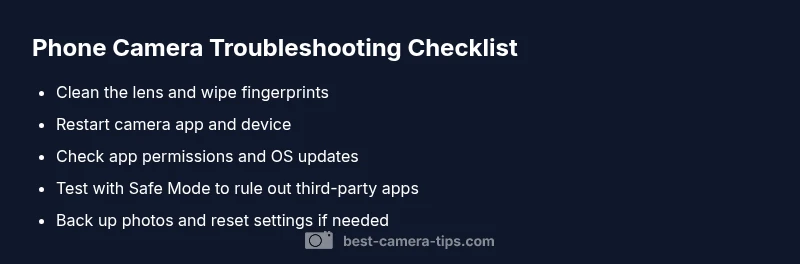
Most phone camera problems are caused by software glitches, blocked lenses, or misconfigured permissions. Start with a quick check: wipe the lens, restart the camera app, and reboot the phone. If the issue persists, update the camera app and operating system, then test in safe mode to rule out third‑party apps.
Common reasons your phone camera behaves oddly
Phone cameras can misbehave for many reasons. In most cases, the problem isn't a dead sensor but a combination of software glitches, lens contamination, or permission issues. Before you panic, run through the most common culprits: dirty lens, blocked sensors by a case or screen protector, outdated apps, or a misconfigured privacy setting that denies camera access. Understanding these roots helps you select the right fix without unnecessary steps. By following a systematic approach, you can usually recover normal camera function in under an hour.
Start with the simplest checks
Begin with hands-on, non-destructive tests. Clean the lens with a microfiber cloth; ensure nothing is covering the lens. Close all camera apps, then reopen. Reboot the phone to clear transient software glitches. Check that the camera permission is granted for the app and that there is enough storage. If you use a third-party app, try the built-in camera to confirm whether the issue is app-specific. These quick checks often resolve the majority of common problems without tools or visits to support.
Software and app considerations
Software issues are the primary driver of camera problems on most devices. Update the OS and camera apps to the latest version. Clear the camera app cache if the option exists, and disable any experimental features that may cause instability. If the camera fails in all apps, use Safe Mode to isolate third-party software. Consider temporarily disabling recently installed apps to see if they are impacting camera performance.
Hardware and sensor considerations
If software fixes fail, hardware issues could be the reason. Inspect the device for physical damage, including cracks around the camera housing or signs of moisture. If the camera module or sensor is loose, you may notice lag, garbled images, or complete black frames. In some cases, heat or condensation can degrade performance. If you drop the phone or notice moisture, do not attempt DIY repairs; hardware repair is required.
How to run practical tests and diagnostics
Test with different lighting conditions; determine whether the issue happens in daylight, low light, or both. Try portrait mode, video, and macro focus if supported. Compare front and rear cameras to see if only one lens is affected. If your device offers a built-in diagnostic tool or a manufacturer suite, run it to check the camera module status. Recording short videos can reveal frame drops or autofocus stalls that aren’t obvious in still photos.
When to contact support and what information to gather
If the problem persists after these steps, contact support. Note your device model, OS version, camera app version, steps tried, and any error messages. Include a short video clip showing the problem if possible. This information helps technicians determine whether the fault is software-related or a hardware defect, and it speeds up the service process.
Prevention tips to keep your camera in top shape
Regular maintenance reduces future issues: clean the lens weekly, keep the lens area free of fingerprints, avoid exposure to moisture, keep software updated, and avoid installing untrusted camera apps. Consider using a protective case that doesn't press on the camera lens. Back up important photos before performing significant resets, and avoid sudden temperature changes that can affect sensor performance.
Steps
Estimated time: 30-60 minutes
- 1
Restart your phone
Power off completely, wait 30 seconds, then power back on. This clears temporary glitches that may be affecting the camera. After reboot, open the camera and test with a quick photo.
Tip: A full reboot solves many transient issues and resets system services. - 2
Inspect the lens and housing
Look for scratches, cracks, or signs of moisture around the lens. Clean the lens with a clean microfiber cloth and ensure nothing covers the glass. Re-test after cleaning.
Tip: Even tiny fingerprints can degrade image quality; cleaning is fast and non-destructive. - 3
Check permissions and storage
Go to your phone settings and verify the camera app has permission to access the camera and storage. Ensure you have sufficient free space for photos and videos.
Tip: If storage is low, transfer or delete files before retesting. - 4
Update software and apps
Update the OS and camera apps to the latest version. If the issue began after an update, report the problem to the vendor and try a rollback if available.
Tip: Enable automatic updates to reduce future interruptions. - 5
Test with Safe Mode
Boot the device in Safe Mode to disable third-party apps temporarily. If the camera works in Safe Mode, a recently installed app is likely causing the conflict.
Tip: Note which apps were installed recently and test one by one after exiting Safe Mode. - 6
Run diagnostics or hardware check
Use any built-in diagnostic tools from the manufacturer, or run a camera test if available. This can reveal sensor or module faults.
Tip: Document test results and any error codes to share with support. - 7
Seek professional help if persists
If the camera still fails after all steps, contact manufacturer support or a certified repair service to assess hardware.
Tip: Don't attempt invasive hardware repair; warranties may cover defects.
Diagnosis: Phone camera app shows a black screen, blurry images, or crashes
Possible Causes
- highLens obstruction by dirt, fingerprints, or a phone case covering the lens
- highSoftware glitch, outdated OS or camera app
- highCamera permissions disabled or denied access
- lowHardware fault in camera module or sensor
- mediumOverheating or transient hardware fault
Fixes
- easyClean the camera lens with a microfiber cloth; remove any case or screen protector obscuring the lens
- easyClose and relaunch the camera app, reboot the phone, then check permissions and update software
- easyTest the built-in camera vs third‑party apps; clear camera app cache and reset app settings
- mediumIf hardware suspected, contact a professional for service or warranty check; avoid DIY repair
- easyIf Safe Mode resolves the issue, disable or uninstall recently installed apps causing interference
- easyLet the device cool if overheating is suspected and avoid resource-heavy tasks until stable
Common Questions
Why is my phone camera blurry even after cleaning the lens?
Blurry images can stem from autofocus issues, lens distortion, or sensor problems. Clean the lens, tap to focus, and test again; if it persists, try a different app and check for updates.
Blurry images are usually caused by autofocus issues or a dirty lens. Clean the lens, tap to focus, and test again; if needed, update the camera app and OS.
My camera app keeps crashing on startup. What should I do?
Restart the phone, clear the camera app cache, ensure permissions are granted, and update the app. If it still crashes, test in Safe Mode to rule out other apps.
If the camera app crashes at startup, restart the device, clear the cache, and update the app; test in Safe Mode if needed.
What does a black screen with the camera mean?
A black screen often signals a permissions issue or a hardware fault. Check camera permissions, reboot, and if the problem persists, seek service.
A black screen can be a permissions issue or hardware fault; restart, check permissions, and contact support if it continues.
Camera reset vs factory reset: is it safe?
Resetting camera settings is safe and often effective; a factory reset is drastic and should be a last resort after backing up data.
Reset camera settings first; factory resets wipe more data, so back up before proceeding.
Can third‑party camera apps cause conflicts?
Yes. Some third‑party apps can interfere with camera functions. Disable or uninstall problematic apps and test with the stock camera.
Third‑party camera apps can conflict with the system camera; remove or disable them and test again.
Should I test with the built‑in camera to diagnose issues?
Testing with the built‑in camera helps determine if the issue is app‑specific. If the built‑in camera works, the problem is likely the third‑party app.
Testing with the built‑in camera helps isolate app-specific problems; if it works, a third‑party app is likely to blame.
Watch Video
The Essentials
- Start with lens cleaning and a quick reboot
- Software issues are the most common cause; update first
- Rule out permissions and storage before hardware blame
- Use Safe Mode to isolate third‑party app interference
- Back up data and contact support if hardware suspected