Why camera doesn t work on laptop: Troubleshooting Guide
A urgent, step-by-step guide to diagnose and fix laptop webcam issues, covering permissions, drivers, hardware toggles, and app conflicts for quick restoration.


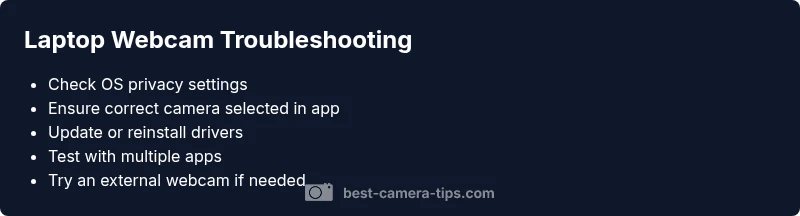
Webcam issues are usually software or driver problems. Start by ensuring the camera is enabled in OS privacy settings, select the correct camera in your app, and update or reinstall drivers. If nothing changes, test with another app or an external webcam to isolate hardware vs software.
Quick diagnostic mindset for webcam issues
If you’re asking why camera doesn t work on laptop, the first move is a disciplined, quick diagnostic approach. Treat the problem as a mismatch between software control and hardware capability. Your goal is to determine whether the issue is hardware, OS permission, or a misconfigured app. Start with the simplest checks and escalate only as needed. According to Best Camera Tips, isolate by test and eliminate: test hardware, test software, and then test in a fresh environment (a different user profile or a clean boot). In practice, you’ll want to reproduce the symptom in at least two apps, note any error codes, and confirm the camera’s LED indicator behaves as expected. By the end of this step, you should know whether the camera is physically present, recognized by the system, and accessible by at least one app. This mindset keeps you focused and avoids chasing phantom causes, especially when you need a reliable setup for photos, streams, or security checks.
Steps
Estimated time: 45-60 minutes
- 1
Open OS privacy and app camera settings
Check Windows Privacy settings or macOS Security & Privacy to ensure the camera is allowed. In apps, confirm the correct camera is selected. If permissions are blocked, grant access and retry.
Tip: Test with a built-in Camera app to confirm hardware access. - 2
Check hardware toggles and connections
Look for a physical privacy shutter or camera switch. If using an external webcam, unplug and replug into a different USB port and try a different USB cable if available.
Tip: A loose USB connection is a common, quick fix. - 3
Update or reinstall webcam drivers
In Windows, open Device Manager > Cameras, update driver or uninstall and reboot to reinstall. On macOS, run Software Update to refresh system drivers.
Tip: Use official vendor or OS-provided drivers only. - 4
Test across multiple apps
Open at least two apps (e.g., Zoom and a browser with camera access) to determine if the issue is app-specific or system-wide.
Tip: If one app works, focus on app settings or extensions. - 5
Check BIOS/firmware and system updates
Ensure your BIOS and system firmware are current, as some laptops require updates to restore camera compatibility.
Tip: Back up important data before firmware updates.
Diagnosis: Webcam shows no video or is intermittently unavailable across apps
Possible Causes
- highCamera disabled in OS privacy settings
- highIncorrect camera selected in the active app
- highOutdated, missing, or corrupted webcam drivers
- lowHardware switch, loose USB connection, or faulty camera
Fixes
- easyRe-enable the camera in OS privacy settings and reselect the camera in the app
- easyVerify the app is using the correct camera and try a different app to confirm scope
- mediumUpdate, reinstall, or roll back the webcam driver in Device Manager (Windows) or System Report (macOS)
- hardRun a hardware diagnostic or consider replacing the camera if a hardware fault is confirmed
Common Questions
What should I check first when my laptop webcam stops working?
Start with OS privacy settings, make sure the app has camera access, and ensure the correct camera is selected. If the camera still doesn’t work, test with another app to see if the issue is app-specific.
First, check that the camera is allowed in your OS settings and that the right camera is chosen in your app. Then test with another app to see if it’s an app issue.
Why does my webcam show a black screen even though it appears in Device Manager?
A black screen often means privacy restrictions are blocking the video feed, or another app is currently using the camera. Updating drivers can also help if the device is recognized but not streaming.
Usually privacy settings or another app using the camera. Update drivers if the device is listed but won’t stream.
How can I safely update my webcam driver on Windows?
Open Device Manager, expand Cameras, right-click your webcam, and choose Update driver. If problems persist, uninstall the device and reboot—the OS will reinstall a fresh driver. Always use the official vendor’s site for downloads.
Go to Device Manager, update or reinstall the driver, and reboot. Use official sites only.
Is it safe to uninstall and reinstall webcam drivers?
Yes, uninstalling and rebooting forces Windows/macOS to reinstall a clean driver. This fixes corrupted driver files but should be followed by a reboot and tests in multiple apps.
Yes, that’s safe and often fixes corrupted drivers. Reboot after reinstall.
Why does the camera work in one app but not another?
This usually points to per-app permissions or settings. Recheck the camera source within the problematic app and reset its permissions if needed.
If it works in one app but not another, check that app’s camera permissions and settings.
Should I replace my laptop camera or use an external USB camera?
If hardware failure is suspected and the laptop is under warranty, consult support. A USB external camera is a fast, flexible workaround that preserves your laptop’s integrity.
If you suspect hardware failure and the laptop is still under warranty, talk to support. Otherwise, a USB webcam is a good workaround.
Watch Video
The Essentials
- Check OS privacy settings first
- Test camera in multiple apps to isolate issues
- Update or reinstall webcam drivers regularly
- Verify hardware switches and connections
- Keep firmware and OS up to date to prevent recurrence