How to Check a Laptop Camera: A Practical Guide
Learn how to check your laptop camera for privacy, performance, and connection issues with this step-by-step guide. We cover hardware checks, software tests, driver updates, and security tips for Windows, macOS, and Linux.


You will learn how to verify your laptop camera works, is allowed by apps, and is not compromised by privacy issues. The guide covers hardware indicators, permissions, basic app tests, online diagnostics, driver updates, and when to seek professional help. It applies to Windows, macOS, and Linux, with practical checks you can perform today.
Why Check Your Laptop Camera
Regularly verifying your laptop camera helps protect your privacy, ensures it functions when you need it for video calls or recording, and helps diagnose hardware or software issues early. A well-checked camera reduces the risk of unintentional video sharing and ensures apps have the necessary permissions to access the device. In this section we outline why a quick check matters for both aspiring photographers and home security enthusiasts who rely on laptops for field work, streaming, or remote monitoring. You’ll learn to distinguish between hardware problems, driver or software permissions, and privacy settings, so you can act quickly and accurately. Best Camera Tips recommends making camera checks a standard part of your setup routine to avoid surprises during important calls or recordings.
Quick Hardware Checks
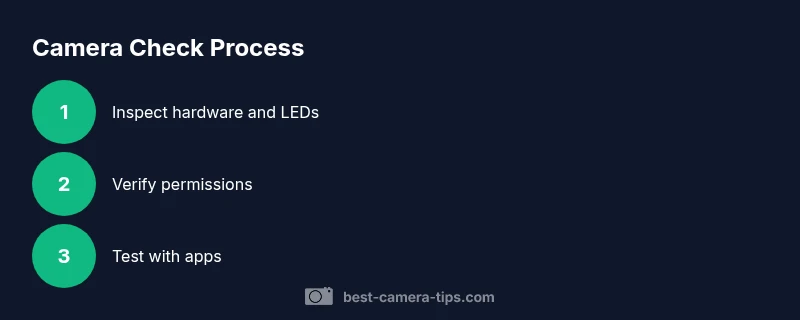
Hardware checks form the first line of defense. Start by visually inspecting the lens for smudges or dust and clean gently with a microfiber cloth. Confirm the camera indicator light behaves as expected when apps access the camera—most laptops illuminate an LED when the camera is active. Check that the lid or privacy shutter (if your model has one) opens and closes smoothly. If you notice the LED stays off or flickers, there may be a hardware fault or a driver issue. For cross-checking, you can temporarily connect an external USB webcam to compare video quality and confirm whether the built-in camera is the bottleneck or if the problem lies with software. Always handle the camera area gently to avoid internal damage.
Operating System Permissions and Privacy Settings
App permissions are a common source of camera problems. On Windows, go to Settings > Privacy & security > Camera and ensure access is enabled for the device and the relevant apps. On macOS, open System Settings > Privacy & Security > Camera and check which apps can access the camera. On Linux, verify permissions for the video device (often /dev/video0) and that apps are granted access via the toolkit you use. After adjusting permissions, test with a built-in app (Windows Camera or macOS Photo Booth) to confirm visibility and audio/video syncing. Remember: some antivirus or privacy-focused software can block access; temporarily disable or configure exceptions for testing.
Testing Video Quality with Built-In Apps
Built-in apps provide quick, reliable tests of both video and audio. Launch the native camera app on Windows or macOS and record a short clip, then review the playback for focus, color accuracy, and motion smoothness. Look for lavalier or desk lighting to avoid harsh shadows, and use a stable scene to assess frame rate. If your device supports multiple webcams, switch between devices in the app settings to compare quality. Document your results for future reference, noting brightness, color balance, and any delays or stuttering. If issues persist, proceed to online tests and external device comparisons to pinpoint the cause.
Online Camera Tests and Benchmarks
Online webcam test sites let you verify camera resolution, frame rate, and overall reliability from a browser. Visit a reputable test page and run the test across different lighting conditions. For example, you can compare color accuracy, exposure response, and autofocus performance in a controlled environment. If online tests show inconsistent results, there may be a driver conflict, background process hogging CPU/GPU resources, or a power management setting limiting performance. Take screenshots or save test results to track changes after fixes or updates.
Privacy, Security, and Physical Covers
Security considerations go beyond performance. If you’re concerned about covert recording, enable a physical webcam cover when not in use, and verify that the LED indicator activates when the camera is engaged. Review privacy policies of your video conferencing apps to understand data handling. Be wary of untrusted apps masquerading as camera utilities; install software only from trusted sources. Regularly review app permissions and perform periodic checks to ensure no new apps have been granted camera access without your knowledge.
Troubleshooting Common Scenarios
If you see a black screen or a distorted image, start with simple steps: restart the device, update or reinstall camera drivers, and reset app permissions. Check for conflicting software (some video conferencing tools or privacy utilities can hijack the camera). If the problem persists in multiple apps, consider testing with an external webcam to confirm whether the issue is hardware- or software-related. For persistent issues, reset privacy settings to defaults and check for BIOS/firmware updates from the laptop manufacturer. Keep a log of affected apps and times to help diagnose a reproducible pattern.
Advanced Diagnostics and When to Seek Help
Advanced diagnostics include checking the hardware path at the BIOS/UEFI level, validating the camera device in Device Manager (Windows) or System Information (macOS), and running vendor-specific diagnostic tools. If you’ve exhausted software tests, the camera hardware may require professional inspection, especially on devices under warranty. Before service, back up important data and collect model information, driver versions, and a short video sample demonstrating the issue. If the device is still behaving unexpectedly after updates, contact the manufacturer support line or a trusted repair shop. Best Camera Tips suggests keeping evidence of your tests to speed up service.
Authority Sources and Further Reading
To deepen your understanding of device privacy and camera testing, consult authoritative sources that discuss hardware testing, driver management, and security best practices. These references provide official guidance on keeping your system and peripherals secure, and they help you distinguish between software issues and genuine hardware faults. Always verify any new steps against your device manufacturer’s recommendations and your operating system’s official documentation. Best Camera Tips Analysis, 2026, combines practical testing with safety-minded practices to help you maintain reliable camera performance.
Tools & Materials
- Laptop with built-in webcam(Ensure camera is enabled in BIOS/firmware if available; confirm model number in system settings)
- Internet connection(Needed for online tests and driver updates)
- External USB webcam (for comparison)(Helpful to distinguish between internal vs external camera issues)
- Microfiber cloth(Clean the lens gently before testing)
- Access to camera permissions/settings(Windows, macOS, and Linux variants; ensure apps have access)
- Administrative access (for drivers)(Needed for driver installation on some systems)
Steps
Estimated time: 60-120 minutes
- 1
Inspect hardware and LED indicators
Power on the laptop and observe whether the camera LED lights up when you open a camera app. Physically inspect the lens for dust or smudges and clean with a microfiber cloth. This establishes whether the issue is likely hardware-related or just a lens obstruction.
Tip: If the LED does not light, try a different app to confirm the symptom and note any error messages. - 2
Check physical privacy mechanisms
Many laptops have a privacy shutter or switch. Verify it is fully open. Some models include a black tape or cover; remove anything blocking the lens before testing. A blocked lens explains a black or blurry image even if software is functioning.
Tip: Always re-test after removing any cover; avoid reapplying tape that could leave residue. - 3
Verify camera permissions
Open your operating system’s privacy settings and confirm camera access is enabled for your user account and the apps you want to use (e.g., video conferencing, photo apps). Reboot if permissions changes don’t take effect. Permissions issues are a common cause of cameras appearing to be broken.
Tip: Test with a built-in app after changing permissions to confirm proper access. - 4
Test with built-in camera software
Launch the system camera app (Windows Camera, macOS Photo Booth, or Linux Cheese) and record a short clip. Check for focus, color accuracy, exposure, and audio. If the output looks off, note the lighting conditions and try a different lighting setup for better evaluation.
Tip: If you see lag, reduce the video resolution in the app settings to test performance limits. - 5
Perform an online camera test
Use a reputable webcam test site to verify resolution, frame rate, and stability. These tests help reveal intermittent frame drops or color-shift issues not evident in offline recordings. Save the results for comparison after fixes.
Tip: Run tests under both bright and dim lighting to capture variability in exposure handling. - 6
Compare with an external webcam
If you have an external USB webcam, connect it and perform the same tests. If the external camera works but the built-in does not, the problem likely lies with the internal hardware or drivers.
Tip: Document differences in video quality and latency between devices. - 7
Update or reinstall drivers
Open Device Manager (Windows) or System Information (macOS) and locate the camera device. Update the driver or reinstall it. Reboot after installation and re-test with a camera app and an online test.
Tip: Download drivers from the official vendor site to avoid bundled software. - 8
Check BIOS/firmware and system updates
Look for BIOS/firmware updates from the laptop manufacturer and install them if available. System updates can also include improved webcam support. After updates, re-test the camera in multiple apps.
Tip: Back up important data before performing BIOS updates; follow the manufacturer’s instructions precisely. - 9
Assess for hardware failure and plan next steps
If tests fail across apps and driver updates, the camera may have a hardware fault. Check warranty status, gather model information, and arrange service with the manufacturer or an authorized technician. Keep a record of all tests and outcomes to aid diagnostics.
Tip: If in doubt, contact official support rather than third-party repair services to avoid invalid warranties.
Common Questions
Why isn’t my laptop camera showing any video in apps?
Common causes include camera permissions being disabled, outdated drivers, or a hardware fault. Start by checking app permissions, then update drivers, and test with a built-in camera app. If the problem persists across apps, the issue is more likely hardware or BIOS-related.
If you’re not seeing video in apps, start by checking permissions, update drivers, and test with a built-in camera app. If it fails across multiple apps, the hardware may be at fault.
How can I test my camera without online tools?
Use your operating system’s built-in camera app (Windows Camera or macOS Photo Booth) to verify immediate video output. If that works, but online tests fail, the problem is likely browser permissions or network-related. If both fail, it’s likely a driver or hardware issue.
Test with the built-in camera app first; if that succeeds but online tests fail, look at browser permissions and network issues.
Should I cover my webcam for privacy?
If you’re not actively using the camera, consider a physical cover. It adds a layer of protection beyond software permissions. Always verify LED indicators when testing to ensure the camera is truly off when covered.
Yes, a physical cover can help protect privacy when the camera isn’t in use.
What steps for a hardware fault in a laptop camera?
Assess warranty status, collect model information, and contact manufacturer support. If the device is under warranty, repairs are typically covered; otherwise, seek a trusted local technician.
If you suspect hardware fault, check warranty and contact official support for repair options.
Can OS updates affect camera performance?
Yes. OS updates can reset permissions or adjust driver compatibility. After updating, re-check camera permissions and test with multiple apps to ensure continued functionality.
Yes—after OS updates, re-check permissions and test across apps.
Is it safe to re-install camera drivers?
Reinstalling drivers is generally safe when done through official sources. It can resolve conflicts or corrupted files. Always back up data and reboot after installation.
Reinstall drivers from official sources and reboot to apply changes.
Watch Video
The Essentials
- Verify hardware indicators first to rule out simple issues
- Check permissions across Windows, macOS, and Linux
- Use multiple testing methods: built-in apps and online tests
- Driver updates and firmware can resolve many problems
- If issues persist, consider hardware service under warranty