What to Do When Your Laptop Camera Isn’t Working
A practical, urgent guide to diagnose and fix laptop webcam issues—from drivers to privacy settings—so you can regain video calling and recording quickly.


Quick fix: If your laptop camera isn’t working, start with a quick safety check and privacy review, then update or reinstall the webcam driver, and verify app permissions. In most cases the issue is a blocked access or an out-of-date driver. If the camera still won’t appear after these steps, use built-in diagnostics or test with an external webcam as a fallback.
What to do when the camera is not working on a laptop: urgent overview
If you’re preparing for an important video call and the built-in camera won’t cooperate, you’re not alone. When faced with the question what to do when the camera is not working on a laptop, most people want a fast, reliable workflow that gets the camera back online without guessing. According to Best Camera Tips, most laptop webcam problems originate in software rather than hardware, with two frequent culprits: outdated drivers and blocked access. This article delivers a practical, urgent sequence you can follow step by step, without specialized tools or services. You’ll learn how to identify whether the issue lies with drivers, privacy settings, or an app, and you’ll know when a fallback external webcam is warranted. Expect concrete actions, tested checks, and safe troubleshooting habits designed for aspiring photographers and home security enthusiasts who depend on reliable imagery. Throughout, the guidance emphasizes practical testing and clear decision points so you aren’t guessing at passwords or third‑party software.
Common culprits at a glance
- Outdated or missing webcam drivers: A missing driver is the most common reason Windows or macOS can’t access the camera. Updating to the latest driver or rolling back to a stable version often resolves the issue quickly.
- Privacy and app permissions: If an operating system or browser blocks camera access, the camera will appear in the device tree but refuse to feed video to apps. This is especially common after OS updates or new software installations.
- Hardware shutter or physical blockage: A privacy shutter or a physical occlusion can fool you into thinking the camera is broken. Verify the lens has a clear path and that any hardware switch isn’t turning the camera off.
- BIOS/UEFI and security settings: Some laptops offer a hardware toggle in BIOS to disable cameras for privacy or policy reasons. If this is enabled, software won’t be able to access the camera until you re-enable it.
- Faulty hardware or USB interference: A damaged webcam module or a conflicting USB device can prevent the camera from functioning, though this is less common.
Privacy and permissions: Windows, macOS, and apps
On Windows, go to Settings > Privacy > Camera and ensure "Allow apps to access your camera" is on, then individually enable camera access for Zoom, Teams, browsers, and other software. On macOS, open System Settings > Privacy & Security > Camera and check the apps listed with permission. Browser permissions matter too—Chrome and Firefox sometimes block camera access by default; click the site info icon and grant permission for camera. After enabling permissions, restart the app and test with a quick video call or a photo capture. If you're troubleshooting what to do when the camera is not working on a laptop, remember permissions are a frequent culprit. Best Camera Tips recommends keeping permissions tight but permissive enough for essential apps, and testing after every change to confirm results.
Drivers and software updates: keep things current
Driver issues are the top cause of many webcam problems. Update your OS first, then check Device Manager (Windows) or System Information (macOS) for driver status. If a recent update caused trouble, you may need to roll back or reinstall. Visit the laptop or webcam vendor’s support page to download the recommended driver package. When drivers are current, the camera shows up in Device Manager or System Report, and the software can access it without glitches. In the Best Camera Tips analysis, staying current with drivers is among the most reliable fixes for laptop camera problems.
Built-in testing: verify hardware and OS integration
Use the Windows Camera app or macOS Photo Booth to determine whether the camera itself is responsive, or if the issue only occurs in certain apps. System-level tests, like Windows’ Camera privacy diagnostic or macOS’ System Information > USB or Camera entries, can reveal driver or port problems. If the camera passes basic tests in one environment but fails in a particular app, focus on that app’s permissions and settings. Regular testing with multiple apps helps you confirm whether the problem is universal or app-specific.
App-specific troubleshooting: video calls, browsers, and capture software
Video conferencing tools (Zoom, Teams, Meet) each have their own camera settings. Ensure the correct device is selected in the app’s preferences, and disable virtual cameras if they’re misconfigured. If a browser won’t access the camera, reset site permissions and clear cache. For photographers using capture software or streaming tools like OBS, verify that the source is enabled and not blocked by another program. A common pitfall is leaving an old driver or a ghost device as the active camera in a window; remove or disable unused devices.
If nothing works: advanced checks and hardware considerations
When software fixes fail, test possible hardware faults: try a different USB port if you’re using an USB webcam, or test the laptop’s built-in camera with a bootable diagnostic drive. Inspect for BIOS/UEFI privacy settings that may disable the camera and re-run hardware diagnostics provided by the manufacturer. If you still can’t resolve the issue, it may be a camera module fault or motherboard-level problem, at which point professional repair or replacement is advisable. Having a plan B, such as an external webcam, keeps your workflow uninterrupted.
Safe testing sequence and documentation
Document each step you perform so you can reproduce results and identify what changes fixed or did not fix the issue. Maintain backups of drivers and ensure you have a recovery point in case a reinstall is needed. Avoid installing untrusted utilities to bypass driver issues; rely on official sources and trusted updates. The aim is to restore reliable camera function while preserving system stability and data integrity.
Prevention: how to minimize future webcam problems
- Regularly update drivers and OS patches
- Keep privacy settings reviewed after major OS updates
- Use a standard external webcam for important work as a fallback
- Create a quick, repeatable testing routine before video calls
- Back up current camera drivers so you can roll back safely if something breaks
As a reminder, prevention is often faster than emergency fixes, and Best Camera Tips emphasizes routine checks to keep your laptop camera ready for every shoot or call.
Steps
Estimated time: 60-75 minutes
- 1
Check privacy and app permissions
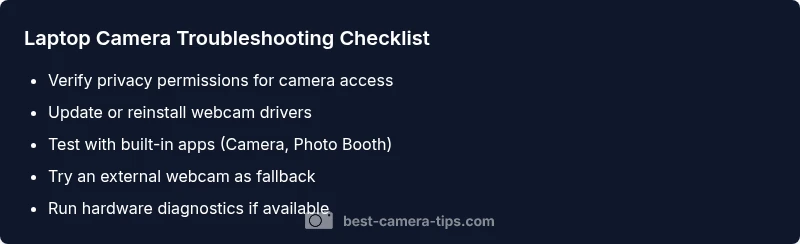
Open your OS privacy settings and ensure camera access is allowed for the user and for the specific apps you use. Reboot the device after changes and test with the built-in Camera app or a browser.
Tip: Always restore permissions to the minimum needed after testing. - 2
Update or reinstall webcam driver
Go to Device Manager (Windows) or System Information (macOS) and check driver status. Update to the latest version from the vendor’s site, or reinstall the driver if issues persist.
Tip: Create a system restore point before major driver changes. - 3
Test with built-in apps
Launch the Windows Camera app or macOS Photo Booth to see if the camera responds. If it works here but not in other apps, focus on those apps’ permissions and settings.
Tip: If a single app fails, reset its permissions and reinstall if needed. - 4
Check BIOS/UEFI and hardware switches
Enter BIOS/UEFI and look for a camera privacy toggle. If present, ensure it’s enabled. Some laptops also have physical switches or function key combos to enable/disable the camera.
Tip: Avoid changing multiple BIOS settings at once; note original values if you need to revert. - 5
Try an external webcam
Connect a USB webcam to a different port and test. If it works, the built-in camera may have a hardware fault; if not, the problem is broader (OS, drivers, or USB subsystem).
Tip: Test power and USB ports with another device to rule out port issues. - 6
Run a hardware diagnostic
Use your laptop’s built-in diagnostics or the manufacturer’s tool to test the camera module and USB subsystem. Review any error codes or logs for clues.
Tip: Document any codes to share with support if needed. - 7
Escalate if needed
If all else fails, contact the laptop manufacturer or a trusted repair service for a hardware assessment or camera replacement.
Tip: Back up data before service and ask about warranty coverage.
Diagnosis: Laptop camera not detected or shows black screen
Possible Causes
- highOutdated or missing webcam driver
- highCamera access blocked by OS privacy settings or app permissions
- mediumHardware toggle/BIOS setting disables camera
- lowCamera hardware failure or loose connection (external webcam)
Fixes
- easyUpdate or reinstall the webcam driver via Device Manager (Windows) or System Information (macOS)
- easyCheck and adjust OS privacy settings and per-app permissions
- mediumRe-enable camera in BIOS/UEFI and reset hardware switches
- easyTest with an external USB webcam to rule out built-in camera hardware
- hardIf none works, seek professional service or consider replacement
Common Questions
Why isn’t my laptop camera detected in Windows Device Manager?
Detected issues are often driver-related or caused by privacy settings. Start by updating or reinstalling the webcam driver and ensuring camera access is allowed in Windows Privacy settings. If it still doesn’t appear, check BIOS/UEFI privacy options and test with a different app.
Driver or privacy settings are usually the culprits. Update the driver and check Windows privacy settings, then test with another app.
How can I test my webcam on a Mac?
On macOS, test with Photo Booth or QuickTime Player to see if the camera responds. If it works there but not in other apps, adjust app permissions in System Settings > Privacy & Security > Camera and recheck the app-specific permissions.
Use Photo Booth or QuickTime to test, then fix app permissions if needed.
How do I update my webcam driver?
Open Device Manager, locate Imaging Devices or Cameras, and choose Update Driver. If the manufacturer provides a newer version, download and install it. Reboot and re-test the camera after updating.
Update through Device Manager or the vendor's site, then restart and test.
Can a hardware shutter cause failures?
Yes. Some laptops have a physical shutter or privacy switch. Verify the shutter isn’t closed and that any hardware toggle is set to allow the camera to function.
Check for a hardware shutter and ensure it's open.
Should I use an external webcam as a fallback?
An external USB webcam is a reliable fallback when the built‑in camera fails. It helps you continue video work while diagnosing the internal camera hardware or drivers.
External webcams are a solid backup while you troubleshoot.
When should I seek professional help?
If diagnostic tests indicate hardware failure or if issues persist after driver and permission fixes, professional repair or replacement is advised.
If testing shows hardware problem, get expert help.
Watch Video
The Essentials
- Verify privacy settings first
- Update or reinstall drivers as needed
- Test with multiple apps and hardware
- Use an external webcam as a reliable fallback
- Escalate to professional help if hardware failure is suspected