What is wrong with my iPhone camera? A practical troubleshooting guide
An urgent, practical troubleshooting guide from Best Camera Tips to diagnose and fix common iPhone camera problems, from lens smudges to software glitches.


Start with the simplest fixes: clean the lens, ensure the lens is not blocked, and restart your iPhone. Check for app-specific issues by trying another camera app, and verify storage and software updates. If the problem persists, reset settings or contact Apple Support as the next step. See our full step-by-step guide for a complete diagnostic.
Immediate triage for 'what is wrong with my camera on my iphone'
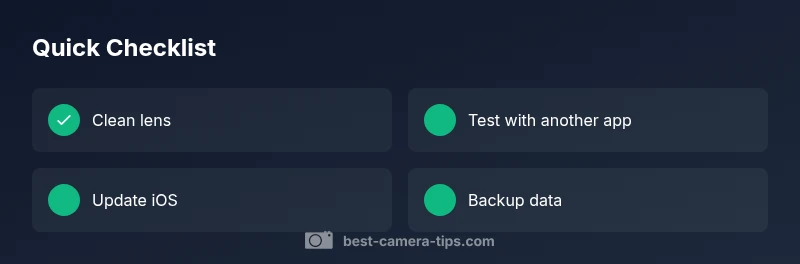
According to Best Camera Tips, many iPhone camera problems are solvable in minutes with a focused triage. If you’re wondering what is wrong with my camera on my iphone, start with the simplest checks: clean the lens, ensure nothing covers the camera, and verify the camera app has permission to access storage and the camera. A surprising number of issues come from tiny smudges or a loose case that blocks the lens. Then perform a soft reset: close the Camera app, restart the device, and install any pending iOS updates. If the problem persists, test with a second camera app to determine whether the fault is with the stock app or the device itself. These quick steps set the stage for deeper diagnostics and prevent unnecessary resets of your data. Remember to back up photos before attempting any resets as a precaution. Also check lighting and scene composition: low light or backlit scenes can make the camera appear to fail by producing noise or glare. That’s common, not final.
Common causes behind iPhone camera issues
When diagnosing the question "what is wrong with my camera on my iPhone", you should review several frequent culprits:
- Dirty or obstructed lens causing soft focus or hazy images.
- Software glitches or camera app bugs that affect autofocus or exposure.
- Insufficient storage or memory pressure that crops image quality or causes crashes.
- Hardware damage from impact or water exposure, leading to dead pixels or degraded sensors.
These causes vary in likelihood depending on your setup and recent changes (new apps, updates, or physical impact).
How lighting and exposure influence camera behavior
Lighting conditions dramatically affect perceived camera health. In low light, the sensor struggles, producing noise or grain. Backlit scenes can fool auto-exposure, making subjects too dark or too bright. Use focus-tap to set exposure, enable/adjust HDR, and consider using a tripod or stable surface for long-exposure-like shots in darker environments. If the camera still underperforms in well-lit conditions, it’s time to investigate software or hardware factors.
Software and app considerations
iPhone cameras rely on iOS services and the Camera app. If you’ve installed a lot of third-party camera apps, conflicts can arise, or one app may override default settings. Ensure camera permissions are granted, and disable background app refresh if it correlates with delays or freezes. Regularly update iOS and the camera-related apps to minimize bugs. If a single app consistently underdelivers, use a different app to isolate whether the issue is app-specific.
Hardware factors and test strategies
Hardware faults can manifest as frozen previews, dead pixels, or inconsistent exposure across shots. Use both the main rear camera and the front-facing camera to check consistency. Compare results between the stock Camera app and another reputable app to determine if hardware is implicated. If behavior is identical across apps, consider hardware diagnostics with Apple Support. Always confirm there is no moisture inside the lens housing that could affect optics.
Step-by-step tests and resets you can perform
After confirming the issue persists across apps, perform a non-destructive reset: close apps, reboot the iPhone, and check for iOS updates. If problems continue, reset all settings (this won’t erase data but will reset network, privacy, and system preferences). If a reset resolves it, the problem was likely software-related; if not, you may be facing a hardware fault. In all cases, back up your data first.
When to seek professional help and data safety
If the problem remains after the above checks, schedule a diagnostic with Apple Support or an authorized service provider. Document when the issue occurs, the apps involved, and whether it affects rear, front, or both cameras. Back up your photos and videos regularly to prevent data loss. A professional assessment can confirm sensor issues, lens damage, or controller faults requiring replacement.
Prevention and best practices
Regular lens cleaning, careful storage, and timely iOS updates reduce camera problems. Use reputable camera apps sparingly, monitor storage usage, and avoid exposing the device to moisture. By performing periodic checks and maintaining a clean, updated system, you minimize the risk of repeat issues and ensure your iPhone camera remains reliable.
Steps
Estimated time: 30-60 minutes
- 1
Inspect camera environment
Check for blockages over the lens and assess lighting. Remove any stickers or case parts that might press on the camera area.
Tip: Always start with the simplest physical check. - 2
Clean lens and case
Gently wipe the lens with a microfiber cloth; remove dust or smudges; remove a protective case if it covers the camera.
Tip: Use a clean, dry cloth; avoid liquids. - 3
Test in different apps
Open the stock Camera app and a third-party camera app to compare results.
Tip: If the problem appears only in one app, the issue may be app-specific. - 4
Reset and update
Close apps, reboot the device, and install any available iOS updates. If needed, reset all settings.
Tip: Back up data before resets. - 5
Seek professional help if needed
If issues persist after steps above, schedule service with Apple Support or an authorized repair.
Tip: Persistent hardware faults require official diagnostics.
Diagnosis: Camera app image issues (blurry, dark, or freezing)
Possible Causes
- highLens dirty or obstructed
- mediumSoftware glitch or camera app bug
- lowInsufficient storage or hardware fault
Fixes
- easyClean the lens with microfiber cloth and check for obstructions
- easyClose Camera app, restart iPhone, and install available iOS updates
- mediumReset all settings or seek official support if persists
Common Questions
What should I try first if my iPhone camera is blurry?
Clean the lens, check for smudges, and test in another app. If the blur persists, move to software checks.
Try cleaning the lens and testing in another app first.
Why does my iPhone camera darken or underexpose?
Ensure there is enough light and disable HDR if misfiring; check exposure by tapping to focus and adjust the sun exposure slider.
Check exposure by tapping and adjusting the slider.
What if the camera app crashes?
Force quit the Camera app, restart the iPhone, update iOS, and reset settings if needed.
Force quit and restart, then update iOS.
Can hardware damage affect the camera?
Yes, impact or liquid exposure can damage the camera module; contact Apple Support for diagnostics.
Hardware damage requires official diagnostics.
Is there a way to fix this without losing data?
Most fixes are non-destructive, but a factory reset erases data; back up before resets.
Back up before major resets.
When should I seek professional help?
If issues persist after all troubleshooting on this page, contact Apple Support or an authorized service provider.
Persistent issues require official support.
Watch Video
The Essentials
- Start with simple fixes first
- Test across apps to isolate app vs device
- Back up before resets
- Update iOS to patch camera bugs
- Seek official support if hardware suspected