What is Wrong with My Camera App? A Practical Troubleshooting Guide
Urgent, step-by-step troubleshooting for camera app issues on smartphones. Identify root causes, follow a diagnostic flow, and resolve cache, permissions, updates, or reinstall problems quickly.


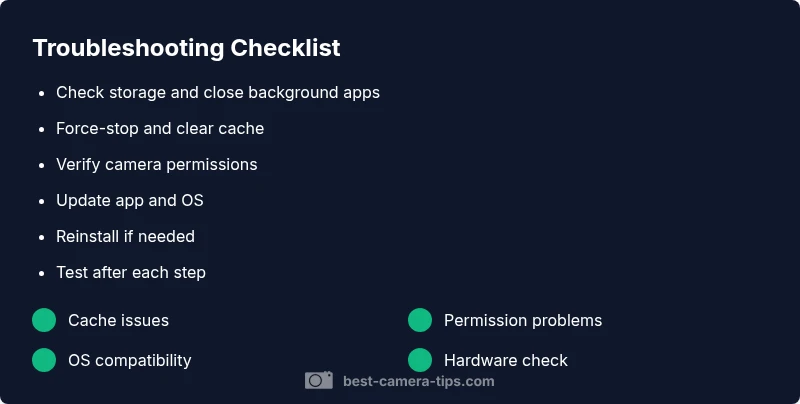
The most likely cause is a software glitch or corrupted cache in the camera app. Start with a quick fix: force-stop the camera app, clear its cache and data, then reboot your device and reopen the app. If issues persist, install any available app updates, check OS updates, review camera permissions, and consider reinstalling the app. If nothing helps, contact support.
What is going wrong with your camera app
If you’re wondering what is wrong with my camera app, the most common culprits are software glitches, cached data, permissions, or OS changes. According to Best Camera Tips, many issues start small and escalate if left unchecked. A quick, methodical approach helps you identify the root cause without guessing. In practice, you’ll see symptoms like the app crashing on launch, freezing mid-shot, failing to save photos, or camera preview going black. The good news is that most of these problems can be resolved without hardware repairs, and the majority originate from the software layer rather than the camera sensor itself. Throughout this guide, we’ll reference practical checks you can perform on Android and iOS devices, with model-agnostic steps whenever possible. Best Camera Tips analysis shows that cache corruption, misconfigured permissions, and outdated software are the most frequent triggers of camera app trouble.
Quick checks you can perform right now
Start with the simplest, non-destructive checks before diving into deeper steps. First, verify you have enough free storage; when storage is full, the camera app can crash or fail to save images. Then force-stop the camera app, clear its cache (and data if needed), and restart the device. After reboot, test the camera again. Check that the app has camera and storage permissions enabled, and that no other app is monopolizing camera resources. If you’re on Android, consider disabling problematic overlays or third-party camera extensions. For iOS, ensure you’re on a supported OS version and that Screen Time or accessibility features aren’t interfering.
Diagnostic flow at a glance
To quickly pinpoint the fault, observe the symptom and map it to a likely cause. If the app crashes on launch, focus on cache, data, and permissions. If the preview turns black or freezes, storage, camera service, or hardware conflicts are more probable. After every fix, retest the camera to confirm resolution. If nothing resolves the issue, move up to OS updates or a reinstall. Always back up important photos before clearing data.
Step-by-step fixes for the most common causes
The fixes below map to the diagnostic flow and are designed to be followed in order. Start with non-destructive actions (force close, clear cache) and progress to reinstall or OS-level changes only if needed. Document each change and test the camera after every step. If you’re unsure about performing a reset or a reinstall, consult official support resources first to avoid data loss.
Safety tips and common mistakes
Be mindful of data loss when clearing app data or reinstalling. Always back up photos and important settings before performing data-clearing actions. Do not force-quit critical system services unless you know what you’re doing, and avoid multi-step workarounds that involve third-party apps with questionable permissions. On shared devices, sign out of accounts if needed to prevent sync conflicts.
When to seek professional help
If the camera still won’t operate after all basic troubleshooting steps, seek professional help. A hardware fault or a deeper OS issue may require service or a device replacement. Bring details about your device model, OS version, app version, and a list of steps you tried when you contact support.
Prevention tips to avoid future issues
Keep your camera app and OS up to date to reduce compatibility problems. Regularly clear cache for non-critical apps and review permissions after system updates. Avoid installing conflicting camera extensions that access hardware features. Regular backups help you recover quickly if you need to reinstall.
Final quick actions you can perform today
If you’re short on time, start with force-stopping the camera app, clearing cache, rebooting, and applying any available updates. If the problem persists, reinstall the app and re-check permissions. This structured approach minimizes guesswork and speeds up problem resolution.
Steps
Estimated time: 25-40 minutes
- 1
Force-stop and restart the camera app
Open your device’s recent apps, swipe away the camera app to force-stop it, then relaunch the app after a moment. Test by taking a quick photo. If the app still misbehaves, move to the next step.
Tip: On Android, access App info to force-stop; on iOS, swipe up to close the app from the app switcher. - 2
Clear cache and, if needed, data
Navigate to the camera app settings and clear the cache. If problems persist, clear data to reset to default settings, then reopen the app and configure preferences again. Always test after each action.
Tip: Clearing data resets settings; you may need to reconfigure preferences and sign back in. - 3
Reboot the device
Power off the device completely, wait 30 seconds, then power back on. After the reboot, launch the camera app and perform a quick test capture.
Tip: A full power cycle resolves many transient system conflicts. - 4
Review permissions and storage access
Verify the camera app has permission to use the camera and storage. If permissions were revoked, grant them and re-test the camera.
Tip: Some OS versions require re-accepting permissions after updates. - 5
Update or reinstall the camera app
Check for an app update. If none is available or updates fail, uninstall and reinstall the camera app. Reopen and test again.
Tip: Back up data if the app stores preferences or locally saved content. - 6
Test with the default camera app or safe mode
If the issue persists, try using the built-in camera app to rule out third-party interference. On some devices, booting into safe mode disables third-party apps to help isolate the problem.
Tip: If the built-in camera works, a third-party overlay or extension is likely at fault. - 7
Consider OS update or factory reset as a last resort
If all else fails, perform an OS update or factory reset as a last resort. This should be done only after backed-up data and after consulting official support.
Tip: Factory reset is a last resort; ensure you’ve exhausted simpler fixes first.
Diagnosis: Camera app crashes, freezes, or won’t open
Possible Causes
- highCached data or temporary files corruption
- highOutdated application or OS version
- mediumIncorrect app permissions or storage permissions disabled
- lowHardware compatibility issue or camera service crash
Fixes
- easyForce-stop the camera app, then clear cache and data, followed by a device reboot
- easyUpdate the camera app and the operating system; recheck permissions
- mediumReset app preferences or reinstall the camera app
- hardIf issues persist, check for hardware faults or seek professional support
Common Questions
Why does my camera app crash on startup?
Crashes on startup are often caused by cache issues, corrupted data, or conflicting permissions. Start by clearing cache, updating the app, and checking permissions. If the problem persists, reinstall the app or reset the device.
Crashes on startup are usually cache or permission issues; try clearing cache and updating, then reinstall if needed.
Why is the camera preview turning black or lagging?
A black or laggy preview can result from another app using the camera, missing camera permissions, or conflicts with overlays. Stop other apps, verify permissions, and test the built-in camera if available.
A black preview is often caused by another app or missing permissions, so check those first.
How do I clear cache for the camera app on Android vs iOS?
On Android, go to Settings > Apps > Camera > Storage and tap Clear Cache (and Clear Data if needed). On iOS, there’s no cache option; you typically reinstall the app or reset its settings.
Android cache is cleared from the app settings; iOS uses reinstalling to clear cache when available.
Should I reset camera permissions?
Resetting permissions can fix misconfigured access. Re-grant camera and storage permissions, then retest the camera—this often resolves issues caused by blocking or revoked access.
Reset permissions, then test the camera to see if access issues were the cause.
Can an OS update fix camera issues?
OS updates often include fixes for camera frameworks and compatibility. If you’re seeing persistent problems, install the latest OS update after backing up data.
Yes, OS updates can resolve camera compatibility issues.
When should I contact support?
If the issue persists after all troubleshooting steps, contact support. Provide device model, OS version, app version, and steps you tried to help diagnose.
If nothing works after trying the steps, reach out to support with details about your device and versions.
Watch Video
The Essentials
- Identify root cause before fixes
- Start with cache and permission checks
- Update apps and OS to restore compatibility
- If hardware or OS issues persist, seek support