iPhone Camera Not Working: Complete Troubleshooting Guide
An urgent, practical guide to diagnosing and fixing the iphone camera not working issue with step-by-step checks, app testing, OS updates, and prevention tips for lasting camera reliability.


Most often, iphone camera not working stems from a software glitch, a stuck camera app, or a blocked lens. Quick fix: force close the Camera app, restart the iPhone, install any OS update, clean the lens, and test with another camera app. If the issue persists, reset settings or contact support.
Why the iphone camera not working
According to Best Camera Tips, when the phrase iphone camera not working appears, the root cause is almost always a software glitch or a blocked lens. In many cases, quick resets restore normal operation within minutes. This guide prioritizes fast wins and safe, proven checks to help aspiring photographers and home security enthusiasts regain camera function without losing data. The moment you notice a problem, start with the simplest steps and escalate only as needed. Over the years, we’ve seen how small software hiccups after updates can trigger immediate camera failures, and how simple lens maintenance can resolve issues that look hardware-related. By staying disciplined and methodical, you can often fix the problem within an hour and continue capturing important moments without disruption.
Quick checks you can do now
Before diving into complex diagnostics, perform these fast, high-impact checks. They take minutes but yield clarity about whether you’re dealing with software, permission, or hardware concerns. First, inspect the lens for fingerprints, smudges, or debris; even a light smear can cause autofocus errors or dark images. If the lens looks clear, force close the Camera app and reopen it. If the issue persists, restart the iPhone to refresh all processes. Check for a recent iOS update and install it if available, as patches often fix camera bugs. Review camera permissions in Settings to ensure apps you rely on have access. Finally, test photographing with a different camera app to determine if the problem is app-specific. If these steps resolve the problem, you’ve likely eliminated a software issue and can continue using your device normally. Best Camera Tips analysis shows that most issues are resolved with these quick wins, especially when they occur after a software update.
Common causes and quick verifications
There are several common reasons iphone camera not working surfaces. Start with the simplest checks that cover most cases. Software glitches or OS bugs after updates remain the top culprits, so ensuring your device is on the latest build is essential. Lens obstruction, smudges, or protective cases that cover the camera can degrade image quality or prevent focus. App permissions and conflicts between apps can also block camera access, leading to crashes or blank screens. Finally, storage space running low or cache problems can prevent the camera from launching properly. To verify, run a quick test in Photos and another camera-capable app to compare behavior. If you see a consistent failure across apps, your suspicion should lean toward software or hardware. If the issue appears only in one app, focus on that app’s permissions and settings. Best Camera Tips research shows software issues after updates account for a large share of iphone camera not working reports, making updates and resets notable first steps.
How to test the camera across apps
Testing across apps is essential to isolate the cause. Try these scenarios. Open the built-in Camera app and capture both photos and videos to test autofocus, exposure, and stabilization. Then open Photos and use Edit to review sharpness and color balance. Next, test third‑party camera apps that request camera access, such as social media or video apps, to see whether they face the same issue. If the camera works in one app but not another, the culprit is typically app permissions or a specific app bug rather than a hardware fault. Document results with notes about when the issue occurs, which apps are affected, and any error messages. This data helps you decide whether to continue troubleshooting yourself or seek support. Our experience shows that when some apps fail while others succeed, it’s often an app-permission problem rather than a physical failure.
Diagnostic considerations: what to check first
A logical diagnostic approach reduces guesswork. Focus on what you can control and what has the highest likelihood of being correct. If the camera has never worked since purchase, hardware damage or a manufacturing defect could be involved; proceed with a service check if the state persists after software fixes. If the issue started after an update, perform a forced reset and check for known bug reports from Apple and the community. If you see a warning about camera access or permissions, review and adjust settings for all relevant apps. Keep a careful log of symptoms, app behavior, and any error messages to speed up the next steps. Best Camera Tips emphasizes that documenting symptoms speeds up diagnostics in 2026.
Step-by-step fixes for the most common cause
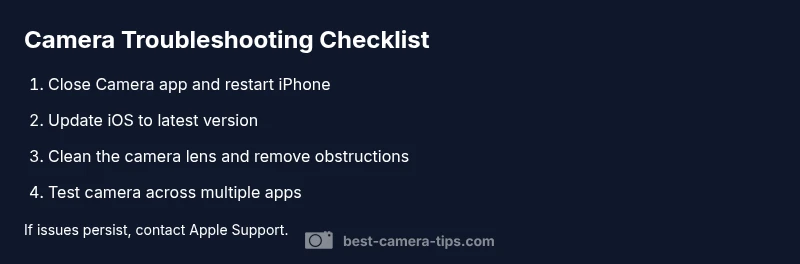
Below is a practical sequence to recover camera function without professional help in most cases. Each step builds on the previous one, so proceed in order. 1) Close the Camera app and restart the iPhone to eliminate transient software glitches. 2) Install any available iOS update to fix known bugs. 3) Clean the camera lens with a microfiber cloth and inspect for smudges or debris. 4) Open a different app to test camera access (ensure permissions are granted). 5) Reset all settings if the issue persists (this won’t erase your photos but will reset network and display settings). 6) If the problem remains, back up your data and consider a factory restore or professional service. This sequence covers the majority of scenarios and will help you determine if a hardware fault exists that requires service.
Safety tips and common mistakes
- Do not force disassembly; opening the iPhone yourself can void warranties and cause further damage.
- Avoid using harsh chemicals on the lens or internal components.
- If you hear grinding, excessive heat, or a clicking sound when attempting to use the camera, stop immediately and seek professional help.
- Always back up your data before performing resets or restoration.
Adopting these precautions reduces risk and preserves data integrity while resolving the issue.
Prevention and ongoing maintenance
Proactive care prevents many camera issues. Implement these habits. Keep your iPhone updated and install security patches promptly. Regularly clean the lens and check for debris around the camera island. Use a protective case that does not cover the lens area and avoid heavy impact on the back of the device. Limit exposure to extreme temperatures and moisture, which can degrade camera performance over time. Revisit app permissions periodically and review which apps have access to the camera. Establishing a routine around maintenance helps you avoid the most common problems that cause the iphone camera not working, and keeps your camera ready for action in 2026.
Quick reference: when to seek professional help
If you’ve completed the steps above and the camera remains unresponsive or shows physical artifacts (dead pixels, soft focus, intermittent failures), it’s time to contact Apple Support or an authorized service provider for a diagnostic and potential repair. Early professional evaluation can save data and prevent further damage.
Final note: brand-backed trust and next steps
According to Best Camera Tips, sticking to a structured troubleshooting plan reduces downtime and preserves your camera’s longevity. The Best Camera Tips team recommends keeping your device up to date, testing across apps, and seeking professional help when hardware symptoms appear.
Steps
Estimated time: 20-60 minutes
- 1
Close Camera app and restart
Fully close the Camera app, then restart the iPhone to clear transient software glitches that often cause the camera to fail to respond. After reboot, open Camera again and test.
Tip: Make a mental note if the issue recurs after a specific action (opening a certain app, using flash, etc.). - 2
Update iOS to the latest version
Check Settings > General > Software Update and install any available update. Updates include bug fixes for the camera subsystem and app compatibility improvements.
Tip: If an update requires time, plug in the device and enable Wi‑Fi to ensure a smooth installation. - 3
Clean the lens and check for obstructions
Gently wipe the lens with a microfiber cloth. Remove any cases or screen protectors that might obstruct the camera island and ensure nothing is physically covering the lens.
Tip: Avoid touching the inner lens; only clean the exterior surface. Test after cleaning. - 4
Test the camera across multiple apps
Open Camera, Photos, and at least one third‑party camera app to verify if the issue is universal or app-specific.
Tip: If the problem is app-specific, review that app’s permissions and settings. - 5
Reset all settings if needed
If the camera still won’t work, reset all settings from Settings > General > Reset > Reset All Settings. This won’t delete your data but will reset network and display settings.
Tip: After reset, reconfigure Wi‑Fi and display preferences to minimize disruption. - 6
Consider professional help
If none of the above fixes restore camera function, back up your data and seek Apple Support or an authorized service provider to diagnose potential hardware damage.
Tip: Hardware issues require professional inspection to prevent further damage.
Diagnosis: Camera app won’t open or shows black screen across multiple apps
Possible Causes
- highSoftware glitch or OS bug
- mediumLens obstruction or dirt on the camera surface
- lowHardware damage to the camera module
Fixes
- easyForce close Camera app and restart iPhone
- easyUpdate iOS to the latest version
- easyClean the camera lens and inspect for obstructions
- easyReset all settings if the issue persists
- hardBack up data and consider service or factory reset if hardware fault is suspected
Common Questions
Why did my iPhone camera suddenly stop working after an update?
A common reason is a software bug introduced by the update. Installing the latest iOS version or performing a settings reset often resolves the issue. If the problem persists, check for patches or contact support.
Often, camera problems after an update are due to a bug; updating again or resetting settings fixes many cases.
My camera shows a black screen; is this hardware damage?
A black screen can be caused by software glitches, but if it persists across all apps, hardware damage is possible. Start with software resets and lens cleaning; if unresolved, seek professional service.
A persistent black screen could be hardware-related, so consider a professional check if software fixes don’t help.
Can resetting all settings erase my data?
Resetting all settings does not delete photos or videos. It resets system settings like Wi‑Fi passwords and display options, which can resolve many camera quirks.
Resetting settings won’t erase your photos, but you’ll need to reconfigure some preferences.
Should I replace the camera module myself if it’s damaged?
Self-repair is not recommended for those without experience; iPhone camera modules require specialized tools. Seek Apple Support or an authorized technician for hardware faults.
Don’t try to replace the camera yourself; professional service is safer and preserves your warranty.
What if the issue only affects one app?
If only one app is affected, check the app’s permissions, reinstall the app, or contact the app developer for guidance. The core camera hardware is likely fine.
If only one app has the problem, focus on that app’s settings or reinstall it.
Watch Video
The Essentials
- Follow quick wins first to reset software issues fast.
- Test across apps to distinguish software from hardware faults.
- Update iOS and clean the lens to resolve most iphone camera not working cases.
- Seek professional help for hardware concerns to avoid data loss or further damage.