How to Tell When Your Ring Camera Battery Is Charged
Learn how to verify Ring camera battery charge using the Ring app, LED indicators, and proper charging practices. This step-by-step guide covers checking status, interpreting indicators, safe charging, troubleshooting, and maintenance for reliable home security.


You tell Ring battery is charged by two signals: the Ring app and the camera’s charging LED. Open the Ring app and look at the battery level; when it reads 100% or shows “Fully charged,” the battery is ready. If your model shows an LED indicator, charging typically ends when the light stops blinking or changes to a steady state. Always unplug once full.
Why Battery Status Matters for Ring Cameras
A Ring camera relies on a charged battery to perform key security tasks: recording video, sending motion alerts, and staying connected to the Ring ecosystem. When the battery runs low, you risk missing events or losing critical evidence. Regularly checking and understanding the battery status helps ensure continuous coverage, especially for outdoor cameras that face temperature swings and longer exposure to the elements. According to Best Camera Tips, establishing a routine for battery health minimizes downtime and extends the life of your device. In practice, you’ll want to know how to read the app’s percentage, recognize typical charging signals, and distinguish between a healthy charge and a developing battery issue. This groundwork helps ensure you’re never caught with a dead camera during crucial moments. The guidance here applies across Ring models, so you can apply the same checks whether you own a Stick Up Cam, a Spotlight Cam, or a Door View Cam.
How Ring Batteries Are Designed to Be Charged
Ring cameras use rechargeable battery packs that power core functions, illuminate LEDs, and enable remote connections. The charging process is designed to be simple: attach the official charger to the camera or its battery pack, provide a stable power source, and allow time for a full recharge. Charging behavior can differ by model and by whether the battery is built-in or removable, but the principle remains the same: a full charge restores maximum uptime and minimizes the risk of mid-coverage drain. Best Camera Tips notes that using the recommended charger and cable reduces wear on connectors and helps maintain battery health over many cycles. If you own multiple Ring devices, keep a single, properly rated charger on hand to standardize performance across devices.
Checking Battery Level via the Ring App
The Ring app provides the most reliable signal of current charge. Open the app, select your camera, and navigate to Device Health or the Battery tile. There you’ll see a percentage or a status label such as “Full” or “Fully charged.” If your device uses a removable battery, ensure you’re viewing the battery level after installation. Refresh the view if the app lags behind real-time status. Regularly checking the app helps you plan charging sessions and prevents last-minute power shortages during important events.
Interpreting LED Indicators Across Ring Models
LED indicators on Ring cameras communicate charging progress, but the exact signals can vary by model. In general, a charging LED may blink or glow while charging and settle into a steady state when full. Some models use color changes to signal status. Since indicators differ, consult your user guide for the precise codes. Do not rely on a single cue; combine LED signals with the app’s battery status for the most accurate read.
Safe Charging Practices and Setup
Use the official Ring charger and a power source that meets the device specs. Charge in a dry, well-ventilated area and avoid extreme temperatures, which can degrade battery health. Keep battery contacts clean with a dry, lint-free cloth and inspect cables for wear before charging. Do not use third-party chargers unless they are rated for your specific Ring model. When the app confirms a full charge, unplug to minimize wear and avoid potential overcharging.
Troubleshooting Common Charging Issues
If charging seems stalled or the app isn’t updating the battery level, start with the basics: reseat removable batteries, reconnect the charger, and try a different outlet or cable. Check for firmware updates in the Ring app; software improvements can fix reporting issues. If the battery becomes unusually hot, or if charging never finishes, discontinue use and contact Ring support for guidance. Document the model, serial number, and charger type to speed up service.
Battery Maintenance for Longevity
Treat battery health as part of your regular device maintenance. Avoid deep discharges when possible and keep the battery at moderate charge between uses for longevity. If you store spare batteries, keep them at roughly half-charge in a cool, dry place. Periodically calibrate the battery by performing a full charge and discharge cycle when convenient, then update the camera firmware to ensure battery reporting stays accurate. Routine checks help you anticipate end-of-life battery needs and plan replacements ahead of critical use.
Quick Post-Charge Checklist
After charging, confirm the app shows full charge, inspect the LED if your model has one, and test the camera by triggering a quick recording to ensure normal operation. Record the charge time and any unusual behavior in a maintenance log for trend analysis. If you notice anomalies, start with the charger and cable, then verify the device’s firmware and network connection before reaching out to support.
Tools & Materials
- Official Ring charging cable and power adapter(Use the charger provided by Ring for your model; avoid third-party power adapters that aren’t rated for the device.)
- Ring camera (model in use)(Have the device accessible for direct battery interaction if needed.)
- Clean, dry microfiber cloth(Use to wipe dust from battery contacts before charging.)
- Spare battery (if supported by model)(Keep a charged spare on hand to minimize downtime.)
- Stable power outlet(Avoid extension cords if possible; use a dedicated outlet for charging.)
Steps
Estimated time: Estimated total time: 1-3 hours
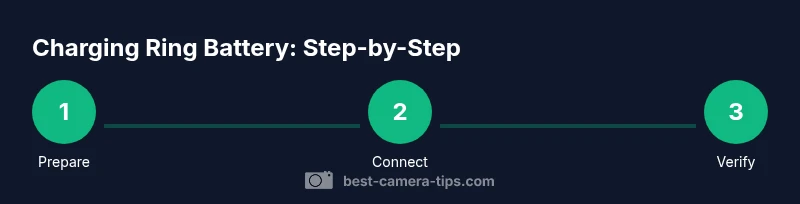
- 1
Prepare charger and workspace
Gather the official charger, power source, camera, and any spare battery. Clear the area of moisture and dust to reduce the risk of contact contamination. Have a clean, dry surface for handling components.
Tip: Check cables for wear before starting; replace damaged cables to prevent charging issues. - 2
Connect power and attach charger
Plug the charger into a working outlet and connect it to the camera’s battery pack or the camera’s charging port as appropriate for your model. Ensure all connections are secure and free of debris.
Tip: If the charger doesn’t power on, try a different outlet or inspect for loose pins. - 3
Open the Ring app to monitor
Launch the Ring app and navigate to the camera’s Device Health or Battery section. Observe the battery percentage or status indicator and prepare for a full cycle if the level is low.
Tip: Refresh the app if the status doesn’t update after a minute. - 4
Watch for charging signals
While charging, monitor any LED indicators on the device and the app’s progress. Indicators may differ by model, so cross-check with the manual to avoid misinterpretation.
Tip: If the LED pattern doesn’t correspond to the guide, verify connections and try again. - 5
Confirm full charge and disconnect
When the app shows 100% or ‘Fully charged,’ unplug the charger and remove the battery if removable. Allow a short cooldown before reassembly if you replaced the battery.
Tip: Avoid leaving the charger connected after the battery is full to minimize wear. - 6
Test camera operation
Power the camera back on and trigger a quick test recording to ensure normal function after charging. Check that alerts, motion detection, and live view respond correctly.
Tip: If the test fails, reboot the device from the app and retry. - 7
Document and plan next cycle
Note the charge time, any anomalies, and the current battery health. Schedule the next charging cycle based on usage patterns and environmental conditions.
Tip: Keep a logentry for future reference and trend analysis.
Common Questions
How can I tell the battery is fully charged in the Ring app?
Open the Ring app, select the camera, and go to Device Health or Battery. The percentage shown there indicates current charge; 100% means full. If the app lags, refresh the view.
Open the Ring app and check the device health battery status; 100% means full, refresh if needed.
What if the app shows 100% but the LED still blinks?
Rely on the app for accuracy, as LED indicators vary by model. If in doubt, unplug and recheck after a few minutes.
If the app shows full but the LED blinks, trust the app and recheck after a short wait.
Can I charge the battery while the camera is in use?
Charging on some models is possible while active, but best practice is to charge when the device is idle to minimize heat and wear.
Charge when the camera is idle to avoid extra heat and wear.
Is it safe to leave the charger connected overnight?
If the device reports full, unplug to prevent potential overcharging. Overnight charging is generally safe on modern devices, but unplugging when full is best for longevity.
Unplug once full to protect battery longevity.
Why does the battery drain quickly after charging?
A rapid drain can indicate aging battery, high usage, or firmware issues. Run a full charge cycle, update firmware, and monitor battery health.
If it drains fast after charging, check for usage, update firmware, and consider battery age.
What should I do if the charger isn't recognized?
Try another outlet, inspect the cable for wear, clean contacts, and ensure you’re using an official Ring charger. If still not recognized, contact support with device details.
Check connections, try a new outlet, and contact support if needed.
Watch Video
The Essentials
- Check the app for battery percent before assuming charge.
- Rely on app status more than LEDs for accuracy.
- Use only the official charger to protect battery health.
- Unplug once full to prevent overcharging.