How to Tell If Your Camera Is On Zoom: A Practical Guide
Learn practical, step-by-step methods to verify whether Zoom is actively using your camera. From UI indicators to OS permissions and physical LEDs, master privacy-friendly checks and keep your video experiences secure.


To determine if Zoom is actively using your camera, start by observing the on-screen indicators and checking your device’s hardware LED. Then verify Zoom’s video controls and your OS camera permissions, and finally run a quick test by toggling video on and off. This step-by-step approach helps you confirm camera activity without guessing.
How the topic applies to Zoom and camera activity
If you’re wondering how to tell if camera is on zoom, start with the basics: Zoom typically shows a video indicator in the meeting window and may illuminate the camera's LED on your device. This block explains how Zoom signals camera usage and what you should expect to see on different devices (Windows, macOS, iOS, Android). Understanding these signals lowers your risk of accidentally broadcasting without intention and helps you act quickly if you suspect unauthorized access. By recognizing both software cues and hardware indicators, you gain a reliable baseline for what “active camera” looks like in a Zoom context.
Visual cues in Zoom's user interface you can rely on
Zoom provides several on-screen cues that the camera is in use. You’ll usually see a green camera icon near the video window, along with a live video thumbnail of your feed. On some platforms, the icon may appear near the bottom of the screen or within the participant panel. The exact placement can vary by Zoom client version and operating system, so it’s important to verify with a quick test. In addition, some devices show a tiny status badge next to your name when video is active. These cues are designed to be obvious, but they aren’t perfect guarantees alone, so use them in conjunction with other checks.
Hardware indicators and OS-level signals
Many webcams have a physical LED that lights up when the camera is active. If you notice that LED turning on, you have a straightforward sign that video is broadcasting. Conversely, if the LED is off but you suspect activity, it’s essential to verify through software controls and OS permissions. Operating systems also provide indicators, such as permission prompts and privacy controls, that can confirm whether an app like Zoom has access to the camera. Relying on multiple signals reduces the chance of false readings or spoofed indicators.
Verifying privacy settings across Windows and macOS
On Windows and macOS, camera access is governed by app permissions. Start by checking that Zoom has explicit permission to access the camera and that no other app is locking or using the camera in a way that blocks Zoom’s signal. If Zoom lacks permission or if the system denies access, the camera will not stream. Regularly review privacy settings after system updates, as vendor updates can reset or modify permissions. This section helps you maintain a secure baseline for camera activity across platforms.
Common misconceptions and spoofing risks
A frequent misconception is that a single indicator guarantees camera activity. In reality, software can sometimes misreport status or display indicators without actual data transmission. Rogue apps or browser extensions can attempt to spoof indicators, too. Therefore, rely on a combination of UI cues, hardware LEDs, and OS-level permissions. Be wary of any indicator that seems inconsistent across devices or apps, and perform a controlled test to verify results.
Practical, step-by-step verification workflow
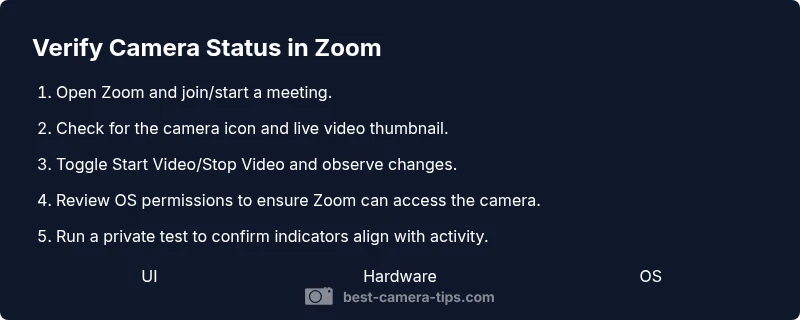
This section provides a practical workflow you can follow on any device. Start by opening Zoom and ensuring you are in a meeting. Then check for the camera icon and live video thumbnail; toggle Start Video and Stop Video to observe immediate changes. Next, review OS camera permissions to confirm Zoom can access the camera, and run a private test to verify indicators are consistent. Finally, document your findings and adjust privacy settings as needed.
AUTHORITY SOURCES
For further reading and authoritative guidance, consult these sources:
- https://www.ftc.gov
- https://www.nist.gov/topics/privacy
- https://www.eff.org
Tools & Materials
- Computer or mobile device with Zoom installed(Ensure you are running the latest Zoom client.)
- Camera (built-in laptop camera or external webcam)(Test with the device you use most often.)
- Stable internet connection(Video requires consistent bandwidth.)
- Access to OS privacy settings(Windows Privacy or macOS Security & Privacy panel.)
- Optional secondary test device(Use a second device to cross-check indicators.)
Steps
Estimated time: 25-40 minutes
- 1
Open Zoom and join or start a meeting
Launch Zoom on your device and join a meeting or start a private session. Observe the interface for any active camera indicators as you prepare to test. If you don’t see video, switch to the available test mode to ensure indicators render correctly.
Tip: If you can’t access a meeting, use the Zoom 'New Meeting' option and enable video there. - 2
Identify the on-screen camera indicator
Look for a green camera icon or a highlighted video thumbnail that signals your feed is active. Note where the indicator appears on your platform (Windows, macOS, iOS, Android) since placement can vary. Confirm that the indicator responds when you toggle video on and off.
Tip: Platform variations can change icon placement; check in both main window and meeting controls. - 3
Check Zoom's video status controls
Click Start Video to turn your feed on, then Stop Video to verify the indicator changes immediately. If the video toggling has no effect, there may be a permissions or driver issue. Repeat the test after restarting the Zoom client.
Tip: If you see the video icon but no feed, check your camera device in Zoom settings. - 4
Inspect the hardware camera LED
If your camera has a physical LED, verify whether it lights up when your video is active. A lit LED is a clear hardware cue that the camera is in use. If the LED remains off, rely more on software indicators and OS permissions to confirm activity.
Tip: LED behavior can differ by camera model; don’t rely on a single cue. - 5
Review OS-level camera permissions
Open the OS privacy settings and confirm that Zoom has permission to access the camera. If access is blocked, Zoom cannot show a video feed even if you press Start Video. Re-enable permission if needed and re-test.
Tip: Revoking permissions for other apps can affect Zoom’s ability to access the camera. - 6
Run a private test to confirm indicators
Create a private test session (no participants) to observe indicators without interference from others. Toggle video on/off and watch both the UI indicator and the hardware LED (if present).
Tip: Document the results so you have a baseline for future sessions. - 7
Document findings and update privacy settings
Record which indicators matched across UI, hardware LED, and OS permissions. If discrepancies appear, adjust Zoom settings or OS permissions and perform a follow-up test. Maintain a privacy log for accountability.
Tip: Regular checks help protect against surprises in important calls.
Common Questions
What indicators show Zoom is using my camera?
Zoom typically displays a video camera icon in the meeting window and shows a live video thumbnail when the camera is active. Some devices also illuminate a hardware LED on the webcam. Use all signals together for reliable verification.
Look for the camera icon and live thumbnail, and check if the webcam’s LED lights up when video is on.
Can Zoom turn on my camera automatically without permission?
No. Zoom requires you to start video or grant permission. If you join a meeting with auto-video enabled, you still must consent to camera use. Verify this in Zoom settings.
Zoom can’t secretly turn your camera on; you control when video starts.
What if there’s no camera indicator in Zoom?
If indicators are missing, check Zoom version, device drivers, and OS permissions. Perform a controlled test to confirm status and adjust settings if needed.
If you don’t see an indicator, test by toggling video and reviewing permissions.
How do I stop Zoom from using my camera on startup?
In Zoom settings, disable Turn off my video when joining a meeting and revoke any unnecessary OS permissions for camera access. This ensures you must opt in to video each time.
Turn off video on join and manage camera permissions to prevent auto-start.
Is it possible to spoof camera activity in Zoom?
Spoofing indicators is possible in theory, but unlikely with proper checks. Rely on multiple signals and perform a live toggle test to verify accuracy.
Yes, spoofing is possible in theory; verify using UI, hardware LED, and permissions.
Watch Video
The Essentials
- Verify camera activity with multiple signals
- Check OS permissions before testing in Zoom
- Regularly test and document baseline indicators
- Don’t rely on a single cue—combine UI, hardware, and permissions
- Protect privacy with routine camera checks