Why Camera Is Not Working in Zoom: Troubleshooting Guide
Struggling with a camera not showing in Zoom? This step-by-step guide helps you resolve permissions, device selection, drivers, and updates to restore video fast.


If your camera isn’t showing in Zoom, start by checking Zoom’s video settings and your system permissions. In most cases, selecting the correct camera, granting access, and restarting Zoom fixes it. If not, update the app or reboot the computer, then test again.
Why this happens with Zoom cameras
Camera issues in Zoom are among the most common setup problems for aspiring photographers and home security enthusiasts. Often, the root cause isn’t a broken camera but a misconfigured setting, blocked permissions, or an out-of-date driver. According to Best Camera Tips, the majority of failures come from software-level blocks rather than hardware faults. When you hear the classic question, why camera is not working in zoom, you’re usually dealing with a permission gate, an incorrect input source, or a stale Zoom version. The fix is almost always immediate and low-friction: check the source, verify access, and retry with a fresh session. This section lays out a practical diagnostic path so you can identify the culprit quickly and regain reliable Zoom video.
Quick validation: confirm the basics
Before diving into advanced checks, confirm three things: your camera is connected (or built-in and powered on), Zoom is allowed to access the camera, and the correct video source is selected. If you’re troubleshooting a USB webcam, try unplugging and replugging it after closing other apps. If your built-in webcam isn’t recognized, try a system restart to refresh device drivers and service states. These quick validations save time and often resolve the issue without further steps.
Zoom settings check: ensure correct camera is selected
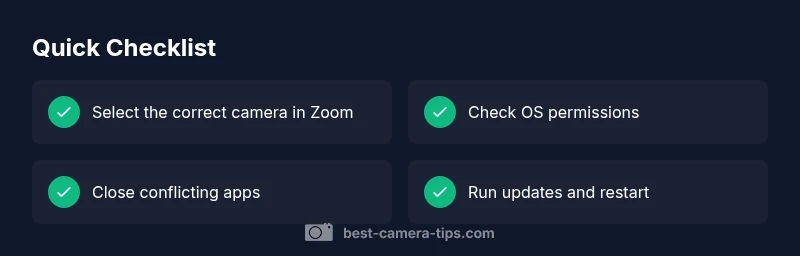
Open Zoom settings and navigate to the Video tab. Look for a drop-down labeled Camera and select the device you intend to use. Sometimes Zoom defaults to a different, non-working camera (like a virtual camera or screen capture device). After choosing the proper option, click Preview to confirm the video shows a live image. If you don’t see a feed, try toggling off and on the option, then relaunch Zoom to apply changes. This is a common, low-effort fix that solves many problems.
OS permissions: grant access to camera
Windows and macOS have privacy controls that can block apps from using the camera. On Windows, go to Settings > Privacy > Camera and allow Zoom access; on macOS, go to System Settings > Security & Privacy > Camera and ensure Zoom is allowed. After adjusting permissions, restart Zoom and re-check the camera preview. If permissions were the barrier, this step will unlock the video stream immediately and prevent future blocks.
Close conflicting apps and background processes
Other apps may hold exclusive access to the camera, causing Zoom to show a black screen or no video. Close any apps that might use the camera (e.g., Skype, Teams, OBS, browsers with camera access). Then reopen Zoom and test again. If you frequently switch between applications, consider a quick routine to quit camera-heavy programs before joining a Zoom meeting to avoid conflicts.
Update Zoom and your operating system
Software updates fix known bugs and improve compatibility with newer hardware. Check for Zoom updates (Help > Check for Updates) and install the latest version. Also verify your OS is up to date, since drivers and security modules may impact camera access. After updating, restart your computer and re-open Zoom to confirm the camera is active. If the issue recurs after an update, you may need to roll back to a stable version or contact support.
Hardware checks: drivers, cables, and power
External webcams require working USB connections and current drivers. Try a different USB port, use a known-good cable, and ensure the camera is powered if it’s a consumer USB or PT camera. On Windows, open Device Manager and verify the camera appears without warning icons; on macOS, check System Information > Camera. If drivers are outdated, update them from the manufacturer’s site or Windows Update. Hardware issues are less common but can cause intermittent failures or total non-recognition.
Test across apps and devices
To isolate Zoom, test the camera in another application like a video chat or a camera app. If the camera works elsewhere but not in Zoom, the problem is Zoom-specific (settings, permissions, or a conflicting plugin). If the camera fails across all apps, focus on hardware or OS-level problems. If you have access to another computer, test the camera there to determine whether the issue is with the camera or the original device.
Advanced considerations for external cameras
If you rely on an external camera, verify that the device supports Zoom’s video formats and that the driver is compatible with your OS version. Some cameras offer multiple modes (UVC, proprietary drivers); switch to the standard USB Video Class (UVC) mode if available. Disable any virtual camera software you may have installed, as Zoom sometimes blocks them for security. Finally, clean the lens and check for firmware updates from the manufacturer.
Prevention: best practices to avoid future issues
Create a quick pre-meeting routine: verify camera, run a quick test in Zoom, and ensure permissions are intact. Keep drivers up to date, test after OS updates, and avoid plugging the camera into hubs that may provide insufficient power. Regularly audit background software that might steal camera access, and maintain a clean USB port map to minimize connection errors. These habits help you stay ready for every meeting and minimize downtime.
Steps
Estimated time: 30-45 minutes
- 1
Open Zoom and check the Video source
Open Zoom, go to Settings, select Video, and confirm the correct camera is chosen. Use Preview to verify live video. If no image appears, try switching to another listed camera and return to the original source.
Tip: If you see a fake or virtual camera, disable it. - 2
Review OS camera permissions
On Windows, enable camera access for Zoom in Privacy settings. On macOS, allow Zoom under Privacy > Camera and re-launch the app. A restart ensures the OS applies the new permission state.
Tip: Perform permission changes before launching Zoom again. - 3
Close other camera-using apps
Quit all other apps that might use the camera (video editors, browsers, chat apps). Reopen Zoom and test video. If the problem persists, proceed to update software.
Tip: Background apps can grab the camera even if you don’t anticipate it. - 4
Update or reinstall Zoom
Check for Zoom updates. If updates don’t resolve the issue, reinstall Zoom. Restart after installation and test the video again.
Tip: Always back up settings before reinstalling. - 5
Check hardware connections
If you’re using an external webcam, try a different USB port and replace cables if possible. Verify device appears in Device Manager (Windows) or System Information (macOS).
Tip: Avoid hubs that don’t supply enough power. - 6
Test with another app
Open a different application to test the camera. If it works elsewhere, the issue is Zoom-specific; recheck Zoom settings and permissions. If it fails everywhere, the camera hardware or drivers may be at fault.
Tip: Cross-app testing pinpoints where to focus efforts. - 7
Advanced camera mode checks
For external cameras, ensure the device is in a standard USB mode (UVC) and not locked to proprietary drivers. Disable any virtual camera software that could conflict with Zoom.
Tip: Firmware updates from the camera vendor can improve compatibility. - 8
Final validation and routine
Reboot your computer, then launch Zoom and conduct a quick video test. If the issue persists, capture logs or screenshots and contact support with details about your OS, Zoom version, and hardware.
Tip: Maintain a simple log of changes for future reference.
Diagnosis: Camera not appearing in Zoom or showing blank/black video
Possible Causes
- highCamera not selected in Zoom settings
- highOS permissions blocked camera access
- mediumOutdated Zoom software or OS drivers
- lowHardware fault or faulty cable/port
Fixes
- easySelect the correct camera in Zoom Video settings and test preview
- easyGrant camera permissions in OS privacy settings and restart Zoom
- easyUpdate Zoom and OS drivers; reinstall if needed
- mediumTry a different USB port or replace the camera/cable
Common Questions
Why is Zoom not recognizing my camera?
This usually happens due to a misconfigured camera source, blocked OS permissions, or an outdated Zoom version. Start by selecting the correct camera in Zoom, then verify OS permissions and update Zoom if needed.
Usually it's the camera source or permissions. Check the camera in Zoom, then permissions and updates.
Can I use my phone as a webcam for Zoom?
Yes. You can use apps that turn your phone into a webcam and then select that device in Zoom. Ensure the app is trusted and that the phone and computer are on the same network.
Yes, you can use your phone as a webcam with a trusted app and Zoom should see it as a camera.
My external webcam works in other apps but not in Zoom—what next?
Focus on Zoom settings and permissions first, then check for a Zoom update or plugin conflicts. If the issue persists, try another USB port or a different camera.
If it works elsewhere but not in Zoom, check Zoom settings, permissions, and try a different port or camera.
How do I test my camera in Zoom quickly?
Open Zoom > Settings > Video, select your camera, and click Preview. If you see yourself, the problem is resolved; if not, move through permissions and updates as outlined.
In Zoom settings, test the camera with Preview to confirm it works.
Should I reinstall Zoom to fix camera issues?
Reinstalling is a last-resort option when other steps fail. Ensure you back up preferences if needed, then reinstall, restart, and re-test the camera.
Reinstall Zoom only if other fixes don’t work.
Watch Video
The Essentials
- Verify camera selection in Zoom first
- Grant OS permissions and restart when blocked
- Test hardware connections and drivers
- Update software before hardware replacement
- Use cross-app testing to isolate Zoom