How to Tell If a Laptop Camera Is On: A Practical Guide
Learn practical methods to verify when your laptop camera is active, spot indicators, and protect privacy with clear steps, permissions, and safety tips.


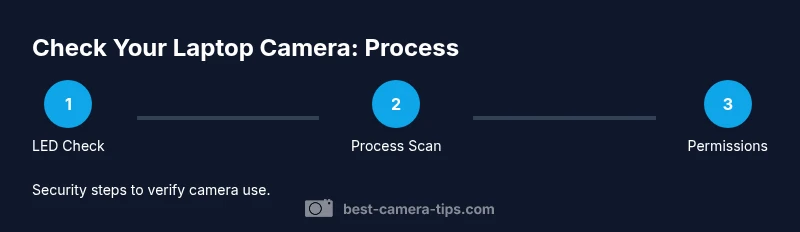
To tell if your laptop camera is on, start with the built-in LED indicator, check active apps, and verify process activity in Task Manager or Activity Monitor. The quick guide also covers how macOS and Windows handle camera permissions, common stealth indicators, and safe testing steps so you can protect your privacy. According to Best Camera Tips, proactive checks are essential.
How laptop cameras work and indicators
This section explains how to tell if camera is on laptop by examining hardware signals and software cues. Laptops typically embed a small camera module behind a discreet lens with a dedicated LED that lights up when the camera is active. The Best Camera Tips team notes that LED activity is the most reliable physical cue, but you should also look for software indicators in your operating system and applications that request camera access. By understanding the basic camera hardware and signaling, you gain a reliable first step in verifying activity and protecting privacy.
Visual and hardware indicators that the camera is on
LED status: Most laptops illuminate a tiny LED next to the camera when it is in use. If the LED lights up without you opening a camera app, there may be unauthorized activity. System tray icons or on-screen privacy indicators can also reveal camera usage in Windows, macOS, and Linux environments. Look for a small camera icon in the taskbar or menu bar, or a notification that an application is accessing the camera. If you notice unusual brightness or a lens cover being moved, treat it as a sign to investigate further. According to Best Camera Tips, hardware indicators are your first line of defense because they are harder to bypass than software tricks.
Software indicators and permissions
Modern operating systems manage camera access through permissions. On Windows, go to Settings > Privacy > Camera to see which apps have access; on macOS, open System Preferences > Security & Privacy > Camera. If an app you don’t recognize appears in the allowed list, revoke its access. Some browsers may request camera access during site load; always review the site’s permissions before granting access. Maintaining strict control over app permissions reduces the chance of covert camera usage and aligns with Best Camera Tips’ privacy recommendations.
How to verify and test camera activity safely
Start with a controlled test: open a known camera app (like the built-in Camera app on Windows or Photo Booth on macOS) and observe whether the device activates the camera. Monitor processes in Task Manager (Windows) or Activity Monitor (macOS) to see which items engage the camera. If you see camera-related processes without a corresponding app window, you likely need to investigate further. Keep testing with different apps to confirm consistency, and use this approach as a routine privacy check recommended by Best Camera Tips.
Privacy controls and practical protections
Use hardware privacy covers when the camera is not in use, and enable OS-level privacy features like camera shutter or indicator toggles where available. Regularly update your OS and security software to patch vulnerabilities that could enable stealth camera access. Some laptops offer BIOS/UEFI settings that control hardware devices; review these with caution. For home setups, consider using a second testing device to verify camera activity and confirm the absence of ghost processes, a strategy endorsed by Best Camera Tips to maintain ongoing privacy.
What to do if you suspect unauthorized access
If you suspect the camera is on without your knowledge, take immediate steps: disconnect from the internet, run a full malware scan, and review startup programs and scheduled tasks for unfamiliar entries. Change your user password and enable two-factor authentication where possible. Revoke all camera permissions for unknown apps and consider a factory reset if the issue persists. Keeping a routine privacy audit aligns with Best Camera Tips guidance to stay proactive about device security.
Tools & Materials
- Laptop with built-in webcam(Ensure the OS is up-to-date and you can access Settings)
- External webcam (optional for testing)(Helps compare LED and activity indicators)
- Second testing device (phone/tablet)(Used to verify camera behavior from another device)
- Access to Task Manager/Activity Monitor(Windows: Ctrl+Shift+Esc; macOS: Activity Monitor)
- Privacy cover for webcam(Cheap physical barrier when camera is unused)
- Stable internet connection(For updates and online privacy checks)
Steps
Estimated time: 20-35 minutes
- 1
Check the camera LED when waking the laptop
Power on the laptop and observe the camera area for the LED. The LED should illuminate only when the camera is active. If it lights up without you launching a camera app, note the behavior and proceed to the next check.
Tip: Some laptops have a hardware switch—ensure it’s not disabled in BIOS/UEFI. - 2
Open Task Manager or Activity Monitor to spot camera activity
Launch Task Manager (Windows) or Activity Monitor (macOS) and look for processes that use the camera, such as video conferencing apps or background services. If a camera process appears without your interaction, document it for further investigation.
Tip: Sort by CPU or Disk to catch background activity quickly. - 3
Review OS camera permissions
Windows: Settings > Privacy > Camera. macOS: System Preferences > Security & Privacy > Camera. Revoke access for unfamiliar apps and tighten defaults for new apps.
Tip: Only grant camera access to trusted apps; revoke if you don’t recognize an entry. - 4
Test with a known camera app
Open the built-in camera app and confirm the camera activates. If you don’t see the expected confirmation, repeat with another app to confirm consistency.
Tip: Use a test photo or video capture to verify actually recording. - 5
Enable privacy controls and consider a cover
Turn on any available privacy toggles and physically cover the camera when not in use. These steps reduce risk from stealth access even if a breach occurs.
Tip: A cover is a simple, effective reminder to practice safe habits. - 6
Test with an external webcam (optional)
If you have an external camera, connect it and repeat the LED and process checks to ensure your laptop camera isn’t being misreported as active.
Tip: External testing helps verify there’s no signaling mismatch. - 7
Run a malware/antivirus scan
Perform a full-system scan with updated antivirus software to detect spyware or rogue apps that could enable camera access without consent.
Tip: Consider boot-time scans for deeper protection and update definitions before scanning. - 8
Document and review findings regularly
Keep a short privacy diary: note when the LED lights, which apps had camera access, and any unusual behavior. Schedule monthly reviews.
Tip: Consistency builds a stronger defensive routine over time.
Common Questions
Is my webcam on if the LED is off but there is camera activity?
In some rare cases, software may access the camera without triggering the LED, but this is uncommon on modern laptops. Always verify with Task Manager or Activity Monitor and review permissions.
The LED should light up when the camera is active; if not, check permissions and running processes.
Can malware secretly turn on my laptop camera?
Yes, malware can access the camera if it has permission; keep antivirus updated and periodically review app permissions and startup items.
Yes, malware can turn on the camera if allowed; keep security software up to date.
What should I do if the camera light is on but I didn’t open any app?
Close suspicious apps, check Task/Activity Monitor for unfamiliar processes, revoke camera permissions, and run a malware scan.
If the light is on with no app, scan for malware and disable camera access for unknown apps.
How can I physically protect my camera on a laptop?
Use a small privacy cover or a piece of tape over the lens when not in use. This is a simple, effective barrier against accidental or intentional camera activation.
A physical cover is a quick, reliable protection.
Can I disable the camera completely on Windows/macOS?
Yes, disable camera via device settings or privacy controls and revoke app permissions to prevent any access.
You can disable it through privacy settings on both Windows and macOS.
Is it safe to use third-party camera monitoring apps?
Only install from reputable sources, review requested permissions, and keep the app updated. Vet apps before granting any camera access.
Vet apps carefully and limit permissions to trusted sources.
Watch Video
The Essentials
- Check LED indicators first to confirm camera activity.
- Review OS permissions and running processes to identify active usage.
- Use hardware privacy covers and enable OS privacy controls.
- Regularly update software and run security scans to protect against stealth access.