How to Disable Camera When Your Phone is Locked
Learn how to disable camera when phone is locked on iOS and Android with practical steps, safety tips, and testing guidance from Best Camera Tips.


Goal: learn how to disable camera when phone is locked on iOS and Android. This quick guide outlines two core approaches, plus OS-specific steps to prevent the camera from launching from the lock screen. You’ll apply lock-screen access toggles and parental controls or profiles, then test to confirm the camera can’t be invoked while the device is locked.
Why disable camera when phone is locked matters
In the era of ubiquitous smartphones, the camera is one of the most sensitive hardware features. Limiting its availability while the device is locked is a straightforward privacy armor. According to Best Camera Tips, controlling camera access on the lock screen reduces the chances of accidental captures, unauthorized previews, and potential leaks when devices sit on desks or in bags. On many days you may hand your phone to a colleague or family member, and a quick toggle can stop the camera from launching unintentionally. The goal is not to prevent legitimate use but to ensure that privacy settings align with your current context—home, work, or travel. This is especially important for home security enthusiasts who want to prevent background footage from being captured when the device is in a pocket or bag. By setting clear lock-screen rules, you reduce the risk of snapshots or videos that you did not intend to create or share. Best Camera Tips analysis also emphasizes privacy as a proactive practice rather than a reactive measure, reinforcing the idea that small controls add up to meaningful protection.
How mobile OS permissions govern lock-screen camera access
Modern mobile operating systems layer permissions, hardware access, and lock-screen policies. On iOS, the camera is tied to the lock-screen experience through a dedicated toggle in the Allow Access When Locked section, so you can decide if the camera icon remains accessible when the phone is locked. On Android, manufacturers ship different paths—some devices expose a lock-screen camera switch under Security or Lock screen settings, others rely on parental controls to enforce limitations. Across both ecosystems, the central idea is to separate unlocked use from locked use. When you disable lock-screen camera access, the device remains fully functional when unlocked, but attempts to launch the camera from the lock screen will be blocked or require authentication. This separation preserves normal operation while preserving privacy and reduces the chance of accidental exposure while the device sits on a table or tucked in a bag. Best Camera Tips analysis shows that these OS-level distinctions matter for consistent behavior across devices and user contexts.
When to apply restrictions vs keep camera available
There is no one-size-fits-all rule for camera access on a locked phone. If you frequently lend your device or travel through crowded spaces, enabling lock-screen restrictions can prevent unintended photos or videos. If privacy is anchored to a corporate policy, a family plan, or a school-provided device, you may choose to enforce stricter rules with a profile or account-based solution. Conversely, if you rely on quick photo captures during a commute or a family moment, you might prefer to keep the lock-screen camera accessible. Best Camera Tips suggests evaluating risk factors such as where you place your phone, who can borrow it, and whether you use sensitive apps on the lock screen. In any case, documenting your decision helps you revert quickly if your circumstances change. This balanced approach aligns with practical privacy while avoiding unnecessary friction.
Disable camera on iPhone when the screen is locked
To disable the camera on iPhone when the screen is locked, open Settings and go to Face ID & Passcode. Enter your passcode, then look for the Allow Access When Locked section. Toggle Camera off to prevent the camera from launching from the lock screen. If your device uses Touch ID or other biometric unlock, the same toggle generally applies. After you adjust this setting, you can still use the camera normally when the device is unlocked, but a locked screen will no longer reveal the camera. If you later need access again, return to the same menu and toggle Camera on. This method is quick, relies on the device’s built-in controls, and does not require third-party apps.
Disable lock-screen camera access on Android
Android devices vary by maker, but the core idea is consistent. Open the Settings app, navigate to Privacy or Security, then find Lock screen preferences or Lock screen camera. Turn off the Camera toggle to block access from the locked screen. Some devices require you to disable Camera access from within the Apps section, or under Special app access. If you don’t see a Camera switch, look for related options like 'Lock screen quick access' or 'Lock screen shortcut management' and disable Camera there. After this change, you should be able to unlock normally to use the camera again, but the lock screen will not surface the camera. If you rely on parental controls, you can apply the same policy via a profile or digital well-being tool.
Using parental controls or device-management for persistent restrictions
For ongoing control beyond a single device, consider a parental control platform or device-management profile. On iOS, Screen Time-based policies can help enforce camera restrictions across user accounts, while on Android, Digital Wellbeing or Family Link can extend restrictions via profiles. Configuring a profile allows you to lock the camera at boot or after specific times, ensuring that even if someone bypasses a one-off toggle, the camera remains disabled while locked. These tools also offer logging and alerting, so you know when someone tried to access the camera from the lock screen. Keep in mind that enterprise or school devices may have additional restrictions that require administrator approval.
Test your changes: verify behavior on lock and unlock
Lock your device and attempt to launch the camera from the lock screen. It should be blocked or require authentication. Then wake the device and confirm that the camera opens normally when unlocked. If the camera still appears on the lock screen, revisit the settings path for your OS and check for vendor-specific options. Testing ensures you’ve achieved the intended privacy without crippling everyday use.
Potential drawbacks and limitations
Not all devices support a universal lock-screen camera toggle, and some OEM skins layer their own settings. Some manufacturers may override user settings with enterprise profiles, reset policies after reboot, or require administrator permission for changes. In rare cases, disabling lock-screen camera may affect quick-access shortcuts or emergency features that rely on camera integration. Always verify that you can still make emergency calls and access essential tools when needed, especially on devices used in professional or educational environments.
Best practices for privacy and ongoing maintenance
Maintaining camera privacy is an ongoing task. After OS updates, recheck lock-screen settings to ensure they still apply. Keep your passcode strong and ensure that only trusted users have physical access to the device. Regularly review any parental-control or device-management policies you’ve enabled, and document changes so you can revert them later if circumstances require. By treating camera privacy as part of a broader security routine, you reinforce responsible device use and protect sensitive moments from unintended exposure.
Tools & Materials
- Smartphone (iPhone or Android)(Charge and ensure access to Settings)
- Settings app(You will adjust lock-screen access options)
- Parental control account or device-management access(Optional for persistent restrictions across accounts)
- Documentation tools (screenshots or notes)(Helpful to record original settings before changes)
Steps
Estimated time: 25-40 minutes
- 1
Assess device and OS readiness
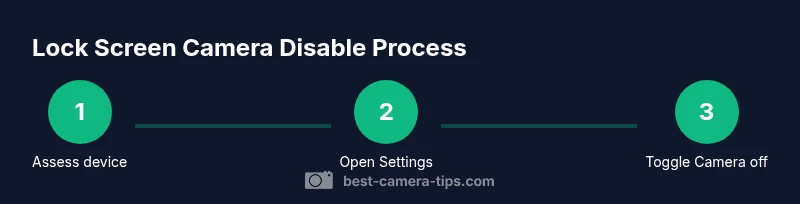
Check your device model and OS version to understand where the camera lock options live. Some settings paths differ between iOS and Android, and vendor customizations can alter the menu labels. Decide in advance whether you want a temporary toggle or a persistent policy.
Tip: Note the current Camera-related toggles so you can revert quickly if needed. - 2
Open the appropriate lock-screen settings
On iPhone, go to Settings > Face ID & Passcode (or Passcode on older devices). On Android, open Settings > Privacy or Security and look for Lock screen preferences. If you don’t see a dedicated camera option, search for lock-screen shortcuts or access controls.
Tip: If you’re unsure of the path, use the device’s search bar in Settings to locate ’Camera’ or ’Lock screen’. - 3
Disable lock-screen camera access on iPhone
In the iPhone path, locate the Allow Access When Locked section and toggle Camera off. This blocks the lock-screen camera while preserving normal camera use after unlocking. Confirm the change by locking and testing the screen.
Tip: If you use a passcode or biometric unlock, ensure the verification method remains accessible for rapid authentication. - 4
Disable lock-screen camera access on Android
In Android, find the Lock screen camera option or similar toggle and disable it. If not present, check under Notifications or App permissions for a lock-screen shortcut management option. The goal is to stop the lock screen from launching the camera.
Tip: Vendor paths vary; don’t hesitate to explore related sections like ‘Lock screen quick access’. - 5
Apply extra restrictions with parental controls
If you want persistent restrictions, enable a parental-control policy or device-management profile. This enforces camera restrictions across reboots and user accounts. It also provides logs and alerts for any access attempts from the lock screen.
Tip: Document the policy settings and ensure administrators know how to modify them if needed. - 6
Test the lock-screen behavior
Lock the device and attempt to open the camera from the lock screen. It should be blocked or require authentication. If it still opens, recheck the exact navigation path in Settings and repeat the toggle.
Tip: Test in different lighting and with assistive features enabled to confirm robustness. - 7
Test the unlocked camera functionality
Unlock the device and verify the camera opens normally. Ensure no unintended side effects occur in apps that rely on camera access. This verifies a clean separation between locked and unlocked states.
Tip: Run a quick photo session to confirm camera stability and performance under normal use. - 8
Create a rollback plan
Document how to revert changes by saving the original settings and bank of toggle positions. This makes it easy to restore camera access if your privacy needs change. Consider taking before-and-after screenshots for reference.
Tip: Store a simple checklist somewhere accessible for future OS updates. - 9
Maintain privacy over time
Revisit these settings after major OS updates or device resets. Regularly review who has access to the device and whether additional restrictions are warranted. Keeping a privacy routine protects against drift in your device’s behavior.
Tip: Set a quarterly reminder to review lock-screen camera settings.
Common Questions
Can I completely disable the camera on all devices?
There is no universal method that works on every device. Availability and steps depend on the operating system and the manufacturer. Use the lock-screen toggle or parental controls where available, and consider device-management policies for broader enforcement.
There isn’t one universal method; it depends on your device. Use the built-in lock-screen controls or parental controls to enforce camera restrictions where possible.
Will disabling lock-screen camera affect emergency calls or camera use when unlocked?
Disabling the lock-screen camera should not prevent emergency calls. Camera use when the device is unlocked remains available unless you’ve restricted it there as well. Always test both states to confirm behavior.
It should not block emergency calls. Camera use when unlocked should work normally; test both states to be sure.
How do I revert changes if I forget the settings?
Return to the same Settings path and toggle the camera option back on. If you can’t recall the path, use the device search to locate camera or lock-screen options and re-enable them.
Go back to the same place and turn the camera back on. If you can’t find it, use the search in Settings to locate it again.
Is it possible to disable the camera temporarily for events?
Yes. Use time-based profiles or temporary parental-control settings when you need a temporary privacy bump. Remember to re-enable once the event concludes.
Yes—use temporary profiles or time-based controls and re-enable when done.
Do these steps work on both iOS and Android?
Core ideas translate across both platforms, but exact steps vary by OS version and vendor. Follow the OS-specific paths described for iPhone or Android and consult the device manual if paths differ.
The concept works on both, but the steps differ by OS and device. Check your device’s settings for the exact path.
Watch Video
The Essentials
- Identify OS-specific paths to lock-screen camera controls
- Disable lock-screen camera access to protect privacy
- Use parental controls for persistent enforcement
- Test thoroughly in locked and unlocked states
- Create a rollback plan and document changes
- Revisit settings after OS updates