How to Open Camera Without Unlocking Your Phone
Learn safe, built-in methods to access your phone's camera from the lock screen on popular platforms. This educational guide explains platform differences, privacy considerations, setup tips, and troubleshooting to help you capture quickly without bypassing security.


Goal: Access your camera from the lock screen using built-in, device-approved methods only. You’ll learn how the lock-screen camera shortcuts work on popular platforms, when to use them, and how to adjust settings to protect privacy. This guide emphasizes safe, legitimate access rather than bypassing security. By the end you’ll know which options are available, how to enable them, and common pitfalls to avoid.
What it means to open the camera from the lock screen
Opening the camera from the lock screen is a designed feature that lets you capture moments quickly without fully unlocking your device. It is not a workaround for bypassing security; it relies on official shortcuts and settings that protect your data while enabling fast access in emergencies or when hands are full. Understanding this distinction is crucial for maintaining privacy and reducing the risk of accidental exposure of personal content. This section will outline how legitimate access works on common platforms and what it can realistically achieve in everyday scenarios.
Platform realities: iOS vs Android
Both iOS and Android offer lock-screen camera access, but the exact gestures and safeguards differ. iOS generally provides a camera shortcut on the lock screen via a leftward swipe, designed to launch the camera instantly while preserving the lock state. Android devices typically offer a camera shortcut on the lock screen as well, but the gesture can vary by manufacturer and may appear as a swipe or a dedicated lock-screen icon. These built-in paths prioritize speed without compromising core security.
Security and privacy implications
Using the lock-screen camera shortcut is a convenience feature, not a security loophole. It does not bypass authentication; it simply bypasses the full unlock delay for a moment. Users should be mindful of who can access the device while it is locked and what is visible on the screen when the camera app is opened. Enable features that protect your privacy, such as auto-lock timing and screen privacy filters, and be aware that notifications may momentarily reveal content when the lock screen is active.
iOS lock-screen camera workflow
On most iOS devices, you can access the camera quickly from the lock screen by swiping left. This gesture launches the Camera app without requiring a passcode, Face ID, or Touch ID for the moment of capture. If you rely on accessibility settings or screen-time restrictions, verify that the camera shortcut is not disabled by these controls. The goal is speed with security preserved in the background.
Android lock-screen camera workflow
Android devices typically provide a lock-screen camera shortcut that you can access with a swipe toward the camera or by tapping a lock-screen icon, depending on the OEM and Android version. Some devices may require double-pressing the power button or a special gesture. If the shortcut doesn’t appear, check your device’s lock-screen settings to ensure the feature is enabled and not blocked by a policy or app that manages security rules.
When access can be restricted by device policy
In corporate or school environments, device management policies can restrict or modify lock-screen behaviors. If you notice that the camera shortcut is missing or behaves unexpectedly, your device may be governed by an administrator profile. In such cases, consult the IT department or the device administrator to understand what is permitted and how to request changes without compromising security.
Best practices for safe use
Always practice responsible use when accessing the camera from the lock screen. Avoid leaving the device unattended in public spaces while the camera is open, and review app permissions regularly. After capturing images, secure the device promptly and consider enabling privacy-focused features, such as visible lock-screen notifications controls and shorter auto-lock times to reduce exposure.
Real-world scenarios and tips
From quick family moments to documenting a storefront check, lock-screen camera access can save precious seconds. For best results, practice the gesture on your own device in a safe environment, confirm that the camera opens reliably, and keep your OS updated to ensure consistent behavior across updates.
Common myths about bypassing security
A common misconception is that lock-screen camera shortcuts override security. They do not. They are a sanctioned feature designed to improve accessibility while preserving overall device protection. If you encounter claims of bypass techniques, treat them as misinformation and rely on official OS documentation for guidance.
Authority sources you can consult
For official guidance on how lock-screen camera access works and how it fits into device security, consult vendor and government resources such as security guidelines from reputable sources. See the linked references in this article for further reading.
Tools & Materials
- Smartphone with supported OS (iOS or Android)(Ensure the device is up to date (iOS 12+/Android 9+). Verify that lock-screen camera access is functional on your model.)
- Official device settings reference(Keep a local copy or bookmark of the manufacturer’s help article for gestures and limitations.)
- Device with sufficient battery and stable signal(Helpful for testing and emergencies.)
Steps
Estimated time: 1-2 minutes
- 1
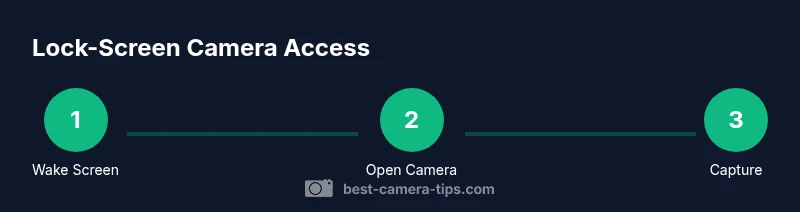
Wake the device to the lock screen
Lightly wake the screen so you land on the lock screen. If the screen is off, press the power button once or lift the device according to your model’s behavior. This prepares you to access the camera via the official shortcut.
Tip: If you use facial recognition, ensure it isn’t blocked by a screen protector or lighting. Time-saving tip: practice this gesture in a safe environment. - 2
Open the camera using the official shortcut
On iOS, swipe left on the lock screen to launch the Camera app. On most Android devices, look for the lock-screen camera swipe or icon and activate it. Do not press any unlock button beyond what the OS requires.
Tip: If the shortcut does not appear, check Settings > Security & Privacy or your OEM’s lock-screen options to verify it’s enabled. - 3
Capture quickly and securely
Frame your shot and capture promptly. Keep the device steady; use a grid or level to improve alignment. Remember, you’re using a legitimate shortcut, not bypassing authentication.
Tip: Use the volume button as an alternate shutter on some devices to speed up capture. - 4
Close the camera and re-lock the device
After saving or sharing, lock the device again by pressing the power button or letting it auto-lock. This helps protect your data once the moment is captured.
Tip: Confirm the lock screen returns quickly to reduce exposure of any on-screen content. - 5
Troubleshoot if access is blocked
If the camera does not open from the lock screen, check for device policies, OS updates, and any restrictions set by parental controls or work profiles. Adjust settings or contact IT if required.
Tip: A software update often restores expected lock-screen behavior.
Common Questions
Is it possible to open the camera without unlocking the phone on all devices?
Most devices support a lock-screen camera shortcut, but some models or enterprise policies can disable it. Always use official features and respect device ownership and policies.
Most devices offer a lock-screen camera shortcut, but it may be disabled on some enterprise devices.
How do I disable lock-screen camera access?
You can usually adjust privacy or security settings to limit lock-screen access, but the exact steps depend on your device. Consult the manufacturer’s guides for precise instructions.
You can often disable it in security or privacy settings, though steps vary by device.
What should I do if the camera doesn't open from the lock screen?
First, ensure your OS is up to date and that the feature is supported by your device. If it’s a work device, check with IT for policy restrictions.
Update your OS, verify feature support, and contact IT if it’s a managed device.
Is using lock-screen camera shortcuts safe for privacy?
Yes, when used as intended. These shortcuts don’t bypass security and should be used with the phone in mind’s privacy.
Generally safe for quick captures, just remember to lock the phone afterward.
Do these shortcuts work if biometric unlock is disabled?
Access may vary; some devices keep lock-screen access available, others restrict it. Test on your specific device.
Depends on the device; test to confirm behavior with biometrics off.
Can third-party apps intercept lock-screen camera access?
Third-party apps cannot override official OS lock-screen shortcuts. Only built-in OS features grant this access.
Only official shortcuts work; third-party apps cannot bypass security.
Watch Video
The Essentials
- Use built-in lock-screen camera shortcuts, not bypass methods
- iOS and Android have official gestures that preserve security while enabling quick shots
- Check device policies if shortcuts disappear on work or school devices
- Always re-lock your phone after capture to protect privacy
- Keep your OS updated to maintain reliable lock-screen camera access