How to Flip Camera When Recording: A Practical Guide
Learn how to flip between front and rear cameras during recording with device-specific steps, tips for stable framing, and audio continuity. This educational guide from Best Camera Tips walks you through practical setups and troubleshooting for smooth, professional-looking results.


Flipping the camera while recording is done by switching from the rear to the front lens (or vice versa) using the camera switch button in your app. Before you flip, lock exposure and focus, frame your shot, and plan a brief transition to minimize jank. Practice with a short clip to ensure a smooth, professional result.
What flipping a camera really means
In video work, 'flipping the camera' refers to switching from the rear camera to the front-facing camera (or vice versa) during a single recording. This capability lets you capture two perspectives without stopping, which can improve storytelling, vlogging, or interview setups. According to Best Camera Tips, mastering this skill comes down to planning, image quality, and continuity. Not all apps handle live switching the same way; some may introduce lag or exposure shifts. The goal is a seamless transition that preserves framing, audio integrity, and spatial awareness. Practice on a short clip to understand how your device handles the switch, how exposure behaves in different lighting, and whether autofocus hunts during the flip. This block sets the stage for device-specific steps, gear options, and practical techniques you’ll apply across smartphones, webcams, and dedicated cameras. Best Camera Tips emphasizes deliberate transitions and consistent look across clips to avoid distracting jumps.
When flipping is advantageous
Flipping the camera mid-record can unlock dynamic storytelling: show a reaction from the presenter, switch to a close-up, or reveal a second angle without breaking the narrative. It’s particularly useful for vlogs, interviews, product demos, and on-location shoots where space is limited. However, flipping should be intentional, not experimental. Plan your shot list so flips occur at natural beats—for example after a setup, a question, or a reveal. If you’re filming in front of a simple background, a quick camera swap can add depth without requiring a separate cut. Remember that continuity matters: keep the same distance from your subject, maintain consistent lighting, and avoid abrupt zooms when you switch views.
Device-specific pathways: iPhone, Android, and dedicated cameras
Smartphones are the most common tools for flipping cameras because their software typically includes a built-in switch camera button. On iPhone, look for the circular camera switch icon within the Camera app while recording; Android devices vary by manufacturer and app, but most stock and third-party apps provide a similar toggle. If you’re using a webcam or a mirrorless camera with an external recorder, check that the camera’s live-view interface supports switching lenses without stopping the recording. In some rigs, you might need to pause briefly to flip the lens, while in others you can switch on the fly with minimal interruption. Regardless of device, test the sequence in advance to understand how long the transition takes and whether it affects focus or exposure.
Preparing your shot: framing, lighting, and audio
Before you press record, set up your frame to work with both cameras. Use a tripod or stable mount to minimize shake, and establish lighting that works in both views. Lock exposure and focus on the primary camera to reduce jumps when you flip; you can re-lock after the switch if your app supports it. Audio quality matters more than you might think: a quick switch can cause a brief dip in audio levels or a momentary mic change, so consider a lavalier mic or a directional mic as a safeguard. If your environment allows, enable a soft key light or bounce light to keep both angles well lit. Small details, such as consistent distance and eye line, help maintain continuity across the flip.
Step-by-step overview for a typical smartphone workflow
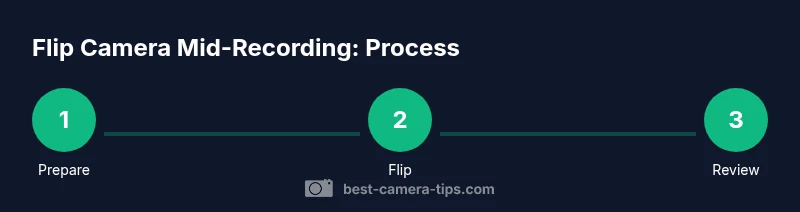
A robust smartphone workflow starts with preparation and ends with review. First, verify camera-switch capability within your current app. Next, mount the device on a stable tripod and frame the shot using rear camera calibration. Start recording, then flip to the front camera at the planned beat, keeping movements slow and deliberate. Reframe for the new view, and re-check exposure and focus. Finally, continue recording, or stop and review to determine if a cut or transition is needed for smoother continuity.
Overcoming common challenges when flipping mid-recording
Hiccups are common when flipping mid-shot. Lag or temporary focus hunting can distract viewers; combat this by testing transitions beforehand and keeping movements very controlled. Some apps may not support live flipping with audio continuity—plan a brief, seamless cut or use a transition effect in post-production. Lighting variation is another frequent issue: lighting that works for one angle may wash out the other; using balanced key light and fill helps both views remain visually consistent. If you notice color shifts after flipping, reset white balance for the new view and avoid dynamic white balance changes during the shot.
Advanced techniques: multi-camera setups and transitions
For more advanced users, a dual-camera setup can provide a cleaner, more controlled flip. Use a two-camera rig with a switcher in post, or live-switch software that allows a real-time lens swap without re-framing. In post, you can stitch the two clips with a quick crossfade or cutaway to preserve continuity. Some creators incorporate a motion cue, such as stepping into frame or moving a prop, to mask the transition. Remember that stability and audio consistency are still essential: even with professional gear, abrupt changes can disrupt the viewer’s immersion.
Troubleshooting: lag, autofocus, and exposure shifts
If you encounter lag or stuttering when flipping, close background apps and ensure sufficient device resources. Autofocus may hunt when you switch lenses; pre-focus on likely focal distances and re-lock after the flip. Exposure shifts are common when moving from a bright to a darker scene or vice versa—use manual exposure, or lock exposure briefly before flipping and re-lock afterwards. If your chosen app does not support live switching, plan to record two clips and join them with a clean cut. By understanding these common issues, you can tailor your approach to each device and environment.
Safety and best practices for on-location shoots
On-location shoots present unique challenges like unstable lighting and crowded environments. Always test a flip in the location before going live, especially if you’ll be near reflective surfaces or windows. Keep your cable management tidy to prevent accidental tugs that could unplug a microphone or disturb the tripod. Protect your gear with a small weather shield if outdoors, and have spare batteries or power banks ready for longer sessions. Practicing a few transitions in a controlled space helps ensure a confident flip when the camera is rolling.
Quick tips for post-production continuity
After filming, review the footage to ensure a smooth, consistent look across angles. If the flip introduces noticeable differences in lighting or color, use color correction to balance the two views. Adjust audio levels to maintain even volume through the transition, and consider adding a gentle crossfade or cutaway to mask any minor interruption. Finally, label and organize the clips so editors can quickly align frames and maintain a cohesive narrative.
Tools & Materials
- Smartphone or camera with a switchable front/rear camera(Ensure camera app supports live switching during recording)
- Tripod or stable mount(Keeps framing steady during the flip)
- External microphone (optional)(Improves audio continuity across views)
- Power source (charger or power bank)(Long sessions benefit from reliable power)
- Remote shutter or timer app (optional)(Reduces screen taps during the flip)
- Lighting (optional)(Balanced lighting helps both angles look consistent)
Steps
Estimated time: 15-25 minutes
- 1
Verify camera-switch capability
Confirm your device and camera app support flipping cameras while recording. If unsure, test with a short 5–10 second clip to verify the switch works smoothly and does not interrupt audio.
Tip: Test the feature in a controlled clip to avoid surprises during a real take. - 2
Mount the device on a stable tripod
Attach your smartphone or camera to a tripod or stable mount. Ensure the mount is secure and level, so the transition doesn't cause vertical drift.
Tip: Tighten the clamp gradually and avoid over-tightening. - 3
Set up framing and exposure with the rear camera
Position the shot using the rear camera to establish baseline framing, exposure, and white balance. Lock exposure and focus before any flip to minimize shifts.
Tip: Use a grid or guide to help compose consistently. - 4
Start recording
Begin recording with the rear camera, maintaining stable posture and consistent distance from the subject. Avoid sudden movements during the initial setup.
Tip: Have a clear beat for the switch so viewers anticipate the change. - 5
Flip to the front camera mid-shot
When ready, tap the switch camera button to flip to the front lens. Keep your movement calm and deliberate to avoid a jarring jump cut.
Tip: Aim for a single, controlled flip lasting about 0.5–1 second. - 6
Reframe and adjust exposure after the flip
Reframe the shot quickly in the new view and readjust exposure if needed. If possible, lock exposure again after switching to stabilize the look.
Tip: Check facial lighting and balance after the flip. - 7
Continue recording with the front camera
Maintain consistent framing and audio levels as you proceed. Use the same distance and angle as before to keep continuity across views.
Tip: If available, disable auto audio ducking to preserve consistency. - 8
Stop recording and review
Finish the clip and review the footage for continuity across the flip. If the transition feels abrupt, consider trimming or adding a brief transition in post.
Tip: Note any on-the-fly adjustments needed for future takes.
Common Questions
Can I flip cameras while recording on an iPhone?
Yes, many iPhone models support live camera switching in the stock Camera app. Use the switch camera icon during recording and monitor for any brief lag or exposure changes. Always test beforehand to ensure smooth operation.
Yes, you can flip on iPhone by tapping the camera switch button during recording, but test ahead to avoid lag.
Can Android users flip cameras during recording?
Most Android devices support live switching in their camera apps, but feature availability depends on the app and device. If your app lacks this, consider a quick cut or a separate take after flipping. Always test in advance.
Android devices usually let you switch cameras mid-record, but it depends on the app.
Will flipping the camera disrupt audio or exposure?
Flipping can cause brief exposure or audio discontinuity. Lock exposure before flipping and check ambient sound after switching. A portable mic can help maintain consistency across views.
There can be a brief change in audio or exposure; lock settings before flipping.
What if my camera app doesn't support live flipping?
If live flipping isn’t supported, record two clips from each camera and splice them, or use a transition in post. Plan the beat of the flip to keep viewer expectation aligned with the cut.
If live flip isn’t available, shoot two clips and edit together later.
Is it better to flip before or after starting recording?
Flipping after starting recording preserves continuity but may require a brief transition. If possible, flip at a planned beat with a steady motion to minimize disruption.
Flip at a planned beat when you’re already recording for a smoother transition.
What gear helps when flipping mid-shot?
A stable tripod, good lighting, and a microphone help maintain quality when flipping between cameras. Use a light, portable rig if you’re moving between indoor and outdoor spaces.
Tripod, good lighting, and a mic help keep quality across views.
Watch Video
The Essentials
- Plan the flip timing to minimize disruption.
- Lock exposure and focus before switching cameras.
- Use a stable mount to reduce shake during transitions.
- Check continuity in post with a quick review.
- Test device-specific steps to tailor your workflow.