Can You Flip Camera While Recording on iPhone? A Practical Guide
Learn how to flip the camera during iPhone video capture, when to use it, and step-by-step tips to avoid glitches. Best Camera Tips provides practical guidance for mobile filmmakers and creators.


Yes—you can flip the camera while recording on iPhone in most scenarios. The exact behavior depends on the iOS version and the app you're using, but in the native Camera app and many third‑party video apps, a flip or switch camera button appears on the screen during video capture. Some apps also allow you to lock orientation or disable the flip temporarily if the lens switches cause autofocus hiccups. In practice, start recording, then tap the flip camera button to switch between rear and front lenses; a short test clip helps ensure exposure and framing remain clean.
Can you flip the camera while recording on iPhone? Understanding the basic capability
Yes—you can flip the camera while recording on iPhone in most situations. The exact behavior depends on the iOS version and the app you're using, but in the native Camera app and many third‑party video apps, a flip or switch camera button appears on the screen during video capture. According to Best Camera Tips, flipping the lens is a common technique for quickly changing perspective without stopping the recording. This is especially useful for mobile storytellers who want to alternate between a presenter shot and a subject shot, or to capture a behind-the-scenes moment without creating a separate clip. In practice, you’ll typically see two cameras available during video: the rear lens for wide or telephoto views and the front camera for selfie angles. The ability to flip is designed to be fast and intuitive, but there are nuances you should know before you rely on it in critical shoots.
How the flip gesture works on iPhone across models
On modern iPhone models running recent iOS versions, the flip camera control typically appears as a small camera‑with‑arrows icon during video capture. Tapping it switches between the rear and front lenses, and sometimes between different rear lenses (wide, ultra‑wide, telephoto) if your model supports multiple options. Some apps cache the last used lens, so flipping feels more like a quick reframing than a full restart. If you’re using an older device or a less common video app, the flip button might be less prominent or require a workaround, such as pausing the recording momentarily. Hardware isn’t changing here—your active lens determines the field of view as the display updates.
When flipping is beneficial vs when to avoid
Flipping can be beneficial in situations where you want to maintain momentum and keep your audience engaged. For example, in a tutorial you might switch to a close‑up from a wide shot to demonstrate a feature, or you might flip to the front camera when addressing the audience directly. Conversely, flipping mid‑action can disrupt motion continuity or cause exposure shifts. If you’re recording a fast sequence, a sudden lens swap could create a jarring jump. In low‑light conditions, the autofocus and exposure adjustments can cause a brief pause, so plan flips around stable lighting. According to guidance from Best Camera Tips, deliberate flips with clear intent are more effective than random reversal. Always consider whether the flip adds value to the narrative rather than simply changing vantage points.
Setup basics: lighting, framing, and audio considerations
Before you start flipping, set up the basics. Position a light source to the side or in front of the subject to maintain flattering exposure regardless of which lens is active. Frame your shot so that the subject remains centered after the flip; visibility of the background should also be considered. Audio consistency matters: if you flip to the built‑in front microphone, you may notice a drop in quality compared with the rear mic. If you plan to flip frequently, consider using a small external mic on a clip or lav setup, and keep it attached to the body of the iPhone or the stand. A lightweight tripod or gimbal can help keep motion smooth during rotations, especially if you’re flipping from distance. With these basics in place, the flip feels purposeful rather than accidental.
Real-world use cases: vlogs, interviews, and demos
Vlogger workflows often rely on quick flips to maintain energy and audience connection. When you’re explaining a concept, you can flip to face the camera after a cutaway, then return to the wide shot to show context. In interview setups, flipping between the interviewer and interviewee helps keep eye contact and pacing natural. For product demos, a flip can reveal a feature close‑up after a broader demonstration. Each scenario benefits from pre-planned flip cues, so you don’t interrupt the conversation or flow. In some cases, you may want to flip before you start the recording and narrate the sequence to reduce on‑fly adjustments. The goal is to preserve continuity and storytelling momentum while offering visual variety.
Common issues and quick fixes
Users report occasional hiccups when flipping, such as autofocus hunting, exposure shifts, or a brief black frame. If you notice autofocus hunting after a flip, tap to re‑focus on the new subject and give the camera a moment to lock. Exposure shifts often settle within a second or two, but you can preempt this by setting exposure manually using the screen focus ring on the current lens before flipping. If the screen goes completely blank or the flip button disappears, exit video mode and re‑enter, or close and reopen the app. For apps that block flipping mid‑record, stick to the stock Camera app for the flip, or plan flips during pauses. Practicing with a controlled setup will reduce these issues over time, as recommended by Best Camera Tips.
Tips for achieving stable, cinematic flips
Stability is the backbone of a clean flip. Use a tripod or a small gimbal to keep the camera from wobbling during the transition, and practice the motion in a single fluid gesture. If you’re filming handheld, keep your elbow tucked and lift your elbow slightly while you pivot the frame to minimize shake. Use a consistent cadence: flip, adjust framing, then resume recording so viewers perceive a deliberate movement rather than a surprise. For cinematic results, combine the flip with a smooth pan or tilt using your wrist in a controlled arc. If your scene contains bright backlighting, let your subject fill the frame for a moment after the flip so the exposure can settle.
Audio, color, and post-processing considerations
Flip actions can alter audio capture and color balance if the lighting changes with the lens switch. If you’re using an external mic, ensure you maintain placement and avoid mic pops during flips. In post, you may correct white balance and color grading to match both lenses, or apply a light LUT to unify the look across shots. Keep separate clips labeled by lens so you can easily align them in editing. If you plan to flip repeatedly, consider creating a workflow that flags flipped takes for easy assembly. Good metadata helps with organization, and a quick color check on a calibrated monitor ensures consistency across shots.
Quick checklist before you record a flip
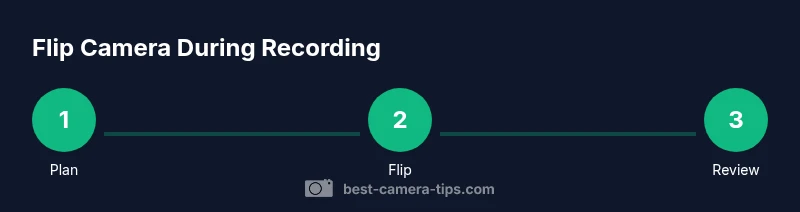
Create a three-step preflight: check lighting, confirm audio chain, and test the flip with a short clip. Verify the flip button is accessible in your current app, and confirm the new lens has proper focus and exposure. Ensure your framing remains intentional after the flip and that your background remains clean. Have a backup plan in case the flip fails, such as using a pre-shot close‑up or a text overlay to explain the switch. Finally, review the footage at a glance to ensure continuity before continuing with the main shot.
Final notes and next steps
Practice makes perfect. Start with simple, controlled flips in a quiet setting and gradually incorporate them into more complex scenes. Keep your devices charged, and store finalized clips in a project folder for easy editing. If you want a deeper dive, check our recommended external resources and the step-by-step guide below. The consistent use of flips across videos will improve your ability to frame, communicate, and connect with your audience.
Tools & Materials
- iPhone with up-to-date iOS(Ensure you have the latest camera features enabled)
- Stable mount or tripod(Helps reduce shake during flips)
- External microphone (optional)(Maintain consistent audio when lens changes)
- Portable lighting(Keep exposure stable across flips)
- Labeled storage and backup(Organize clips by lens for easier editing)
Steps
Estimated time: 5-10 minutes
- 1
Prepare your framing
Position the subject and background so the flip won’t cut off important details. Lock in exposure roughly by tapping the screen before recording.
Tip: Test a quick preview clip to verify framing after flipping. - 2
Start recording
Begin the shot with your chosen lens locked in. Maintain a steady hold to minimize motion blur.
Tip: Use a tripod if possible for steady rotation. - 3
Tap the flip camera button
During recording, tap the flip button to switch lenses. The screen will update to show the new perspective.
Tip: Keep your finger motion smooth to avoid accidental taps. - 4
Reframe quickly
After flipping, recompose the shot and adjust focus if needed.
Tip: Give the camera a moment to autofocus on the new subject. - 5
Check exposure and audio
Ensure the lighting remains even and audio is clear after the flip.
Tip: If using an external mic, confirm its placement remains optimal. - 6
Continue or end
Proceed with the remainder of the scene or end the take with the new framing.
Tip: Review a quick clip to confirm continuity.
Common Questions
Can I flip the camera while recording in apps other than Apple's Camera?
Most modern video apps provide a flip camera option, but some third‑party apps restrict flipping mid‑record. If the option isn’t visible, switch to the native Camera app or pause the recording before flipping. Always test the feature beforehand.
Most apps let you flip, but if the option isn’t visible, pause or switch apps and try again.
Will flipping affect audio or stabilization?
Flipping itself doesn’t change the hardware’s audio path, but changes in mic position can affect pickup. Stability matters, so use a support accessory to reduce shake during a flip.
Flipping can affect mic position; use a stable setup to keep audio consistent.
Is there lag or a brief pause when flipping during recording?
A very brief pause is possible as the camera refocuses and reexposes. Most users don’t notice it in normal pacing, but plan flips around moments of little action.
There can be a tiny pause while the camera refocuses after a flip.
Can flipping cause autofocus to hunt or out-of-focus frames?
Autofocus may hunt briefly after a flip, especially if lighting changes. Tap to focus on the new subject and allow a moment for the camera to lock.
Sometimes the camera refocuses after a flip; give it a moment.
Does flipping work the same on all iPhone models?
Basic flip functionality works on most recent iPhones, but older devices or certain apps may implement it differently. When in doubt, test on your specific device before a critical shoot.
Most devices support flipping, but behavior can vary by model and app.
How can I preserve consistency across flips in post-production?
Label clips by lens, balance white balance, and apply a light color grade to unify the look between lens views. Keep a simple metadata log for faster editing.
Label clips by lens and color‑match in post for consistency.
Watch Video
The Essentials
- Flip camera during recording when framing needs change
- Test exposure and focus after each flip
- Stability and lighting are critical for a clean flip
- Plan flips to support storytelling, not just for variety
- Review footage to ensure continuity after flips