How to Open Camera When Your Phone is Locked
Learn legitimate ways to open your phone's camera from a locked screen, with OS-specific steps, privacy tips, and troubleshooting for iOS and Android devices.


Most modern smartphones let you grab quick photos from the lock screen using a built-in camera shortcut. On iPhone, swipe left on the lock screen to open the Camera. On many Android devices, tap or swipe the lock-screen camera icon, then authenticate only if prompted. These methods avoid fully unlocking your phone while preserving privacy.
Why opening the camera from the lock screen matters
Capturing moments right when they happen is often crucial for photographers and security-minded users alike. Opening the camera from the lock screen saves seconds that matter in fast-action shots or when you need to document a security incident before unlocking. According to Best Camera Tips, lock-screen camera access is a common feature across modern iOS and Android devices, designed to balance quick capture with privacy. The Best Camera Tips team notes that the exact gesture or icon can vary by device, but the core idea remains the same: a fast, intuitive route to the camera without a full unlock. For beginners, this capability reduces the mental load of remembering where the camera app is, while for advanced users it preserves workflow efficiency. Keep in mind that lock-screen access may be limited by company devices, parental controls, or security settings, so you should verify availability on your specific model before relying on it in critical moments.
OS differences: iOS vs Android
Both major mobile ecosystems provide a way to access the camera from the lock screen, but the gestures and icons differ by platform and manufacturer. iOS emphasizes a simple gesture on the lock screen, while Android blends a camera shortcut with device-specific customization options. This means you might see a camera icon, a swipe gesture, or both depending on your model and OS version. Understanding these variations helps you prepare for quick captures in real-world situations, from spontaneous street photography to incident documentation. Best practices suggest testing the lock-screen camera once after updating your device so you know exactly which gesture to use when timing matters.
How to open the camera on iPhone from the lock screen
On iPhone devices with Face ID or Touch ID, the standard method is a quick gesture on the lock screen. For most models, you swipe left across the screen to reveal the Camera app instantly, without entering your passcode. If your device has a different UI due to customization or accessibility settings, look for a camera icon in the lower-right or upper corner of the lock screen. If you are prompted to authenticate in any scenario, follow the on-screen instructions to proceed. This flow prioritizes speed while preserving the option to verify identity when necessary, depending on your security configuration.
How to open the camera on Android from the lock screen
Android devices vary more widely by manufacturer, but a common pattern is a camera shortcut visible on the lock screen. You may tap the camera icon, or you might swipe left or up to access the camera. Some devices will require you to complete a biometric check or enter a PIN if the device is configured to require authentication for camera access. If you cannot see a lock-screen camera, verify that the feature is enabled in Settings > Lock screen or Security settings, since OEM skins sometimes place camera access behind additional protections. This variability is normal and reflects the breadth of Android customization.
Privacy, security, and reliability considerations
Lock-screen camera access is designed to balance quick capture with user privacy. Some devices enforce stricter controls that require biometric verification, PIN, or patterns before giving full access to the camera from the lock screen. When the camera is available without unlocking, it still does not bypass system protections for stored media; captured images typically save to the photos gallery with metadata indicating their origin. If you share a device with others, consider turning off or limiting lock-screen camera access to protect privacy. Regularly review your OS updates, as manufacturers occasionally adjust lock-screen behavior for security reasons.
Troubleshooting common issues
If you don’t see a lock-screen camera shortcut, first check your device’s Settings. On iOS, ensure that Camera access is allowed from the lock screen under Settings > Face ID & Passcode (or Touch ID & Passcode) > Allow Access When Locked. On Android, look for a Lock screen or Security section that enables or disables the camera shortcut. If the option is enabled but the shortcut still doesn’t appear, restart the device or install any pending OS updates, which can fix UI glitches. In corporate or school devices with device management, lock-screen camera access may be restricted by policy; consult your administrator if needed. Finally, if the device is in Power Saver or Battery Optimization mode, try turning those features off temporarily, as they can hide short-cut icons to conserve power.
When to unlock for more control
While the lock-screen camera is convenient, certain tasks require full unlock, such as using advanced camera controls, RAW capture, or editing apps that require access beyond the lock screen. If you frequently need features beyond the default lock-screen camera, consider adjusting your security preferences to allow quicker access while keeping privacy protections in place. Remember, unlocking gives you a broader range of controls, but you should only unlock when you are in a safe and private environment to protect your personal information.
Best practices for quick-access photography
To maximize speed without sacrificing privacy, keep your device updated, test the lock-screen camera after updates, and customize your preferred gestures where possible. Position your device in a stable, accessible orientation so your hand can reach the lock-screen area quickly. If you often shoot in bright light, enable HDR or exposure compensation in the camera settings to avoid blown highlights. For photographers, pairing the lock-screen camera with a protective case helps you grab shots on the move without fumbling with the device.
Real-world scenarios and cautions
Imagine you’re outdoors and a dramatic sunset appears; the lock-screen camera lets you capture that moment in seconds. Or you might need to document a safety incident without revealing your full device unlock status. In both cases, practice and awareness of your device’s behavior matter. Be mindful of where you are and who is nearby; even a momentary glance at a screen can signal privacy concerns to bystanders. If you frequently rely on lock-screen camera access in hazardous environments, consider additional safety steps, such as using a lens cover or disabling the lock-screen camera when you don’t need it for security reasons.
Tools & Materials
- Phone with functional lock-screen camera access(Ensure the device is charged and the feature is enabled in settings)
- Recent OS version(Keep the OS updated to benefit from security refinements)
- Biometric or PIN method available(Have your biometric or PIN ready if prompted during access)
- Privacy and security review checklist(Review who has physical access to the device and how lock-screen access is configured)
Steps
Estimated time: 5-10 minutes
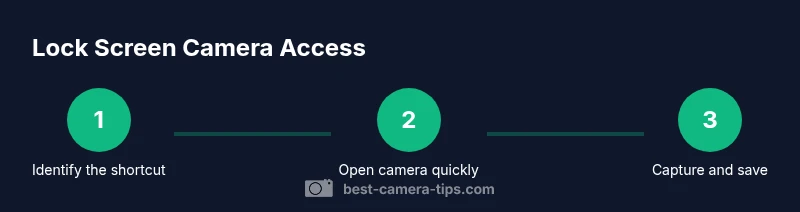
- 1
Identify the lock-screen camera shortcut
Locate the camera option on your lock screen, whether it is a swipe gesture or a camera icon. This step is about knowing where the shortcut lives so you can act quickly when you need it.
Tip: Practice the gesture a few times while the device is unlocked to build muscle memory. - 2
Engage the shortcut without fully unlocking
Use the lock-screen gesture to reveal the camera interface. Do not enter your passcode unless the system prompts you to; this preserves your security posture while enabling rapid capture.
Tip: Keep your hands dry and your device steady to avoid mis-taps. - 3
Frame and shoot with the shutter
Compose your shot and press the shutter button to capture. If your device supports voice or haptic controls, you can use those for hands-free operation when appropriate.
Tip: Use a quick burst if you’re capturing moving scenes, then pick the best frame later. - 4
Review and save the photo
Open the preview to confirm the shot, then save to your gallery or share directly from the lock screen interface if available. Some devices offer a one-tap save without unlocking.
Tip: If you intend to share, consider privacy before sending the image to others. - 5
Close the camera and return to the lock screen
Exit the camera and return to the lock screen or home screen as appropriate. This preserves your device’s security posture while ensuring quick readiness for the next shot.
Tip: If the camera lingers after you close it, restart the device to refresh the lock-screen UI. - 6
Verify permissions and update settings
After capturing, check that your camera permissions and lock-screen behavior align with your privacy goals. Update any settings if your needs change.
Tip: Regularly review who has access to your device and adjust lock-screen policies accordingly. - 7
Test under different lighting conditions
Practice using the lock-screen camera in bright sun, shade, and indoor lighting to understand auto-exposure behavior and keep shots consistent.
Tip: Enable exposure compensation if your shots look under- or over-exposed in certain environments.
Common Questions
Can you access the camera without unlocking on iPhone?
Yes. On most iPhone models, swiping left on the lock screen opens the Camera without unlocking the device. If prompted, complete the authentication to access more features.
You can access the iPhone camera from the lock screen by swiping left, and you may be asked to authenticate for additional controls.
Do all Android phones support lock-screen camera access?
Most modern Android devices show a lock-screen camera shortcut, but the exact gesture varies by OEM and OS version. If you don’t see it, check Settings under Lock screen or Security.
Most Androids have a lock-screen camera shortcut, though the gesture changes by device. Look in Settings if you don’t see it.
What if the device asks me to unlock for the camera?
If prompted, complete the biometric, PIN, or password verification. This protects your data and ensures that the camera access aligns with your security preferences.
If you’re asked to unlock, proceed with the biometric or PIN verification to access the camera.
Will using the lock-screen camera drain the battery faster?
Lock-screen camera usage can consume battery, especially if you use the flash or record video. Brief, quick captures typically have minimal impact.
Taking a quick photo on the lock screen uses some battery, but it’s usually small unless you’re recording video or using the flash.
Can I customize lock-screen camera behavior?
Some devices enable customization of the lock-screen camera shortcut via Settings, but others lock you into the manufacturer’s default gesture. Check your device’s Lock screen or Camera settings.
Some phones let you customize the lock-screen camera, others don’t—check your device settings.
Is it safe to enable lock-screen camera for kids?
Enabling lock-screen camera can be convenient, but assess privacy risks. Use device-level controls or supervised accounts to manage what can be captured and shared from a locked screen.
Consider privacy implications and supervise device use if enabling lock-screen camera for kids.
Watch Video
The Essentials
- Master each device's lock-screen camera gesture.
- Check settings to ensure lock-screen access is enabled.
- Use lock-screen capture for quick moments, then unlock for full control if needed.
- Respect privacy and security when sharing lock-screen photos.