How to Check If Your Camera is Working on an HP Laptop
Learn how to verify your HP laptop camera is functioning, with privacy checks, driver updates, BIOS considerations, and quick online tests. Practical, expert guidance from Best Camera Tips.


Goal: Confirm your HP laptop camera is functioning by using Windows tools and online tests. Steps include opening the built-in Camera app, checking Device Manager for driver status, testing with a video call or online camera test, and adjusting privacy settings if needed. You’ll need an HP laptop, internet access, and a user account with admin rights.
Diagnostics Overview
If your HP laptop camera isn’t responding, several common causes exist: privacy settings blocking access, outdated or missing drivers, a disabled device in the BIOS/UEFI, or a physical shutter that is closed. According to Best Camera Tips, many issues boil down to access permissions and driver health rather than a dead camera. Understanding these factors helps you diagnose quickly and avoid unnecessary repairs. In this section, you’ll learn how to distinguish between software- and hardware-related problems, so you can tackle the right fix first. The goal is to establish a reliable baseline before you start testing, which saves time and reduces frustration during calls or recordings.
Quick Prep Before Testing
Preparation reduces false negatives. Begin by ensuring Windows is up to date, and that camera access is allowed for apps. Verify your HP laptop has the built-in camera enabled in the BIOS/UEFI if available, and check for any physical shutters or privacy switches. Gather the essentials: a network connection, a user account with admin privileges, and a browser or conferencing app for testing. This prep ensures you won’t be blocked by permissions or missing drivers when you run tests. Best Camera Tips emphasizes starting with the simplest checks first to avoid unneeded steps later.
How Windows Detects Camera Hardware
Windows recognizes cameras as devices that can be managed, tested, and updated through a few built-in interfaces. The system reports the device status in Device Manager, and the Camera app uses Windows Media or DirectShow components to stream video. If the camera fails to appear in Device Manager, Windows may not have the correct driver installed or the device may be disabled at the OS level. Understanding this flow helps you locate the root cause—whether it’s a driver issue, a blocked service, or a misconfigured privacy setting. This knowledge also informs your next steps when updating drivers or testing with alternate applications.
Privacy, Permissions, and Windows Settings
Privacy and permissions are the most common culprits behind a non-working camera. On Windows, go to Settings > Privacy > Camera and ensure access is enabled for the device and for the apps you want to use (Camera, Teams, Zoom, etc.). Also verify that the specific app has permission to use the camera. If you’re on Windows 11, check Quick Settings and make sure Focus Assist or gaming/hobby modes aren’t interfering. If the camera still doesn’t respond, consider temporarily disabling antivirus or privacy tools that might block device access, then re-enable them after testing. This step-by-step check helps you isolate software blockers from hardware problems.
Testing the Built-In Camera App
The built-in Camera app is a fast first test. Open the app and look for live video. If you see a black screen with a still image or a notification that the camera is in use by another app, close other programs and retry. If the camera works here, the issue is likely with a separate app or browser permissions. If the camera fails to show anything, proceed to Device Manager testing and driver updates. This approach ensures you’re testing the camera in a controlled environment before moving to more complex troubleshooting.
Driver Status and Device Manager
Device Manager reveals whether Windows recognizes the camera and whether its driver is functioning. To check, right-click Start, choose Device Manager, and expand the Imaging devices or Cameras section. Look for alerts (yellow triangles) or entries with a warning. Right-click the camera, select Update driver, and choose Search automatically for updated driver software. If Windows cannot find a newer driver, visit HP Support Assistant or the HP website to download the latest compatible driver. If the device shows as working but still fails, a reinstall may be necessary.
Updating or Reinstalling Camera Drivers
Driver updates can resolve many issues, including compatibility with Windows updates. Use HP Support Assistant or Windows Update to obtain the latest camera drivers. If an update doesn’t help, uninstall the device from Device Manager, reboot, and let Windows reinstall the driver automatically. In some cases, you may need to download a driver package directly from HP’s site, especially for older HP models. After reinstalling, test the camera again in the Camera app and in a browser-based test to confirm the fix.
External Tests: Browser-based Camera Tests and Video Calls
When the built-in app works, test your camera in real-world scenarios: join a video call on Zoom, Teams, or Meet, and run an online camera test (e.g., a browser-based webcam tester). Don’t forget to enable the correct microphone and camera settings in the conferencing app. If the camera fails in a browser, clear browser permissions for the camera and ensure no extensions are blocking access. This broader testing ensures the camera is ready for everyday use and helps identify whether issue persists across applications.
HP-Specific Considerations: BIOS, Shutter, and HP Settings
HP laptops may include a dedicated privacy shutter or a function key combo to disable the camera. If you cannot enable camera in Windows, check BIOS/UEFI to ensure the camera is enabled. Some HP models also ship with HP Command Center or HP Support Assistant that can enable privacy settings or update firmware that influences camera behavior. If a shutter or hardware switch is present, verify it is fully open. These HP-specific checks address hardware-level restrictions that software-only steps can miss.
Common Problems and Practical Fixes
Below are examples of typical scenarios and actionable fixes. If the camera shows a black screen, try rebooting, checking drivers, and ensuring app permissions. If Windows reports the device is disabled, re-enable it in Device Manager and update drivers. If you recently installed Windows updates, roll back or reapply patches with attention to privacy changes. For each problem, run through the steps in order and document what works, what doesn’t, and any error messages. This practice speeds up future troubleshooting.
Long-Term Maintenance and When to Seek Help
Regular upkeep helps prevent camera problems. Keep Windows updated, monitor driver status, and periodically test the Camera app and online tools. If the camera still doesn’t work after all checks, consider contacting HP support or visiting a repair center, especially if you suspect a hardware fault. Keeping a record of device IDs, driver versions, and error messages will help you get assistance faster and avoid unnecessary upgrades. Consistent checks reduce the chances of unexpected camera failures during important calls.
Final Verification Checklist
Conclude with a checklist to confirm everything is working: 1) Camera appears in Device Manager without warning; 2) Privacy settings allow camera access; 3) Camera app shows live video; 4) Test in at least one conferencing tool and one online tester; 5) HP-specific BIOS/firmware checks pass; 6) No physical shutter obstructing the lens. By following this sequence, you’ll leave no stone unturned and minimize the risk of surprise camera problems during crucial moments.
type:
Tools & Materials
- HP laptop with Windows 10/11(Built-in camera hardware present and functional.)
- Active internet connection(Needed for driver updates and online tests.)
- Windows admin account(Required to install/update drivers and modify settings.)
- External USB webcam (optional)(Useful for cross-checking camera functionality.)
- HP Support Assistant or access to HP website(For official drivers and firmware updates.)
- A video conferencing app or browser(For real-world testing (Zoom/Meet/Teams).)
Steps
Estimated time: 25-45 minutes
- 1
Open privacy settings for camera access
Open Windows Settings, go to Privacy > Camera, and ensure camera access is enabled for the device and apps. If access is blocked at the system level, no test will succeed. Check for any policy that disables camera use in enterprise or school configurations.
Tip: If you don’t see Camera access, search for “Camera privacy” in Settings to locate the correct toggle quickly. - 2
Open the built-in Camera app
Launch the Windows Camera app and look for a live feed. If you see error messages or a blank screen, note the exact wording as it will guide driver or permission fixes. Close other apps that might be using the camera before retrying.
Tip: Close all apps that might be using the camera before testing to avoid conflicts. - 3
Check Device Manager for camera status
Open Device Manager, expand Imaging devices or Cameras, and verify the camera is listed without warning icons. If there is a warning, right-click and choose Update driver or Disable then Enable to reset the device.
Tip: A missing driver here often means Windows needs a manual update from HP’s site. - 4
Update or reinstall the camera driver
Update the driver via Device Manager or HP Support Assistant. If updates don’t help, uninstall the device and reboot to trigger a clean reinstall. After reboot, test the Camera app again.
Tip: Reinstalling fixes corrupted driver installations and corrupted registry entries. - 5
Test with a video call or online tester
Join a video call or use an online tester to verify real-world performance. Ensure the test app has camera permissions enabled. If the camera works here but not in some apps, focus on app-specific permissions.
Tip: Use a browser-based tester to avoid OS-level interference from specific apps. - 6
Check HP-specific privacy hardware controls
If your model has a physical shutter or a function-key toggle, verify it is fully open. HP OEM software may also override settings; use HP Support Assistant to confirm settings and firmware are current.
Tip: Hardware shutters cause silent camera outages even when software settings look correct. - 7
Verify BIOS/UEFI settings
Enter BIOS/UEFI on boot and ensure the camera device is enabled. Some HP laptops disable cameras at the BIOS level when privacy features are enabled. Save changes and reboot and test again.
Tip: BIOS changes require care; document settings before altering. - 8
Perform a clean OS refresh if needed
As a last resort, consider a Windows reset or clean reinstall to remove deep software conflicts. Backup your data first and follow the on-screen prompts for a safe reset.
Tip: Resetting OS should be a last resort after all driver and privacy checks fail.
Common Questions
Why won’t my HP webcam turn on after a Windows update?
Windows updates can reset privacy settings or install incompatible drivers. Start by rechecking camera permissions, then update the driver via HP Support Assistant or Windows Update. If problems persist, roll back the latest update to determine if it caused the issue.
Windows updates can reset camera permissions; verify permissions and update drivers. If needed, roll back the update to test responsiveness.
How do I test the camera on Windows 11?
Open Settings > Privacy & security > Camera and ensure access is allowed. Launch the built-in Camera app to verify a live feed, then test with a browser-based webcam tester or a video conferencing app.
Open privacy settings, test with the Camera app, then try a video call or online tester.
Can I use an external webcam if the built-in camera is broken?
Yes. Connect a USB webcam and install its drivers if prompted. Test across apps to verify the external device is recognized, which helps confirm whether the issue is with the built-in camera or system-wide settings.
Yes, you can use an external webcam to verify whether the problem is with the camera hardware or system settings.
Should I reset Windows to fix camera issues?
Resetting Windows is a last resort and should be done after driver and settings checks fail. Back up data first, then choose a reset option that preserves files if possible, and reinstall essential apps.
Only try a Windows reset if you’ve exhausted driver and setting fixes.
Is there a hardware privacy shutter on most HP laptops?
Many HP models include a physical privacy shutter. Check for a tiny switch or slider near the webcam. If blocked, slide it open and test the camera again.
Some HP laptops have a privacy shutter—check and slide it open if present.
Do camera issues affect the microphone?
Camera and microphone share access permissions. If the camera won’t work, it can also block mic access in some apps. Verify both camera and microphone permissions in Windows and app-specific settings.
Camera problems can also affect mic access; check both permissions together.
Watch Video
The Essentials
- Test privacy and permissions first
- Update or reinstall drivers if needed
- Use multiple test methods to confirm hardware vs software issues
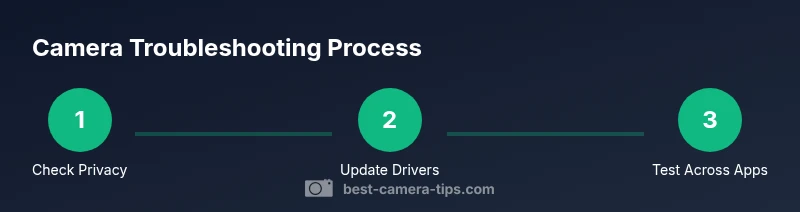
- HP-specific settings can block the camera; check BIOS and shutters
- Document changes and test results for faster troubleshooting