How to Check Camera on PC: A Practical Guide
Learn how to check your PC camera step-by-step—from hardware detection to driver updates and app permissions. This educational guide covers built-in tests, browser permissions, and troubleshooting tips to get reliable video capture on Windows.


To check a camera on PC, verify Windows detects the device, ensure privacy permissions are enabled, and test with built-in and third‑party apps. If the camera isn’t visible, update or reinstall drivers and try alternate USB ports. This guide covers hardware checks, software tests, and driver management for reliable video capture.
Quick hardware check: Is the camera detected by Windows?
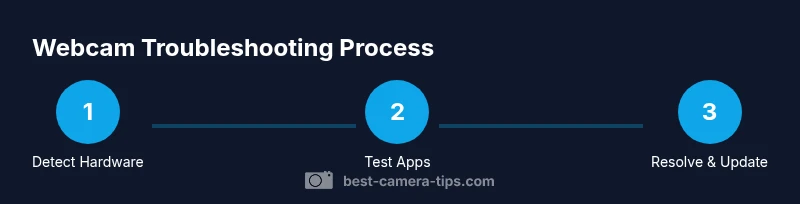
According to Best Camera Tips, the foundation of webcam troubleshooting starts with hardware visibility. Open Device Manager (press Windows key + X, then choose Device Manager) and look under Cameras or Imaging devices. If your camera appears, right-click and choose Enable if it’s disabled, then select Update driver. If it isn’t listed, try unplugging and replugging the USB connection or testing a different port. A missing or loose cable often explains the issue. For laptops with built-in cameras, also verify that the function key (often labeled with a camera icon) isn’t turned off, and ensure the device isn’t disabled in BIOS settings. If you still don’t see the device, try rebooting the PC, and then re-open Device Manager to confirm the driver status.
Test the built-in Camera app and third‑party apps
Next, test the camera using Windows’ built-in Camera app and a couple of third‑party applications you rely on (Zoom, Teams, or Skype). If the Camera app records video or takes a photo successfully, the hardware is likely fine and the issue is application-specific or permission-based. If the Camera app cannot access the camera, there’s a permission block somewhere. In your test, observe frame rate and color accuracy; a frozen frame or buzzing video indicates driver or resource conflicts. For external webcams, test in a different USB port and, if available, on another computer to isolate the problem.
Best Camera Tips analysis shows that many webcam issues are tied to permissions or driver conflicts, so methodically testing across apps helps pinpoint the exact bottleneck.
Privacy and app permissions you must configure
Privacy controls can silently block camera access for some apps. Go to Settings > Privacy & Security > Camera, or Settings > Privacy > Camera on older Windows builds. Make sure the toggle for 'Let apps access your camera' is on, and review individual apps (Camera, Zoom, Teams, Chrome) to ensure they have permission. If you’re using a work account, organizational policies may override personal settings, so consult your IT administrator if necessary. After adjusting permissions, restart affected apps and, if needed, reboot the PC to apply changes. Also check browser site permissions for camera access when testing in Chrome, Edge, or Firefox.
Update or reinstall drivers for reliability
Driver issues remain one of the top reasons a camera won’t work. Open Device Manager, expand Cameras, right-click your camera, and select Update driver. Choose 'Search automatically for updated driver software' and follow prompts. If Windows can’t find an update, visit the camera manufacturer’s support page to download the latest driver, install it, and reboot. If problems persist, uninstall the device (check 'Delete the driver software for this device' if available) and restart the PC to force a clean reinstallation. This process often resolves corrupt or mismatched driver files.
Check browser and video-call app permissions
Some browsers block camera access by site by default. In Chrome/Edge, navigate to site settings and ensure the camera is allowed for the sites you use (e.g., video conferencing platforms). Also verify that the video calls apps (Zoom, Teams, Meet) have permission to access the camera in Settings. If a particular site still can’t access the camera after permissions are set, try another browser to determine if the issue is browser-specific. Hardware should be confirmed first; software settings are the typical bottleneck afterward.
Troubleshooting flow if the camera still doesn’t work
If the camera remains undetected after hardware checks, privacy, and drivers, follow a decision-tree: (1) Test with another PC or another USB port; (2) Try a different cable or external webcam; (3) Check BIOS/UEFI for camera enablement on laptops; (4) Scan for OS updates that include camera fixes; (5) Contact the manufacturer if the device is under warranty. Document your steps and results to speed up support. This structured approach minimizes guesswork and helps you isolate the root cause quickly.
Tools & Materials
- Windows PC with administrative access(Needed to install/update drivers)
- External USB webcam (optional)(For testing USB port and compatibility)
- USB cable and available ports(Use direct ports, avoid hubs for testing)
- Stable internet connection(To download drivers or firmware)
- Official driver/software package for your camera(Use if the device requires vendor software)
- Microphone/headset for testing video calls(Verify audio alongside video)
Steps
Estimated time: 30-45 minutes
- 1
Open Device Manager and verify camera visibility
Press Windows key + X and open Device Manager. Expand Cameras or Imaging devices and look for your camera. If it’s listed, ensure there’s no warning icon and that the device is enabled. If detected, proceed to update drivers; if not detected, try re-plugging a USB webcam or testing another USB port.
Tip: If you see a yellow warning, right-click and choose Update driver to attempt a quick fix. - 2
Enable the camera and recheck hardware
If the device appears but is disabled, right-click and select Enable. For built-in cameras, also verify that a function key isn’t muting the camera. Reboot after enabling to ensure the change takes effect. If using an external webcam, test another port to rule out a faulty port.
Tip: Always perform a quick hardware re-plug before escalating to drivers. - 3
Review privacy and app permissions
Open Settings > Privacy & Security > Camera (or Settings > Privacy > Camera). Turn on camera access for Windows and toggle per-app permissions. If you’re in a managed environment, check for organizational policies that could block access. Apply changes and restart affected apps.
Tip: After changing permissions, restart all camera-reliant apps to confirm the new policy took effect. - 4
Test with Windows Camera app
Launch the built-in Camera app and attempt to capture a photo or video. If the app works, the hardware is fine and the issue likely lies with other software. If not, this confirms a permission or driver problem and warrants further updates.
Tip: A functioning Camera app is often the quickest validator of hardware health. - 5
Test in browsers and video-call apps
Open a site that uses your webcam (like a video call site) and grant camera permissions if prompted. Try multiple sites and apps to determine if the problem is site-specific or system-wide. If browsers fail but Windows apps succeed, focus on site permissions or browser plugins.
Tip: Test with both Chrome-based and non-Chrome browsers to rule out browser-specific blocks. - 6
Update or reinstall drivers
In Device Manager, right-click the camera and choose Update driver. If no update is found, uninstall the device, reboot, and let Windows reinstall the driver automatically. If needed, download the latest driver directly from the manufacturer.
Tip: Always reboot after driver changes to ensure clean initialization. - 7
Isolate the issue with alternate hardware
If possible, connect the camera to another PC to determine if the problem is device-specific or PC-specific. If the camera works on another PC, the issue may be PC configuration or BIOS-related.
Tip: Testing on a different device is a reliable final check before replacing hardware.
Common Questions
Why is my Windows camera not detected?
Common causes include a loose connection, disabled device, or missing/corrupted drivers. Start with hardware visibility in Device Manager, then check privacy permissions and update drivers as needed.
A camera not detected usually means hardware or driver issues. Start with hardware checks, then review permissions and update drivers.
How do I test a webcam on Windows 10/11?
Use the built-in Camera app to test video capture. If it works, the hardware is OK; if not, focus on privacy settings and drivers. Also test in a browser or video-call app.
Open the Camera app to test quickly, then check permissions if it fails.
Can privacy settings block camera access?
Yes. Privacy controls can block camera access for apps. Ensure 'Let apps access your camera' is enabled and that individual apps have permission.
Privacy settings can block access; review and enable permissions for each app.
Do I need to update drivers for webcams?
Outdated drivers can prevent detection. Update via Device Manager or download the latest driver from the manufacturer and reinstall.
Yes, drivers often fix camera detection issues.
What if nothing works after all steps?
Test the camera on another PC to rule out device failure. If it still fails, contact the manufacturer for warranty service or replacement.
If it still fails on another PC, contact support.
Is it safe to disable antivirus to test the camera?
Temporarily disabling security software can help diagnose, but re-enable it immediately after testing. Do not leave it off while browsing or downloading files.
Don’t leave security software off; test briefly and re-enable right away.
Watch Video
The Essentials
- Verify hardware visibility before software checks.
- Check privacy settings and per-app permissions.
- Update or reinstall drivers if problems persist.
- Test across apps to confirm resolution and isolate causes.