How to Use Canon Camera: A Practical Beginner Guide
Learn how to use canon camera with this comprehensive beginner guide. Step-by-step setup, shooting modes, autofocus, exposure, lenses, and practical tips for confident photography.


With this guide, you will learn how to use canon camera from powering on to capturing sharp images. You'll set up the body, choose shooting modes, adjust exposure and focus, and transfer photos. The steps are designed for beginners and assume a Canon kit lens. No prior experience required—let's start with the basics.
Understanding Canon Cameras for Beginners
If you’re asking how to use canon camera, the answer starts with a clear picture of the hardware in your hands. Canon designs prioritize intuitive controls and reliable autofocus, which helps new photographers translate ideas into images quickly. The main parts to know are the body grip, mode dial, control wheel, touchscreen, and lens mount. This knowledge pays off when you’re in the field and want to keep your hands on the essentials rather than fumbling with menus. According to Best Camera Tips, the most effective learning strategy is to map tasks to the physical controls—power, mode, exposure, focus, and review. In this section, we’ll compare entry-level bodies with mid-range options, explain what each control does, and outline a practical first-practice routine you can run in a park or your living room. By the end, you’ll have a mental checklist you can carry into every shoot, and you’ll know what to do first when you pick up a Canon.
Setup Essentials: Power, Cards, and Grip
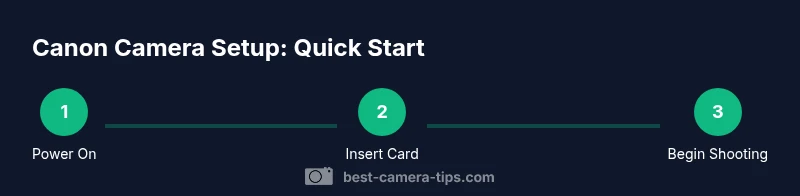
Preparing your Canon for a first shoot means getting the camera body, memory card, and grip comfortable in your hands. Start with a fully charged battery and a freshly formatted SD card. Insert the card, attach the strap if you prefer, and ensure the grip feels natural for your shooting posture. Power the camera on and navigate to the Setup menu to adjust date, time, language, and reset preferences if you’ve used someone else’s camera before. The goal is a clean start so you can focus on composition rather than fumbling with settings. For 2026, having a spare battery and a second card on hand is prudent for longer sessions. This foundation reduces interruptions and keeps your attention on subjects and framing.
According to Best Camera Tips, a well-prepared camera is the first step toward consistent results.
Shooting Modes Explained: Auto, P, Tv, Av, M
Canon cameras offer a spectrum of shooting modes designed for learning and growth. Auto mode lets the camera decide exposure, ideal for learning composition without getting overwhelmed by settings. Program (P) provides a balance—control over some parameters while the camera handles others. Shutter Priority (Tv) lets you choose an exposure time, while Aperture Priority (Av) gives control over depth of field. Manual (M) delivers full creative control for exposure. Modern Canon bodies also include scene presets and a Quick Menu that speeds up access to essentials. Practice switching between modes during a scene to observe how each choice affects brightness and motion. The key is understanding cause-and-effect: raise shutter speed to freeze action, widen the aperture for background blur, or adjust ISO for brightness without oversaturating noise. Review results on the LCD after each change to reinforce the learning loop.
Autofocus and Metering: Getting Sharp Images
Autofocus is the backbone of reliable photography. Canon cameras typically offer One-Shot AF for still subjects and AI Servo (Canon’s term for continuous AF) for moving targets. Learn to select an AF point or a tracking area that follows your subject through the frame without hunting. Metering modes determine how the camera interprets brightness in a scene; Evaluative (the default) works well in most conditions, while Partial and Spot are useful for high-contrast subjects. Practice locking onto a target, shooting a test frame, and adjusting the AF point if needed. Consistent AF and metering reduce soft or under/overexposed images and help you learn how your subject interacts with lighting.
Exposure and White Balance: Crafting the Right Mood
Exposure control sits at the heart of photography. In Canon, you’ll adjust shutter speed, aperture, and ISO to shape brightness and tone. A faster shutter freezes motion; a wider aperture creates subject isolation with background blur; a lower ISO yields cleaner images in bright light. Exposure compensation lets you nudge brightness when the camera’s meter misreads tricky lighting. White balance preserves true color across different light sources; experiment with presets (Daylight, Cloudy) or create a custom WB for consistent color in your shoots. Remember that higher ISO introduces noise, so start at the lowest practical ISO and adjust as needed.
Lenses, Accessories, and When to Upgrade
Your kit lens is a versatile starting point that teaches fundamental optics. As you grow, a prime lens can deliver sharper imagery and better low-light performance, while a telephoto expands reach for portraits or distant subjects. Accessories like a small tripod, a remote shutter release, or a circular polarizer can dramatically improve outcomes for landscapes and outdoor scenes. For Canon users, consider mount compatibility (EF vs RF) and check whether you’ll benefit from adapters if you plan to mix older lenses with newer bodies. Upgrading is a gradual process—start with higher-quality glass in the focal lengths you shoot most, then add more specialized tools as your confidence grows.
Practical Shooting Techniques: Real-World Scenarios
The most valuable learning comes from real shooting situations. Practice composing with the rule of thirds, using grid overlays to guide framing. Shoot RAW when possible to maximize editing latitude, and reserve JPEGs for quick sharing. In daylight, maintain faster shutter speeds to avoid motion blur; in low light, widen the aperture and balance ISO to keep noise at bay. Try different white balance settings to see how color shifts affect mood, and experiment with exposure compensation to handle bright backgrounds. Keeping a simple shot list can prevent aimless shooting and help you measure progress over time.
Troubleshooting Common Issues on Canon Cameras
If images appear flat or dull, revisit exposure settings and white balance. If autofocus hunts, narrow the AF area or switch to a single-point focus. If the camera won’t power on, check the battery, microSD card seating, and contacts. If a memory card formats fail, try another card or format in-camera after backing up content. Firmware updates from Canon’s official support site can fix bugs and improve performance for your exact model. When in doubt, reset to factory defaults and reconfigure essential settings to regain a predictable baseline.
Maintenance and Care for Longevity
Regular care protects your Canon camera’s performance. Clean the lens with a proper microfiber cloth and lens cleaning solution; avoid touching the sensor. Store the body in a cool, dry place and keep dust caps on when not shooting. Charge batteries in a ventilated space and avoid exposing the gear to excessive heat or moisture. Periodically inspect contacts, mountings, and the strap for wear, and replace any worn parts promptly to prevent damage during shoots.
Tools & Materials
- Canon camera body(Any Canon EOS body you're using)
- Kit lens(Example: 18-55mm; keep it clean)
- Charged battery(At least one spare recommended)
- Memory card (SD)(At least 8 GB, class 10)
- Camera strap(Optional but handy during outings)
- Lens cleaning kit(Microfiber cloth, blower)
Steps
Estimated time: 60-90 minutes
- 1
Power up and format the card
Power on the camera, insert the memory card, and format it in-camera for a clean start. This ensures there are no old files that could confuse new shots. Take a test photo on a bland scene to confirm it’s writing correctly.
Tip: Back up existing files before formatting; verify card health in the Setup menu. - 2
Attach lens and adjust grip
Mount your kit lens securely, attach the lens cap, and ensure the camera sits comfortably in your hands. Turn on the camera and adjust the grip angle and strap length if needed. Confirm you can access essential controls without changing your hold.
Tip: Mount the lens correctly to avoid damaging the mount; never twist the mount while the camera is attached. - 3
Set language, date, and defaults
Navigate to the Setup menu and set the language, date, and time; restore default settings if you’ve used another body before. This creates consistent behavior across your shoots and presets. Document your preferred starting settings for quick recall.
Tip: If you use multiple Canon bodies, save a simple preference sheet to reconfigure quickly. - 4
Choose a shooting mode
Start in Auto or Program (P) to learn how the camera handles exposure. Switch to Tv or Av to practice controlling shutter or aperture, then progress to Manual (M) for full creative control. Compare results to see how each mode affects depth of field and motion.
Tip: Switch modes during real scenes to observe cause-and-effect in real time. - 5
Set white balance and picture style
Adjust white balance to suit the lighting (Daylight, Cloudy, Tungsten). Choose a picture style that matches your subject, such as Neutral for editing flexibility or Portrait for skin tones. These tweaks influence mood and color accuracy in your shots.
Tip: Use a custom WB for consistent color across a set; avoid relying on Auto WB for critical work. - 6
Select autofocus mode and points
Choose an AF mode suitable for your subject (One-Shot for stills, AI Servo for moving targets). Pick a primary AF point or a tracking zone to keep your subject sharp as it moves. Practice re-centering the focus point quickly without breaking your rhythm.
Tip: Start with a single AF point to learn precise focusing before expanding to multiple points. - 7
Frame, meter, and adjust exposure
Compose your shot using the rule of thirds or your personal composition system. Check the exposure meter and adjust ISO, shutter, or aperture to achieve a balanced exposure. If the scene is bright or dark, use exposure compensation to push the histogram toward the middle.
Tip: Keep ISO as low as possible for clean images; increase only when necessary. - 8
Capture and review
Take a test shot, zoom in on the LCD to check sharpness, and review histograms if available. Adjust your settings and repeat until satisfied. Use a consistent routine to train your eye for exposure and focus.
Tip: Review critical shots at full resolution and note settings that worked well. - 9
Transfer and backup
Connect the camera to a computer or use a card reader to transfer files. Back up your images to multiple locations (cloud and hard drive) to prevent data loss. Format cards after backups if you’ll reuse them soon.
Tip: Organize files by date and shoot type to speed up future editing.
Common Questions
How do I switch from Auto to Manual on a Canon camera?
Switch the mode dial to M (Manual) and adjust aperture, shutter speed, and ISO to control exposure.
Set the mode to Manual, then tweak aperture, shutter, and ISO to control exposure. It’s a great way to learn how settings work together.
What is the best beginner shooting mode on Canon?
Auto or Program (P) are good starting points; as you gain confidence, move to Tv or Av to practice control.
Auto or Program is ideal to start; later switch to Shutter or Aperture Priority to learn how changes affect images.
How do I format a memory card in Canon?
Go to the camera’s menu, select Format, and follow the prompts. Back up important files before formatting.
Open the menu, choose Format, confirm, and back up your files before formatting.
How can I transfer photos to a computer?
Connect the camera via USB or use a card reader to copy files to your computer, then back them up.
Use a USB connection or card reader to copy photos to your computer and back them up.
How do I set autofocus properly?
Choose an AF mode (One-Shot for stills, AI Servo for motion) and place the focus point on your subject.
Select the right AF mode for your subject and position the focus point where the subject is.
Why are my photos blurry?
Blurry images usually result from slow shutter speeds or shaky hands. Increase shutter speed, stabilize with a tripod, or use a faster lens.
Blurry photos come from slow shutter speeds or camera shake. Use a faster shutter or stabilize the camera.
Watch Video
The Essentials
- Master the basics: power, modes, exposure, focus.
- Practice with the kit lens to build fundamentals.
- Review shots and adjust settings for consistency.
- Experiment with white balance to capture mood accurately.
- Practice regularly to build muscle memory.