How to Use a Camera on Your Computer: Step-by-Step Guide
Learn how to connect and use any camera with your computer, covering built-in webcams, USB cameras, drivers, privacy, and streaming apps. Step-by-step guidance for seamless video setup on PC or Mac in 2026.


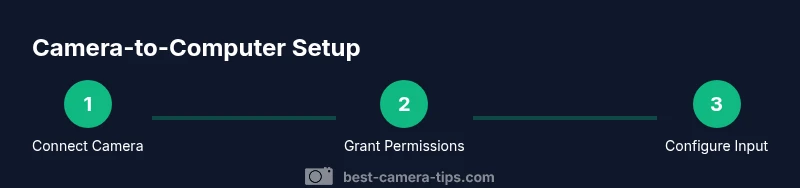
By the end of this guide, you’ll master how to camera on computer, from built-in webcams to USB cameras. You’ll connect the device, install any required drivers, grant permissions, and select the camera as the video input in your apps. Then you’ll tweak resolution, lighting, and privacy for reliable video.
Understanding camera options for a computer
Not all cameras are created equal when you’re looking to use them with a computer. The simplest path is a built-in webcam on a laptop or all-in-one desktop, which works well for casual calls and quick recordings. If you want sharper video or more control, an external USB webcam or an HDMI-capable capture device expands your options. The core idea is to treat the computer like a video hub: you’ll feed video from a camera into the device, then route that input to the application you’re using—whether that’s video conferencing, streaming, or local recording. In this section we’ll compare typical setups and help you decide which route fits your needs best, keeping in mind compatibility with Windows, macOS, and even Linux when applicable.
Choosing the right camera for your needs
For simple video calls, a basic USB webcam or the built-in camera on your laptop often suffices. If you plan to stream or produce high-quality content, consider a camera that supports clean HDMI or USB webcam output, a higher frame rate, and reliable low-light performance. DSLRs and mirrorless cameras can double as webcams with capture cards, delivering superior color and depth. Your choice should balance budget, space, and how much effort you’re willing to invest in setup and maintenance. Best Camera Tips recommends starting with what you already own and upgrading only when you have a clear use case such as regular streaming or recording in challenging lighting.
Basic wiring and power considerations
Most modern cameras are powered via USB, but some may require a separate power supply for extended use. A USB-C or USB-A connection is standard for desktop and laptop setups, while HDMI capture cards are common for high-fidelity feeds when you want to run a camera through their clean HDMI output. If you’re using a portable laptop, ensure you have a powered USB hub to avoid bandwidth issues on busy ports. Also verify that the host device has enough processing headroom to encode video without stuttering.
Platform compatibility and privacy safeguards
Before you proceed, confirm which operating system you’re on (Windows, macOS, or Linux) and the apps you’ll use (Zoom, Teams, OBS, etc.). Each platform has slightly different permission flows for camera access. You’ll also want to review privacy settings to decide when the camera can be used by apps and which apps you trust with access. Practicing good privacy hygiene—turning off the camera when not in use and updating firmware—helps protect your content and your devices.
Installing drivers and software basics
Some cameras are plug-and-play, while others require drivers or companion software. In most cases, the OS will automatically recognize a USB camera and install generic drivers. If your device doesn’t appear, visit the manufacturer’s site to download the latest driver package and follow on-screen instructions. After installation, reboot if prompted and re-check the device manager (Windows) or System Information (macOS) to confirm the camera shows up under video devices.
Privacy and permissions: a quick safety check
Windows and macOS both maintain privacy controls for camera access. In Windows, go to Settings > Privacy > Camera and enable access for the apps you plan to use. On macOS, open System Settings > Privacy & Security > Camera and enable permissions for your key applications. If you’re sharing a screen or using a streaming service, test the feed in a private session first to ensure no unintended apps are capturing your footage.
Configuring video sources in common apps
You’ll often set the camera input within each app, not in the OS. In Zoom or Teams, open Settings > Video and select your camera from the dropdown. In OBS, add a Video Capture Device source and pick your camera, then adjust the scene. For all apps, verify the audio input if you’re using a separate mic, and test a quick call or recording to ensure both video and audio are synchronized and clear.
Optimizing video quality: resolution, frame rate, and encoding
Video quality depends on device capability and network constraints. Start with 1080p at 30fps if your camera supports it, reducing to 720p or 30fps on older hardware or limited bandwidth. In OBS or streaming apps, balance resolution with encoding settings to avoid stuttering. If your system runs hot or the fan kicks in during long sessions, drop the resolution slightly to maintain a stable feed.
Lighting, background, and audio matters
Good lighting dramatically improves perceived video quality. Place a light source in front of you and avoid harsh backlighting that creates silhouette effects. A clean, distraction-free background helps viewers focus on you. Use a reasonable microphone distance, and test your mic levels in each app to avoid clipping or muffled sound.
Streaming workflows and practical tests
For streaming or recording sessions, establish a repeatable workflow. Create scenes in OBS for camera input, overlays, and audio, or keep it simple with your conferencing app. Do a dry run before publishing, recording a short sample to check framing, exposure, and audio. Save your preferred settings as presets so you can switch between tasks quickly.
Troubleshooting common issues
If your camera isn’t detected, try a different USB port, restart the computer, or re-plug the device. A blank video frame or color tint usually means lighting or camera settings need adjustment, or a driver update is pending. If sound quality is poor, confirm the correct microphone is selected and test the input levels. When privacy prompts appear, grant access for the specific app and re-check permissions after updates.
Maintenance, updates, and best practices
Regularly update camera firmware and software to benefit from bug fixes and feature improvements. Keep your OS and apps up to date, and periodically review privacy settings to ensure only trusted apps retain access. Store camera gear in a safe, ventilated area and avoid over-tightening connectors. Practice with different apps to stay fluent in cross-platform workflows.
Tools & Materials
- Camera (built-in or external USB camera)(Identifies as a video input device in the OS; ensure it's enabled in privacy settings.)
- USB cable or USB-C cable(Needed only for external USB cameras; some cameras are wireless or battery-powered.)
- Streaming/Video conferencing software(Examples include Zoom, Teams, OBS; install from official sources.)
- Lighting (desk lamp or natural light)(Soft, even lighting reduces noise and shadows.)
- External microphone (optional)(Improves audio clarity when built-in mics are weak.)
Steps
Estimated time: 30-60 minutes
- 1
Connect the camera
Plug in your camera to a suitable port (USB or USB-C) and power it if required. Ensure the cable is secure and the camera is powered on. This first step establishes the video source for the rest of the setup.
Tip: If using a USB hub, connect the hub to a powered port to prevent bandwidth issues. - 2
Check device visibility
Open your operating system’s device manager or system information to confirm the camera appears as a video device. If it isn’t listed, unplug and replug, or try another port.
Tip: On Windows, look under Cameras and Imaging Devices; on macOS, check System Information > USB. - 3
Install drivers if needed
If the camera requires drivers, download the latest package from the manufacturer’s website and install it following on-screen prompts. Reboot if prompted to finalize installation.
Tip: Avoid generic drivers from third-party sites to reduce compatibility issues. - 4
Grant app permissions
Navigate to privacy settings and allow camera access for the apps you’ll use (Zoom, OBS, etc.). Reopen the app after changing permissions to recognize the camera.
Tip: Test permissions with a quick private call to verify access works smoothly. - 5
Select the camera in your software
Open your target app and choose the camera as the video input. If you have multiple cameras, pick the correct device name to avoid feed confusion.
Tip: Label cameras in the OS if possible to prevent mis-selection during busy sessions. - 6
Set resolution and frame rate
Configure a baseline resolution (1080p if supported, otherwise 720p) and a stable frame rate (30fps is common). Higher settings demand more bandwidth and CPU power.
Tip: Start with 1080p/30fps and adjust based on performance and bandwidth. - 7
Test lighting and framing
Position yourself so the face is well-lit without glare. Check framing to keep shoulders and head in view, with a clean background.
Tip: Use a simple, even light source in front; avoid strong backlighting. - 8
Test audio and sync
If you use a separate microphone, select it in your app and test the latency. Record a short clip to ensure video and audio stay in sync.
Tip: If there’s echo, enable headset monitoring or move the mic further away from the webcam. - 9
Configure a basic workflow
For streaming or recording, set up a simple scene or layout. Save preferred presets for quick access in future sessions.
Tip: Create a clean scene with a neutral background to reduce distractions. - 10
Run a test session
Do a dry run with the intended audience or recording parameters. Check video quality, audio levels, and network stability.
Tip: Record a short test video and review it for any framing or exposure issues. - 11
Update and maintain
Check for firmware and software updates regularly. Keep all apps up to date to ensure compatibility and security.
Tip: Set reminders for quarterly checks or enable automatic updates when possible. - 12
Document your setup
Create a short setup note with camera model, ports used, and app configurations. This helps you reproduce success later or troubleshoot quickly.
Tip: Keep a copy of the note in your project folder or cloud notes for easy access.
Common Questions
What is the simplest way to set up a camera on a laptop?
Use the built-in webcam or a basic USB webcam. Connect, grant permissions, and select the camera as input in your main app. Avoid complicated gear until you know your needs.
Start with the built-in webcam, grant permissions, and select it as your video source in the app you use.
Do I need drivers for my webcam?
Many webcams are plug-and-play, but some require drivers from the manufacturer. If the camera isn’t detected, download the latest driver package from the official site and install it.
Most cameras work without extra drivers, but check the manufacturer if the device isn’t detected.
Can I use a DSLR or mirrorless camera as a webcam?
Yes, with a capture card or compatible USB output. This setup yields higher image quality but adds hardware and steps to the workflow.
Yes, with a capture card you can use a DSLR or mirrorless as a webcam.
What should I do if the camera feed is choppy?
Lower the resolution or frame rate, ensure USB bandwidth is sufficient, and close heavy background apps. Consider using a wired connection for reliability.
If feed is choppy, reduce resolution or frame rate and close heavy apps.
Is it safe to keep my camera on all day?
Yes, with care. Keep firmware updated, disable camera when not in use, and monitor for heat or unusual activity.
Yes, just maintain updates and turn it off when not needed.
How can I improve audio quality with my camera setup?
Use an external microphone and position it properly. In apps, select the right mic input and test levels before going live.
Use a better mic and test levels first.
Watch Video
The Essentials
- Identify the camera and connection type
- Grant app permissions and select the correct input
- Balance resolution, frame rate, and lighting for quality
- Test thoroughly before important sessions
- Maintain and update gear and software