How to Fit a Camera in Your Home
Learn a practical, step-by-step approach to fitting a camera in your home—from planning and placement to power, networking, privacy, and maintenance.


By reading this guide, you will learn how to fit camera in home by planning placements, selecting the right model, and safely running power and network connections. It also covers privacy, firmware updates, and routine maintenance to keep your system reliable. Whether you’re a beginner or upgrading an existing setup, this step-by-step approach helps you avoid common mistakes and ensures strong coverage.
Why fit a camera in home: benefits and considerations
A home camera system adds a visible deterrent and a reliable way to monitor activity, helping you respond quickly to unusual events. If you’re learning how to fit camera in home, start by clarifying your goals: do you want to monitor front doors, living areas, or a backyard? Consider factors such as lighting, weather exposure, and the camera’s weather rating for outdoor use. Before you buy, map the property into zones—entry points, high-traffic hallways, and vulnerable corners where packages are left. A thoughtful plan reduces the number of devices needed while maximizing coverage. When you fit a camera, privacy matters as much as security. Choose discreet placements that still capture essential views, and be mindful of local privacy laws and your neighbors. Look for cameras with clear night vision, motion detection, and secure encryption. Finally, plan for maintenance: firmware updates, password changes, and routine checks to ensure the system stays reliable over time. Consider also the storage approach: cloud vs local recording, and how long you retain footage. If you install multiple cameras, label each device and document its location, field of view, and mounting height. This upfront planning saves time when you add cameras later and helps you diagnose issues without dismantling the entire system.
Assessing your space: determine best camera locations
Effective placement is the cornerstone of a reliable home camera setup. Start by identifying entry points: front doors, back doors, and any side doors. These are high-risk areas where a quick view can deter theft and provide evidence. Inside the home, focus on common areas such as living rooms and stairwells where movement is frequent. For homes with pets or children, position cameras to monitor activity without infringing on private spaces. Use a wall or ceiling mount with an unobstructed line of sight, avoiding areas with glare from direct sunlight, reflections off glass, or heavy dust buildup. If outdoors, ensure the housing is rated for weather exposure and place cameras under eaves to reduce direct rain impact. Consider connectivity: place cameras within range of your Wi-Fi or wired network, and test signal strength in the planned mount spots. Create a rough layout on paper or a digital map showing each zone and the intended camera angle.
Camera types and features for indoor home use
Indoor cameras come in a range of styles, from compact cube models to sleek dome designs. For most homes, a mix of fixed, pan-tilt-zoom (PTZ), and ball-joint cameras offers flexible coverage without clutter. Wireless cameras are quick to install, but wired options can provide more stable performance in areas with weak Wi‑Fi. Look for 1080p or higher resolution for clear detail, a wide field of view (ideally 120°–160°), and reliable night vision. Features such as motion detection, geofencing, two-factor authentication, encrypted video streams, and local storage options (microSD or a USB/NVR) improve security and resilience. If you need outdoor use, choose weatherproof housings and rated IP66/IP65 standards. Consider smart home compatibility and app usability; a camera that integrates with your existing ecosystem reduces friction and makes routine checks faster. Finally, weigh the trade-offs between cloud storage and local recording to minimize ongoing costs while meeting retention needs.
Power options: wired vs wireless, battery life, and safety
Powering a home camera can be done through wired connections or battery-powered setups, and each choice has trade-offs. Wired cameras offer stable performance and consistent video quality, but require careful routing of power cables or PoE (Power over Ethernet) to minimize loss and maximize reliability. Wireless cameras simplify installation but depend on battery life and Wi‑Fi strength; plan for occasional battery changes and consider a model with energy-efficient sensors. Safety matters: avoid placing cords where they can be pinched or exposed to heat sources, and use cable clips or raceways to keep lines tidy and protected. For outdoor cameras, ensure power adapters and cables are rated for outdoor use and protected from moisture. If power is scarce, you can use battery-powered cameras with a local recording option, and schedule recharging during low-activity periods. Always verify that the install complies with local safety codes and manufacturer guidelines.
Networking basics: ensuring reliable video and privacy
A reliable network is the backbone of any home camera system. Position cameras within strong signal range of your router, preferably on 2.4 GHz or 5 GHz bands depending on interference. Use a dedicated network for surveillance devices if possible to improve performance and bandwidth management. Enable strong encryption (WPA3 if available) and use unique, robust passwords for each device. Keep firmware up to date to mitigate security vulnerabilities, and disable features you do not need (UPnP, RTSP) if they pose risks. Consider privacy-friendly settings such as local recording without cloud backups, or scheduled recording during non-active hours. If your home has Wi‑Fi dead zones, install a mesh system or wired backhaul to maintain coverage across all targeted areas.
Installation plan: pre-setup checklist
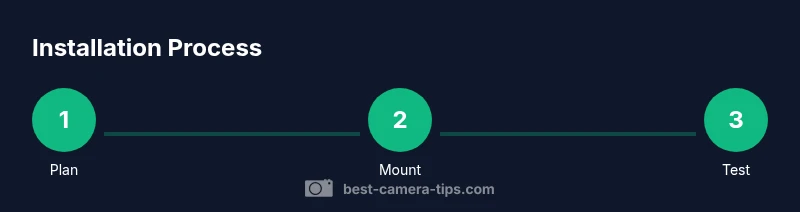
Before starting the physical install, prepare a thorough plan. Confirm camera models, mounting surfaces, and cable routes. Gather tools and materials, clear work areas, and set up a temporary testing zone to verify camera angles before permanent mounting. Create a map of the planned coverage with notes on each location’s field of view and power and network access. Prepare security measures: rename default credentials, enable auto-firmware updates, and set up cloud or local storage according to your retention policy. Finally, schedule a test run to verify motion alerts, recording quality, and access permissions from your phone or computer.
Basic mounting and wiring considerations
Mounting surfaces should be solid and capable of bearing the camera weight. Use appropriate anchors for drywall or masonry, and ensure the mount is level to avoid misalignment. If you must drill, first mark the pilot holes and double-check alignment with a level. Run cables in concealed channels or behind fixtures to minimize tampering and protect from the elements. For outdoor setups, seal all cable entries with weatherproof grommets and weatherproof junction boxes. If you’re working at height, use a stable ladder and have a helper present. After mounting, verify the field of view and adjust the camera angle to cover doors and high-traffic zones while respecting privacy boundaries.
Testing, calibration, and optimizing video quality
Once mounted, power up the cameras and complete the initial setup in the associated app. Check day and night footage, adjusting exposure, white balance, and motion sensitivity to reduce false alerts. Calibrate the angle to minimize glare from windows and ensure critical faces and license plates are captured clearly. Run tests during different light conditions (dawn, dusk, indoor lighting) and at various times to ensure consistent performance. If you notice bandwidth issues, tweak resolution and frame rate and consider enabling region-based motion detection to avoid overloading the network. Record a baseline for future comparisons and note any blind spots that require a repositioning.
Maintenance, safety, and troubleshooting
Regular maintenance keeps cameras reliable. Update firmware promptly, change default passwords, and review access permissions periodically. Clean camera lenses and housings to prevent image distortion from dirt or condensation. If a camera loses connection, check power status, network signal, and router settings. For persistent issues, retry pairing with the app, reset the device if needed, and re-check mounting stability. Keep an inventory of all devices, serial numbers, and installation dates to simplify troubleshooting and future expansions. Finally, review your privacy settings after firmware updates, as new features can alter data handling and sharing options.
Authoritative sources
For further reading and verification, consult the following government and major publications for guidance on privacy, security, and consumer protection:
- https://www.fcc.gov
- https://www.nist.gov
- https://www.ftc.gov
These sources offer useful context on how to approach home surveillance responsibly and securely.
Tools & Materials
- Security camera(s)(Indoor-rated or weatherproof for outdoor use; 1080p+ recommended.)
- Mounting brackets or plates(Match mounting pattern to camera model; include compatible screws.)
- Power supply or battery pack(Use manufacturer-supplied adapter or a charged battery; account for run time.)
- Screws, wall plugs, and mounting hardware(Self-tapping screws for drywall; masonry anchors for brick/stone.)
- Drill with appropriate bits(Needed for masonry walls; pre-drill holes.)
- Screwdriver set(Phillips and flathead as needed.)
- Cable management supplies(Clips, raceways, or conduits to keep runs neat.)
- Ethernet cable or PoE kit (if wired)(Optional for wired setups; plan path in advance.)
- Step stool or small ladder(For mounting at height.)
- Smartphone or computer for setup(Used to configure camera and network.)
Steps
Estimated time: 60-120 minutes
- 1
Plan placement and coverage
Identify entry points and high-traffic areas. Create a zone map showing each camera’s intended angle and field of view. This pre-planning prevents blind spots and redundant devices.
Tip: Mark positions with painter’s tape first, then verify angles using a test snapshot from each location. - 2
Mount cameras securely
Attach mounting brackets to the chosen surfaces using appropriate anchors. Ensure the device is level and firmly fixed to minimize movement during wind or vibration.
Tip: Double-check weight support and avoid mounting over outlets or heavy furniture that could obstruct cable runs. - 3
Run power and network cables or set up wireless
Run cables discreetly along walls or inside channels, or prepare a wireless plan with reliable Wi-Fi coverage. If using PoE, install a PoE switch or injector as needed.
Tip: Keep power and data paths separate where possible to reduce interference. - 4
Connect and power on
Connect each camera to power and network, then power up. Open the companion app to begin the pairing and initial configuration.
Tip: Label each device during setup to avoid confusion later. - 5
Configure settings
Set resolution, frame rate, motion sensitivity, and alert preferences. Enable encryption and require strong passwords for access.
Tip: Test alerts by walking through the camera’s coverage area to calibrate motion zones. - 6
Test coverage and privacy
Review live feeds for each camera, adjust angles to cover critical zones, and exclude private spaces such as bedrooms. Confirm legal compliance in your area.
Tip: Document the final positions and angles for future reference. - 7
Secure storage and access control
Choose cloud or local storage based on retention needs. Implement access controls and regular password updates.
Tip: Disable guest access and enable two-factor authentication if available. - 8
Final test and documentation
Run a full system test during day and night, verify firmware versions, and log the setup details for maintenance.
Tip: Keep a maintenance checklist handy and schedule quarterly reviews.
Common Questions
Do I need a professional to fit a camera in home?
Not necessarily; many cameras are designed for DIY installation with clear instructions. Seek a pro if you lack tools or have complex wiring.
You can install most home cameras yourself, but consider a professional for complicated setups.
What are the best places to install cameras inside a home?
Focus on main entry points and high-traffic areas like living rooms and hallways. Avoid private spaces and ensure a clear line of view.
Install at entry points and common areas for the best coverage.
How many cameras do I need for a typical home?
It depends on your home size and coverage goals. Start with essential zones and add cameras as needed.
Start with key zones and expand as necessary.
Is it legal to place cameras in private spaces?
Privacy rules vary by location. Avoid recording bedrooms or bathrooms and follow local laws and HOA rules.
Be mindful of privacy laws and avoid private spaces.
What should I do if Wi-Fi is weak in some areas?
Use wired connections where possible, or add a mesh network; some cameras offer local recording to reduce network load.
Consider wired or mesh networking for reliability.
How do I secure camera feeds?
Use strong passwords, enable encryption, update firmware, and limit access to trusted devices.
Keep firmware updated and use secure passwords.
Watch Video
The Essentials
- Plan placement before mounting.
- Choose camera with appropriate resolution and coverage.
- Secure power and network connections.
- Prioritize privacy and security.
- Test and document setup.