How to Camera Installation: A Practical Guide
Learn how to install a camera for home security or photography, from planning and mounting to testing, with practical tips and safety guidance.


This guide shows you how to perform a camera installation for home security or photography setups. You'll learn to select a mounting location, plan cabling or wireless setup, manage power, connect to your network, and complete essential safety checks. Before you start, gather the required tools and verify local regulations.
Planning Your Camera Installation
According to Best Camera Tips, the success of any camera installation begins with a clear goal. Define whether you’re securing an entryway, monitoring a driveway, or capturing a wide area for photography. Consider visibility, potential obstructions, lighting changes, and privacy zones. Decide between wired (PoE) and wireless options early, as this choice affects cabling, power supply, and network requirements. Assess mounting surfaces (wood, brick, stucco) and weather exposure, and check local regulations around surveillance. Create a rough diagram showing camera positions, angles, and intended field of view. This planning step reduces rework and yields reliable coverage.
Tools, Materials, and Site Preparation
Gather the core tools and materials before you start to avoid mid-task trips. You’ll need a drill with bits suited to your mounting surface, a screwdriver set, mounting brackets, and appropriate fasteners. For wired installs, have a length of network cable, a PoE injector or switch, and weatherproof conduit or gland seals. For wireless setups, ensure a reliable Wi‑Fi signal and consider a power backup. Prepare a clean, accessible area near the mounting point and clear any obstructions from the camera’s line of sight.
Selecting Mounting Hardware and Placement
Choosing the right mounting hardware is key to durability. Use corrosion-resistant screws for outdoor use and verify the weight rating matches your camera. Plan placement to maximize coverage while minimizing blind spots and avoid facing direct sun at certain times to reduce glare. Consider mounting heights that deter tampering while still capturing useful detail. If possible, mount on a solid surface rather than a loose canopy or eave to minimize movement in wind.
Wiring, Power, and Connectivity
For PoE installations, power and network come through a single cable, simplifying wiring and reducing failure points. For non-PoE cameras, plan a local power source and route cables with protection from the elements. Keep network cables away from electrical lines to minimize interference and use shielded cable in harsh environments. Weatherproof all connections and seal conduit openings to prevent water intrusion. Test connectivity at the point nearest the camera before finalizing the run.
Configuration, Testing, and Fine-Tuning
Power up the camera and connect to the management app or web interface. Update firmware, configure user accounts with strong passwords, and set appropriate privacy zones. Adjust the angle, focus, and field of view to avoid blind spots and cover the intended area. Run live view and recording tests, check motion sensitivity, and verify alert notifications. Document the camera’s IP, MAC address, and preset positions for quick future access.
Privacy, Security, and Maintenance Considerations
Respect privacy regulations by avoiding camera coverage of private spaces. Use password protection, enable encryption where available, and rotate credentials periodically. Schedule regular maintenance checks to clean lenses, verify mounts, and update firmware. Consider a backup plan for power outages and network failures, such as a small UPS for critical cameras and periodic offline recordings. Keep a maintenance log to track changes and issues over time.
Common Issues and Troubleshooting Roadmap
If the feed goes offline, check power, network connectivity, and the camera’s status indicators. Reboot the device, verify firmware compatibility with your app, and confirm port forwarding or firewall settings if remote access is required. For blurry images, inspect the lens for dirt, adjust focus, and verify lighting conditions. If you notice inconsistent motion alerts, recalibrate sensitivity and review activity zones. When in doubt, consult the manufacturer documentation and your security setup plan.
Final Checklist and Documentation
Before concluding, run through a final check: confirm mounting stability, verify all cables are secured, test live feed in day and night conditions, validate recording schedule and storage space, and ensure password protection is enabled. Create or update a small installation guide for future maintenance, including device models, firmware versions, IP addresses, and access credentials. Keeping clear records speeds future upgrades and makes audits easier.
Tools & Materials
- Drill with appropriate bits(Masonry bit for brick, wood bit for wooden surfaces)
- Screwdriver set(Phillips and flat-head)
- Mounting brackets and screws(Corrosion-resistant for outdoor use)
- Ethernet cable (Cat5e/6)(Only for wired installations; run with protection)
- PoE injector or PoE switch(Needed if camera is PoE)
- Weatherproof conduit, grommets, sealant(Protect cables outdoors)
- Power supply or battery pack(For non-PoE cameras; ensure safe voltage)
- Ladder or stable stepping stool(Access elevated mounts safely)
- Cable management clips/faceplates(Neat, secure cabling)
- Level or compass app(Align camera level and orientation)
- Network/power tester(Check continuity and PoE where applicable)
Steps
Estimated time: 60-120 minutes
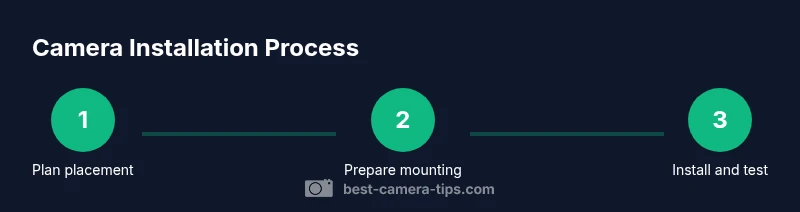
- 1
Assess goals and plan placement
Identify what you want to cover, measure the area, and map lines of sight. Determine whether to use wired PoE or wireless, and note power and network accessibility. A clear plan prevents needless repositioning.
Tip: Involve a helper to hold the camera during planning. - 2
Prepare mounting surface and hardware
Clean the mounting area, mark pilot holes, and verify surface strength. Pre-fit brackets and verify hardware compatibility with your camera model.
Tip: Pre-drill pilot holes to prevent surface cracking. - 3
Mount the camera securely
Attach the mounting bracket to the chosen surface and tighten all fasteners. Align the camera angle to cover the intended area and avoid obstructions.
Tip: Use a torque-limited driver to avoid overtightening. - 4
Run power and network cables
Route cables away from moving parts and protect with conduit or weatherproof grommets. For PoE, connect to the injector or switch. For non-PoE, ensure safe power routing.
Tip: Keep cables tidy with clips to reduce wind movement. - 5
Configure settings and test feed
Access the camera interface, update firmware, set privacy zones, and adjust resolution. Verify live video, recording, and alerts work as expected.
Tip: Test during day and night if possible. - 6
Document and secure the installation
Record IP, MAC, firmware version, and user credentials in a safe location. Create a simple maintenance guide for future upgrades.
Tip: Store credentials securely and rotate passwords periodically.
Common Questions
What basic tools do I need for a camera installation?
You’ll need a drill, screwdriver, mounting hardware, and cable management. For wired setups, have PoE equipment; for wireless, ensure solid Wi-Fi coverage.
You'll need common tools like a drill and screwdriver, plus mounting hardware. For wired setups, you might need PoE; for wireless, ensure strong Wi-Fi.
Wired vs wireless: which is better for installation?
Wired installations tend to be more reliable and offer stable power and data. Wireless setups are quicker to deploy but can suffer from interference or range limits.
Wired is usually more reliable; wireless is faster to set up but watch for interference and range.
How do I protect privacy and stay compliant?
Avoid covering private spaces, enable password protection, and follow local surveillance laws. Regularly update firmware and rotate credentials.
Avoid private areas, protect access with strong passwords, and keep firmware updated.
What if I can't find a mounting point?
Look for solid surfaces like brick or stucco with appropriate brackets or consider mounting on a purpose-built pole or railing with vibration-damping mounts.
If there’s no good wall, use a sturdy pole or railing with the right bracket.
How do I test the camera after installation?
Connect to the camera app or web interface, verify live view, check recording, and test motion alerts. Repeat at different times of day.
Open the app, check live feed, and test recordings and alerts.
How often should I perform maintenance?
Schedule regular inspections for lens cleanliness, mounting integrity, firmware updates, and password changes.
Regularly inspect lenses, mounts, and update firmware and passwords.
Watch Video
The Essentials
- Plan placement before mounting to avoid rework.
- Choose PoE when possible for reliable power and data.
- Weatherproof and secure all connections.
- Test thoroughly and document settings for easy future access.
- Follow privacy and security best practices to protect occupants.