How to Deal with Cameras: Setup and Troubleshooting Tips
A practical, expert-led guide to dealing with cameras, covering setup, maintenance, troubleshooting, privacy, and safety for aspiring photographers and home-security enthusiasts.


You will learn to deal with cameras effectively, from setup and basic care to troubleshooting and privacy best practices. This guide covers safe handling, routine maintenance, firmware updates, secure mounting, and practical tests you can perform today to keep your cameras reliable and secure. Whether you're a hobbyist or a security-minded homeowner, these steps streamline the process.
Fundamentals of Camera Care and Handling
If your goal is to learn how to deal with cameras, start with fundamentals. This section covers why care matters, the difference between consumer and security cameras, and the mindset you bring to maintenance. Proper handling reduces the risk of damage and extends the life of sensors and lenses. Regular practice creates dependable performance in dynamic shooting environments. You will learn to treat cameras as precision instruments, not mere toys. In this guide, we emphasize a workflow that you can apply to most common camera rigs, including point-and-shoots, mirrorless bodies, and basic security cameras. The core idea is consistency: small, deliberate actions each time you touch the device yield reliable results. We also touch on privacy and legal considerations because responsible camera use goes beyond hardware. Set expectations: a well-maintained camera performs better, lasts longer, and gives you higher quality images and footage. By adopting a routine, you reduce stress during shoots and security tasks, especially when working under time pressure or in low-light conditions.
Cleaning and Handling Basics
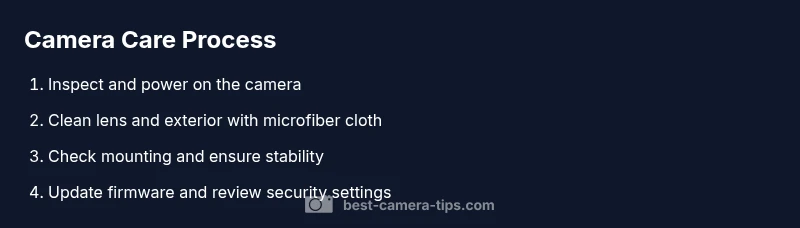
Cameras require careful cleaning to remove dust and smudges that degrade image quality. Always power down and unplug before cleaning. Use a clean microfiber cloth to wipe the exterior and a dedicated lens cleaning cloth for the glass. Hold the lens from the edges to avoid applying pressure to the center. For stubborn smudges, use a small amount of lens cleaning solution on the cloth, never directly on the lens. Avoid abrasive cleaners, ammonia, or alcohol near coatings. When transporting, keep the lens cap on and store in a protective pouch to minimize contact with dust. A light touch is essential; excess pressure can misalign internal components. This section also covers how to handle different camera types, from compact models to larger bodies used in security installations. The goal is to preserve surface finishes and maintain optical clarity for consistent results across shoots or surveillance tasks.
Placement, Mounting, and Environment
Where you place and mount cameras affects performance. Start by choosing stable surfaces or approved mounting brackets. If mounting outdoors, select weather-resistant housings and weathersealing to prevent moisture damage. Ensure cameras are angled to cover the intended scene while avoiding direct glare from sun and headlights. For security cameras, verify that cables are organized and remain out of reach of tampering. Indoor cameras should be placed away from heat sources and secured to prevent accidental bumps. Regularly check mounting screws and brackets for signs of loosening. The environment matters: excessive dust, humidity, or temperature swings can affect electronic components. By planning positioning in advance, you reduce the need for later adjustments and ensure consistent imaging in varying lighting conditions.
Power, Connectivity, and Cable Management
Power integrity and stable connectivity are essential. Ensure power supplies are compatible with camera specifications and use surge protection. For wired cameras, run cables through protected channels or conduits to minimize wear. Wireless cameras should have a strong, secure Wi‑Fi signal and a dedicated network segment if possible. Label cables and adapters to simplify future maintenance. Check for frayed cables and replace damaged connectors immediately. When upgrading systems, document port mappings and network settings so changes don’t disrupt recording. Good cable management reduces trip hazards and makes service visits faster. The focus is on reliable, safe operation rather than aesthetics; tidy cabling also helps airflow and heat dissipation around the device.
Firmware, Security, and Privacy Settings
Firmware updates often bring bug fixes and security enhancements. Check the manufacturer’s site or app for the latest version and apply updates during low-traffic windows. After updating, review default passwords and enable strong, unique credentials. Turn on two‑factored authentication if available and restrict access to trusted devices. Review privacy settings, including motion zones, data retention, and cloud options. If your cameras include local storage, ensure disks are healthy and backups are enabled where possible. Keep an eye on notification settings to avoid alert fatigue. Security best practices also include disabling unnecessary services and enabling encrypted connections. Staying current with firmware and privacy settings reduces exposure to vulnerabilities and helps protect your footage.
Personalization: Settings, Profiles, and Calibration
Most cameras offer profiles for different shooting contexts. Create at least one general-purpose profile and one for low-light or high-contrast scenes. Calibrate white balance and exposure using test shots, and adjust ISO, shutter speed, and aperture to suit the scene. If your gear supports LUTs or picture profiles, experiment with file formats that balance quality and storage needs. Save your preferred settings as presets to speed up future shoots or surveillance tasks. Regularly review your profiles as you gain experience. The goal is predictable output: standardized color, consistent exposure, and reliable performance across environments. Document your settings for reference and reproducibility.
Troubleshooting Common Scenarios
Even with good maintenance, cameras encounter issues. If you notice blurry images, check lens alignment and focus mode, then clean the lens surfaces and confirm autofocus behavior. If the device fails to connect, verify network settings, passwords, and firewall rules. For cameras that stop recording, inspect storage capacity and permissions, and check for error codes in the logs. In low‑light environments, adjust ISO carefully to minimize noise while maintaining detail. If you encounter overheating, ensure adequate ventilation and avoid blocking vents. Use test footage to verify changes and keep a log of what you tried. Practicing a systematic approach helps you identify root causes quickly and reduces downtime during critical tasks.
Privacy, Legal, and Best Practices
Handling cameras responsibly includes respecting privacy and complying with laws. Obtain consent when filming people in private spaces and post clear notices if required by local regulations. For home security, inform household members about recording practices and protect recorded data. Use privacy zones or masking features to blur sensitive areas in footage. When using cameras in public or commercial settings, follow applicable laws and organizational policies. Keep equipment secure to prevent tampering and data theft. Some regions require signage or notification; verify rules in your jurisdiction. A thoughtful approach to privacy helps build trust with clients, neighbors, and visitors while avoiding legal trouble.
Maintenance Schedule and Long-Term Care
Create a simple maintenance calendar you can follow. Include quarterly checks of lenses and housings, annual firmware reviews, and a biannual review of privacy settings and access controls. Keep spare parts like mounts and cables on hand and label them for quick replacement. Maintain a log of service visits, updates, and changes so you can track what works and what doesn’t. Regular backups of important footage or settings ensure you don’t lose critical data. As you accumulate experience, refine your routine to fit your gear and use cases. A consistent maintenance habit is the best defense against unexpected camera failures.
Tools & Materials
- Microfiber cleaning cloth(For lens and body surfaces; use a dedicated cloth for lens glass)
- Lens cleaning solution (optional)(Only use a few drops on the cloth, never directly on glass)
- Screwdriver set (Phillips #2 and flathead)(For mounting screws and bracket adjustments)
- Cable ties / Velcro straps(Useful for tidy cable management)
- Protective camera pouch or case(For transport and storage)
- Manual or access to online guides(Helpful reference for model-specific settings)
Steps
Estimated time: 45-60 minutes
- 1
Prepare workspace and tools
Choose a clean, well-lit area. Gather all tools and materials, and ensure power is off to avoid shocks or damage. Place a soft mat under the camera to prevent scratches during handling.
Tip: Have a dedicated tray for small screws to avoid losing parts. - 2
Power down and disconnect
Power off the camera and unplug any external power or data cables. This prevents accidental gear movement and protects memory during maintenance.
Tip: If your system uses PoE, ensure the network switch is powered down before servicing. - 3
Clean exterior and lens
Wipe the housing with the microfiber cloth, then gently clean the lens using a circular motion from center outward. Avoid pressing hard to prevent internal damage.
Tip: Never spray cleaner directly on the lens; apply to cloth first. - 4
Check mounting and placement
Inspect brackets, screws, and mounts for looseness. Re-secure as needed and adjust the camera angle to cover the intended scene. Ensure outdoor units have weather sealing intact.
Tip: Test the field of view by simulating the target scene before reassembling. - 5
Update firmware and security
Connect briefly to the network to check for firmware updates. Install updates, then review and strengthen default passwords, enable 2FA if available.
Tip: Back up current settings before applying updates. - 6
Test capture and save presets
Run a test capture in multiple lighting conditions. Save preferred settings as a preset for quick reuse in future sessions.
Tip: Document your chosen settings for consistent results later.
Common Questions
How often should I clean a camera lens?
Clean only when you notice smudges or dust affecting image quality. Use a microfiber cloth and lens cleaner sparingly, and avoid contact with coatings. Regular checks help maintain clarity without risking damage.
Clean your camera lens only when you notice issues with clarity. Use a microfiber cloth and gentle cleaner, and avoid excessive rubbing.
Can I use household cleaners on camera housing?
Household cleaners can damage finishes and seals. Use mild wipes designed for electronics or a damp cloth with water only. Avoid solvents near moving parts and sensors.
Don’t use household cleaners on camera housing. Use electronics-safe wipes or a damp cloth with water.
What’s the best way to secure cameras against theft?
Mount cameras securely with tamper-resistant screws where allowed, use locking brackets, and route cables through secure channels. Consider alarms or deterrents for outdoor installations and keep firmware up to date.
Secure mounts with tamper-resistant screws, lock the brackets, and keep cables in secured channels to deter theft.
How do I safely update camera firmware?
Check official sources, download the latest version, and apply updates during low-traffic periods. Do not interrupt the update process and back up essential settings beforehand.
Update firmware from the official site, perform during low-traffic times, and back up settings first.
Are cameras vulnerable to hacking and how can I prevent it?
Yes, there is a risk. Use strong unique passwords, enable two-factor authentication, and keep firmware current. Limit access to trusted devices and review permission settings regularly.
Cameras can be hacked if not protected; use strong passwords, enable 2FA, and keep software updated.
Watch Video
The Essentials
- Start with a clean workspace and tools.
- Keep firmware and passwords updated for security.
- Calibrate and save presets for consistency.
- Schedule regular maintenance to extend camera life.