What to Do When Camera: A Practical Troubleshooting Guide
Learn a clear, step-by-step approach to handle common camera issues for both photography and home security. From quick checks to firmware updates and safe maintenance, this Best Camera Tips guide keeps your gear reliable.


Learn how to diagnose and fix common camera issues with a clear, step-by-step approach. Start with quick checks (power, battery, memory) and proceed to deeper troubleshooting (firmware, connections, and maintenance). Essential tools include a spare battery, memory cards, cleaning cloth, and the manual. This guide helps photographers and home-security setups recover quickly.
What to do when camera goes down: a practical framework
When your camera suddenly fails, you want a calm, methodical plan rather than guesswork. According to Best Camera Tips, the best way to start is with a quick assessment of the simplest causes before you dive into more technical fixes. This section lays out a practical framework you can apply to both photography gear and home-security cameras. You’ll learn how to prioritize issues, gather the right tools, and structure your problem-solving so you waste less time chasing phantom faults. The mindset matters as much as the steps: stay patient, document what you observe, and test each change to confirm results. By following a repeatable process, you’ll reduce downtime and protect your learning curve for future shoots or installations.
Quick checks: establish the baseline
Before you assume a hardware failure, perform a few non-invasive checks that resolve many problems. Confirm the battery is fully charged and seated correctly, inspect the SD card or internal storage for errors, and ensure the lens is clean and unobstructed. Confirm that the camera is powered on, and check the display or indicator lights for any error codes. If you’re dealing with a security camera, verify the power supply, PoE connection, and network status. These baseline checks are fast and often resolve issues without needing tools or advanced knowledge. As you work, keep a simple log of what you tested and what you observed to prevent repeating steps.
Common issues and how to spot them
Camera problems come in several flavors, from power and connectivity glitches to image quality and firmware concerns. Power issues often show as a camera that won’t turn on or powers cycle. Storage problems manifest as error messages during playback or failure to save clips. Connectivity problems can appear as missed feeds, intermittently dropping off the network, or blurred live views due to poor bandwidth. Image issues include focus glitches, exposure errors, or color misrepresentations. By tagging symptoms, you can map them to likely causes and avoid wasted effort. Remember to separate hardware faults from user settings that can be adjusted quickly.
Why planning beats panic in troubleshooting
A deliberate plan reduces wasteful retry cycles and helps you learn faster. Start with the simplest fixes first (batteries, memory cards, lenses) and then move to software updates if needed. When you document each step and its outcome, you create a knowledge base you can reuse for future gear or new cameras. This approach also helps you explain problems to support staff or online communities more effectively, which speeds up resolution. The goal is not a one-off fix but a durable habit of testing, recording, and retesting.
Maintenance mindset: routines that prevent future failures
Preventive care is the best form of insurance. Schedule regular firmware updates and check for new releases from the manufacturer. Clean the lens and sensors with proper tools to avoid scratches or residue buildup. Protect cameras from dust and moisture using appropriate housings or covers, especially for outdoor setups. Create a quick weekly check: inspect power, storage health, and network status, and take a few test shots or clips to verify performance. A little routine maintenance goes a long way toward consistent results.
Safety and privacy considerations when troubleshooting
Always work in a safe environment, unplug devices when manipulating power components, and avoid opening sealed enclosures if you’re not trained. For security cameras, ensure you maintain data privacy and comply with local regulations about recording and retention. If you’re handling sensitive locations, consider rotating passwords and updating access controls after major maintenance. These precautions help protect both your equipment and the people who interact with it.
Tools & Materials
- Camera manual(Original manual or digital copy)
- Spare battery(s)(Original or reputable compatible batteries)
- SD memory cards(Class 10 or higher with adequate capacity)
- Card reader (USB)(For transferring files to a computer)
- Lens cleaning kit(Microfiber cloth + cleaning solution)
- Air blower(Safe for removing dust from sensor area)
- Firmware update file/source(From manufacturer or trusted sources)
- Small screwdriver set(Only if you know what you’re doing)
- Tripod or stabilization gear(Helpful for steady tests)
Steps
Estimated time: 45-60 minutes
- 1
Power down and reseat
Turn the camera off completely, remove the battery, and reinsert it after 10 seconds. This resets internal power circuits and can clear minor glitches. Ensure the battery is charged before reattachment.
Tip: A quick power cycle fixes many transient issues and avoids false fault readings. - 2
Check power and indicators
Inspect the power adapter, battery contacts, and any LED indicators. Look for corrosion or loose connections. If there are warning lights, note the color and pattern to reference in the manual.
Tip: Use a soft brush to clean contacts gently; never use liquids on the contacts. - 3
Inspect storage integrity
Remove the memory card and test with a known good card. Try recording to internal memory if available. Format only if the device confirms it is safe to do so, after backing up data.
Tip: Always backup important footage before formatting; avoid frequent reformatting on the same card. - 4
Evaluate lens and sensor cleanliness
Clean the lens with a microfiber cloth and check for smudges. If you notice fogging or condensation, address it before continuing. Avoid touching the sensor directly.
Tip: Inspect the lens surface at a bright angle to catch tiny smudges you might miss otherwise. - 5
Test basic capture and playback
Take sample photos or video and play back locally. Compare exposure and focus to your expectations. If results differ, consider adjusting focus or exposure presets.
Tip: Test under the same lighting conditions you plan to use most often. - 6
Check connectivity and firmware
Verify USB/HDMI/ethernet connections as appropriate. Update firmware if a newer version exists, following manufacturer instructions exactly. Reboot after updates to confirm stability.
Tip: Only use official firmware sources to avoid corrupt software. - 7
Factory reset as a last resort
If issues persist, perform a factory reset after backing up data. This returns settings to defaults and can clear stubborn misconfigurations. Document your preferred settings for future reference.
Tip: A reset often resolves stubborn software issues, but you’ll need to reconfigure preferences afterward. - 8
Review results and plan maintenance
Summarize what worked and what didn’t, and plan a short routine to monitor performance. Schedule a follow-up check in a week to ensure stability.
Tip: Keeping a simple checklist aids long-term reliability and reduces repeated troubleshooting.
Common Questions
What should I do first if my camera won't turn on?
Start with a power cycle: remove and reinsert the battery, check the charger, and inspect power contacts for corrosion. If it still won’t power on, test with a spare battery and review the manual for any model-specific error codes.
If your camera won't turn on, try a power cycle and test with a spare battery. Check the charger and contacts, and consult the manual for any error codes.
Why are my photos coming out blurry even after focusing?
Blurriness can stem from a misfocused lens, motion blur, or a dirty sensor. Confirm autofocus mode, clean the lens, and test at a shorter shutter speed to minimize blur. If the issue persists, check for back/focus calibration issues.
Blurry photos can be from focus or lens issues; clean the lens and verify autofocus, then test with a shorter shutter speed.
What if the camera keeps rebooting or crashing?
Repeated reboots often indicate a firmware problem or corrupted memory. Update firmware from the official site, reset to factory settings if needed, and review any recent configuration changes.
If the camera keeps rebooting, update the firmware and consider a factory reset after backing up data.
How often should I update camera firmware?
Check for updates monthly or after major changes in your workflow. Firmware updates improve stability, fix bugs, and may enhance compatibility with accessories. Always follow official update instructions.
Check for updates regularly, at least monthly, and follow the manufacturer's update steps carefully.
Can a damaged lens be repaired easily?
Minor scratches can sometimes be cleaned or repaired depending on depth, but significant lens damage usually requires professional servicing or replacement. Avoid DIY repairs to prevent further harm.
Minor lens scratches might be fixable, but significant damage usually needs a pro or replacement.
When should I seek professional help for a home-security camera?
If you can’t resolve persistent issues, or if you suspect wiring, networking, or privacy concerns, contact a certified technician. A professional can diagnose electrical faults and ensure proper installation.
If problems persist past basic troubleshooting or involve wiring or network security, get a professional to diagnose it.
Is it safe to reset my camera to factory defaults?
Factory resets are safe when you back up settings and data first. They can resolve stubborn software issues, but you’ll need to reconfigure your preferences afterward.
Factory resets can help, but back up first and be prepared to reconfigure settings afterward.
What if I don’t have the original manual?
Most manufacturers provide digital manuals on their official sites. Use model name and keywords like troubleshooting or settings to locate model-specific guidance quickly.
If you lack the manual, check the official site for a digital copy by model name.
Watch Video
The Essentials
- Follow a structured, repeatable troubleshooting workflow
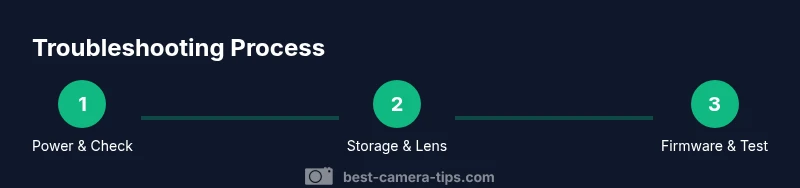
- Start with power, storage, and lens checks to resolve most issues
- Keep firmware current and back up data before resets
- Document steps for future reference and maintenance