How to Delete a Blink Camera and Reinstall It: A Step-by-Step Guide
Learn a safe, effective method to delete a Blink camera from your account and reinstall it. This step-by-step guide covers prep, reset, re-adding, troubleshooting, and privacy considerations for a smooth reinstallation.


Yes. You can delete a Blink camera from your account and reinstall it by first unlinking the device, performing a factory reset, and then re-adding it in the Blink app with your Wi‑Fi credentials. According to Best Camera Tips, plan for a reset, re-setup, and testing the live view after reconnecting. This approach works for most Blink Indoor, Outdoor, Mini, and XT models.
Understanding what deleting means for Blink cameras
Deleting a Blink camera can involve two related actions: removing the device from your Blink account in the mobile app, and performing a factory reset on the hardware itself. The former helps you manage devices and access, while the latter clears stored network credentials and resets the device to its default state. The question can you delete a blink camera and reinstall it is answered with a clear yes, but success depends on following a careful sequence: remove from the account, reset, then re-add to your Blink setup. According to Best Camera Tips, treating deletion as a two-part process helps prevent lingering configuration issues and ensures a clean reinstall that preserves privacy and security during transition.
Before you begin: confirm prerequisites and gather context
To avoid surprises, verify you have access to the Blink app with your account credentials, the camera’s model and location, and the Wi‑Fi details (SSID and password). If you use two-factor authentication, have the second factor ready. Consider exporting important clips if your plan allows, because removing the camera may affect cloud recordings associated with that device. Best Camera Tips emphasizes starting with a quick data check and a calm, stepwise approach to minimize downtime during reinstall.
What to expect during the reset and reinstallation process
A Blink reset clears prior network information and association with your account, so you’ll need to reconnect the camera to Wi‑Fi and re-link it to your Blink profile. The reinstall flow typically involves adding the device in the Blink app, selecting your home network, and confirming any prompts that appear on-screen. Expect a short window of downtime while the camera re-establishes its connection. Throughout this process, you should monitor the LED indicators and in-app status messages to confirm success. Best Camera Tips notes that patience is key, as some camera models take longer to appear in the pairing screen after a reset.
Step-by-step guidance on removing, resetting, and re-adding
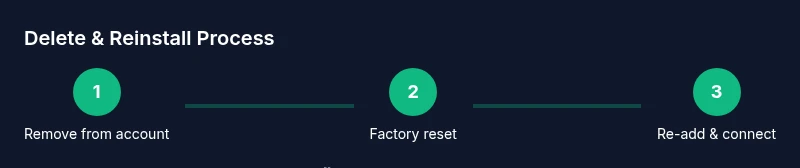
The removal and reinstall path is most robust when you follow a consistent sequence. Start in the Blink app by removing the device from your account, then locate the physical reset procedure for your model and perform it. After the camera restarts, re-add it in the app, select your network, and complete the setup prompts. If you have multiple cameras, repeat the process for each unit. Best Camera Tips recommends keeping a simple map of each device’s location and status to simplify future maintenance.
Reconnecting to Wi‑Fi and verifying performance
After re-linking the camera to your Blink account, ensure you connect to the correct 2.4 GHz network if your router separates bands. Enter the password accurately and confirm the camera appears online in the app. Test a live view and run a quick motion-detection test to verify responsiveness. If the camera fails to appear or cannot connect, double-check your credentials, proximity to the router during setup, and whether the Blink server is reachable in your region. Best Camera Tips advises a brief network sanity check before finalizing the reinstall.
Extra considerations: privacy, data, and security
Deleting and reinstalling can be a privacy-conscious move, especially if you’ve moved or changed access permissions. Review who has access to the camera, reconfigure sharing settings, and update your Blink app security options. If you rely on cloud storage, re-establish your plan after reinstall. Remember that local data and settings are reset during the process, so any saved preferences or schedules will need reconfiguration. Best Camera Tips emphasizes that security hygiene—strong passwords, enabled two-factor authentication, and timely firmware updates—should accompany any reinstall.
Best practices for ongoing camera management
Create a routine for checking camera status and firmware updates, keep your app updated to the latest version, and maintain a current inventory of devices in your home network. Whenever you remove or reinstall a camera, document the steps you took and the results of connectivity tests. Keeping notes helps when you troubleshoot future issues and makes it easier to scale your setup with additional cameras. As the Best Camera Tips team would stress, consistent maintenance reduces downtime and improves overall reliability.
Tools & Materials
- Blink camera(Model matters for reset steps (Indoor, Outdoor, Mini, XT).)
- Smartphone or tablet with the Blink app installed(Update to the latest app version before starting.)
- Wi‑Fi network name (SSID) and password(Prefer 2.4 GHz if your device requires it.)
- Blink account credentials (email and password)(Have 2FA codes ready if enabled.)
- Power source for the camera(Use the original adapter or a charged battery pack as applicable.)
- Optional: a second device for setup verification(Helpful for multi-camera setups.)
Steps
Estimated time: 60-90 minutes
- 1
Remove camera from Blink account
Open the Blink app, select the camera, go to Settings, and choose Remove Device or Unlink. Confirm the action so the camera is detached from your account. This step prevents automatic re-linking during the reinstall.
Tip: Have your account credentials handy in case you’re prompted to re-authenticate. - 2
Perform a factory reset on the camera
Follow the model-specific reset procedure described in the Blink support resources. The goal is to erase old network details and credentials so the device starts fresh during the re-add.
Tip: Do this while the camera is powered to avoid partial resets. - 3
Power cycle and prepare your network
Ensure the Wi‑Fi network is active and the password is correct. If using the Blink Sync Module, verify its connection as it can influence device performance.
Tip: Be ready to switch to the correct 2.4 GHz network if needed. - 4
Re-add the camera in the Blink app
In the app, choose Add Device and follow the prompts to pair the camera again. You may need to scan a QR code or enter the device serial number depending on your model.
Tip: Keep the camera near the router during setup to ensure a smooth connection. - 5
Connect to Wi‑Fi and complete setup
Select your network, enter the password, and wait for the app to confirm the device is online. Complete any on-screen configuration steps such as naming the camera and setting up motion zones.
Tip: Test the live view immediately to confirm a strong connection. - 6
Test and fine-tune after reinstall
Review recording behavior, notification settings, and motion-detection sensitivity. Adjust as needed and perform a quick field test to verify coverage.
Tip: Document any changes for future maintenance.
Common Questions
Can I delete a Blink camera from my account without losing access to local recordings?
Deleting from the Blink account primarily removes the device from your profile and may affect access to cloud recordings. Local storage options vary by model; verify any local backups before removing a device.
Deleting from your account affects access to the device and its cloud recordings; local storage depends on your hardware setup.
Do I need a factory reset to reinstall a Blink camera?
A factory reset is typically required to clear old credentials and ensure the camera can pair with your Blink account again. Follow device-specific reset steps from Blink support.
Usually yes; a reset helps the camera forget prior settings so it can rejoin your system.
Can I reinstall the camera in the same physical location?
Yes. Reinstalling in the same place often works, but you should re-enter the network details and verify the camera appears online in the app.
You can reinstall in the same spot; just re-enter Wi‑Fi and verify connectivity.
What should I do if the camera won’t connect after reinstall?
Double-check the Wi‑Fi password, ensure the 2.4 GHz band is accessible, and confirm firmware updates are current. Retry the pairing process after a short wait.
Check Wi‑Fi, password, and firmware, then retry pairing.
Is deleting and reinstalling a good privacy move?
Yes, it can reset access permissions and remove prior configurations. Review sharing settings and update passwords after reinstall.
Yes, it can improve privacy when done with proper reconfiguration.
How often should I update Blink firmware during reinstall?
Check for updates during setup and install them before re-enabling cloud features. Firmware updates improve security and reliability.
Update firmware during setup for best security and reliability.
Watch Video
The Essentials
- Remove the camera from your Blink account first.
- Perform a factory reset to clear old data and credentials.
- Re-add the camera in the Blink app and reconnect to Wi‑Fi.
- Test live view and adjust settings after reinstall.