How to Reset a Blink Camera Already Registered
Learn how to reset a Blink camera that’s already registered, remove it from your account, and re-link it securely. Get practical steps, troubleshooting tips, and best practices for a seamless re‑setup and renewed security.


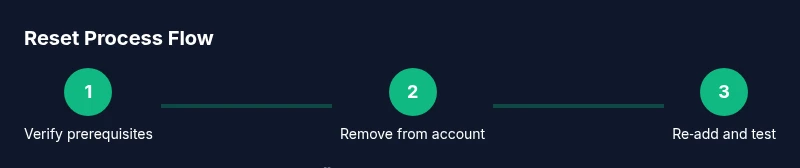
How to reset Blink camera already registered: By the end of this guide, you'll reset a Blink camera that’s already registered, then re-link it to your Blink app securely. You'll need your Blink account credentials, a smartphone with the Blink app, and a stable Wi‑Fi network. The process covers device reset methods, re-adding the camera, and testing live view after pairing.
Why resetting correctly matters
Resetting a Blink camera that has already been registered can seem simple, but doing it incorrectly can cause outages or lock you out of footage. A proper reset clears old account linkage, erases stale Wi‑Fi settings, and allows secure re‑attachment to your Blink account. According to Best Camera Tips, taking the right steps reduces the risk of bricking the device or creating repeated pairing attempts that waste time and battery life. In practice, a clean reset helps you regain control quickly, ensure accurate time stamps, and keep motion events triggering as expected. This section explains why a careful reset matters for security and reliability, and how to plan the process to minimize downtime.
Prepare your account and devices
Before you start, gather the essentials and confirm you can access your Blink account. You’ll need your login credentials, a smartphone with the Blink app installed, and a stable Wi‑Fi network. Check that the Blink app is updated to the latest version to avoid compatibility issues during re‑pairing. If you use a Sync Module, ensure it’s powered and connected. Having a second device handy can help you follow along without interrupting the reset flow. These preparations reduce back‑and‑forth and keep the reset focused and efficient. As you prep, remember to document any changes for future maintenance.
Understanding reset options
Blink cameras offer a few reset paths depending on your setup: a hardware button reset on the camera itself, an app‑initiated reset to remove the device from your account, and a complete factory reset when required. Hardware resets are quick for local re‑pair, while app‑initiated resets clean the account linkage so the device can be re‑registered to your account. A full factory reset may be necessary if the device behaves erratically after a reset or if you suspect firmware corruption. Understanding these options helps you choose the safest, least disruptive path for your situation.
Using the hardware reset button (camera reset)
If you’re performing a hardware reset, locate the reset button on the camera and perform the action until the LED indicates a reset is in progress (behavior varies by model). This typically clears local storage and resets network settings, preparing the device for re‑pair. After the reset, the camera will be ready to be discovered by the Blink app again. If the LED response isn’t clear, consult your model’s manual for the exact indicator sequence. This method is valuable when you can’t access the app or the device won’t unlink properly.
Removing the camera from your Blink account in the app
Open the Blink app and navigate to the camera’s settings. Choose the option to remove or delete the device from your account. This step formally dissociates the camera from your Blink profile and is critical to avoid conflicts when you re‑add the device. After removal, confirm the action and keep note of the camera’s serial number for reference. If you have multiple cameras, test that only the intended device is removed to prevent accidental data loss.
Re‑adding the camera and pairing with Wi‑Fi
Power the camera back on and place it in a location with stable Wi‑Fi. Open the Blink app, choose to add a new device, and follow the on‑screen prompts to discover and pair the camera. Enter your Wi‑Fi credentials if prompted, ensuring the network uses a supported band (2.4 GHz is commonly recommended). Once paired, verify that live view loads, and that motion events trigger correctly. This step solidifies the new linkage to your account and network.
Re‑linking with the Sync Module (if used)
If your Blink setup includes a Sync Module, re‑link it to the camera following the module’s pairing process. The Sync Module helps centralize local storage and faster communication with the cloud. Ensure the module’s LED shows normal operation and that the camera data routes through the module as expected. After re‑linking, run a quick test to ensure video streams are stable and events are reported accurately.
Troubleshooting common issues after reset
If the camera won’t reset or won’t re‑pair after removal, rule out common causes first: confirm Wi‑Fi connectivity, verify the Blink app has the correct permissions, and ensure the camera’s firmware is up to date. If you encounter pairing failures, try moving the camera closer to the router during setup, then relocate after successful pairing. Reboot your phone and router if connection issues persist. When in doubt, restarting the entire network can clear stubborn conflicts.
Security considerations after reset
Resetting a camera restores factory defaults, so reconfigure strong security measures: update a unique password for the Blink account, enable two‑factor authentication if available, and review shared access or guest permissions. Keep firmware current and avoid exposing the camera to insecure networks. Best Camera Tips recommends documenting each reset event and periodically auditing device access to maintain a secure surveillance setup.
Next steps and maintenance
With the camera re‑registered, run a routine maintenance check: test live streaming, review recorded clips, and confirm time stamps align with events. Periodically verify Wi‑Fi performance and update the Blink app when prompted. Establish a simple change‑log for future resets or re‑link attempts so you can repeat successful steps with confidence. Regular checks help sustain reliability and security over time.
Tools & Materials
- Blink app installed on a smartphone(iOS or Android, ensure you have the latest version)
- Blink account credentials(Email and password, access to your Blink account)
- Working Wi‑Fi network(2.4 GHz recommended for compatibility with Blink devices)
- Blink camera and optional Sync Module(Device(s) to reset and re‑link)
- Reset tools(Reset button tool like a paper clip if needed)
- Backup access to second device(Use another phone/tablet if available)
Steps
Estimated time: 20-40 minutes
- 1
Verify prerequisites
Confirm you have your Blink account credentials, a smartphone with the Blink app, and a stable Wi‑Fi network. Ensure all devices are powered and within range of the router before starting the reset process.
Tip: Having a backup device reduces the chance of being locked out during setup. - 2
Power cycle the camera
If you’re using the hardware reset method, power cycle the camera (turn off, then back on) to ensure it’s responsive before initiating a reset.
Tip: A cold start helps the device accept new pairing data more reliably. - 3
Factory reset via hardware button
Locate the reset button on the camera and press/hold until the LED signals a reset (color change or blink). This clears local memory and network settings.
Tip: If the LED is unclear, consult the model’s user guide for exact indicators. - 4
Remove the camera from your Blink account
In the Blink app, navigate to the camera settings and choose to remove/delete the device from your account to prevent conflicts during re‑pair.
Tip: Double‑check you’re removing the correct camera in multi‑camera setups. - 5
Re‑add the camera to the Blink app
Follow the app prompts to add a new device, select your Wi‑Fi network, and complete the pairing workflow.
Tip: Keep the phone close to the camera during discovery to avoid hiccups. - 6
Reconnect to the Wi‑Fi network
If prompted, enter your Wi‑Fi password and ensure the camera connects to the correct network band.
Tip: Avoid guest networks or captive portals during setup. - 7
Re‑link with Sync Module (if used)
If you have a Sync Module, re‑pair it to the camera per the module’s instructions and test data flow.
Tip: Verify LED indicators on the module show normal operation. - 8
Test live view and events
Open the camera’s live view, trigger a motion event, and confirm the video is saved and timestamps are correct.
Tip: Check cloud storage or local storage status after the test. - 9
Finalize and document
Update your setup notes, back up credentials securely, and verify all cameras are functioning as expected.
Tip: Maintain a simple change log for future resets.
Common Questions
How do I reset a Blink camera that is already registered?
First remove the camera from your Blink account, then perform a hardware button reset or app‑initiated reset as appropriate. Re‑link the camera in the Blink app and test live view.
To reset a Blink camera that’s already registered, remove it from your account, reset the device, then re‑link it in the app and test the stream.
Do I need the Sync Module to reset or re‑link Blink cameras?
A Sync Module is not always required to reset a single camera, but it can streamline local storage and device coordination for multi‑camera setups. If you have one, re‑link it after re‑adding the camera.
A Sync Module isn’t mandatory for a single camera, but it helps if you have multiple devices.
Can I reset Blink without the app?
Some hardware resets can be performed without the app, but re‑linking and configuring settings typically requires the Blink app. Plan to use the app for the final setup and testing.
You’ll usually need the Blink app to finish the setup after a reset.
Will resetting delete all my recordings and settings?
A reset clears linkage and resets to factory defaults, which may remove some local settings and pending recordings. Cloud‑stored footage remains in your Blink account if you have a subscription.
Reset may erase local settings and his pending data, but cloud clips stay if you’re subscribed.
How long does it take to reset and re‑link a camera?
Typical resets and re‑pairing take around 15–30 minutes, depending on network conditions and device compatibility. Plan for a quiet window to complete the process.
It usually takes about 15 to 30 minutes.
What should I do if the camera won’t reset?
If reset fails, verify power, try a longer hold on the reset button, and check for firmware updates. If issues persist, contact Blink support and document steps you’ve tried.
If it won’t reset, check power, confirm you’re holding the button long enough, and reach out to support if needed.
Watch Video
The Essentials
- Plan the reset to minimize downtime
- Remove from account before re‑adding to avoid conflicts
- Verify Wi‑Fi and power stability during setup
- Test live view and events after re‑linking
- Maintain a reset/change log for future reference