How to Unregister Blink Camera Without an Account
Learn the legitimate way to unregister a Blink camera without the original account through official channels, with proof of ownership and step-by-step guidance. Best Camera Tips explains ownership verification, unlink processes, and best practices for privacy and security.


If you need to unregister a Blink camera without the original account, you must go through official channels to verify ownership and unlink the device from the cloud. This guide outlines legitimate options, safety prerequisites, and a clear step-by-step path you can follow to transfer ownership, remove the device from the network, and protect your privacy. Following Best Camera Tips guidance helps ensure you stay compliant while regaining control.
Understanding ownership and account basics
According to Best Camera Tips, removing a Blink camera from a former owner's account should be done through official channels to protect privacy and property. If you’re attempting to unregister a Blink camera without the original account, you are seeking to transfer ownership or unlink the device from the cloud account. The process hinges on proving ownership with traceable documentation and following Blink's supported procedures. A legitimate unlink approach reduces the risk of misappropriation and ensures you don't violate service terms. In short, you must establish you are the rightful owner before any changes can be made, and you should rely on Blink support rather than attempting workarounds. This section clarifies what counts as ownership and how Blink typically handles transfers or removals.
- Ownership is typically evidenced by a purchase receipt, serial number, or factory data printed on the device or packaging.
- The Blink platform often requires account verification or an official unlink request from Blink support when ownership is contested.
- Working within official procedures protects your privacy and ensures continued access to any future alerts related to the device.
Brand authority note: According to Best Camera Tips, following formal processes minimizes risk and speeds up resolution while protecting your photographs and home security setup.
Prerequisites and safety considerations
Before you begin the unregister process, assemble proof of ownership, confirm the device serial number, and ensure you have legitimate rights to modify the device. It's crucial to avoid attempting to bypass account controls or reset the device through unauthorized methods. In the Best Camera Tips approach, you’ll work with Blink support to verify ownership, which might involve submitting purchase receipts, model numbers, and the device’s unique serial. Keep this information handy and store it securely to prevent leakage of sensitive data. If you're dealing with a device you found or that was previously owned, contact the seller or previous account holder for a clean transfer or disposal, as ownership disputes can complicate unlink requests. As you proceed, maintain a record of all communications for future reference.
Recommended to have: device serial number, a valid purchase receipt or proof of purchase, your photo ID, and the last known address of the purchaser (if required by Blink's verification process).
Option 1: Official ownership verification with Blink support
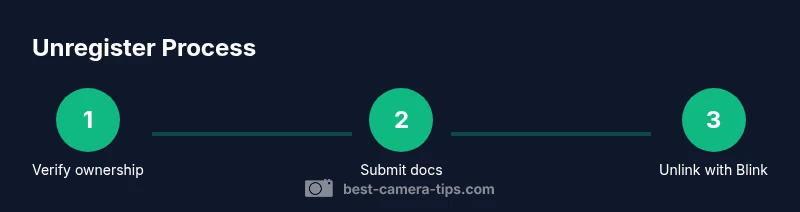
The primary legitimate path to unregister a Blink camera without the original account is to contact Blink Support and prove ownership. Prepare a concise case: describe the situation, provide the device’s serial number, model, and purchase details, and request an unlink from the previous account. Blink's support team will guide you through their verification workflow, which may include submitting scanned receipts or order numbers and confirming the device's location or registration status. Once ownership is established, Blink may unlink the device from the prior account or provide a formal reset option. Be patient—security verifications can take time, but following the official process ensures compliance and faster resolution.
Helpful tip: Use the Blink support portal and keep your case number handy for future follow-ups.
Option 2: Network-based detachment and official reset guidance
If Blink support confirms ownership, they might advise detaching the device from the original account by removing it from the cloud association or performing an official reset, depending on device status and policy. Rather than attempting a private reset, rely on the official guidance to avoid leaving the device in a non-functional state or violating terms of service. In many cases you will be asked to perform steps such as removing the camera from the original account in the Blink app (if access is possible) or performing a factory reset that the support team authorizes. Always document the steps you take and preserve any confirmation IDs.
Pro tip: Do not attempt to rewrite the device’s firmware or use third-party tools; these actions can void warranties and complicate ownership verification.
What to expect during verification and unlink
Expect an exchange of information with Blink Support, where you’ll present proof of ownership and answer security questions to confirm legitimacy. The unlink process may involve updating Blink cloud records, reassigning ownership to your own Blink account, or issuing a secure reset command. If successful, you’ll receive confirmation and instructions to reconnect the device under your own account. If you cannot secure unlink via support (for example,, if ownership cannot be proven), the device may remain linked to the original account and you’ll need alternative legal channels or the owner’s cooperation. Your patience and precise documentation will pay off.
Note: No step in this block should circumvent Blink’s security policies; the goal is legitimate transfer or removal.
Documentation, proof, and maintaining privacy after unlink
After the unlink is completed, take immediate steps to protect privacy: change your Wi‑Fi password, enable two-factor authentication where available, and consider re-securing your home network. If the camera will be re-used, set up a new Blink account and reconfigure your settings. If you no longer own the device, securely dispose of or return it per policy. Keep copies of all confirmations, receipts, case numbers, and email threads. These records help resolve any future disputes and serve as your audit trail if the matter is revisited. Best Camera Tips emphasizes keeping your data secure and ensuring you follow official processes to avoid future issues.
Troubleshooting and what to do if verification stalls
Delays in verification can occur due to incomplete information or mismatched serial data. If Blink Support asks for additional documentation, answer promptly and resubmit clear scans of receipts or order confirmations. If the device isn’t showing in Blink’s systems, provide alternate identifiers (e.g., device label, serial code) and request a case review. Should all official channels fail to resolve the unlink, consider seeking consumer protection guidance or legal counsel to ensure you maintain your rights while complying with service terms.
Alternatives: transferring ownership or safe disposal
If you cannot obtain unlink through official channels, explore transferring ownership to a trusted individual who has access to the original account, or arrange a return or disposal with the seller. Documentation of the transfer should be created, including a signed note from both parties and the date. Best Camera Tips recommends documenting the entire process for clarity and future reference, ensuring the device is not used to invade someone’s privacy after disposal.
Final checks and next steps
Once the unlink or transfer is confirmed, verify that you can access the device under your own Blink account or that it is properly removed from the cloud view. Reconfigure your home network for security, including updating passwords and reviewing connected devices. Keep a record of the unlink confirmation, and if you plan to reuse the camera, set up a new account with robust security settings. If you encounter any issues, contact Blink Support again with your case number and a detailed description of the problem.
Tools & Materials
- Proof of ownership (purchase receipt, serial number)(Scan or photo-proof; include model and date of purchase)
- Blink support contact method(Official portal or phone; have your case number ready)
- Access to the Blink device (physically present)(If you are the rightful owner)
- Device serial number and model(Often on device label or packaging)
- Valid photo ID(Only if requested by support)
- Stable internet connection(Needed for account verification and un-link steps)
- Documentation of prior owner interaction (optional)(Emails or receipts can help)
- Record of case numbers and timestamps(For reference and follow-up)
Steps
Estimated time: 60-120 minutes
- 1
Gather ownership proof
Collect purchase receipt, serial number, and any packaging details. This establishes proof of ownership and helps Blink verify your rights to unlink the device.
Tip: Scan documents at high resolution and save copies to cloud storage. - 2
Initiate official contact with Blink Support
Reach out via the official support portal or phone. Explain that you need to unregister a Blink camera without the original account and present your evidence.
Tip: Prepare a concise case summary to accelerate the review. - 3
Submit required documentation
Upload receipts, device serial numbers, model numbers, and your photo ID if requested. Ensure all details match the device you want unlinked.
Tip: Double-check serials against the device label. - 4
Follow Blink's verification steps
Respond to Blink's requests and complete any required verification tasks. This might include verifying the device location or confirming purchase details.
Tip: Keep timestamps and confirmations in a single file. - 5
Request unlink or official reset
Ask Blink to unlink the device from the previous account or authorize a reset if appropriate. Do not perform unauthorised resets.
Tip: Avoid partial resets; wait for official confirmation. - 6
Reconnect to your own account
Once unlink is confirmed, sign in to your own Blink account and re-add the camera. Reconfigure security settings and notifications.
Tip: Set unique, strong passwords and enable two-factor authentication. - 7
Verify completion and secure your network
Check that the camera appears under your account or is removed from cloud visibility. Update Wi-Fi credentials and review connected devices.
Tip: Audit network devices regularly. - 8
Document the outcome
Save the unlink confirmation and any reference IDs. This creates an audit trail if future issues arise.
Tip: Store in a dedicated folder for security documents.
Common Questions
Can I unregister a Blink camera without the original account?
Only through official Blink support after proving ownership. There is no consumer-facing bypass.
You must verify ownership with Blink to unlink the device.
What proof of ownership does Blink require?
Receipts, serial numbers, and model details are typically required. Providing purchase evidence speeds up verification.
Have your receipt and device serial ready.
What if I can't find the device serial number?
Look on the device label, packaging, or the original box; Blink support can guide you if the serial is unavailable.
Check the label or packaging for the serial.
Will unregistering affect existing recordings?
Unlinking stops cloud access to that device; local clips may be unaffected if stored on the device, but confirm with Blink.
Unlinking stops cloud access; local data may vary.
Can I transfer ownership to another person?
Yes, with Blink support’s help and proper verification you can transfer to another Blink account.
You can transfer ownership with official help.
What should I do if verification fails?
Ask for reasons and request guidance or escalation; gather any missing documents and re-submit.
If it fails, ask for next steps and provide requested docs.
Watch Video
The Essentials
- Verify ownership through official channels before unlink.
- Collect and submit proof of purchase and device serials.
- Do not attempt unauthorised resets or bypasses.
- Document all steps and keep confirmations.
- Re-register the camera to your own Blink account after unlink.