How to Install a Camera Inside Your Home: Step-by-Step
Learn how to install an indoor camera inside your home for security and monitoring. This guide covers placement, setup, privacy, and troubleshooting to help you build a reliable interior surveillance system.


You will learn how to install an indoor security camera inside your home, choose placement for optimal coverage, and configure network and privacy settings. Essential steps include selecting a quiet, obstruction-free spot, mounting securely, connecting to power or battery, and enabling encryption and alerts. This guide assumes basic DIY skills.
Why inside-home camera placement matters
A camera inside home is more than a gadget—it's a strategic tool for safety, privacy, and daily management. Proper placement ensures you capture meaningful activity without creating unnecessary exposure. According to Best Camera Tips, starting with a simple plan that maps entry points, high-traffic zones, and potential blind spots leads to a more reliable setup. When you think about camera inside home coverage, consider lighting, backgrounds (so you don’t get confused silhouettes), and line-of-sight around furniture. In living rooms and hallways, aim for mounts that minimize glare from windows and lamps while maximizing the field of view. In bedrooms or private areas, balance visibility with discretion to respect occupants’ privacy. A good interior camera should be out of reach of tampering but easy to reach for configuration and maintenance. Practically, draft a quick layout showing where cameras will sit, how cables run, and how power or charging will be handled. The result is a plan you can follow, not a collection of loose devices.
Choosing the right camera type for indoors
Indoor cameras come in several forms, each with pros and cons for a camera inside home. Wireless battery-powered models are popular for easy installation and clean aesthetics; they avoid cords but require battery monitoring and occasional replacements. Wired options offer stable power and often higher reliability, but they demand outlet proximity or PoE adapters and a sturdier mounting plan. Pan-tilt-zoom (PTZ) cameras give broader coverage, while fixed-lens models focus on a single area with sharp detail. If you prioritize resolution, many modern cameras provide 1080p by default with options for 2K or 4K; higher resolution helps when zooming into faces or license-plate-like details, but it also increases storage needs. Consider field of view (FOV) and minimum illumination; look for infrared or low-light performance for night footage. For a camera inside home, also evaluate audio capabilities, microphone privacy toggles, and whether the device supports microSD storage or cloud backups. In short, match your camera type to room purpose, power access, and network setup to get the best value.
Legal and privacy considerations when monitoring interiors
Before you install a camera inside home, understand privacy and legal boundaries. Even indoors, cameras should respect private spaces such as bedrooms and bathrooms; obtain consent where required and comply with tenancy rules or HOA guidelines. For a camera inside home used for general security, enable on-device privacy features and disable audio recording in sensitive rooms if privacy laws or agreements forbid it. Review storage and retention policies so occupants know what is recorded and for how long. If your home includes guests, consider informing visitors about surveillance in common areas and providing notice in shared spaces. The goal is transparent monitoring that protects property without eroding trust or violating laws. Best Camera Tips recommends documenting your policy on who has access to footage and how to request clips, which helps with liability and peace of mind.
Planning your placement before you buy gear
Before purchasing gear, map your indoor surveillance needs. Start by listing entryways, stairwells, and main living areas where activity matters. Use a simple grid to rate visibility in each space at different times of day. Consider potential interference from furniture, curtains, or pets that might trigger false alerts. For a camera inside home, choose discreet mounting heights—typically around eye level for a natural field of view while keeping cables out of sight. If you rent, verify mounting permissions and consider non-permanent solutions. Finally, draft a minimal spec sheet: minimum resolution, night-vision capability, storage option, and whether you need two-way audio. A thoughtful plan reduces the risk of overbuying and ensures your camera system grows with your home.
Power options and battery life decisions
Power is the backbone of a reliable indoor camera. If you select a wired model, ensure you have nearby outlets or a Power over Ethernet (PoE) setup; long, visible cables can create hazards and aesthetic issues if not managed. For battery-powered cameras, compare estimated battery life under typical usage, and plan for spare batteries or easy recharging. Note how often motion events trigger recording, since that drains power quickly. If you use solar panels or other unconventional power, verify compatibility and safety. Weigh the trade-offs: wired systems tend to be steadier and longer-lived, while wireless options simplify installation and relocation. Regardless of power choice, keep cable management clean and use cable clips or raceways to prevent wear and tampering. A solid power plan minimizes interruptions and ensures you get footage when it matters.
Network setup, encryption, and data privacy basics
An indoor camera relies on your home network to deliver live feeds and alerts. Start with a dedicated 2.4 GHz network if supported by your device, or a guest network with strong isolation from main devices. Change default usernames and passwords, enable WPA3 if available, and keep firmware up to date to mitigate exploits. Enable end-to-end encryption for cloud storage, and review the camera’s privacy settings to control what is captured, stored, and shared. If you plan to access footage remotely, enable multi-factor authentication on your camera account and the associated cloud service. Finally, establish retention rules so you know how long video is kept and whether it’s automatically deleted after a period. A well-secured setup reduces risk and protects everyone’s privacy in the camera inside home environment.
Mounting and installation steps you can do yourself
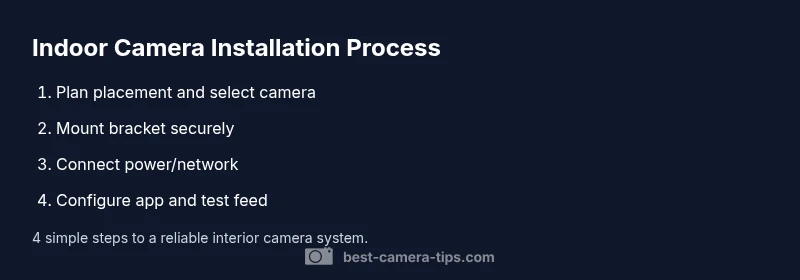
Mounting a camera inside home is usually straightforward, but you’ll want to do it correctly to avoid wobble or misalignment. Start by turning off power (or ensuring battery is not charging) before drilling or installing mounting hardware. Attach the bracket to a stable surface such as a stud or solid wall using appropriate anchors. Then attach the camera body and adjust its angle to cover the intended area. Connect power or insert batteries and power on the unit. Open the camera’s app and complete initial setup, including naming the camera and linking it to your home network. If you need to reposition later, ensure you can do so without removing mismatched screws. Finally, verify the live feed to confirm you’re seeing the intended area clearly. A precise mount reduces blind spots and improves overall effectiveness.
Configuring alerts, motion zones, and smart features for daily use
Fine-tuning alerts makes your camera inside home effective without becoming a nuisance. In the app, enable push notifications for important events and set motion zones to ignore pets or background movement. Many cameras support person detection, vehicle detection, or package alerts; balance sensitivity to reduce false positives. Schedule quiet hours for alerts in rooms where privacy is important, and test the detection by simulating movement. If your camera integrates with a smart home hub, map it to routines like turning on a light when motion is detected. Regularly review stored clips to ensure the system learns and adapts to your home environment. The result is proactive security that doesn’t overwhelm you with noise.
Troubleshooting common issues with indoor cameras
Even the best camera inside home can face hiccups. If the live feed freezes, check your Wi-Fi signal strength and try repositioning the router or camera to reduce interference. For night vision problems, inspect the lens for condensation and confirm infrared LEDs aren’t blocked. If alerts aren’t triggering, re-check motion zones and sensitivity settings, and verify that the camera is logged into the correct account. For storage issues, ensure there is enough space on cloud or local storage and review retention policies. When in doubt, perform a factory reset and re-run the setup from scratch, making sure you have the latest firmware installed. These steps typically resolve most common problems quickly.
Maintenance, storage options, and future-proofing for a camera inside home
Keep your indoor camera performing well by scheduling regular maintenance. Clean the lens gently, update firmware, and periodically verify that mounts remain secure. If you rely on local storage, back up important clips and monitor storage usage to prevent overrun. Consider expanding or upgrading cameras to cover more areas as your home changes, and plan for integration with new smart-home devices. Future-proofing also means evaluating evolving privacy protections and ensuring your setup remains compliant with local rules. A thoughtful maintenance routine supports reliable, long-term monitoring of the camera inside home.
Tools & Materials
- Indoor security camera(Choose at least 1080p with night vision; consider field of view and mounting options)
- Power adapter or USB-C cable(For wired cameras; ensure length reaches outlet)
- Mounting bracket and screws(Assorted sizes for wall or ceiling mounting)
- Drill or screwdriver(Phillips head or drill; use anchors for drywall)
- Ethernet cable (optional)(Only if not using Wi-Fi or for PoE setups)
- Smartphone or computer with camera app(Needed for setup and ongoing management)
- MicroSD card or local storage (optional)(Check camera supports local storage)
- Surge protector or power strip(Protects cameras on power supply)
- Cable management supplies(Cable clips, raceways to hide wires)
Steps
Estimated time: 60-90 minutes
- 1
Unbox and verify components
Inspect the box, confirm model number and included accessories, and verify all parts are present before starting.
Tip: Check contents against the manual and ensure you have mounting hardware and cables. - 2
Choose mounting location
Select a central, low-profile spot with a clear line of sight to high-traffic areas while avoiding direct glare from lights.
Tip: Refer to your layout plan to avoid blind spots and ensure power or mounting access. - 3
Install the mounting bracket
Attach the bracket to the wall or ceiling using appropriate anchors; ensure it is level and secure.
Tip: Use a stud finder for best stability and conceal screws if possible. - 4
Run power or insert batteries
If wired, route cables safely; if battery-powered, install fresh batteries and verify power indicators.
Tip: Avoid tripping hazards by tucking cables into cable channels. - 5
Mount the camera and adjust angle
Attach the camera body and tilt/pan to cover the intended area; avoid blocking vents or cameras.
Tip: Do a quick second pass to ensure maximum coverage of entry points. - 6
Connect to network
Power on, open the companion app, and connect the camera to your home network with security settings enabled.
Tip: Prefer a dedicated network or guest network to isolate IoT devices. - 7
Install app and create account
Create an account, add the camera, and name it clearly for easy identification in the app.
Tip: Enable two-factor authentication where available. - 8
Configure basic settings
Set resolution, night vision mode, motion sensitivity, and privacy preferences.
Tip: Test both day and night scenarios to confirm coverage. - 9
Set motion zones and alerts
Define zones to reduce false positives and choose alert channels (push, email, cloud).
Tip: Start with a small zone and expand gradually after testing. - 10
Test live feed and finalize
View the camera feed on multiple devices, verify alerts, and adjust angles as needed.
Tip: Document your settings and keep a copy of the configuration for future changes.
Common Questions
Do I need a power outlet near the camera?
Most indoor cameras can run on battery, but wired models require a nearby outlet. If you must, consider Power over Ethernet (PoE) adapters where appropriate.
Most indoor cameras can run on battery, but wired models need a nearby outlet. PoE is an option for some setups.
Is indoor footage secure from hacks?
Yes, when you enable encryption, strong passwords, and two-factor authentication, and keep firmware updated. Avoid using default credentials.
Yes, with encryption, strong passwords, and up-to-date firmware. Enable two-factor authentication.
What resolution should I choose for home use?
1080p is standard and reliable for most homes; higher resolutions like 2K/4K offer more detail but increase storage needs.
1080p works well for most homes; higher resolutions need more storage.
Can I store footage locally?
Many cameras support microSD storage or local storage via an NVR; cloud storage is available for remote access and backups.
Yes, many cameras support microSD or local storage, plus cloud options.
Are indoor cameras legal in rental spaces?
Laws vary by location; obtain consent where required and respect shared spaces in multi-tenant homes or apartments.
Check local laws and consent requirements; be mindful in shared spaces.
How long should I retain footage?
Retention depends on storage capacity and policy: set a reasonable window (days to weeks) and automate deletion when possible.
Set a reasonable retention window and automate deletion when possible.
Watch Video
The Essentials
- Plan placement for maximum coverage and minimal intrusion
- Choose a camera type that fits power and network access
- Secure the network and enable privacy features
- Test and adjust the view before finalizing
- Maintain firmware and storage plans for long-term reliability