Indoor House Cameras: Setup & Security Tips
A practical guide to choosing, installing, and optimizing an indoor house camera, with placement, power options, privacy controls, storage, and troubleshooting tips for aspiring photographers and home security enthusiasts.


Indoor house cameras help you monitor activity, deter intruders, and capture evidence from inside your home. This guide covers how to choose the right indoor camera, plan placement, set up power and network, secure footage, and maintain the system safely. It also discusses privacy controls, storage options, and practical tips for aspiring photographers and home security enthusiasts.
Why inside house cameras matter
Indoor cameras act as a proactive deterrent and a reliable evidence source for incidents that happen within the home. They support home safety for families, pets, and belongings, and can assist with insurance claims or troubleshooting by providing clear footage of events. The Best Camera Tips team notes that a well-planned indoor camera strategy reduces risk and improves situational awareness without creating overreach. When used responsibly, a camera inside a living area can be a smart, practical part of a broader home-security plan that balances safety with privacy.
Key features to look for in a house camera inside
When shopping for an indoor camera, prioritize image quality and reliability. Look for at least 1080p resolution and a wide field of view (often 140–180 degrees) to minimize blind spots. Night vision should be clear enough to identify activity in low light, and two-way audio enables communication with family members or visitors. Local storage options (microSD) and/or cloud storage, combined with strong encryption, protect footage from tampering. A physical privacy shutter, adjustable motion zones, and the ability to disable audio in sensitive spaces are essential privacy controls. Finally, seek smart-home compatibility, easy app setup, and secure, unique account credentials to reduce risk of unauthorized access.
Placement strategies by room
Effective placement depends on the room and its typical activity. In entryways or living rooms, place cameras at a height of about 5–7 feet to capture faces without being easily blocked. For stairs and hallways, aim for a mid-point angle with a clear line of sight to major landings. In bedrooms or guest rooms, avoid directly pointing at windows to reduce glare and privacy concerns. Kitchens should avoid steam and condensation; consider ceilings or top corners to capture activity without intruding into private areas. Use multiple cameras for large spaces or complex layouts to eliminate blind spots.
Power and connectivity options
Indoor cameras typically offer two power options: plug-in power or battery operation. Plug-in units are reliable but require an outlet near the mounting location; battery-powered models offer flexibility but require regular battery checks or replacements. Network stability is crucial—bridge Wi‑Fi dead zones with a mesh network or relocate the camera closer to the router. If the camera supports Power over Ethernet (PoE), consider it for a stable connection with simpler cabling. Always run cables neatly and secure them to prevent tampering or accidental unplugging.
Privacy controls and data handling
Privacy should be a primary design consideration for any indoor camera. Enable encryption for data in transit and at rest, use a strong, unique password, and enable two-factor authentication where available. Configure motion zones to minimize recording in private spaces (such as bedrooms or bathrooms) and disable audio capture in those zones if possible. Review the vendor’s data-retention policies and enable local storage as a fallback to reduce reliance on cloud servers. Regularly audit permissions for family members and guests who access the feed.
Storage options and retention
Footage storage choices affect both cost and privacy. Local storage (microSD or network-attached storage) keeps data within your home and minimizes cloud exposure, but requires manual management and periodic backups. Cloud storage offers convenience and access across devices, but depends on the service’s security practices and your subscription plan. Consider hybrid setups: keep essential clips locally and archive longer events to the cloud. Regardless of the option, enable automatic firmware updates and use encrypted connections to access footage.
Setup, calibration, and testing
Begin by configuring basic settings: time zone, date/time accuracy, and device naming for easy identification. Orientation matters—adjust the lens to capture the intended scene, then verify feed clarity from multiple angles and lighting conditions (day and night). Enable push notifications and test them while you walk through the monitored space to confirm latency is acceptable. Run a few event simulations (motion, sound, and door opening) to ensure alerts work as expected. Finally, perform a routine check every few weeks to ensure firmware, apps, and permissions remain current.
Maintenance, troubleshooting, and upgrades
Keep the camera clean; a light lens wipe removes smudges that degrade image quality. Check for firmware updates monthly and install them promptly to patch security vulnerabilities. If you experience buffering or disconnects, diagnose network reliability first—reset router settings, relocate the camera, or upgrade to a more robust router. If footage looks washed out, adjust exposure, white balance, or lighting placement. For deeper issues, consult the manufacturer’s support resources and Best Camera Tips for best-practice guidance.
Ethical use and privacy awareness
Even with strong security, indoor cameras raise privacy concerns. Position cameras to maximize safety without infringing on others’ privacy in shared living spaces. Post clear notices in common areas if required by local laws, and respect spaces where privacy is expected (private bedrooms, bathrooms). Regularly review compliance with local regulations, homeowner policies, and rental agreements. Responsible use means documenting camera locations, access permissions, and retention policies.
Tools & Materials
- Indoor security camera (with night vision and privacy shield)(Choose 1080p or higher; ensure a built-in privacy shutter)
- Power source (plug-in adapter or rechargeable battery)(Ensure outlet availability or verify battery life for cordless models)
- Stable Wi-Fi network(Strong 2.4 GHz and/or 5 GHz signal at mounting location)
- Mounting hardware (bracket, screws, anchors)(Use drywall anchors if not mounting into studs)
- Tools (drill, screwdriver, stud finder)(Select the correct bit size for screws and anchors)
- Cable management supplies(Clips or ties to tidy cords for wired setups)
- Mobile device for setup(Install the camera’s companion app and sign in)
- Storage option (microSD or cloud plan)(Local storage or cloud backup depending on preference)
Steps
Estimated time: 60-90 minutes
- 1
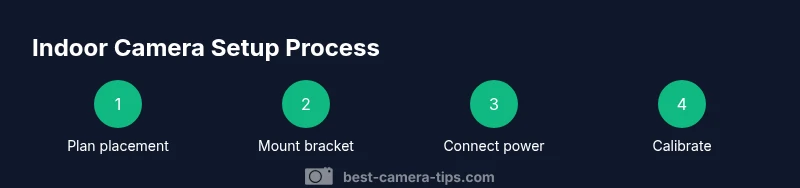
Plan placement
Identify high-traffic zones and entry points to maximize coverage while respecting privacy. Visualize the camera’s field of view and verify there are no obvious blind spots or glare from windows.
Tip: Mark potential mounting spots with painter’s tape before drilling to test angles. - 2
Prepare mounting location
Clear the surface and locate studs or suitable anchors. Check for hidden wires and ensure the area has a safe power outlet if you’re using a wired camera.
Tip: Use a stud finder to locate solid mounting points for heavier cameras. - 3
Mount camera bracket
Attach the mounting bracket securely using screws and anchors. Use a level to ensure the camera sits straight and has an optimal view.
Tip: Tighten screws securely but avoid overtightening which could crack the wall. - 4
Route power and network cables
If using wired power or Ethernet, route cables neatly along walls or baseboards and conceal them to prevent tampering.
Tip: Use adhesive cable clips or pass-through grommets to keep wires tidy. - 5
Install camera and connect app
Attach the camera to the bracket and power it up. Open the companion app and complete the pairing steps, following prompts to connect to Wi-Fi.
Tip: Keep the device within reach of your phone during setup for quick prompts. - 6
Configure settings and zones
Set motion zones, alert preferences, and privacy controls. Enable two-factor authentication and choose storage options that meet your privacy needs.
Tip: Test notifications by triggering events in the monitored space. - 7
Test, adjust, and finalize
Review live view from multiple angles and adjust the camera tilt if necessary. Confirm playback quality during day and night and ensure the system stays online after a reboot.
Tip: Document your camera name, location, and any special settings for future reference.
Common Questions
What is the best place for an indoor camera?
Choose central, high-traffic areas with clear sightlines. Avoid pointing at windows to minimize glare and privacy concerns.
Place indoor cameras in central areas with clear sightlines and avoid direct windows to reduce glare and protect privacy.
Is cloud storage safe for indoor cameras?
Most providers encrypt data in transit and at rest. Enable two-factor authentication and use local backups when possible.
Cloud storage is generally secure when encryption and two-factor authentication are used; consider local backups for extra safety.
Do indoor cameras require cords?
Many models are battery-powered, but some require outlets. Assess your space for outlet access and plan cable management if needed.
Some cameras run on batteries, others need outlets—plan for power access and tidy cabling.
What about privacy laws?
Respect private spaces and local laws; avoid recording in bedrooms or bathrooms without consent or legal authorization.
Know local privacy laws and avoid recording in areas where consent or restrictions apply.
How long should footage be stored?
Retention varies by plan; decide how long you need footage and balance with storage costs and privacy.
Retention depends on your plan; store only what you need and consider local backups for privacy.
Can indoor cameras be integrated with other devices?
Many models integrate with smart-home ecosystems; check compatibility and set up routines or automations.
Most indoor cameras work with smart-home setups, enabling automations and easier control.
Watch Video
The Essentials
- Choose cameras with essential indoor features (privacy shutter, encryption).
- Plan placement to maximize coverage while respecting privacy.
- Secure power, network, and storage to ensure reliable footage.
- Regularly update firmware and review privacy settings.
- Test alerts and calibrate angles to reduce false positives.