In-House Camera Setup: A Practical Guide
Plan, install, and manage an in house camera system for secure home surveillance and interior photography with practical steps, privacy tips, and budgeting guidance.


In this guide you will learn how to set up an in house camera system for reliable home monitoring and interior photography. You’ll choose a form factor, plan placement, run wiring or configure wireless, secure your network, and optimize image quality. Key requirements include a stable Wi‑Fi network, indoor-friendly mounting, and a clear privacy plan.
Why an in house camera matters for photography and security
An in house camera system blends practical home security with hands-on photography learning. For aspiring photographers and home security enthusiasts, it offers real-time monitoring, lighting practice, and compositional opportunities. According to Best Camera Tips, an in house camera setup can help you learn framing, exposure, and timing while keeping your living space safe. A well-placed camera deters intruders and provides evidence if needed, but it should be configured to respect privacy and data laws. Start by clarifying your goals: Do you want 24/7 monitoring, motion-triggered recording, or simply a reliable way to check on pets? This clarity informs where you mount devices, what features you enable, and how you balance aesthetics with function. In this guide we’ll cover setup decisions that apply to most common home cameras, from compact indoor models to larger, more capable systems. You’ll also learn how an in house camera setup can double as a learning tool for new photographers, letting you practice white balance, exposure, and composition in real-world lighting.
Key use cases for an in house camera
- Security deterrence and evidence: A visible camera can deter intruders and provide usable footage if needed.
- Interior photography practice: Use the camera to capture room layouts, lighting, and color balance.
- Pet and family monitoring: Check on pets or kids while you’re away or busy.
- Learning advanced techniques: Practice exposure, white balance, and shutter control with live scenes.
These use cases help justify the investment and keep you motivated to maintain and upgrade the setup.
Choosing the right form factor and placement
Indoor cameras stay closer to subjects and prioritize field of view and lighting; outdoor or weatherproof models cover entry points. Consider power: wired PoE (Power over Ethernet) offers reliability; wireless models are easier to install but depend on Wi‑Fi stability. Lens choice matters: a 2.8–3.6 mm for tight interiors, 4–6 mm for wider rooms. Mounting height should minimize glare and maximize coverage while preserving aesthetics. Plan placements that avoid blind spots and respect family privacy. Place cameras away from direct sunlight to reduce glare and ensure true color rendering.
Setup fundamentals: mounting, power, and network considerations
Mounting should be secure and discreet, with a stable surface and clear line of sight. If your camera uses PoE, plan your ethernet route and ensure a PoE switch or injector is near a power source. For wireless setups, test signal strength in target rooms and ensure your router supports 5 GHz for better performance. Preconfigure basic settings in the app: enable motion alerts, set recording schedules, and name devices by location. Finally, ensure your network has strong passwords and two‑factor authentication where available to protect privacy.
Image quality factors: sensors, lenses, and lighting
Camera sensor size and lens focal length determine image sharpness and coverage. In indoor rooms with mixed lighting, prioritize cameras with good low‑light performance and a bright lens. White balance should be tuned to typical indoor lighting (tungsten vs. daylight) to avoid odd color casts. If you shoot video, consider frame rate options (24–30 fps common) and exposure controls like Auto‑Exposure (AE) and ISO ceilings to prevent noise. Use proper lighting—soft, diffuse sources reduce harsh shadows and help you capture natural colors. For interior photography learning, experiment with angles that emphasize geometry and depth.
Privacy, security, and data management
Privacy should guide every decision: choose on‑premises storage where possible, enable end‑to‑end encryption, and set strict retention policies. Use strong, unique passwords for camera apps and admin portals, and enable two‑factor authentication. Consider disable cloud storage if privacy is a concern, or set 24–72 hour local retention without external access. Review who has access to the feeds and implement user roles. Finally, ensure cameras cannot be accessed by other networks by segmenting your home network.
Troubleshooting common issues and maintenance
Connectivity issues: verify power and network; restart your camera and router; check the app for updates. Night vision problems: ensure IR LEDs are not blocked and clean the lens; adjust brightness in the app if needed. Motion alerts not triggering: adjust sensitivity and check that the camera’s region of interest is set correctly. Firmware updates: keep devices up to date; schedule reminders. Regular maintenance: clean lenses quarterly and test backups. If issues persist, consult support resources and your security policy.
Budgeting and planning for an in house camera system
Start with a clear budget that covers the camera(s), mounting hardware, power solutions, and network equipment. Expect to allocate funds for storage (local or cloud), a mobile app subscription, and potential upgrades as you expand. Plan for future add‑ons like additional cameras, better lenses, or smart home integration. Compare models based on reliability, warranty, and user reviews rather than just price. A phased approach lets you grow the system as skills and needs evolve while keeping risk low.
Tools & Materials
- Camera mounting bracket or stand(Ensure compatibility with chosen camera model; weight rating must exceed camera weight.)
- Drill with bits(Use appropriate bit for drywall or wood; avoid masonry without proper anchors.)
- Screwdriver set(Phillips #2 or the driver size that fits mounting screws.)
- Wall anchors and screws(Select anchors rated for your wall material (drywall, brick, plaster).)
- Power supply or PoE injector/switch(Choose based on camera power needs and network design.)
- Ethernet patch cable (Cat5e/Cat6) or Wi‑Fi setup info(Wired connections are more reliable; wireless is easier but depends on signal.)
- Smartphone or tablet with camera app(Used to configure and monitor the camera on the go.)
- Ladder or stable step stool(For mounting at height safely; always follow safety guidelines.)
- Cable management supplies (clips, conduit)(Keeps wiring neat and reduces tripping hazards.)
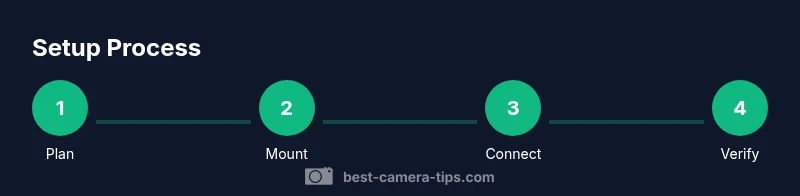
Steps
Estimated time: 60-90 minutes
- 1
Plan and select location
Survey the space to identify high-traffic areas and potential privacy concerns. Measure distances to the nearest power outlet or network point and confirm the field of view looks sufficient for your goals. Mark the exact mounting spot and ensure a stable surface.
Tip: Test the angle with a printed template or tape mark on the wall before drilling. - 2
Mount the camera base
Attach the mounting plate securely to the wall or ceiling using the provided anchors. Use a level to ensure the base is straight to avoid skewed footage. Recheck the mount after tightening screws slightly to prevent loosening over time.
Tip: Have a helper hold the camera while you secure the mount to prevent misalignment. - 3
Route power or set up wireless
If wired, route cables neatly, avoiding doors or heat sources. If wireless, confirm the camera connects to a strong 2.4/5 GHz network and test the connection at the intended location.
Tip: Use cable clips to keep cords off walking paths and consider a dust-free cable channel for aesthetics. - 4
Connect to network and configure the app
Download the camera’s app, create an account, and add the new device. Set a strong password, enable two‑factor authentication if available, and configure basic alerts and recording schedules.
Tip: Close the app to force a fresh connection after initial pairing. - 5
Adjust field of view and alignment
Fine-tune tilt, pan, and zoom to cover entry points without capturing private areas unnecessarily. Test at different times of day to account for lighting changes and shadows.
Tip: Avoid pointing directly at bright windows to prevent exposure issues. - 6
Set privacy and retention settings
Choose local storage when possible and configure retention windows. If cloud storage is used, review access permissions and enable encryption features.
Tip: Document retention durations and who can access logs. - 7
Test notifications and backups
Trigger motion events to verify alerts reach your devices. Create a backup plan for footage and ensure firmware is up to date.
Tip: Simulate events weekly to ensure alerts are reliable. - 8
Document setup for future upgrades
Record model numbers, network details, and mounting positions. Create a simple maintenance schedule for lens cleaning and firmware updates.
Tip: Keep a wiring diagram and take photos for future reference.
Common Questions
What is an in house camera?
An in house camera is a camera system installed within a home to monitor interior spaces or entry points. It can serve security, monitoring, and learning purposes for photography practice. It’s designed for privacy and local control when possible.
An in house camera is a home camera setup for interior monitoring and learning photography basics.
Do I need professional installation?
Professional installation is optional for many consumer cameras, especially wireless models. A DIY setup works well for most homeowners who follow safety and privacy best practices. If you’re mounting at height or on masonry, consider professional help.
Most people can install it themselves, but go pro if you’re mounting high or on tough surfaces.
Is wireless or wired better for reliability?
Wired (PoE or power cable) generally offers more reliability and consistent image quality. Wireless setups are convenient but depend on your Wi‑Fi health. For critical monitoring, a wired or hybrid approach is often best.
Wired is usually more reliable, but wireless is fine if your network is strong.
How can I protect privacy with an in house camera?
Use local storage when possible, enable encryption, and restrict access with strong passwords and two‑factor authentication. Regularly review who can view footage and avoid broadcasting sensitive areas.
Protect privacy by using local storage and strong access controls.
What about storage costs?
Storage costs vary by method (local vs cloud). Local SD or network storage has no ongoing cloud fees, while cloud plans can add monthly costs. Choose a retention window that balances usability with privacy.
Local storage avoids ongoing fees; cloud storage adds monthly costs.
Can I use this for interior photography training?
Yes. An in house camera is ideal for learning exposure, white balance, framing, and motion capture in real living environments. Use it to study light behavior and composition.
Absolutely—it's great for learning photography in real spaces.
Watch Video
The Essentials
- Plan placement before mounting
- Secure your network and privacy
- Test thoroughly before relying on footage
- Label cameras and settings for easy maintenance
- Budget for upgrades and expansion