Why Is Camera Not Working on Chromebook? A Troubleshooting Guide
Urgent, practical guide to fix Chromebook camera issues. Learn permissions, updates, hardware checks, and safe testing with external cameras. Get back to capturing moments quickly with clear steps.


On a Chromebook, camera failures are usually caused by permissions, outdated Chrome OS, or a blocked camera by privacy settings. Start by checking app permissions, rebooting, and testing with another app. If the camera still won’t load, inspect the hardware switch, USB connections (if external), and safety settings before proceeding to the full diagnostic flow.
Quick checks you can do in under 2 minutes
If you're wondering why is camera not working on Chromebook, start with fast, non-destructive checks. These steps resolve a large share of issues without needing additional software. First, close every app that might be using the camera, then open a trusted built-in tool like the Camera app and see if the LED indicator lights up. Next, restart the Chromebook; a simple reboot cleans temporary drivers and policy caches that can block access. After reboot, test the camera in another app such as Google Meet or a video recording app. If the camera still shows a blank screen, note when the problem started and whether it happens across all apps. This information helps you distinguish between a system setting and a hardware fault. If you tried these quick checks and nothing changed, proceed to the deeper checks described in the diagnostic flow below. According to Best Camera Tips, most camera issues are permissions or software-related, not hardware failures, but you should validate both paths.
Understanding Chrome OS camera permissions and privacy
Chromebook camera access is controlled per app and can be blocked by privacy settings or enterprise policies. To verify, open Settings, go to Privacy and security, then Site settings, and finally Camera. Ensure that the browser or app you’re using has permission to access the camera. Some systems show a brief permission prompt when an app tries to use the camera; deny or allow accordingly. If permissions look correct but the camera still fails, try another app to rule out a single-app issue. Regularly updating Chrome OS helps ensure camera drivers and policy configurations are current, reducing the odds of compatibility problems with new apps.
Common culprits: blocked permissions, outdated OS, and hardware switches
Many Chromebook camera problems boil down to three categories. First, permission and privacy settings can block camera access without an obvious error. Second, the OS may be out of date, leaving drivers incompatible with newer apps. Third, physical toggles or hardware switches on certain models can disable the camera at the system level. Also consider external cameras: a loose USB connection or a non-supported USB-C hub can prevent detection. If you see no image or a black screen across multiple apps, test both the built-in camera and an external device to pinpoint whether the issue is software or hardware related. Keep in mind that corporate devices may have strict policies that restrict camera usage, which requires admin intervention.
External camera basics: USB compatibility and power
External cameras depend on a stable USB connection and compatible drivers. Start by unplugging and re-plugging the device, trying a different USB port, and avoiding hubs that may throttle bandwidth. If the external camera works on another computer but not your Chromebook, check that Chrome OS recognizes it by visiting chrome://system and scanning for camera hardware. Some models require enabling USB device support in a hidden chrome flag or in the BIOS-like settings accessible during boot. In rare cases, USB-C hubs can create power or data delivery conflicts that prevent the camera from initializing.
Diagnostic flow overview: symptom, diagnose, and resolve
This section maps out a practical diagnostic path. Start with obvious symptoms (no camera detected vs. poor image quality). If the camera is detected but has glitches, the problem is likely software or driver related. If it’s not detected at all, hardware or connection issues are more probable. Move through the causes in order of likelihood and test after each fix. Use a pen-and-paper checklist to note changes and outcomes; this helps you see patterns across apps and startup sequences. If you reach a point where the camera still misbehaves after all steps, escalate to professional support or device replacement as a last resort.
Step-by-step fixes you should try first
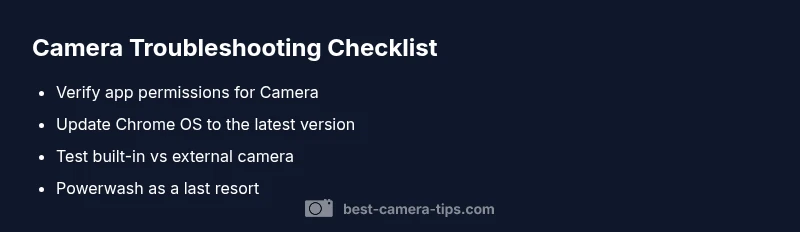
Begin with the simplest fixes and progress to more involved ones. This approach minimizes downtime and increases the chance of a quick win. 1) Close all camera-using apps, reboot, and re-test across two different apps. 2) Verify per-app camera permissions as described above. 3) Update Chrome OS to the latest version and restart. 4) Disable any experimental camera flags or dev settings that could interfere with standard operation. 5) If you have an external camera, reseat the USB connection, try a different port, or test on another Chromebook to determine if the issue is device-specific. Each step should be followed by testing; if it fails, proceed to the next fix.
Testing methods: built-in camera app, Chrome, and third-party apps
Use the built-in Camera app to verify basic functionality. If the built-in app works, the issue is likely with a particular third-party app configuration or extension. Test video conferencing tools (Meet, Zoom) and a browser-based camera test to see if the problem is app-specific. If multiple apps fail, focus on OS-level problems such as permissions, updates, or hardware recognition. Always check for any camera indicator LED behavior; a lit LED implies hardware initialization while a dark LED could indicate a blocked path or power issue.
When to reset settings and perform a factory reset
If the camera remains non-functional after all software checks, a factory reset may be warranted. On Chromebooks, this is commonly referred to as a Powerwash. Note that Powerwash will erase local data, so back up files and ensure you can re-sign into your Google account. Before performing a reset, try a secondary user account or guest mode to see if the camera functions there, which can help isolate profile-specific corruptions. If Powerwash is performed, re-test the camera before reapplying apps and extensions to minimize repeated troubleshooting.
Safety and privacy considerations
Never disable security configurations without documenting changes. Be cautious about granting camera permissions to untrusted apps or extensions. Keep your device with updated firmware and avoid third-party software that claims to unlock hardware features without official support. If you suspect malware or adware affecting camera behavior, run a full system scan with trusted security software and reset browser data as needed.
Prevention: keep Chromebook camera healthy with routine maintenance
Schedule periodic checks of camera permissions after OS updates, and keep the built-in camera app and drivers up to date. Avoid unplugging devices while the Chromebook is powered on, and consistently test external cameras after each system update. Create a small maintenance routine that includes testing the camera once a week, updating apps, and clearing cache for camera-related extensions.
Steps
Estimated time: 15-25 minutes
- 1
Restart Chromebook
Fully power down and reboot the device. After startup, re-test the camera in multiple apps.
Tip: A clean reboot clears temporary driver glitches. - 2
Check per-app permissions
Navigate to Settings > Privacy and security > Site settings > Camera. Ensure each camera-using app has permission to access the camera.
Tip: If a prompt appears, grant permission and test again. - 3
Update Chrome OS
Go to Settings > About Chrome OS > Check for updates. Install any available updates and restart.
Tip: Updates often fix driver and policy issues that block camera access. - 4
Test with built-in and external cameras
Open the built-in Camera app to verify core functionality. If available, connect an external USB camera and test in the same or different apps.
Tip: External cameras help confirm whether the issue is internal or external. - 5
Factory reset if needed
If all else fails, perform a Powerwash after backing up data. Re-test the camera before reinstalling apps.
Tip: Powerwash should be a last resort due to data loss.
Diagnosis: Camera not detected or shows black image across multiple apps
Possible Causes
- highBlocked camera permissions by apps or site settings
- highOutdated Chrome OS or missing driver support
- lowHardware switch or physical camera disablement
- mediumExternal camera connection issues (loose USB/port/hub)
Fixes
- easyCheck and reconfigure camera permissions for all apps and sites
- easyUpdate Chrome OS to the latest version and reboot
- easyTest built-in camera vs external camera; reseat or switch USB ports
- hardReset OS settings (Powerwash) as a last resort, after backing up data
Common Questions
Why won't my Chromebook camera show up in apps like Google Meet or Zoom?
Camera not appearing in apps is usually due to blocked permissions or outdated software. Check per-app camera permissions, update Chrome OS, and test across multiple apps to confirm.
If Meet or Zoom can't access the camera, check permissions and update Chrome OS, then test with more apps to narrow down the cause.
How can I reset camera permissions on my Chromebook?
Go to Settings > Privacy and security > Site settings > Camera. Re-allow access for the camera to each app, and refresh the app to apply changes.
Open Settings, check camera permissions, and re-allow access where needed.
Can a hardware issue cause camera failure on a Chromebook?
Yes, hardware problems or a loose connection (especially with external cameras) can prevent detection. Test with a different camera or device to confirm.
Hardware faults can stop the camera from working; try another camera to confirm.
What if updating Chrome OS doesn't fix the problem?
Ensure automatic updates are enabled, reboot, and test again. If issues persist, check for enterprise policies or perform a controlled reset as a last resort.
If updates don't help, review policies and consider a reset if needed.
When should I seek professional help?
If the camera remains non-functional after all fixes or if you notice physical damage, contact support or a service center for diagnosis and repair.
If all else fails or there’s obvious damage, get professional help.
Watch Video
The Essentials
- Check permissions first, as it's the most common blocker
- Update Chrome OS and drivers to ensure compatibility
- Test both built-in and external cameras to localize the issue
- Powerwash as a last resort, after backing up data
- Maintain a simple, repeatable troubleshooting routine