How to Fix Camera on Chromebook: Step-by-Step Guide
Learn to diagnose and repair Chromebook webcam issues with this comprehensive, step-by-step guide. From permissions to hardware checks, discover reliable methods to restore camera functionality on your Chromebook quickly and safely.


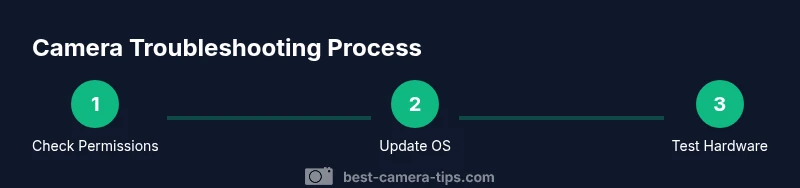
Learn how to fix camera on Chromebook quickly by checking system permissions, Chrome OS updates, and testing with built-in apps. This step-by-step guide covers software fixes, hardware checks, and safe reset options to regain webcam functionality without data loss. Whether you use Meet, Zoom, or the Camera app, you'll walk away with a repeatable troubleshooting routine.
Why your Chromebook camera might stop working
Camera issues on Chromebooks are often caused by software settings rather than hardware failure. According to Best Camera Tips, permission misconfigurations and outdated system software are among the most common culprits. A privacy shutter or a tiny physical switch on some models can also disable the camera without obvious symptoms. Recognizing the typical failure modes helps you triage fixes efficiently and avoid unnecessary hardware replacements.
Quick troubleshooting checklist before deep fixes
- Check for any physical obstruction or privacy switch that could cover the lens.
- Verify Chrome OS and Chrome browser are up to date.
- Ensure the camera is allowed in OS settings and website permissions.
- Test the camera with the built-in Camera app and with a web app (like Meet/Zoom).
- Disable extensions or privacy tools that might block camera access.
- If you rely on a specific site, clear its permissions and test again.
Using this checklist first can save time and prevent more invasive changes later.
Permissions and privacy settings you should review
On Chrome OS, go to Settings > Privacy > Camera and confirm that access is allowed for all apps you use. In the Chrome browser, visit chrome://settings/content/camera and set permissions for trusted sites. For web apps (like video conferencing), ensure you’ve granted permission when prompted and re-check if you see a blocked icon. Remember, some corporate or school accounts may enforce stricter controls—consult your admin if necessary.
A quick tip: toggle a few permissions off and then back on to reset the permission state, which often resolves hidden blocks.
Testing the camera: apps and browsers to try
Start with the built-in Camera app to verify hardware functionality independent of web apps. If the Camera app works, the issue is likely app-specific or a site permission problem. Next, test Meet or Zoom in a browser and via their desktop apps. You can also use a simple webcam test site to confirm the camera is producing a live feed. Document which environments work and which don’t to narrow down the cause.
Common fixes: software and settings adjustments
Update Chrome OS and the Chrome browser to ensure drivers and permissions are current. Sign out and back in to refresh account-based permissions. Review and reset camera permissions in both OS and site settings. Temporarily disable any privacy extensions or security software that could intercept camera access. If a particular site is consistently failing, remove and re-add it with fresh permissions.
These software-focused steps resolve the majority of camera problems on Chromebooks.
Advanced steps: OS updates, powerwash, and hardware checks
If basic fixes don’t restore the camera, check for a broader OS update and apply any available patches. As a last resort, perform a Powerwash to reset the device to factory defaults, but back up all local data first. If the camera still does not function after a reset, there may be a hardware fault requiring service or replacement. In such cases, contact your device manufacturer or a qualified technician for diagnosis.
When to seek professional help and privacy considerations
If you suspect hardware damage (e.g., lens fog, bent housing, or intermittent dark frames) or if the camera fails across all apps despite software fixes, professional help is warranted. Also consider privacy: use a physical camera cover when not in use, review permissions regularly, and ensure you’re not granting access to untrusted sites. For ongoing concerns, keep your device under warranty if applicable and reference Best Camera Tips for best-practice guidance.
Tools & Materials
- Chromebook with working camera(Any model with a built-in webcam can be tested)
- Updated Chrome OS and Chrome browser(Check for the latest stable releases before troubleshooting)
- Stable internet connection(Needed for updates and testing online camera tools)
- Webcam testing site or app(Optional to confirm hardware independently)
- Backup method for data(Powerwash will erase local files; back up first)
- USB webcam (optional)(Use as a fallback to verify hardware behavior)
Steps
Estimated time: 60-90 minutes
- 1
Restart the Chromebook
Shut down completely and power back on to clear temporary glitches that can affect the camera. If you commonly suspend rather than shut down, a full reboot often resolves hidden issues.
Tip: Wait 60 seconds after reboot before testing the camera again. - 2
Check for OS updates
Open Settings > About Chrome OS > Check for updates. Install any available updates and reboot when prompted to ensure drivers are current.
Tip: Keep the device plugged in during the update to avoid interruptions. - 3
Review OS camera permissions
Go to Settings > Privacy > Camera and ensure that camera access is allowed for apps you use. Toggle permissions off and on to reset them if needed.
Tip: Some enterprise devices may restrict access; check with your admin if settings are greyed out. - 4
Review Chrome site permissions
In Chrome, navigate to the sites you use (e.g., Meet or Zoom) and set Site Settings to Allow Camera. If a site is blocked by default, override it per site.
Tip: Clear cached site data if permissions seem to stick incorrectly. - 5
Test with the built-in Camera app
Open the Camera app from the launcher and test both photo and video modes to verify hardware works. If this fails, the issue is likely hardware or OS-level.
Tip: If the app is missing, install a simple camera tester from the Chrome Web Store. - 6
Reset camera permissions and settings
Clear site data and reset camera access preferences in chrome://settings/content/camera. Re-prompt permissions when you visit sites again.
Tip: Don't permanently disable permission prompts; re-enable prompts after testing. - 7
Advanced fixes if needed
If issues persist, perform a Powerwash as a last resort or contact support. Remember to back up data before wiping.
Tip: Powerwash erases local data; ensure you have backups before proceeding.
Common Questions
Why is my Chromebook camera not working in Meet or Zoom?
Common causes include blocked camera permissions, outdated OS, or a hardware issue. Start by checking OS and site permissions, then update the OS. If it still fails, test with the built-in Camera app.
If your camera doesn't work in Meet or Zoom, check permissions and update the OS, then test with the Camera app.
How do I check camera permissions on Chrome OS?
On Chrome OS, go to Settings > Privacy > Camera and ensure access is allowed for apps. In Chrome, use Site Settings to allow camera for trusted sites.
Go to Settings, Privacy, Camera to allow access; adjust site permissions in Chrome as needed.
What should I do before performing a powerwash?
Back up important files to Google Drive or external storage. Powerwash will reset the device to factory settings and erase local data.
Back up data before powerwashing; it resets the device and erases local files.
If the camera works on another device, what does that mean?
That indicates the issue is specific to the Chromebook configuration, not the camera hardware itself.
If it works on another device, your Chromebook settings or OS likely need adjustment.
Should I buy a USB webcam as a workaround?
Yes, a USB webcam can be a quick workaround to confirm if the built-in camera is faulty, but it won't fix the Chromebook camera itself.
A USB webcam can help you work around the built-in camera while you diagnose the Chromebook.
How can I protect privacy if the camera seems active without permission?
Check app permissions, and ensure you aren’t granting access to untrusted sites. Consider using a physical camera cover when not in use.
Be mindful of permissions and use a cover when the camera is not in use.
Watch Video
The Essentials
- Check permissions first; most issues are permissions-based.
- Update Chrome OS to ensure driver compatibility.
- Back up data before any reset or powerwash.
- If hardware seems faulty, seek professional help.