Where to Open Camera in Laptop: Locate, Enable, and Test Your Built-In Webcam
Learn where to open camera in laptop, how to enable it on Windows and macOS, and how to test the built-in webcam quickly with simple steps. Practical, beginner-friendly guidance for aspiring photographers and home-security enthusiasts.


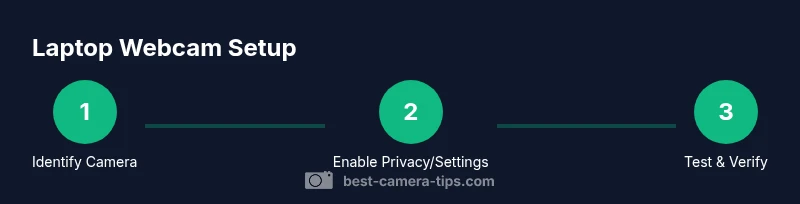
To answer where to open camera in laptop, locate the built-in webcam in the top bezel and check for a privacy shutter. Then enable camera access in Windows or macOS and test with a built-in app. This quick guide covers locating, enabling, and testing the webcam on common laptops today.
Understanding laptop webcams: where the camera is and how privacy works
Most modern laptops include a small camera, often centered in the top bezel of the display. The exact position can vary: some models place the lens behind a tiny notch; others tuck it into a frame with an IR sensor beside it for facial recognition. A built-in LED indicator usually glows when the camera is active. Privacy matters are common: many laptops include a physical privacy shutter, a tiny mechanical cover that blocks the lens. If yours has one, make sure it isn't closed or jammed. When you ask where the camera sits and how to access it, the answer depends on your model, but the general principle is the same: locate the lens, ensure no cover blocks the lens, and enable the camera in software first, then test with a program.
For photographers and home-security enthusiasts, knowing the physical layout helps with framing and privacy planning. If you use privacy software or BIOS-level camera restrictions, you may need to adjust those prior to software permissions. Also, understand that some corporate devices disable camera access by policy; if your laptop belongs to a school or company, consult IT guidelines before attempting to change settings. After you confirm the camera is visible and accessible on the hardware level, you can proceed to OS-specific steps to grant permissions and run tests. This section lays the foundation for reliable webcam operation in everyday tasks and security monitoring.
According to Best Camera Tips, many beginners underestimate how the physical placement and privacy controls influence daily use. By starting with the hardware and then moving to software permissions, you create a solid baseline for future photography and surveillance workflows.
Visual cues to identify camera location on your model
The simplest way to locate the camera is to inspect the top bezel of the screen when the lid is open. Look for a tiny circular lens near the center, a small dot, or a ringed area behind the glass. On some devices, the camera sits in a slot or under a notch, which may require you to tilt the display slightly to see the lens clearly. If you’re not sure where it is, check the user manual or the manufacturer's support site. In many models, the camera also has an indicator light; if the light glows when the lid is closed, some apps still might access it, which is a privacy concern. Be mindful of potential obstructions, such as screen bezels with decorative accents or privacy stickers that were applied by a previous owner or a vendor.
Beyond the physical location, you’ll often see a small, almost invisible dot where the lens is; the surrounding bezel can be glossy or matte. If you feel the lens is too far from the center, compare with product images of your model online. And if there is a privacy shutter switch such as a small slider on the frame’s edge, learn its position and test its action by sliding it closed and open; this helps you determine accessibility later in the software setup. Understanding the physical cues reduces confusion and speeds up the enabling process for both beginners and advanced users who often work with multiple devices.
Enabling camera access in Windows
On Windows, webcam permissions are controlled by the Privacy & security settings and per-app permissions. Start by opening Settings from the Start menu, then choose Privacy & security. Under the Camera section, make sure Camera access is turned on for the device and that "Allow apps to access your camera" is enabled. Scroll through the list of apps and ensure your preferred programs (such as a video conferencing app or the built-in Camera app) have permission. If the camera shows as blocked or not found in Device Manager, you may need to update device drivers or reinstall the imaging devices, often under Imaging Devices in Device Manager. For laptops with enterprise management, some devices restrict camera access by group policy; in that case, contact IT or consult the device policy. After enabling, open the Windows Camera app to test whether the lens activates, or try a browser-based webcam test to confirm that streaming works in real time. If the camera is still inaccessible, check for hardware switches or toggle keys on the keyboard, which sometimes disable the same camera you’re trying to use.
Enabling camera access in macOS
macOS manages camera access through System Preferences (or System Settings in newer versions) and Privacy rights within Security & Privacy. In System Settings, go to Privacy & Security and select Camera. You’ll see a list of apps that can access the camera; toggle permissions for apps like FaceTime, Photo Booth, or your browser. If you don’t see your app, open the app and attempt to use the camera, which will prompt you to grant permission. If you still cannot see the camera, check the Privacy pane for an entry related to Studio or third-party software, and verify that you’re running the latest macOS updates. If hardware issues are suspected, reset the NVRAM/PRAM and SMC as a last resort following Apple guidance. After setting permissions, launch a test app such as FaceTime or Photo Booth and verify that the video feed is clear and stable.
Testing the camera: built-in apps and quick tests
Begin by launching the built-in camera application on Windows (the Camera app) or macOS (Photo Booth or FaceTime) to confirm the lens functions. If the feed appears distorted or black, check the lighting, the privacy shutter, and the selected camera in app settings (some devices offer multiple camera options or external devices). Use a simple test: see yourself clearly, move slightly to check focus, and inspect audio synchronization if the app records video with sound. You can also perform a browser test by visiting a site that requests camera access; this helps ensure permissions are consistent across programs. In many cases, a reboot after enabling permissions resolves lingering issues. If you rely on privacy software, temporarily disable it to verify it’s not blocking legitimate camera access.
Common issues and quick fixes
Problem: App shows no camera. Solution: Re-check the privacy settings, verify the correct camera is selected in the app, and ensure the device drivers for the imaging device are up to date. Problem: Camera is blocked by BIOS or hardware switch. Solution: Look for a physical switch or a function key (like Fn + F10) to toggle the camera; consult the manual to identify the correct key. Problem: Camera LED indicates activity inconsistencies. Solution: Ensure the app isn’t running in the background and that privacy indicators match your expectations. Problem: Driver issues. Solution: Update drivers via Device Manager or the laptop’s support site; perform a clean install of imaging devices if necessary. Problem: Privacy policy blocks camera in enterprise devices. Solution: Check with IT; revert to the original policy if allowed. These steps help you isolate and fix most webcam problems.
Privacy considerations and safety tips
Practice good privacy hygiene: only grant camera access to trusted apps, disable or revoke permissions after use if you don’t need the camera, and enable a hardware privacy shutter whenever possible. Regularly check OS updates since they often include security fixes for webcam drivers. When collaborating with others over video, review the app’s privacy settings and disable features you do not need, such as automatic cloud backups or neural processing features that rely on camera feeds. For home-security purposes, ensure your laptop is not in a public space and that you adjust screen angles to avoid inadvertently exposing yourself to others. These measures protect you while you enjoy the convenience of built-in laptop cameras.
When to consider external webcams and upgrades
An external webcam can offer higher resolution, better lighting compatibility, and versatile mounting options. If your laptop webcam is permanently blocked, has poor low-light performance, or lacks modern features like autofocus or privacy indicators, consider a USB webcam with a fixed mount for your desk. Compare features including resolution, frame rate, and compatibility with your OS. Always check warranty and drivers; many webcams include software that lets you adjust color, exposure, and white balance for better results. For security-oriented setups, test the external camera with a dedicated security monitoring app to ensure it integrates with your existing workflow.
Tools & Materials
- N/A (no tools required)(No external hardware needed; use built-in OS tools to test.)
- Internet connection (optional)(Needed only if you need to download drivers or updates.)
Steps
Estimated time: Total time: 15-25 minutes
- 1
Open the laptop and locate the camera area
Power on the device with the lid fully open and visually inspect the top bezel. Look for a small lens near the center; if you see a tiny dot or ring, you’ve found the camera. If you locate a privacy shutter, note its position for later use. This initial check confirms there is no physical obstruction blocking the lens.
Tip: If you can't locate a lens, consult the manual or support site for your exact model to identify the camera hole. - 2
Identify the camera location on your model
Different models place the camera in slightly different spots. Most are centered, but some ultrabooks hide the lens behind a notch. Compare with official product photos or your device’s documentation to confirm the exact location before attempting to enable software settings.
Tip: Take a quick photograph of the bezel to compare with official diagrams later. - 3
Enable camera access in Windows
Open Settings > Privacy & security > Camera. Turn on camera access for the device and ensure apps you want, like your browser or the Camera app, have permission. If the camera isn’t listed, update drivers or reinstall imaging devices. A restart can help apply changes.
Tip: If you use enterprise management, policy restrictions may block access—check with IT. - 4
Enable camera access in macOS
Go to System Settings > Privacy & Security > Camera. Allow permissions for FaceTime, Photo Booth, and browsers you use. Open the app to trigger the permission prompt if needed. Update macOS if permissions still don’t take effect.
Tip: Reset NVRAM/PRAM and SMC if hardware recognition behaves oddly after permission changes. - 5
Test the camera with built-in apps
Launch the Windows Camera app or macOS Photo Booth/FaceTime to verify video feed. Check lighting, focus, and whether the correct camera is selected in the app’s settings. If you see distortion, adjust light placement and try another app to confirm consistency.
Tip: Test with at least two apps to ensure cross-program compatibility. - 6
Run basic troubleshooting if needed
If the camera still doesn’t work, check Device Manager (Windows) or System Information (Mac) for hardware status. Update or reinstall imaging drivers, and consider rolling back recent updates if the issue began after one. If all else fails, consult the manufacturer’s support site for a driver package.
Tip: Document any error messages to speed up support visits.
Common Questions
Where is the camera on most laptops?
Most laptops place the camera in the top bezel, centered. Some models use a notch or hidden lens; consult the user manual for precise placement.
Most laptops have the camera in the top bezel; some use a notch or hidden lens.
How do I enable camera access in Windows?
Open Settings > Privacy & security > Camera; turn on camera access and allow apps. Ensure the specific apps have permission as well.
Open Windows settings, enable camera access, and allow apps.
How do I enable camera access in macOS?
Open System Settings > Privacy & Security > Camera; toggle permissions for needed apps and retry using the camera.
Open macOS Privacy settings and grant camera access.
What should I do if the camera is not detected?
Check privacy settings, verify the correct camera is selected in the app, and update or reinstall imaging drivers if necessary. Restart after changes to apply.
Check permissions, drivers, and try restarting.
Can I use an external webcam instead?
Yes. Connect via USB, then select the external camera in your app's settings. Ensure drivers are up to date for best compatibility.
Yes, you can use an external webcam by plugging it in and selecting it in apps.
Do privacy shutters always block the camera?
Privacy shutters physically cover the lens. If you’re unsure, test with a trusted app to confirm the shutter is open before use.
Privacy shutters cover the lens; ensure it’s open when you want to use the camera.
Watch Video
The Essentials
- Find the camera in the top bezel and check privacy shutter.
- Grant app permissions in Windows/macOS.
- Test with built-in apps to confirm functionality.
- If issues persist, update drivers or reset privacy settings.