How to Stop Camera from Flipping: A Practical Guide
Discover practical steps to stop your camera from flipping. Learn common causes, fixes, and preventive tips for handheld, mounted, and security setups with clear, actionable guidance.


If your camera keeps flipping, you can stop the behavior by correcting orientation settings, securing the mounting, and recalibrating the gyro sensor. This quick guide outlines practical fixes for both handheld and mounted setups, plus simple tests to confirm the upright orientation. According to Best Camera Tips, most flips come from sensor drift or loose hardware, not mysterious software glitches.
Why Cameras Flip: Understanding Orientation and Sensors
Cameras with built‑in orientation sensors constantly determine which way is up. When the sensor misreads gravity, the device may automatically rotate to a position it thinks is upright — even if it isn’t. This is common on security cameras, action cams, and mounts that experience vibration or mild tilts. In some cases, software auto-rotate settings override manual orientation, causing flips during movement or wind. According to Best Camera Tips, orientation flips often originate from sensor drift, loose mounts, or cable tension rather than a fundamental fault in the camera itself.
To diagnose quickly, observe the flip direction: does the image rotate 90 or 180 degrees, or does it swing continuously? Note when the flip occurs (during motion, after a reboot, or only when mounted on a particular axis). These clues guide your fix path and help you avoid unnecessary tinkering on components that aren’t the root cause.
Quick Checks You Can Do Before Tools
Before grabbing tools, perform a quick visual assessment:
- Check that the camera is oriented as intended and not physically rotated in the mount.
- Ensure the mounting surface is level using a bubble level or a phone inclinometer app.
- Inspect the mount for loose screws, gaps, or worn threads.
- Verify there are no cables pulling on the camera or creating torque.
If these checks don’t resolve the issue, move to more targeted fixes described in later sections. This staged approach saves time and reduces the risk of over-tightening or damaging components.
Mechanical Fixes: Mounts, Bolts, and Stabilization
Mechanical issues are the most common cause of flipping. Start by tightening all mounting hardware to factory specs using the correct screwdriver size. If the mount is older or damaged, consider replacing it with a sturdier alternative. Ensure the camera sits flush against the mounting surface and that there is no wobble when gently pressed. If the device is handheld, switch to a stabilized support like a tripod or gimbal that provides a stable base and minimizes micro-movements.
For wall or ceiling installations, check that anchors match the wall material. Use appropriate screws and wall anchors rated to support the camera’s weight. A dedicated mounting plate with a built-in level helps keep the system perfectly upright over time.
Software and Settings: Controlling Auto‑Rotate
Many cameras offer an auto-rotate or orientation lock feature. Access the camera’s settings menu and disable auto-rotate if you want the image to stay upright regardless of how the camera is tilted. If you need the opposite behavior (upright in all orientations), enable a lock that preserves your chosen orientation even when the device is rotated. Some apps also provide a gyroscope calibration option; run this calibration to align the internal sensors with physical gravity.
If you’re using a smartphone camera or a USB webcam, search for “orientation,” “auto-rotate,” or “gyroscope calibration” in the app settings. Apply any recommended calibration steps and re-test by rotating the device slowly through all axes.
Firmware, Software Updates, and Resetting
Software bugs can cause orientation anomalies after updates. Check for the latest firmware or app updates from the manufacturer, and install them if available. Before updating, note current settings so you can reapply them afterward. If the flip persists after an update, perform a factory reset on the camera or reset app preferences to eliminate lingering misconfigurations. After reset, reconfigure essential settings and test orientation again.
Remember to back up critical configurations if the device supports export/import of settings. A clean software environment reduces the chance of conflicting parameters that could cause flipping.
Testing and Validation: Confirming Upright Orientation
Validation is essential to confirm a fix. Reproduce real-world conditions by: (a) simulating typical movement or wind on external cameras, (b) recording a short video while gently moving the mount, and (c) inspecting the captured frames for stable upright orientation. If the image still flips, revisit the mounting or recalibrate sensors and re-run the tests.
Document the testing results for future reference. A consistent upright video after several cycles indicates the problem is resolved. If inconsistent results occur, there may be intermittent cable tension or creeping hardware that requires a more thorough physical inspection.
Prevention: Keeping It Upright Going Forward
Establish a routine to prevent future flips: periodically verify mounting tightness, relevel the base, and run a quick gyro calibration after any firmware update or physical movement. Use cable management to relieve stress on connectors, and avoid placing the camera where vigorous vibrations are likely. Consider a vibration-damping mount for environments with heavy movement.
Finally, keep spare mounting hardware and test tools on hand so you can address issues quickly rather than delaying essential surveillance or creative shoots.
When to Seek Professional Help: Signs You Need Expert Support
If the camera continues to flip after performing all steps, there may be a deeper hardware fault such as a damaged sensor or an internal component that is not user-serviceable. In such cases, contact the manufacturer’s support line or a qualified technician. Bring evidence from your tests (dates, observed behavior, firmware version) to speed up diagnosis. Professional service may involve replacement parts or a board-level calibration that isn’t available in consumer settings.
Tools & Materials
- Camera or smartphone with orientation features(Ensure access to orientation/auto-rotate settings)
- Bubble level (or smartphone inclinometer app)(Used to confirm level mounting)
- Screwdriver set (flathead & Phillips)(For mounting hardware adjustments)
- Mounting hardware (screws, wall anchors, mounting plate)(Use hardware appropriate for surface and camera weight)
- Cable management supplies (gaffer tape, zip ties)(Minimize strain on connectors and movement)
- Firmware update media/backup(Have power and backups ready before updates)
Steps
Estimated time: 60-90 minutes
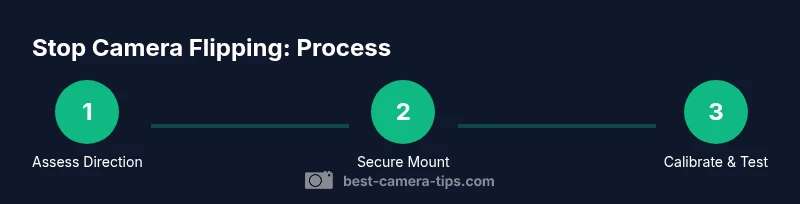
- 1
Assess orientation and flip direction
Observe which axis the flip occurs on and under what conditions. Confirm if the flip happens during movement, at startup, or when the device is rotated. Document the exact behavior to guide fixes.
Tip: Take a quick recording of the upright orientation for later comparison. - 2
Secure and level the mounting
Tighten all mounting screws to manufacturer torque guidelines. Use the bubble level to ensure the camera is perfectly upright and flush against the mounting surface. Redo checks after any tightening to avoid over-torquing.
Tip: Only tighten enough to remove play; overtightening can crack mounts. - 3
Calibrate gyroscope orientation
Open the device’s settings and run the gyroscope/orientation calibration if available. Follow on-screen prompts and keep the camera steady during calibration. If the option is unavailable, perform a soft reset after noting current configurations.
Tip: Calibrate with the camera mounted in its typical orientation for best results. - 4
Inspect cables and strain relief
Check that cables are not pulling on the camera body. Re-route cables, add slack where needed, and secure with ties away from moving parts. Ensure connectors are fully seated after adjustments.
Tip: Avoid sharp bends near connectors; use protective sleeves if needed. - 5
Update firmware/software
Check for and apply the latest firmware or app updates. Back up preferred settings before updating, then re-apply essential configurations after the update.
Tip: Updates can fix orientation bugs; verify fix by testing after update. - 6
Test upright orientation
Record a short clip in typical use conditions and review frames for consistent upright orientation across axes. Repeat the test from different angles if possible.
Tip: If you still see flips, revisit mounting or recalibrate once more. - 7
Plan preventive measures
Implement ongoing checks: quarterly level verification, post-move recalibration, and a lightweight spare parts kit for quick fixes.
Tip: Create a simple maintenance checklist to follow every few months.
Common Questions
Why does my camera keep flipping after a fresh install?
Flipping is usually caused by auto-rotate settings, sensor drift, or mounting looseness. Start by disabling auto-rotate, calibrating the gyroscope, and tightening the mount. If the issue persists, check cables and update the firmware.
Flipping is often due to auto-rotate or a loose mount. Calibrate the gyro, tighten the mount, and update the firmware; if needed, check cables.
Can a simple releveling fix flipping?
Yes, releveling the mounting surface often fixes orientation flips caused by an uneven base. Use a bubble level and re-tighten hardware after leveling.
Releveling the mount usually fixes flips caused by an uneven base.
Is firmware update necessary to fix flipping?
Firmware updates can fix orientation bugs in some cameras. Check for updates, install them, and then re-test orientation to confirm the issue is resolved.
Firmware updates can fix orientation bugs; update and test again.
Will altering the mount orientation solve the problem?
Altering mount orientation can help if the flip is due to gravity alignment. Ensure that any orientation change is compatible with the device and does not compromise safety.
Changing mount orientation can help if gravity is the cause, but ensure safety.
What should I do if the problem persists after recalibration?
If recalibration fails to fix the issue, there may be a hardware fault. Contact support or a technician for diagnostic testing and potential component replacement.
If recalibration fails, contact support for hardware diagnostics.
Will a stabilizing mount help prevent flipping in the future?
A stabilizing or vibration-damping mount reduces micro-movements that can trigger flips, especially in outdoor or high-vibration environments. Pair with proper cable management for best results.
Yes, a damping mount helps reduce flips, especially outdoors.
Watch Video
The Essentials
- Identify flip axis and root cause before fixes.
- Level mounts and secure hardware to prevent movement.
- Calibrate gyros and update firmware to fix software glitches.
- Test orientation with real-world conditions after each change.
- Best Camera Tips recommends a routine check for ongoing reliability.