Stop Camera Inversion: Easy Fixes for Upright Footage
Discover practical, step-by-step methods to stop a camera from inverting. Learn to diagnose hardware issues, adjust settings, rotate mounts, and prevent inverted footage in the future.


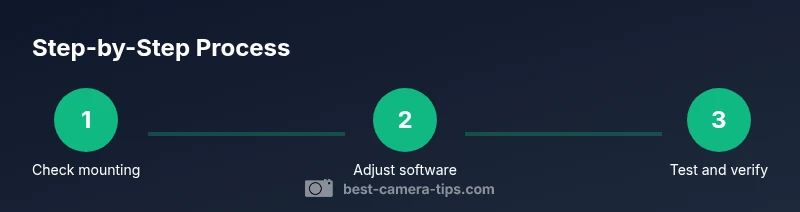
To stop a camera from inverting, start with mounting orientation and simple software checks. Confirm the device isn’t mounted upside down, then adjust the feed orientation in the camera app and update firmware. If needed, re-mount upright and test again. According to Best Camera Tips, most inversions are fixable without specialized tools.
What is image inversion and when does it happen?
Image inversion occurs when the camera’s orientation is misaligned so that the captured scene appears upside down or sideways. This can show up in live previews, recorded footage, or streaming feeds. In practice, inversions usually come from three broad sources: hardware mounting, software orientation flips, or a sensor/firmware quirk. If you’re looking for how to stop camera from inverting, you’re not alone—this is a surprisingly common issue for beginners and even experienced shooters.
According to Best Camera Tips, many inversions are not due to defective hardware but to misinterpretations of the proper orientation. A simple upright mounting and a quick orientation check in the camera’s settings can fix most cases. Before diving into tools or resets, take a moment to confirm the basic geometry: is the camera oriented as intended relative to the space it monitors? Is the image sensor rotated within the housing? Are there mount adapters or spacers that might flip the frame? The goal is to establish a baseline so that subsequent steps target the actual cause rather than symptoms.
If inversion appears only in a particular mode or view (for example, a doorway feed vs. a yard view), note whether the device uses multiple profiles or user presets. Some cameras apply orientation rules per profile, so one view could be upright while another is inverted. By clarifying where the issue appears, you’ll save time and avoid unnecessary hardware work. This approach also helps when you are coordinating multiple cameras in a security setup.
Common causes of inverted camera footage
Inversion can feel mysterious until you separate symptoms from root causes. The most frequent culprits are mounting orientation and software flips. If the camera is mechanically mounted upside down or on a bracket that rotates the frame, the image will appear inverted regardless of settings. Likewise, many cameras include a flip or rotation option—if this control is enabled by mistake or inherited from a previous profile, the feed can flip unexpectedly.
Another common source is a misconfigured automatic orientation in the firmware or a camera app. Some devices interpret gravity data or sensor calibration differently after a firmware update, which can cause a permanent orientation offset until corrected. The issue may also appear when using hardware accessories like inline adapters or mounting arms that were designed for another model. Finally, when cameras are connected to third‑party video management software, an incorrect orientation setting in the software transport pipeline can invert the image for all streams, even though the cameras themselves are fine.
Best Camera Tips analysis shows that the majority of inversions are user-caused or setup-related rather than hardware faults. Most of these cases can be solved with a small set of checks: confirm the physical orientation, verify per‑profile rotation settings, ensure firmware is up-to-date, and review any mounting accessories that could rotate the frame. With a methodical approach, the problem becomes straightforward to diagnose and fix.
Hardware-based fixes you can try today
Start with the simplest, most reliable tests that don’t require software changes. Begin by physically inspecting the mounting: is the camera sitting upright on its mount, with the lens facing the intended direction? If the bracket has indicators or orientation marks, line them up with the room’s geometry and tighten the screws. Use a level or a smartphone inclinometer to verify the camera is not mounted sideways or upside down. If you notice a tilted mount or loose screws, correct them and re-test.
Next, check for any accessories that could change orientation. Adapter plates, orientation rings, or angle brackets sometimes ship with the wrong side up for your model. Remove or rotate these parts as recommended by the manual, then re-test area coverage. Inspect the power and data cables; a loose connector or an unusual routing can also affect the image path, especially for cameras with integrated processors.
If you’re using a PTZ or multi‑sensor setup, verify that the device’s internal orientation matches the physical mount. In some cases, a secondary sensor or a rotated image sensor inside the housing can cause inverted outputs in specific modes. If you find misalignment at the hardware level, re-mount the camera using the manufacturer’s guidelines and confirm the field of view aligns with your intended coverage.
Software, firmware, and app settings to check
Turn to the software layer next. Open the camera app or web interface and look for controls labeled Image Orientation, Rotation, Flip, or Upright. Disable any inverted orientation option, set the rotation to 0° or Upright, and apply the change. If the camera supports multiple profiles, examine each one for independent orientation settings; ensure all profiles agree on upright orientation.
Firmware can also influence image orientation. Check the manufacturer’s site or the app’s update section for the latest version, then install it following the official instructions. After updating, perform a reboot and re-check orientation in all active profiles. If you’re using third‑party video management software, review its stream configuration to ensure it doesn’t override device orientation with a preset flip.
For devices with automatic orientation calibration, perform any recommended calibration procedure. Some cameras require a short verification cycle where you compare the output against a known upright target. Document the baseline so you can spot future drift quickly.
Resetting and re-mounting: when to start fresh
If orientation remains inconsistent after all hardware and software checks, a reset to factory settings is a reasonable next step. Before you reset, back up any custom configurations, presets, or schedules. After reset, re-run the initial setup and re‑mount the camera correctly. Use the manufacturer’s mounting guideline to guarantee correct orientation from the start, then verify with a live feed and by recording a short clip.
If you’re working with a multi‑camera installation, replicate the base orientation across all devices to maintain uniformity. Insecure mounting or uneven brackets can slowly shift over time, so consider re-tightening and rechecking mounts on a regular maintenance schedule. After you have re-mounted, run a test sequence that covers critical angles to confirm the entire system is upright.
During these steps, avoid changing other unrelated settings that could confound the results. Keep notes of each modification so you can trace back if new issues emerge.
Special cases: Security cameras and PTZ setups
Security cameras, doorbell cams, and PTZ units introduce extra complexity. Some devices allow orientation changes per user or per stream; ensure you’re applying the correct profile to the camera’s upright view. In PTZ systems, verify that the pan/tilt position isn’t the source of the apparent inversion when the camera is rotated to a new angle. Also, if multiple devices share a single NVR or encoder, confirm the output orientation is consistent across the entire system.
If you recently replaced a camera or updated a system, check compatibility notes for orientation changes. Some accessory bundles include rotated mounting plates intended for a specific camera line; using them with another model can inadvertently invert the frame. In all cases, run a fresh test after any hardware modification and record the orientation outcome for future reference.
Finally, implement a quick routine to check orientation during routine security checks. A predictable process reduces the chance of returning to inverted footage after a maintenance window or firmware update.
Preventive maintenance and best practices
To minimize inversions over time, establish stable mounting practices. Use mounting brackets and screws that are rated for your camera’s weight and model, and tighten until snug without over-torquing. Keep orientation marks visible and aligned with room geometry. Periodically inspect mounts for looseness after heavy winds, vibrations, or cleaning.
Document and standardize your orientation workflow. Create a quick checklist for new installations that includes fixing upright orientation first, verifying per-profile settings, and confirming the fix with a live test. Regular firmware checks are also important, as orientation issues are sometimes addressed in updates without much fanfare. If you operate multiple cameras, apply consistent labeling and feed naming to avoid cross‑configuration errors.
Finally, share the knowledge with teammates or family members who manage the cameras. A simple, repeatable process reduces downtime and ensures that your footage remains correctly oriented, day after day.
Troubleshooting flowchart and quick decision path
- Start with hardware checks: is the camera physically upright? If not, fix mounting and retest.
- If upright, review per-profile orientation settings; set all profiles to Upright.
- If still inverted, update firmware and reboot; re-test.
- If issues persist, reset to factory settings and reconfigure orientation from scratch.
- If you use third‑party software, verify that its configuration does not override device orientation.
Keep a short log of what you changed and the results of each test. This makes it easier to pinpoint the root cause on future installations.
Tools & Materials
- Screwdriver set(Phillips head #2; for common wall-mount screws)
- Level or smartphone inclinometer(Used to verify upright mounting)
- Extra mounting hardware (screws, washers)(Spare parts in case of replacement)
- Firmware updater or camera control app(Use official tool to install latest firmware)
- Camera manual or model-specific orientation guide(Helpful for model quirks)
- Cable tester or continuity tester(If using external power or data lines)
Steps
Estimated time: 30-60 minutes
- 1
Identify the source of inversion
Check if inversion happens across all views or only in one profile. Note when it occurs and under which conditions, as this guides the rest of the checks.
Tip: Document observed patterns to isolate root cause quickly. - 2
Check mounting orientation
Physically inspect the camera to ensure it is mounted upright. Align any orientation marks with the room geometry and tighten the mount.
Tip: Use a level to confirm true vertical alignment. - 3
Review per-profile settings
Open each camera profile and verify there is no inverted rotation selected. Set all profiles to Upright or 0° rotation.
Tip: If profiles differ, fix the one used for the main feed first. - 4
Update firmware and software
Check for the latest firmware and app updates. Install, then reboot and re-test the orientation.
Tip: Always back up configurations before updating. - 5
Check hardware accessories
Inspect adapters, plates, and brackets for compatibility with your model and ensure none introduces an unintended flip.
Tip: Remove nonessential accessories to test baseline orientation. - 6
Test the feed after changes
Capture a short test clip in all active modes to confirm upright orientation across feeds.
Tip: Run a multi-angle test to catch edge cases. - 7
If needed, reset and re-mount
If all else fails, perform a factory reset, reconfigure orientation, and re-mount according to the manual.
Tip: Reset only after backing up settings. - 8
Document and standardize
Record the final orientation settings and create a checklist for future installations to prevent regressions.
Tip: Share the checklist with team members.
Common Questions
Why is my camera upside down?
Inversion is usually caused by orientation or a software flip. Check mounting and app settings.
Inversion is usually due to orientation or a software flip; check hardware mounting and the app settings.
How do I rotate the image in software?
Open the camera app or web interface and adjust Orientation or Rotation to Upright.
Use the orientation controls in the app to rotate upright.
Will resetting fix inversion?
Reset can clear unintended settings, but you’ll need to reconfigure orientation afterward.
Reset can help; reconfigure orientation after.
Can firmware updates fix this?
Yes, if the issue is a known orientation bug addressed in updates. Check for latest version.
Firmware updates can fix inversion when it’s a bug.
How can I prevent inversion in the future?
Mount securely, verify per-profile settings, and test after changes.
Keep orientation consistent and test after changes.
Watch Video
The Essentials
- Verify mounting orientation first
- Check per-profile orientation settings
- Update firmware when available
- Test after changes and document results